> ## Documentation Index
> Fetch the complete documentation index at: https://apidoc.cometapi.com/llms.txt
> Use this file to discover all available pages before exploring further.

# ChatAll mit CometAPI verwenden

> Verwende diese Anleitung, um ChatAll mit CometAPI zu konfigurieren, indem du die base URL, den API key sowie Modell- oder Anbieteroptionen festlegst.

[ChatAll](https://github.com/ai-shifu/ChatALL) ermöglicht es dir, Nachrichten gleichzeitig an mehrere AI-Modelle zu senden. Verbinde es mit CometAPI, um über einen einzigen Schlüssel auf GPT, Claude, Gemini und mehr zuzugreifen.

## Voraussetzungen

* [ChatAll](https://github.com/ai-shifu/ChatALL/releases) installiert
* Ein [CometAPI](https://www.cometapi.com)-Konto mit einem aktiven API-Schlüssel

## Einrichtung

<Steps>
  <Step title="Hole dir deinen CometAPI API key">
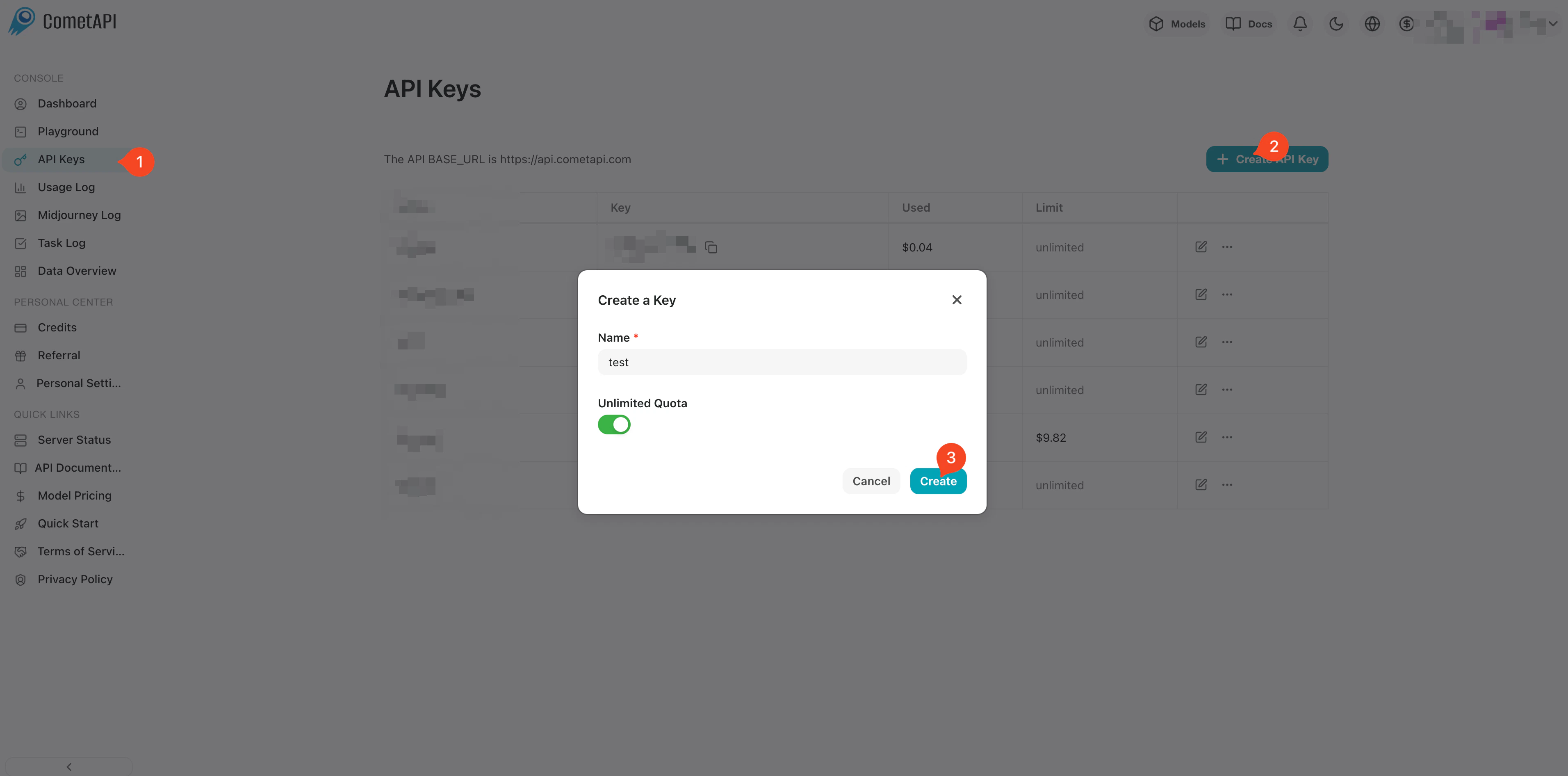
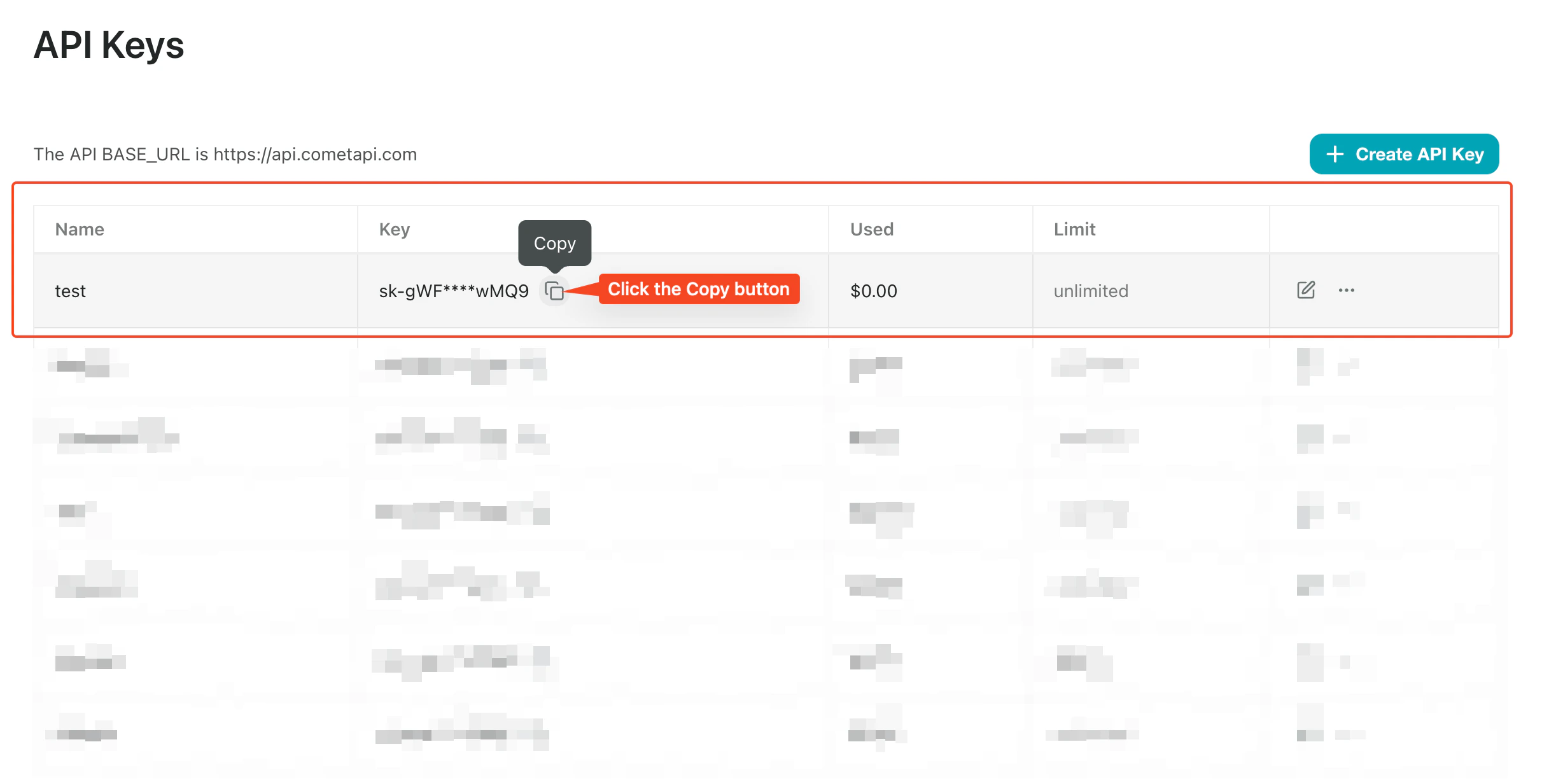
    Melde dich im [CometAPI-Dashboard](https://www.cometapi.com/console) an. Klicke auf **Add API Key** und kopiere deinen Schlüssel sowie die base URL (`https://api.cometapi.com`).
    <Frame>
      <img src="https://mintcdn.com/cometapi/SZhlxZhCnMLn__BW/images/overview/810968_364191.png?fit=max&auto=format&n=SZhlxZhCnMLn__BW&q=85&s=aef81a83f29f8eb16655ed4060425f50" alt="CometAPI-Dashboard — Add API Key" width="3824" height="1892" data-path="images/overview/810968_364191.png" />
    </Frame>

    <Frame>
      <img src="https://mintcdn.com/cometapi/HhtmQffktazbxUvS/images/overview/810968_364193.png?fit=max&auto=format&n=HhtmQffktazbxUvS&q=85&s=d893f659267150d0faf45f99eb5dffc1" alt="CometAPI API key und base URL" width="2434" height="1232" data-path="images/overview/810968_364193.png" />
    </Frame>
  </Step>

  <Step title="OpenAI in ChatAll konfigurieren">
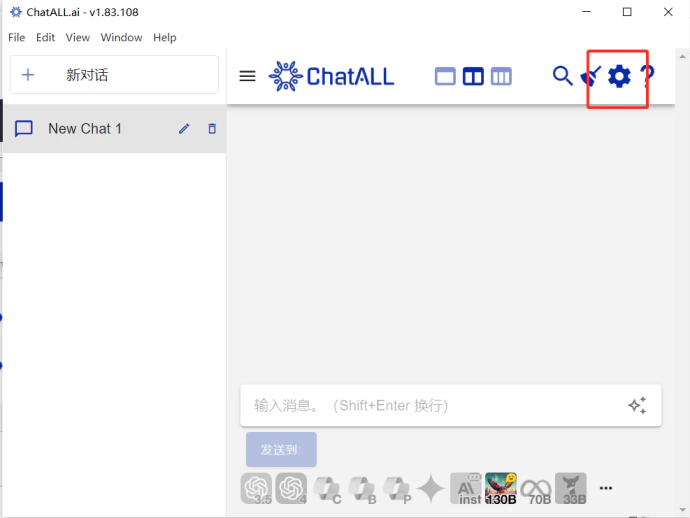
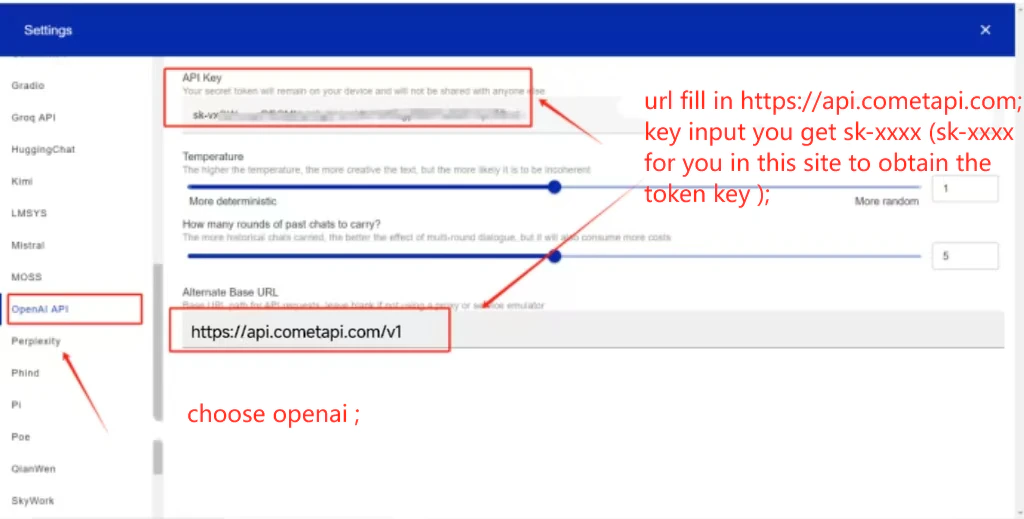
    Öffne ChatAll → **Settings** → **OpenAI**. Gib `https://api.cometapi.com/v1` in das Feld **API Address** ein, füge deinen CometAPI-Schlüssel in **API Key** ein und klicke auf **Save**.
    <Frame>
      <img src="https://mintcdn.com/cometapi/mA1ovj6s0e3RM42l/images/integrations/810968_351613.png?fit=max&auto=format&n=mA1ovj6s0e3RM42l&q=85&s=223ae91c7aa6c7a300887a624f6648ba" alt="ChatAll OpenAI-Einstellungen mit CometAPI base URL" width="690" height="518" data-path="images/integrations/810968_351613.png" />
    </Frame>

    <Frame>
      <img src="https://mintcdn.com/cometapi/mA1ovj6s0e3RM42l/images/integrations/810968_351614.png?fit=max&auto=format&n=mA1ovj6s0e3RM42l&q=85&s=82546a500cfc0c4f0d161475d08bbf56" alt="API key-Feld in den ChatAll-Einstellungen ausgefüllt" width="1024" height="519" data-path="images/integrations/810968_351614.png" />
    </Frame>
  </Step>

  <Step title="Modelle auswählen">
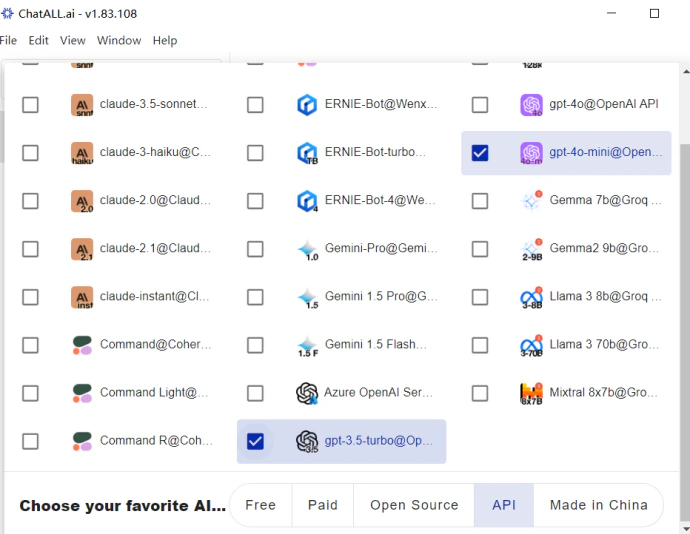
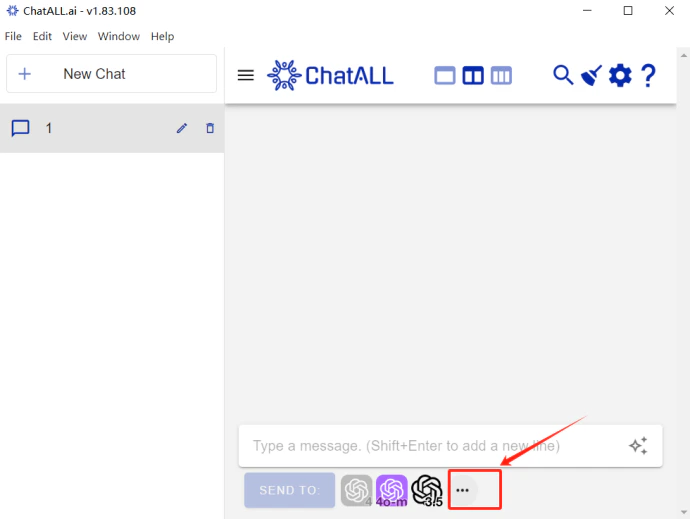
    Klicke auf die Modellauswahl, um verfügbare Modelle anzuzeigen und zwischen ihnen zu wechseln.
    <Frame>
      <img src="https://mintcdn.com/cometapi/mA1ovj6s0e3RM42l/images/integrations/810968_351615.png?fit=max&auto=format&n=mA1ovj6s0e3RM42l&q=85&s=30485dde702fb471d2d2b45cd7f928fe" alt="ChatAll-Modellauswahlbereich" width="690" height="519" data-path="images/integrations/810968_351615.png" />
    </Frame>

    <Frame>
      <img src="https://mintcdn.com/cometapi/mA1ovj6s0e3RM42l/images/integrations/810968_351616.png?fit=max&auto=format&n=mA1ovj6s0e3RM42l&q=85&s=4dcbfb21b05f291a470c5927cc144999" alt="In ChatAll aufgelistete und ausgewählte Modelle" width="690" height="534" data-path="images/integrations/810968_351616.png" />
    </Frame>
  </Step>
</Steps>

<script type="application/ld+json">
  {`
    {
    "@context": "https://schema.org",
    "@graph": [
      {
        "@type": "HowTo",
        "@id": "https://apidoc.cometapi.com/integrations/chatall-translation#howto",
        "name": "ChatAll mit CometAPI verwenden",
        "description": "Verwende diese Anleitung, um ChatAll mit CometAPI zu konfigurieren, indem du die base URL, den API key sowie Modell- oder Anbieteroptionen festlegst.",
        "step": [
          {
            "@type": "HowToStep",
            "@id": "https://apidoc.cometapi.com/integrations/chatall-translation#step-1",
            "position": 1,
            "name": "Hole dir deinen CometAPI API key",
            "text": "Erstelle oder öffne dein CometAPI-Konto und kopiere dann einen aktiven API key aus dem Dashboard."
          },
          {
            "@type": "HowToStep",
            "@id": "https://apidoc.cometapi.com/integrations/chatall-translation#step-2",
            "position": 2,
            "name": "OpenAI in ChatAll konfigurieren",
            "text": "Führe den Schritt „OpenAI in ChatAll konfigurieren“ in der Anleitung „ChatAll mit CometAPI verwenden“ aus."
          },
          {
            "@type": "HowToStep",
            "@id": "https://apidoc.cometapi.com/integrations/chatall-translation#step-3",
            "position": 3,
            "name": "Modelle auswählen",
            "text": "Führe den Schritt „Modelle auswählen“ in der Anleitung „ChatAll mit CometAPI verwenden“ aus."
          }
        ]
      },
      {
        "@type": "BreadcrumbList",
        "itemListElement": [
          {
            "@type": "ListItem",
            "position": 1,
            "name": "CometAPI-Dokumentation",
            "item": "https://apidoc.cometapi.com/"
          },
          {
            "@type": "ListItem",
            "position": 2,
            "name": "Integrationen",
            "item": "https://apidoc.cometapi.com/integrations"
          },
          {
            "@type": "ListItem",
            "position": 3,
            "name": "ChatAll mit CometAPI verwenden",
            "item": "https://apidoc.cometapi.com/integrations/chatall-translation"
          }
        ]
      }
    ]
    }
    `}
</script>