> ## Documentation Index
> Fetch the complete documentation index at: https://apidoc.cometapi.com/llms.txt
> Use this file to discover all available pages before exploring further.

# FastGPT mit CometAPI verwenden

> Verwenden Sie diese Anleitung, um FastGPT mit CometAPI zu konfigurieren, indem Sie die base URL, den API key sowie model- oder provider-Optionen festlegen.

[FastGPT](https://cloud.tryfastgpt.ai/) ist eine KI-Workflow-Plattform mit Wissensdatenbank. Konfigurieren Sie einen CometAPI-Schlüssel als OpenAI-kompatibles Drittanbieterkonto, um ihn in allen Workflows zu verwenden.

## Voraussetzungen

* Ein [FastGPT](https://cloud.tryfastgpt.ai/login)-Konto
* Ein [CometAPI](https://www.cometapi.com)-Konto mit einem aktiven API-Schlüssel

## Einrichtung

<Steps>
  <Step title="Holen Sie sich Ihren CometAPI API-Schlüssel">
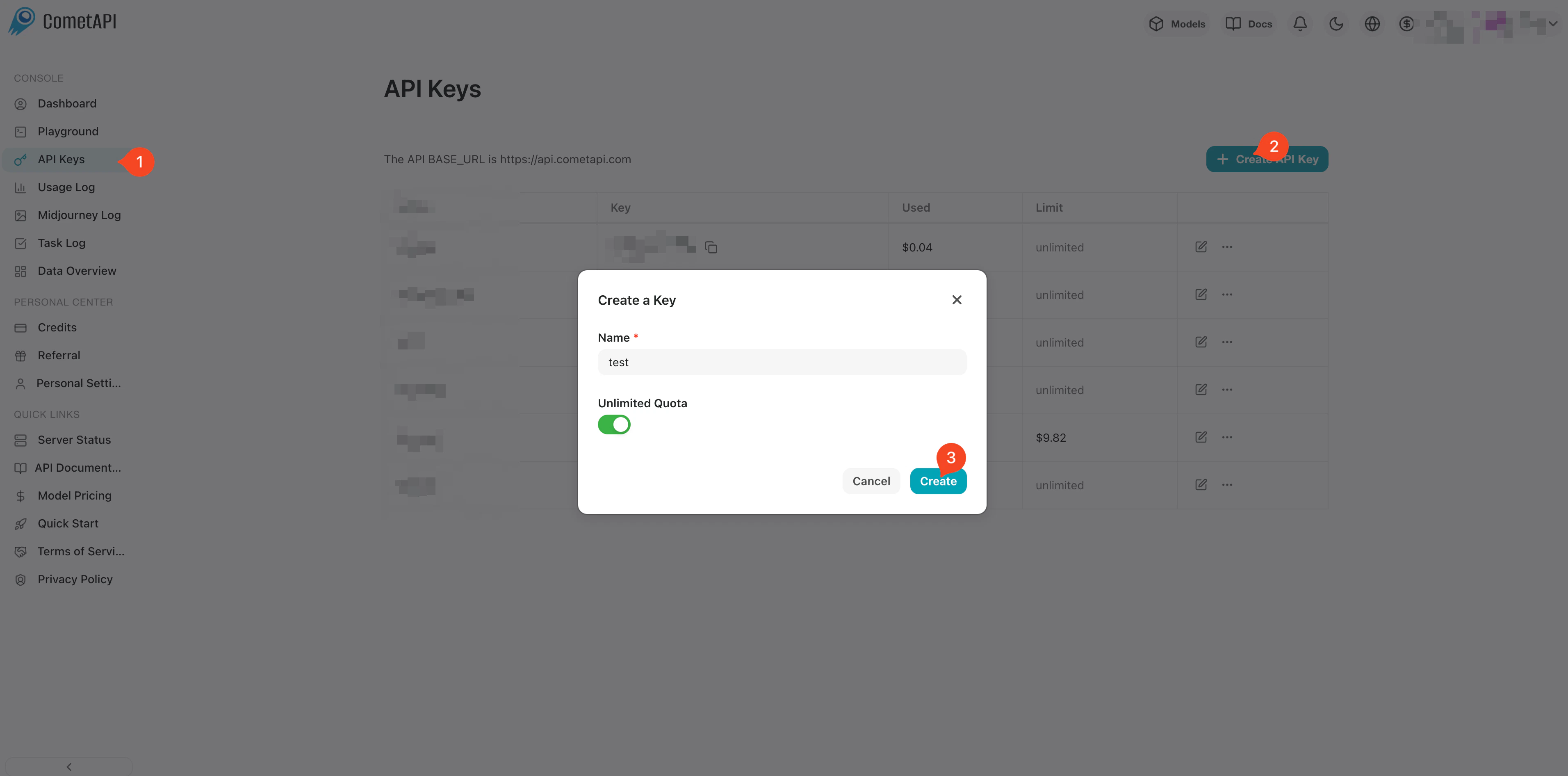
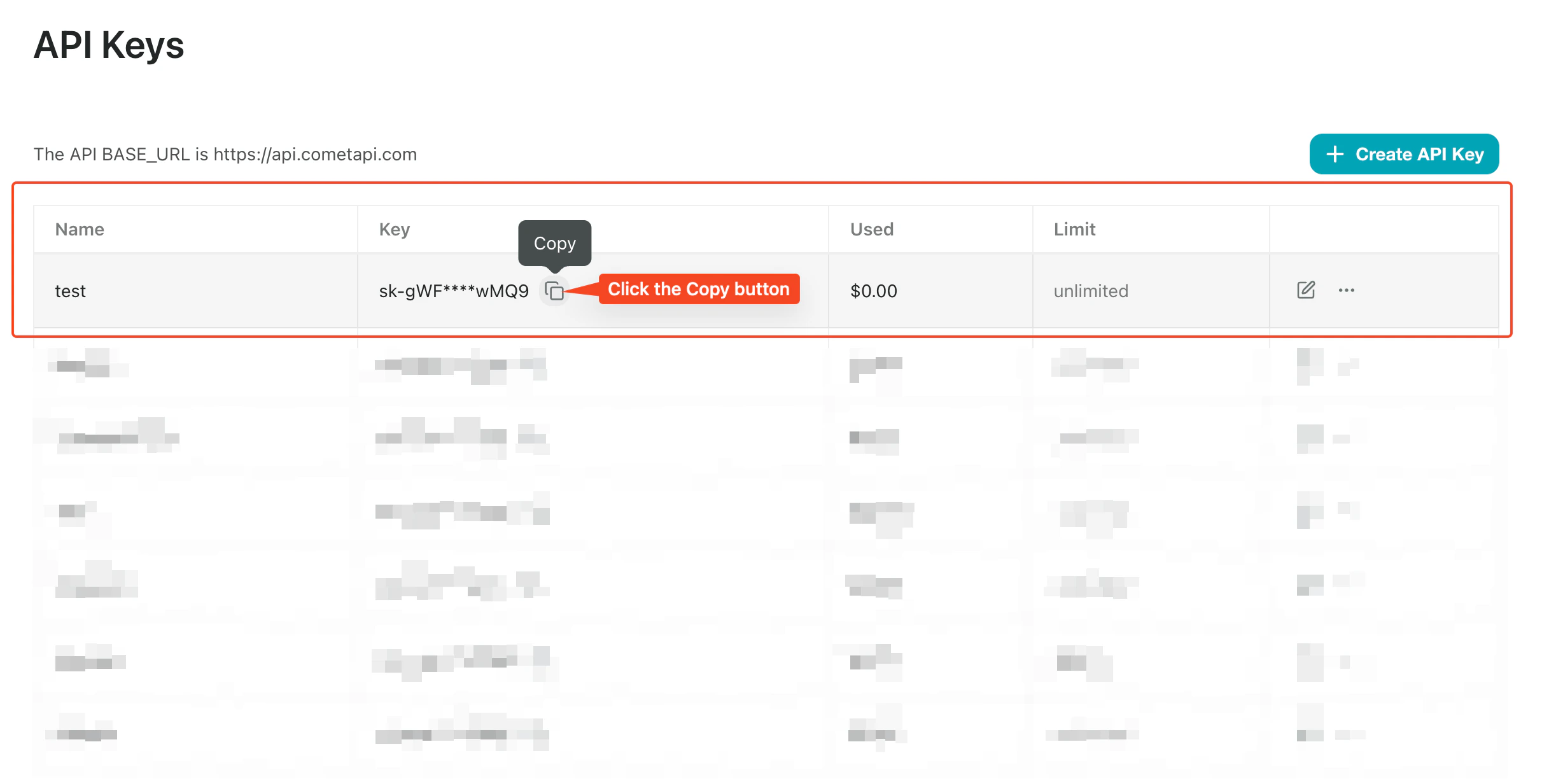
    Melden Sie sich beim [CometAPI-Dashboard](https://www.cometapi.com/console) an. Klicken Sie auf **Add API Key** und kopieren Sie Ihren Schlüssel sowie die Basis-URL (`https://api.cometapi.com`).
    <Frame>
      <img src="https://mintcdn.com/cometapi/SZhlxZhCnMLn__BW/images/overview/810968_364191.png?fit=max&auto=format&n=SZhlxZhCnMLn__BW&q=85&s=aef81a83f29f8eb16655ed4060425f50" alt="CometAPI-Dashboard — Add API Key" width="3824" height="1892" data-path="images/overview/810968_364191.png" />
    </Frame>

    <Frame>
      <img src="https://mintcdn.com/cometapi/HhtmQffktazbxUvS/images/overview/810968_364193.png?fit=max&auto=format&n=HhtmQffktazbxUvS&q=85&s=d893f659267150d0faf45f99eb5dffc1" alt="CometAPI API-Schlüssel und Basis-URL" width="2434" height="1232" data-path="images/overview/810968_364193.png" />
    </Frame>
  </Step>

  <Step title="Fügen Sie CometAPI als Drittanbieter-Konto hinzu">
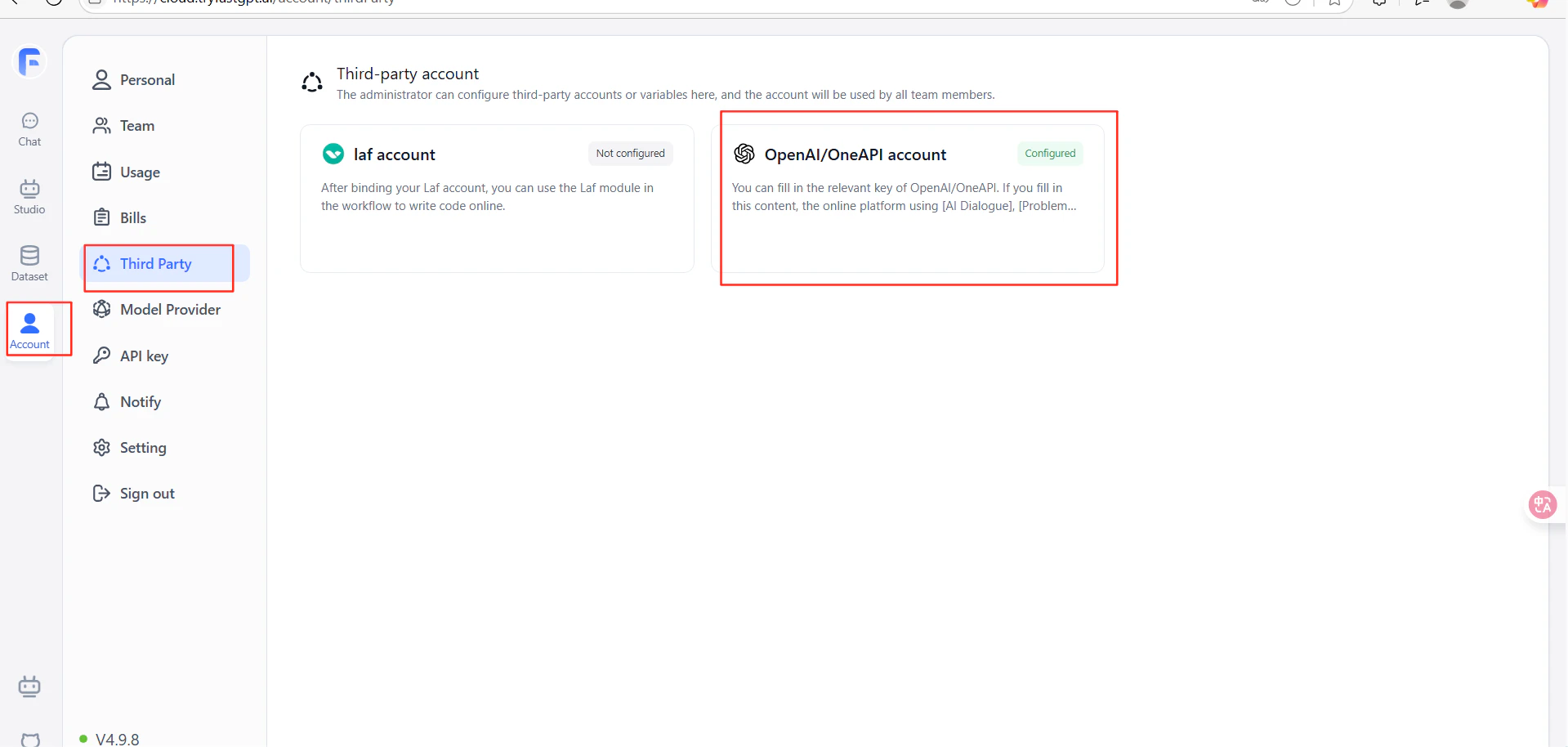
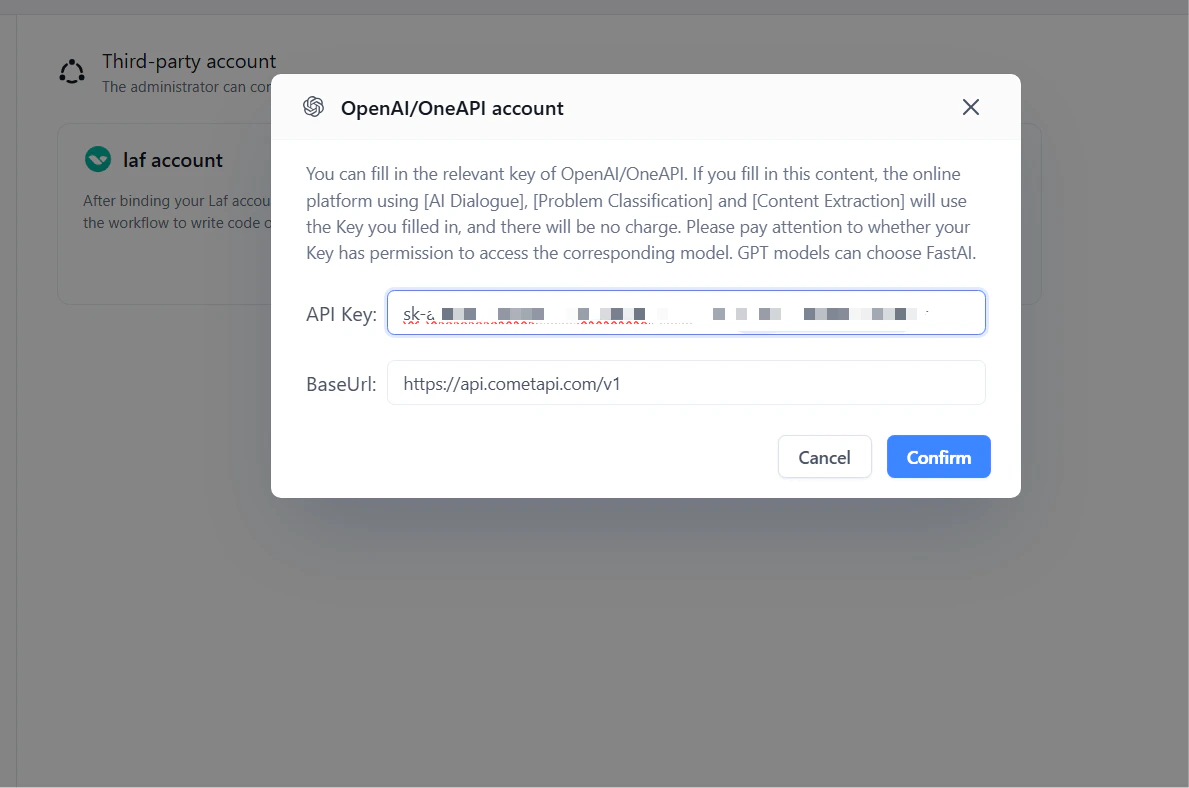
    Gehen Sie in FastGPT zu **Account Settings** → **Third-party Accounts** → **OpenAI Account**. Geben Sie `https://api.cometapi.com/v1` in das Feld **URL** ein (einschließlich des Suffixes `/v1`). Fügen Sie Ihren CometAPI-Schlüssel in **API Key** ein und klicken Sie auf **Confirm**.
    <Frame>
      <img src="https://mintcdn.com/cometapi/E4FFvyMYmaOZoldp/images/integrations/810968_355099.png?fit=max&auto=format&n=E4FFvyMYmaOZoldp&q=85&s=e1ef9869db75622178961784ac09ad57" alt="FastGPT-Drittanbieter-Konten — OpenAI Account-Option" width="1919" height="914" data-path="images/integrations/810968_355099.png" />
    </Frame>

    <Frame>
      <img src="https://mintcdn.com/cometapi/E4FFvyMYmaOZoldp/images/integrations/810968_355100.png?fit=max&auto=format&n=E4FFvyMYmaOZoldp&q=85&s=0e7fcb0a8cc9fb390aa9911795252967" alt="URL- und API-Key-Felder für CometAPI in FastGPT ausgefüllt" width="1189" height="788" data-path="images/integrations/810968_355100.png" />
    </Frame>
  </Step>

  <Step title="Testen Sie die Verbindung">
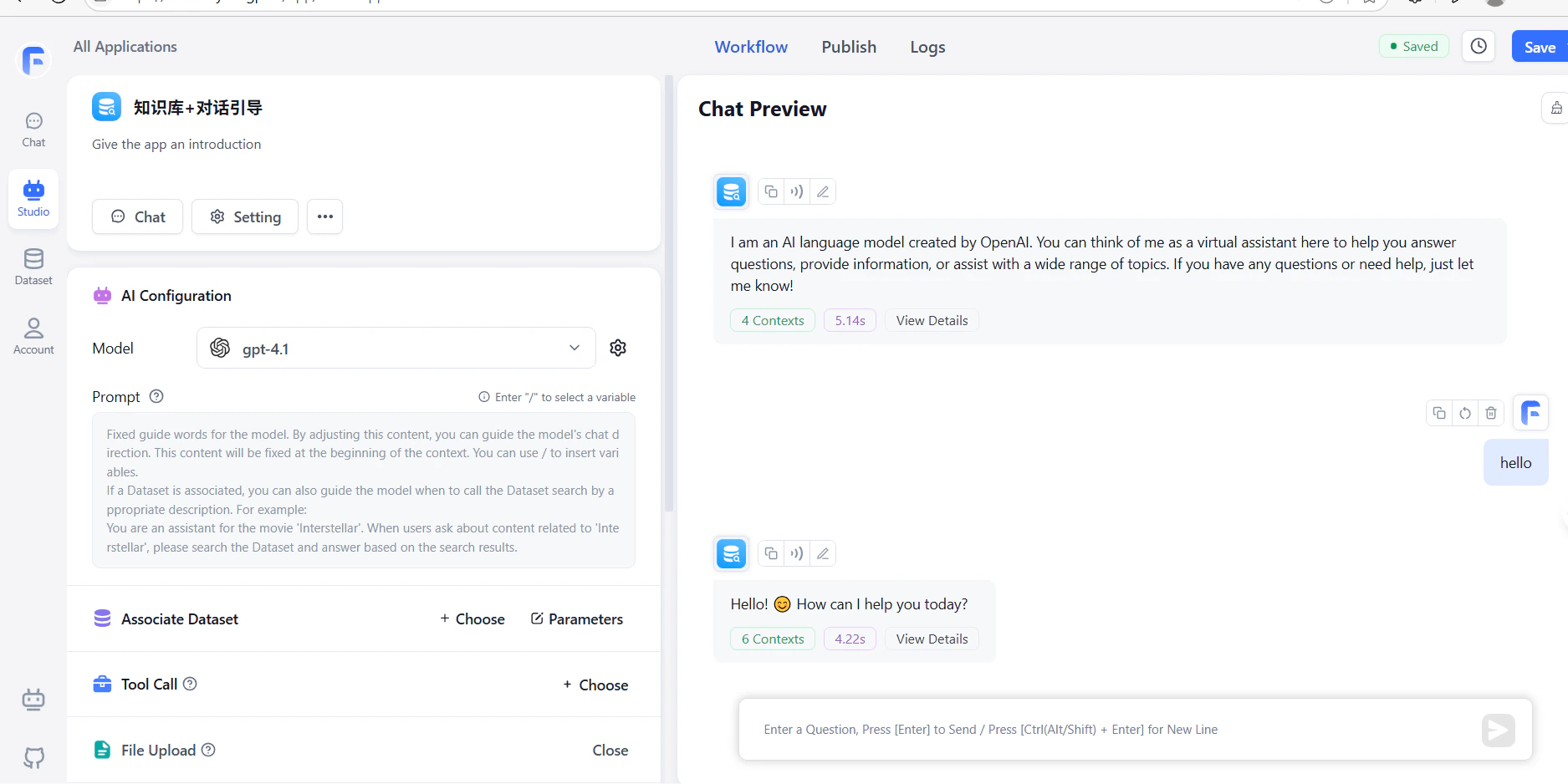
    Erstellen Sie einen Workflow mit einem LLM-Knoten und führen Sie ihn aus. Eine erfolgreiche Antwort bestätigt, dass die Einrichtung funktioniert.
    <Frame>
      <img src="https://mintcdn.com/cometapi/E4FFvyMYmaOZoldp/images/integrations/810968_355101.png?fit=max&auto=format&n=E4FFvyMYmaOZoldp&q=85&s=e8c96cab8e14e0be6ddd6c0f48c43b8f" alt="FastGPT-Workflow mit einer erfolgreichen Antwort von CometAPI" width="1875" height="938" data-path="images/integrations/810968_355101.png" />
    </Frame>
  </Step>
</Steps>

<Warning>
  Die URL muss das Suffix `/v1` enthalten: `https://api.cometapi.com/v1`. Wenn es weggelassen wird, führt das zu Verbindungsfehlern.
</Warning>

<script type="application/ld+json">
  {`
    {
    "@context": "https://schema.org",
    "@graph": [
      {
        "@type": "HowTo",
        "@id": "https://apidoc.cometapi.com/integrations/fastgpt#howto",
        "name": "FastGPT mit CometAPI verwenden",
        "description": "Verwenden Sie diese Anleitung, um FastGPT mit CometAPI zu konfigurieren, indem Sie die Basis-URL, den API-Schlüssel sowie model- oder Anbieteroptionen festlegen.",
        "step": [
          {
            "@type": "HowToStep",
            "@id": "https://apidoc.cometapi.com/integrations/fastgpt#step-1",
            "position": 1,
            "name": "Holen Sie sich Ihren CometAPI API-Schlüssel",
            "text": "Erstellen oder öffnen Sie Ihr CometAPI-Konto und kopieren Sie dann einen aktiven API-Schlüssel aus dem Dashboard."
          },
          {
            "@type": "HowToStep",
            "@id": "https://apidoc.cometapi.com/integrations/fastgpt#step-2",
            "position": 2,
            "name": "Fügen Sie CometAPI als Drittanbieter-Konto hinzu",
            "text": "Führen Sie den Schritt „Fügen Sie CometAPI als Drittanbieter-Konto hinzu“ in der Anleitung „FastGPT mit CometAPI verwenden“ aus."
          },
          {
            "@type": "HowToStep",
            "@id": "https://apidoc.cometapi.com/integrations/fastgpt#step-3",
            "position": 3,
            "name": "Testen Sie die Verbindung",
            "text": "Wählen Sie eine aktuelle model ID auf der CometAPI-Modelle-Seite aus und senden Sie dann eine Testanfrage aus der Integration."
          }
        ]
      },
      {
        "@type": "BreadcrumbList",
        "itemListElement": [
          {
            "@type": "ListItem",
            "position": 1,
            "name": "CometAPI-Dokumentation",
            "item": "https://apidoc.cometapi.com/"
          },
          {
            "@type": "ListItem",
            "position": 2,
            "name": "Integrationen",
            "item": "https://apidoc.cometapi.com/integrations"
          },
          {
            "@type": "ListItem",
            "position": 3,
            "name": "FastGPT mit CometAPI verwenden",
            "item": "https://apidoc.cometapi.com/integrations/fastgpt"
          }
        ]
      }
    ]
    }
    `}
</script>
