> ## Documentation Index
> Fetch the complete documentation index at: https://apidoc.cometapi.com/llms.txt
> Use this file to discover all available pages before exploring further.

# IntelliJ Translation Plugin mit CometAPI verwenden

> Verwenden Sie diese Anleitung, um das IntelliJ Translation Plugin mit CometAPI zu konfigurieren, indem Sie die base URL, den API key sowie model- oder provider-Optionen festlegen.

Das [IntelliJ Translation Plugin](https://plugins.jetbrains.com/plugin/8579-translation) fügt AI-Übersetzungsfunktionen direkt in JetBrains-IDEs ein. Verbinden Sie es mit CometAPI, um Code und Text zu übersetzen, ohne Ihren Editor zu verlassen.

## Voraussetzungen

* [IntelliJ IDEA](https://www.jetbrains.com/idea/) oder eine andere JetBrains-IDE

* Translation Plugin installiert — suchen Sie im JetBrains Marketplace nach **Translation**
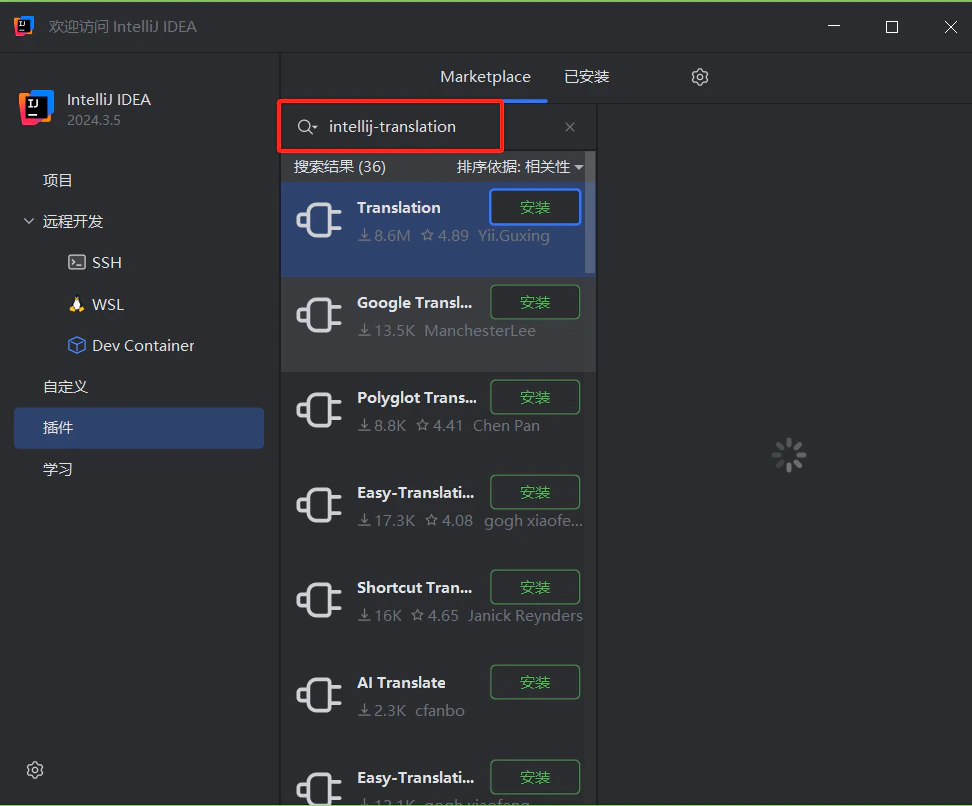
  <Frame>
    <img src="https://mintcdn.com/cometapi/mA1ovj6s0e3RM42l/images/integrations/810968_352994.png?fit=max&auto=format&n=mA1ovj6s0e3RM42l&q=85&s=3ea7331394d52a903c9b550830689eef" alt="JetBrains Marketplace mit dem Translation Plugin" width="972" height="806" data-path="images/integrations/810968_352994.png" />
  </Frame>

* Ein [CometAPI](https://www.cometapi.com)-Konto mit einem aktiven API key

## Einrichtung

<Steps>
  <Step title="Holen Sie sich Ihren CometAPI API-Schlüssel">
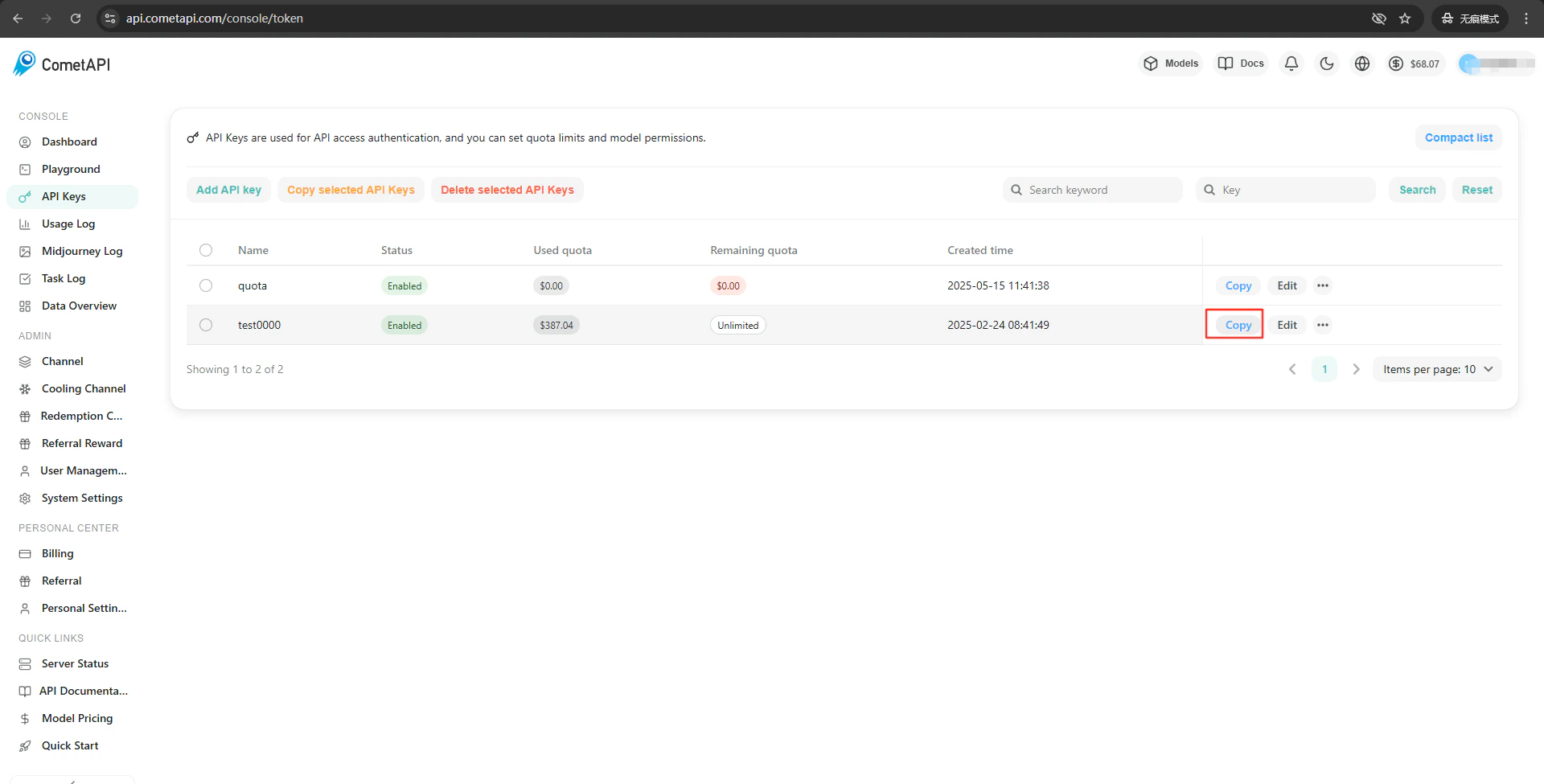
    Melden Sie sich im [CometAPI-Dashboard](https://www.cometapi.com/console) an. Klicken Sie auf **Add API Key** und kopieren Sie Ihren Schlüssel.
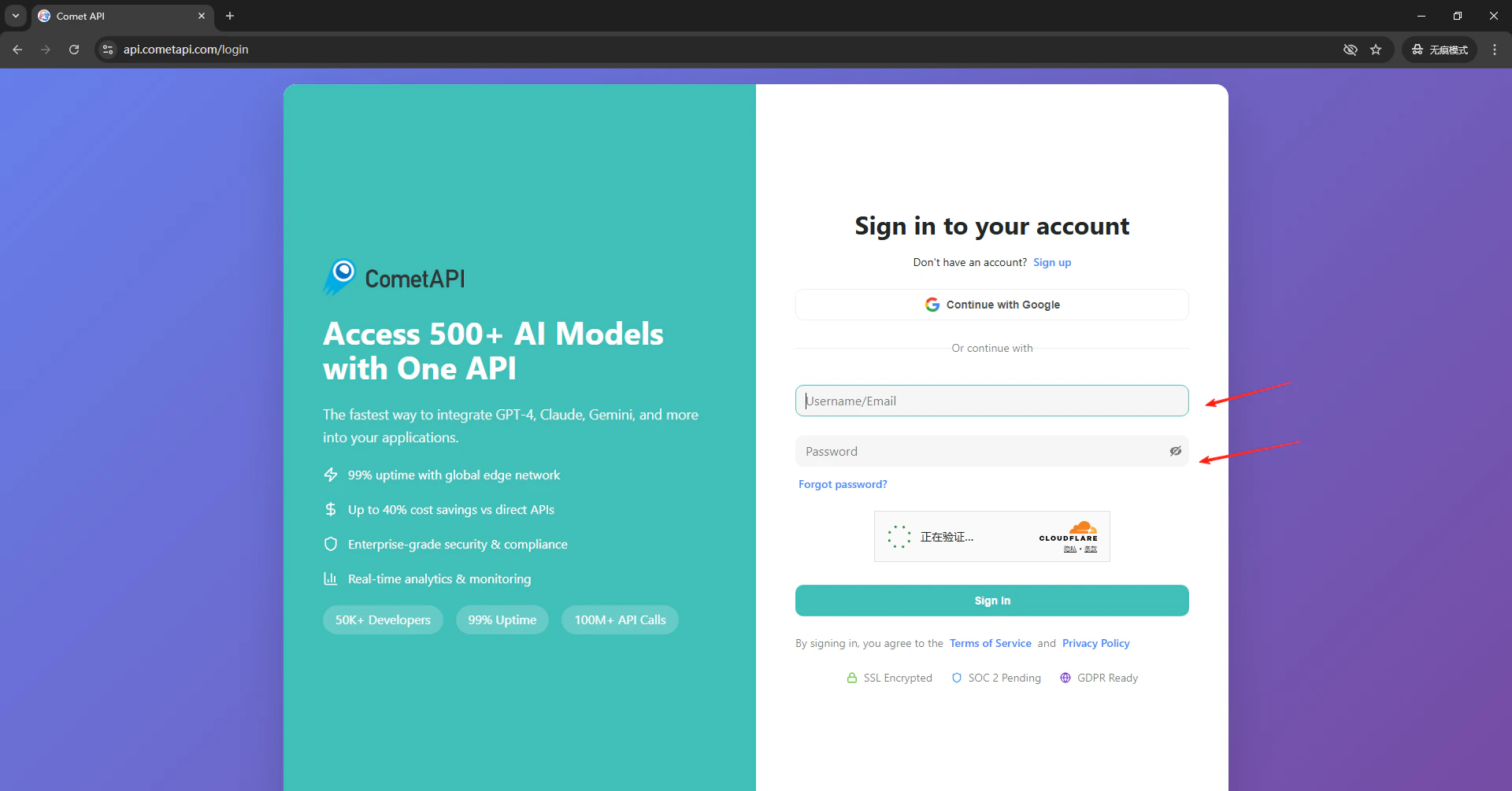
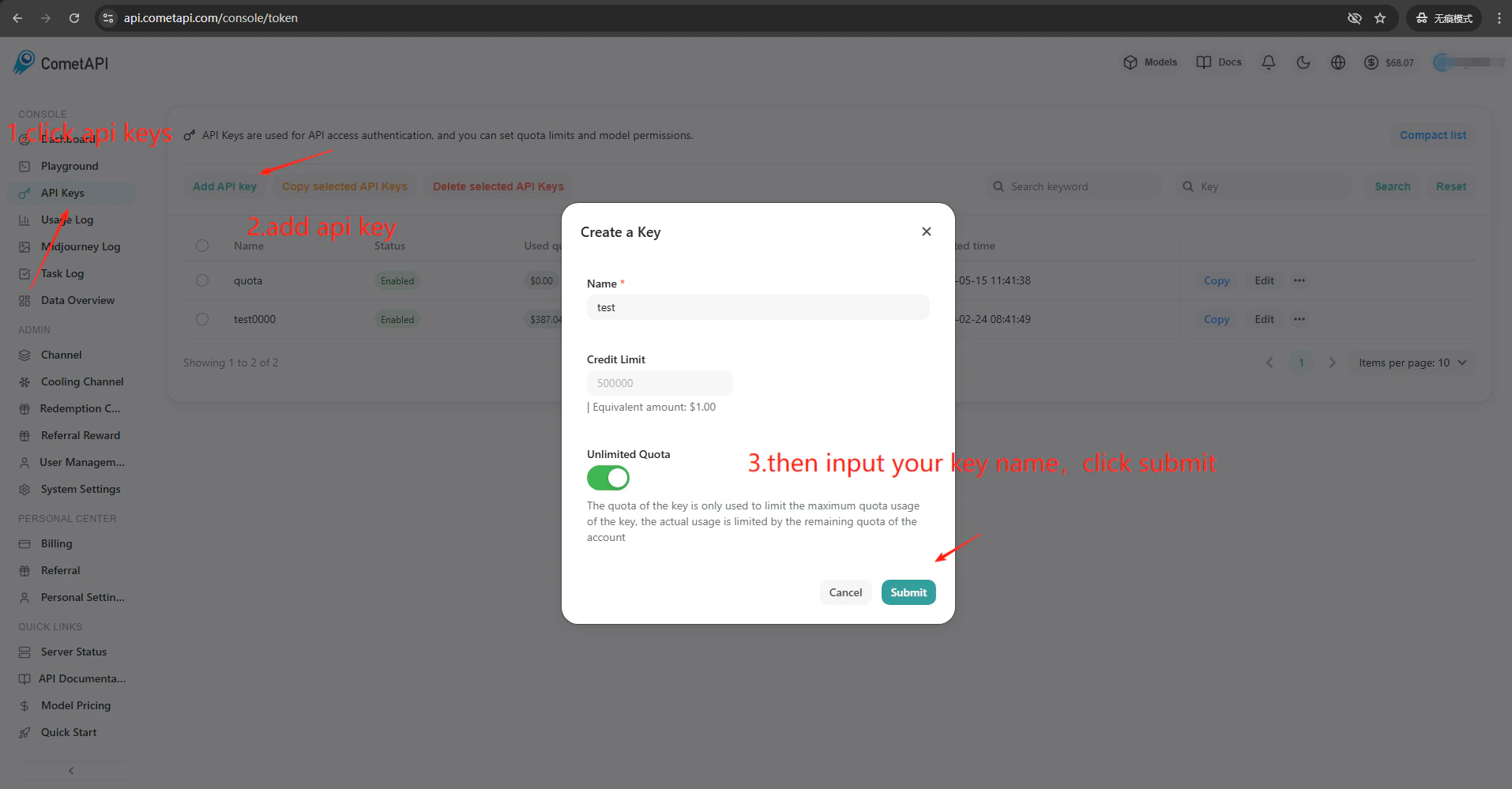
    <Frame>
      <img src="https://mintcdn.com/cometapi/E4FFvyMYmaOZoldp/images/integrations/810968_360264.png?fit=max&auto=format&n=E4FFvyMYmaOZoldp&q=85&s=686b18e5eda53581cd92f39b18683c01" alt="CometAPI-Dashboard — API-Schlüssel-Bereich" width="1920" height="1005" data-path="images/integrations/810968_360264.png" />
    </Frame>

    <Frame>
      <img src="https://mintcdn.com/cometapi/E4FFvyMYmaOZoldp/images/integrations/810968_360265.png?fit=max&auto=format&n=E4FFvyMYmaOZoldp&q=85&s=4a5a528f1fbbeb3da7ace18066b73bd1" alt="Dialog „Add API Key“ in der CometAPI-Konsole" width="1914" height="999" data-path="images/integrations/810968_360265.png" />
    </Frame>

    <Frame>
      <img src="https://mintcdn.com/cometapi/E4FFvyMYmaOZoldp/images/integrations/810968_360266.png?fit=max&auto=format&n=E4FFvyMYmaOZoldp&q=85&s=8462dfff1cf0a880c44effc7dccbc131" alt="CometAPI API-Schlüssel und Basis-URL" width="1920" height="975" data-path="images/integrations/810968_360266.png" />
    </Frame>
  </Step>

  <Step title="Konfigurieren Sie die Übersetzungs-Engine">
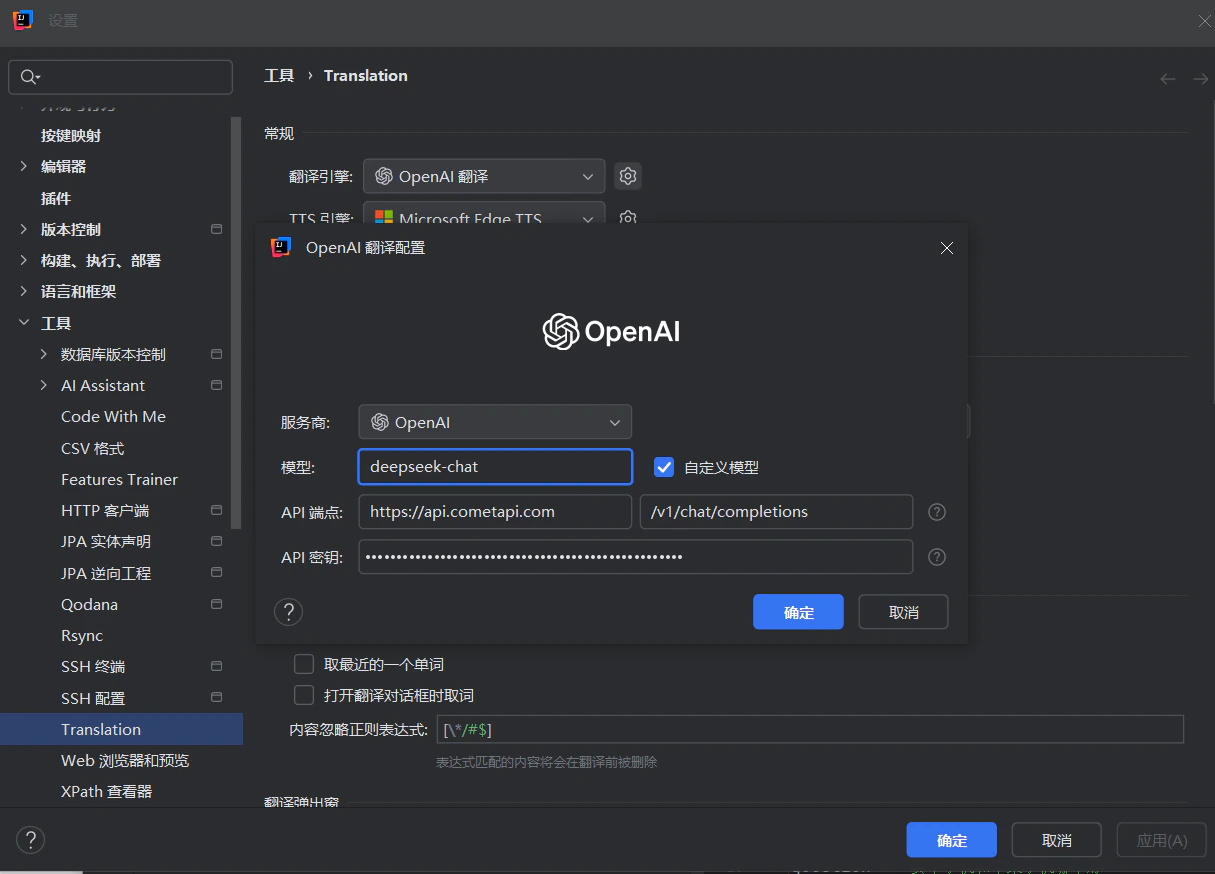
    Klicken Sie in der IDE-Symbolleiste auf das Symbol des Translation Plugin → **Settings** → **Translation**. Wählen Sie **OpenAI Translation** als Engine aus. Geben Sie im Einstellungsbereich rechts `https://api.cometapi.com` in das Feld **API Endpoint** ein (das zweite Feld ist standardmäßig auf `/v1/chat/completions` gesetzt). Fügen Sie Ihren CometAPI-Schlüssel in **API Key** ein und klicken Sie auf **Confirm**.
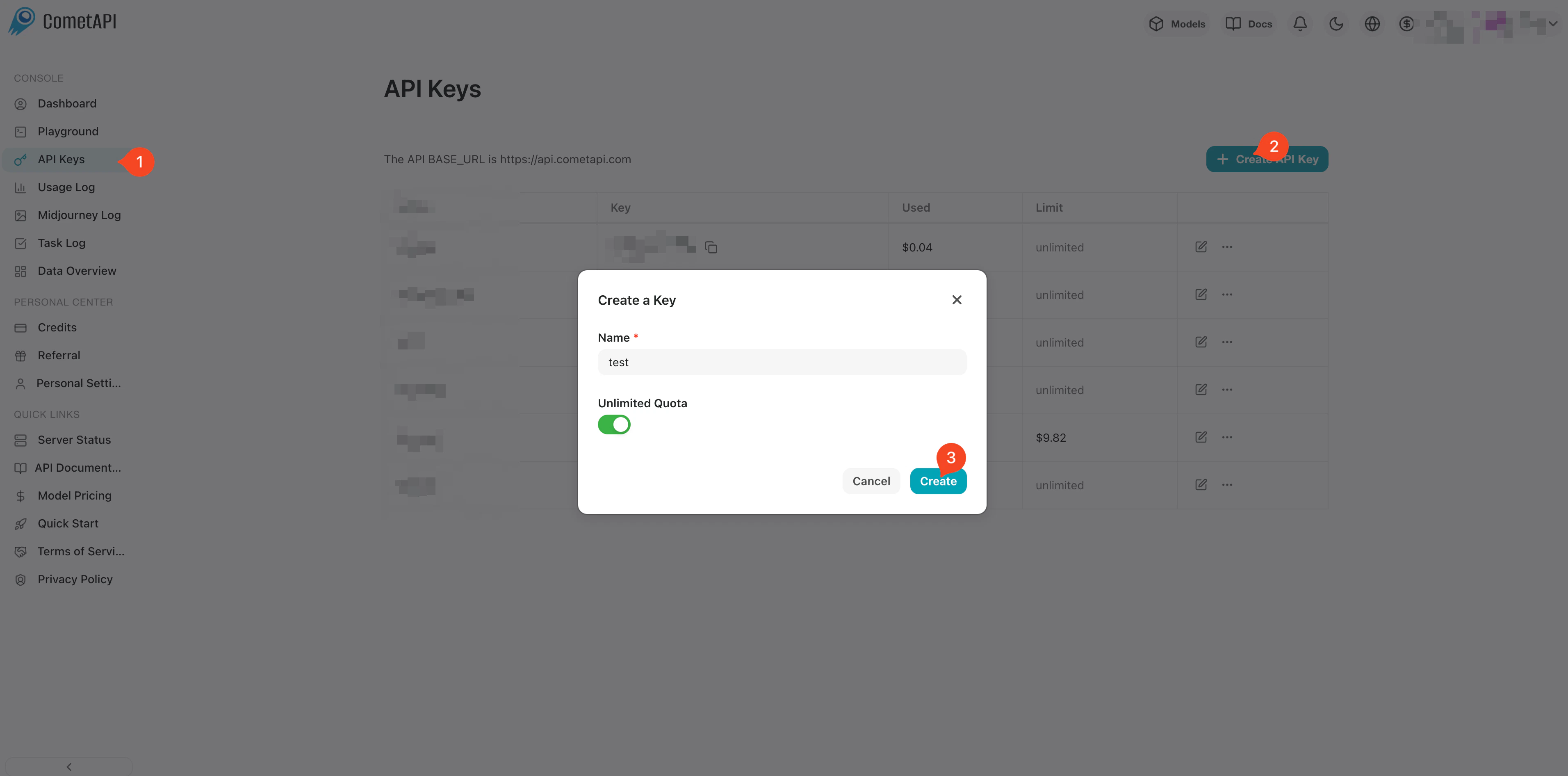
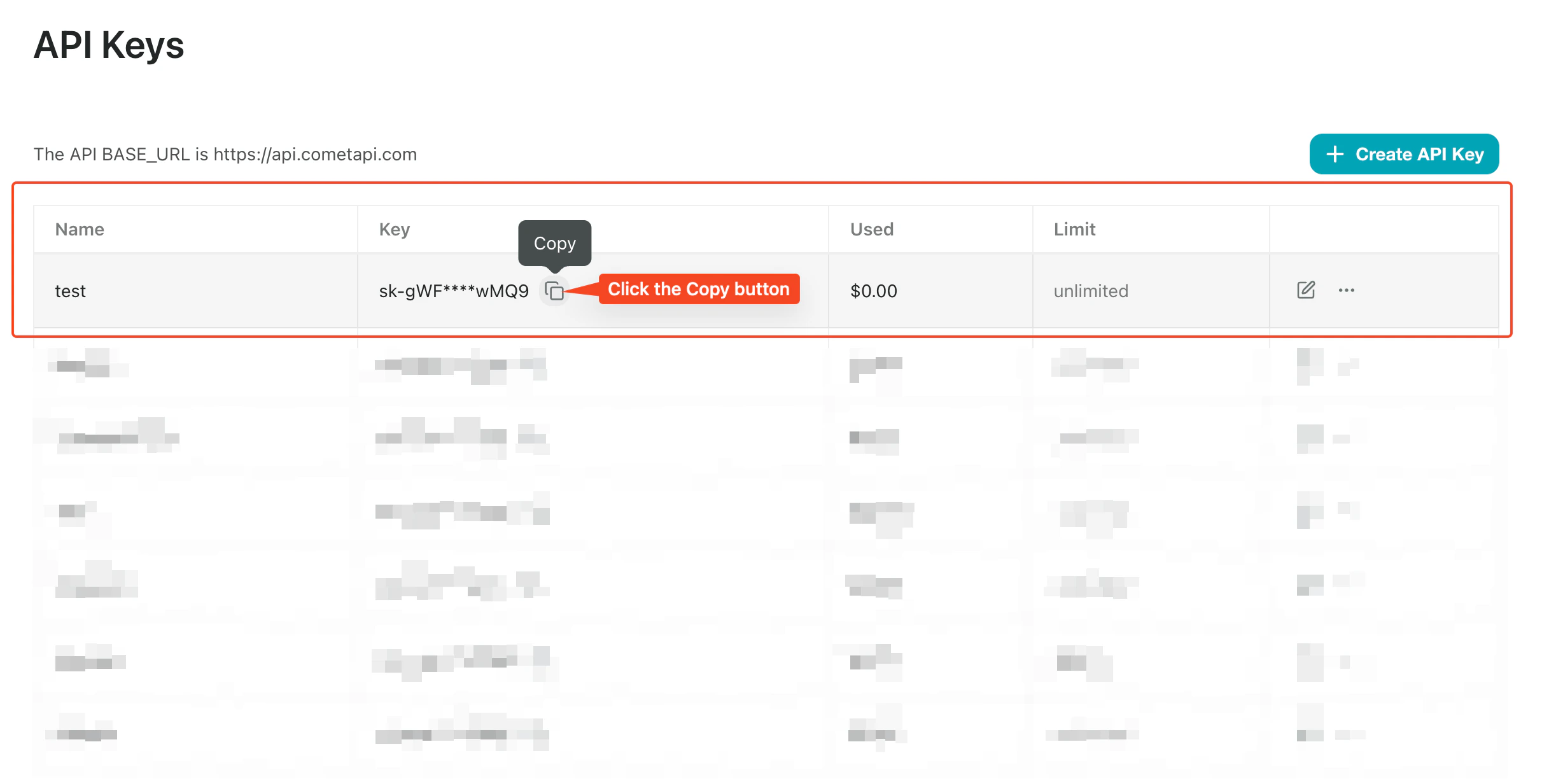
    <Frame>
      <img src="https://mintcdn.com/cometapi/SZhlxZhCnMLn__BW/images/overview/810968_364191.png?fit=max&auto=format&n=SZhlxZhCnMLn__BW&q=85&s=aef81a83f29f8eb16655ed4060425f50" alt="CometAPI-Dashboard — Schaltfläche „Add API Key“ und Schlüsselliste" width="3824" height="1892" data-path="images/overview/810968_364191.png" />
    </Frame>

    <Frame>
      <img src="https://mintcdn.com/cometapi/HhtmQffktazbxUvS/images/overview/810968_364193.png?fit=max&auto=format&n=HhtmQffktazbxUvS&q=85&s=d893f659267150d0faf45f99eb5dffc1" alt="Details zum CometAPI API-Schlüssel" width="2434" height="1232" data-path="images/overview/810968_364193.png" />
    </Frame>
  </Step>

  <Step title="Testen Sie die Integration">
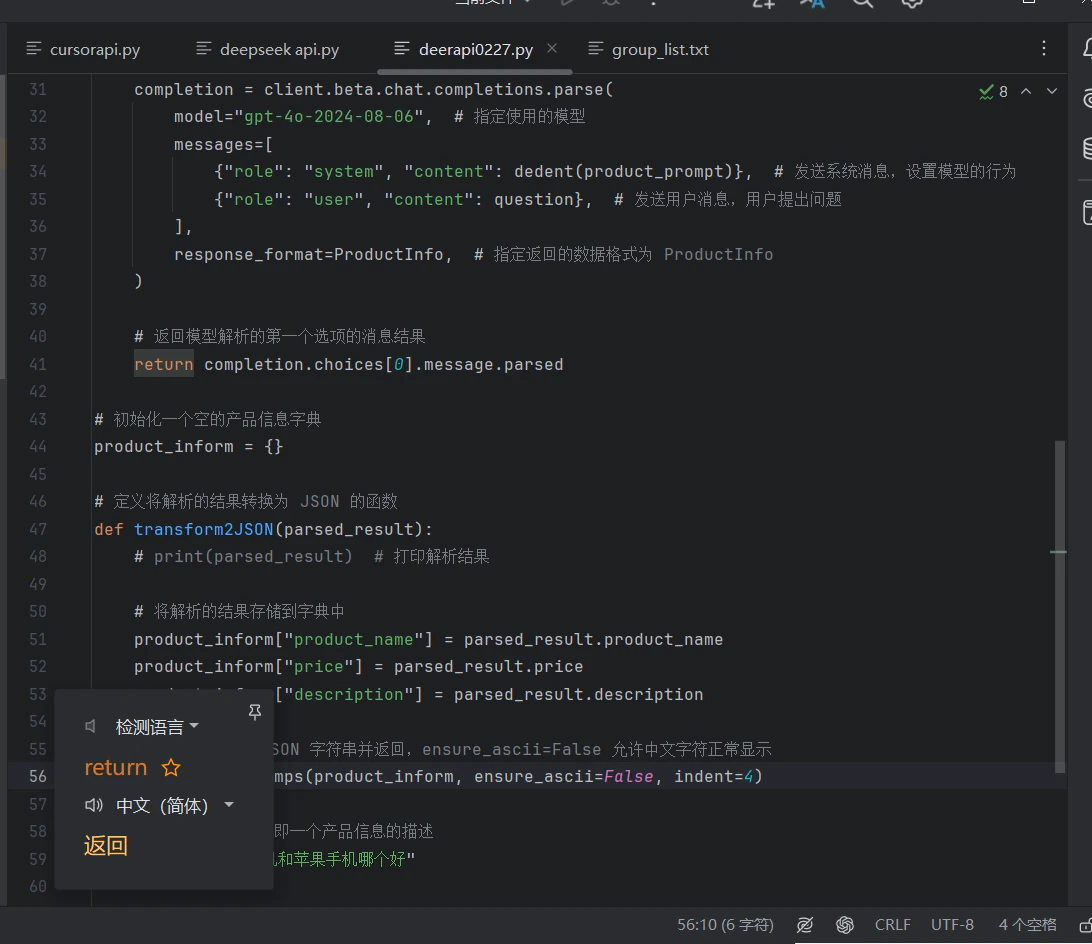
    Klicken Sie in den Plugin-Einstellungen auf **Test Service**. Eine erfolgreiche Überprüfung bestätigt, dass die Einrichtung funktioniert.
    <Frame>
      <img src="https://mintcdn.com/cometapi/mA1ovj6s0e3RM42l/images/integrations/810968_352997.png?fit=max&auto=format&n=mA1ovj6s0e3RM42l&q=85&s=2acec03c1fcd4584cf8448d588cf5d68" alt="IntelliJ Translation Plugin-Test — erfolgreiches Ergebnis" width="1092" height="944" data-path="images/integrations/810968_352997.png" />
    </Frame>
  </Step>
</Steps>

<Tip>
  Um benutzerdefinierte Modelle hinzuzufügen, geben Sie die aktuelle model ID in das Modellkonfigurationsfeld des Plugins ein.
  <Frame>
    <img src="https://mintcdn.com/cometapi/mA1ovj6s0e3RM42l/images/integrations/810968_352998.png?fit=max&auto=format&n=mA1ovj6s0e3RM42l&q=85&s=1138ce4ff04851f6db1ff996ea91f667" alt="Modell-Einstellungen des IntelliJ Translation Plugin mit hinzugefügtem benutzerdefiniertem Modell" width="1215" height="874" data-path="images/integrations/810968_352998.png" />
  </Frame>
</Tip>

<script type="application/ld+json">
  {`
    {
    "@context": "https://schema.org",
    "@graph": [
      {
        "@type": "HowTo",
        "@id": "https://apidoc.cometapi.com/integrations/intellij-translation-plugin#howto",
        "name": "IntelliJ Translation Plugin mit CometAPI verwenden",
        "description": "Verwenden Sie diese Anleitung, um IntelliJ Translation Plugin mit CometAPI zu konfigurieren, indem Sie die Basis-URL, den API-Schlüssel sowie Modell- oder Anbieteroptionen festlegen.",
        "step": [
          {
            "@type": "HowToStep",
            "@id": "https://apidoc.cometapi.com/integrations/intellij-translation-plugin#step-1",
            "position": 1,
            "name": "Holen Sie sich Ihren CometAPI API-Schlüssel",
            "text": "Erstellen oder öffnen Sie Ihr CometAPI-Konto und kopieren Sie dann einen aktiven API-Schlüssel aus dem Dashboard."
          },
          {
            "@type": "HowToStep",
            "@id": "https://apidoc.cometapi.com/integrations/intellij-translation-plugin#step-2",
            "position": 2,
            "name": "Konfigurieren Sie die Übersetzungs-Engine",
            "text": "Führen Sie den Schritt „Konfigurieren Sie die Übersetzungs-Engine“ in der Anleitung „IntelliJ Translation Plugin mit CometAPI verwenden“ aus."
          },
          {
            "@type": "HowToStep",
            "@id": "https://apidoc.cometapi.com/integrations/intellij-translation-plugin#step-3",
            "position": 3,
            "name": "Testen Sie die Integration",
            "text": "Führen Sie den Schritt „Testen Sie die Integration“ in der Anleitung „IntelliJ Translation Plugin mit CometAPI verwenden“ aus."
          }
        ]
      },
      {
        "@type": "BreadcrumbList",
        "itemListElement": [
          {
            "@type": "ListItem",
            "position": 1,
            "name": "CometAPI-Dokumentation",
            "item": "https://apidoc.cometapi.com/"
          },
          {
            "@type": "ListItem",
            "position": 2,
            "name": "Integrationen",
            "item": "https://apidoc.cometapi.com/integrations"
          },
          {
            "@type": "ListItem",
            "position": 3,
            "name": "IntelliJ Translation Plugin mit CometAPI verwenden",
            "item": "https://apidoc.cometapi.com/integrations/intellij-translation-plugin"
          }
        ]
      }
    ]
    }
    `}
</script>