> ## Documentation Index
> Fetch the complete documentation index at: https://apidoc.cometapi.com/llms.txt
> Use this file to discover all available pages before exploring further.

# Menggunakan Coze dengan CometAPI

> Gunakan panduan ini untuk mengonfigurasi Coze dengan CometAPI dengan mengatur base URL, API key, serta opsi model atau provider.

Coze adalah pembuat agen AI dan alur kerja. Anda dapat menghubungkan CometAPI ke Coze dengan dua cara: melalui **plugin CometAPI** bawaan (paling sederhana) atau melalui **node HTTP Request** generik untuk fleksibilitas maksimum.

## Prasyarat

* Akun CometAPI dengan API key aktif — [dapatkan di sini](https://www.cometapi.com/console/token)
* Akun Coze — [daftar di sini](https://www.coze.com)

<Steps>
  <Step title="Dapatkan API key CometAPI Anda">
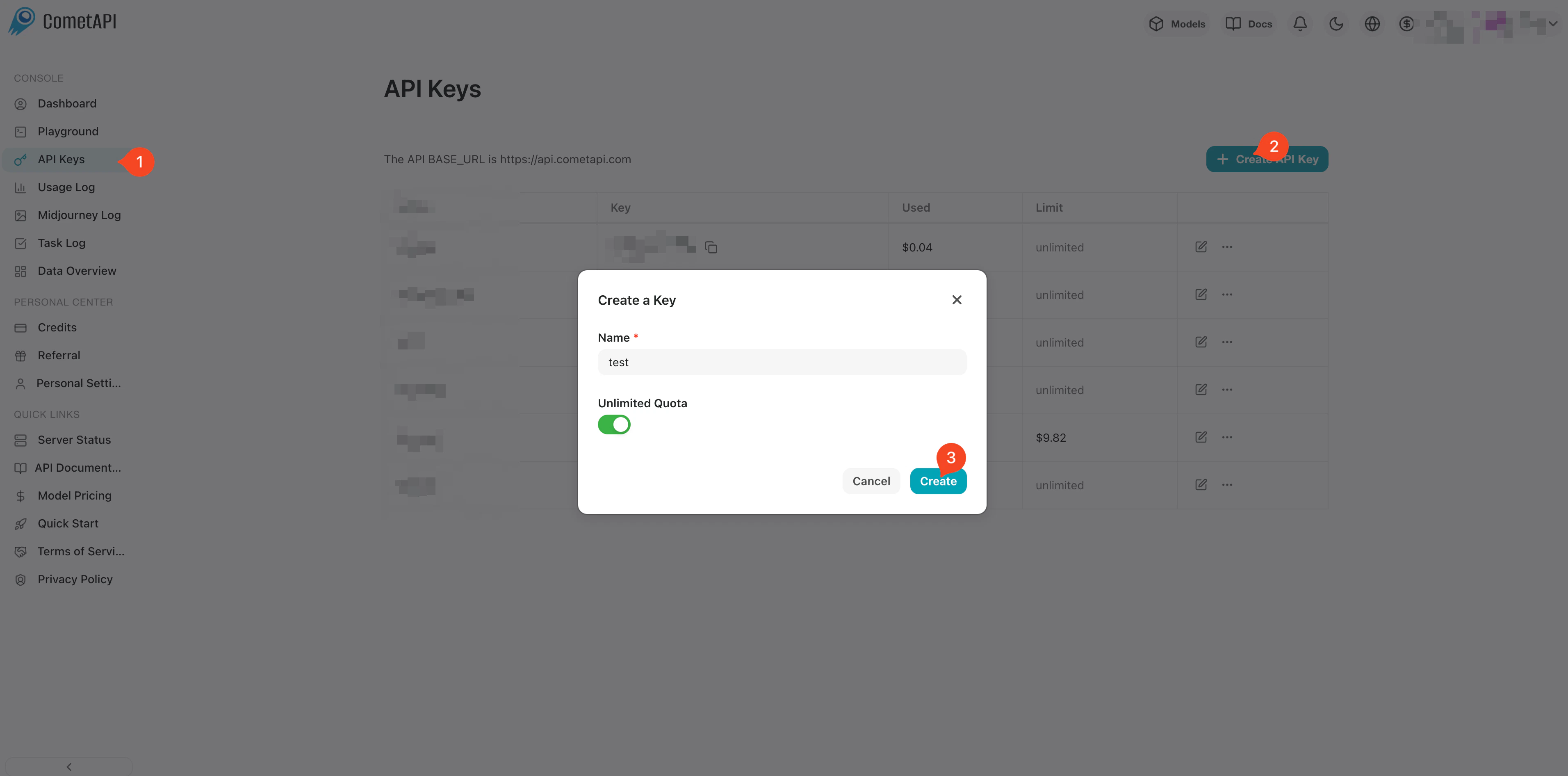
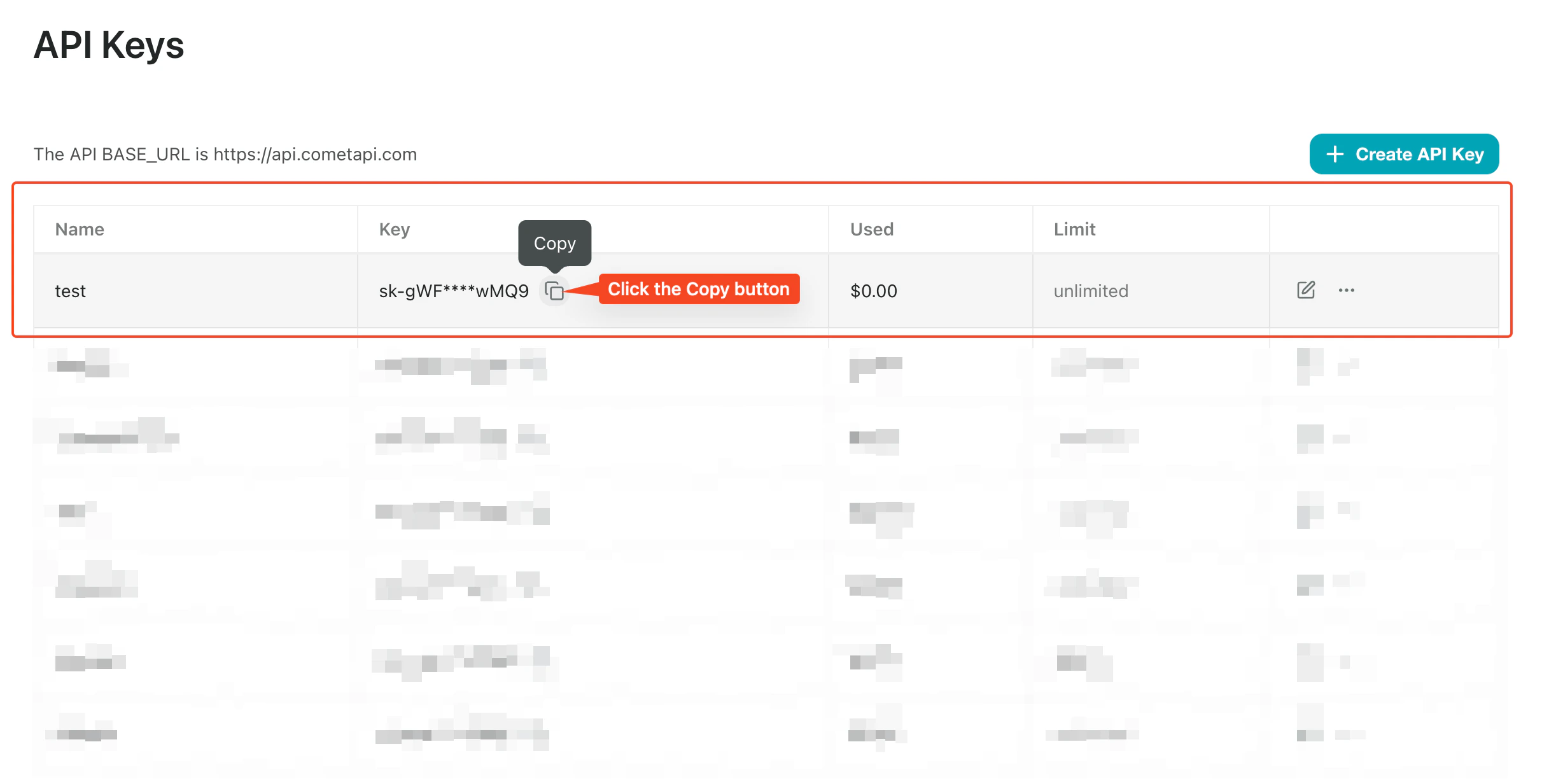
    Masuk ke [konsol CometAPI](https://www.cometapi.com/console/token). Klik **Add API Key** lalu salin API key CometAPI Anda.
    <Frame>
      <img src="https://mintcdn.com/cometapi/SZhlxZhCnMLn__BW/images/overview/810968_364191.png?fit=max&auto=format&n=SZhlxZhCnMLn__BW&q=85&s=aef81a83f29f8eb16655ed4060425f50" alt="Dasbor CometAPI yang menampilkan tombol Add API Key" width="3824" height="1892" data-path="images/overview/810968_364191.png" />
    </Frame>

    <Frame>
      <img src="https://mintcdn.com/cometapi/HhtmQffktazbxUvS/images/overview/810968_364193.png?fit=max&auto=format&n=HhtmQffktazbxUvS&q=85&s=d893f659267150d0faf45f99eb5dffc1" alt="Detail API key CometAPI dengan base URL" width="2434" height="1232" data-path="images/overview/810968_364193.png" />
    </Frame>
  </Step>

  <Step title="Tambahkan CometAPI ke workflow Coze">
    <Tabs>
      <Tab title="Metode 1: Plugin CometAPI (Direkomendasikan)">
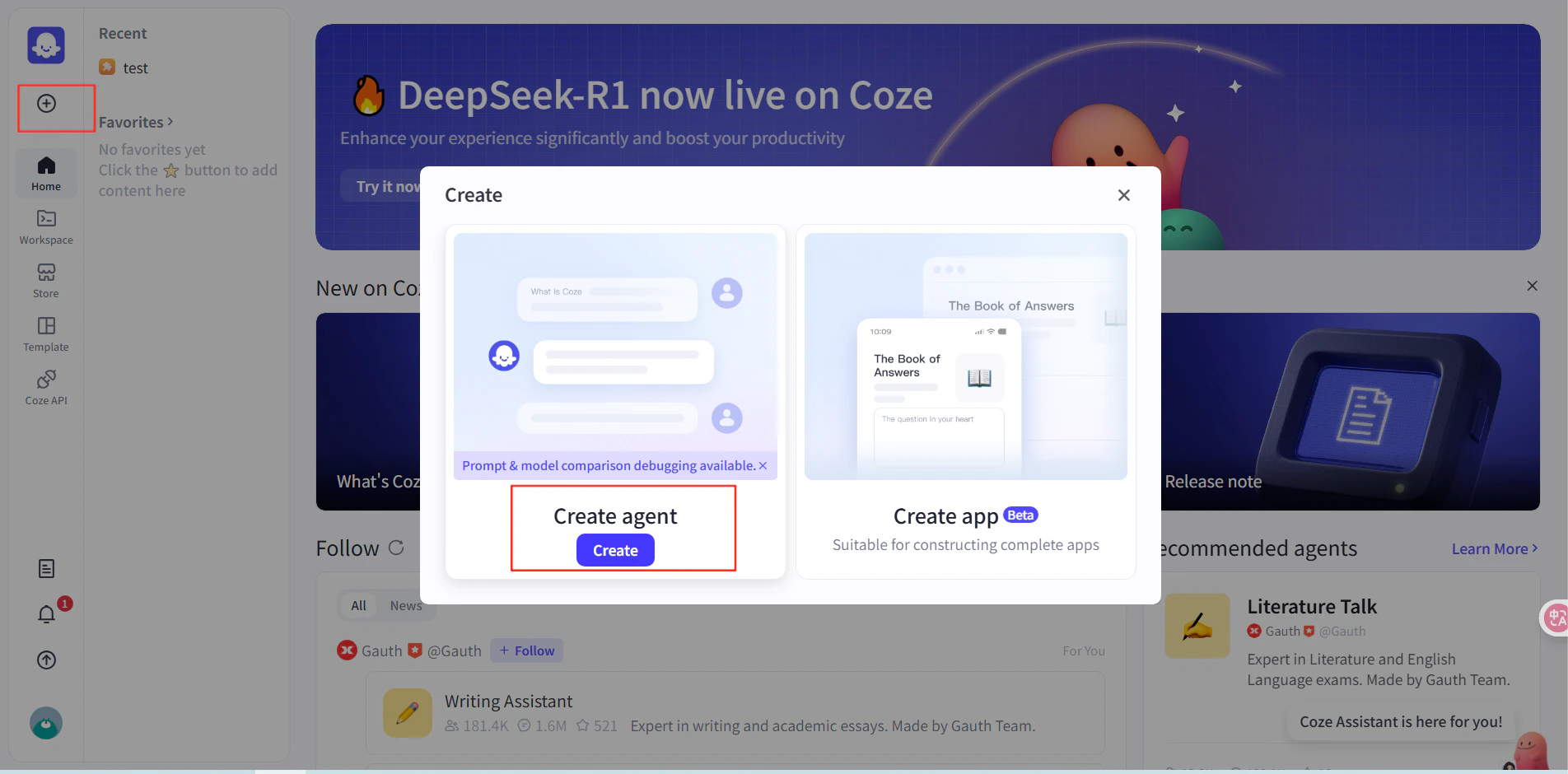
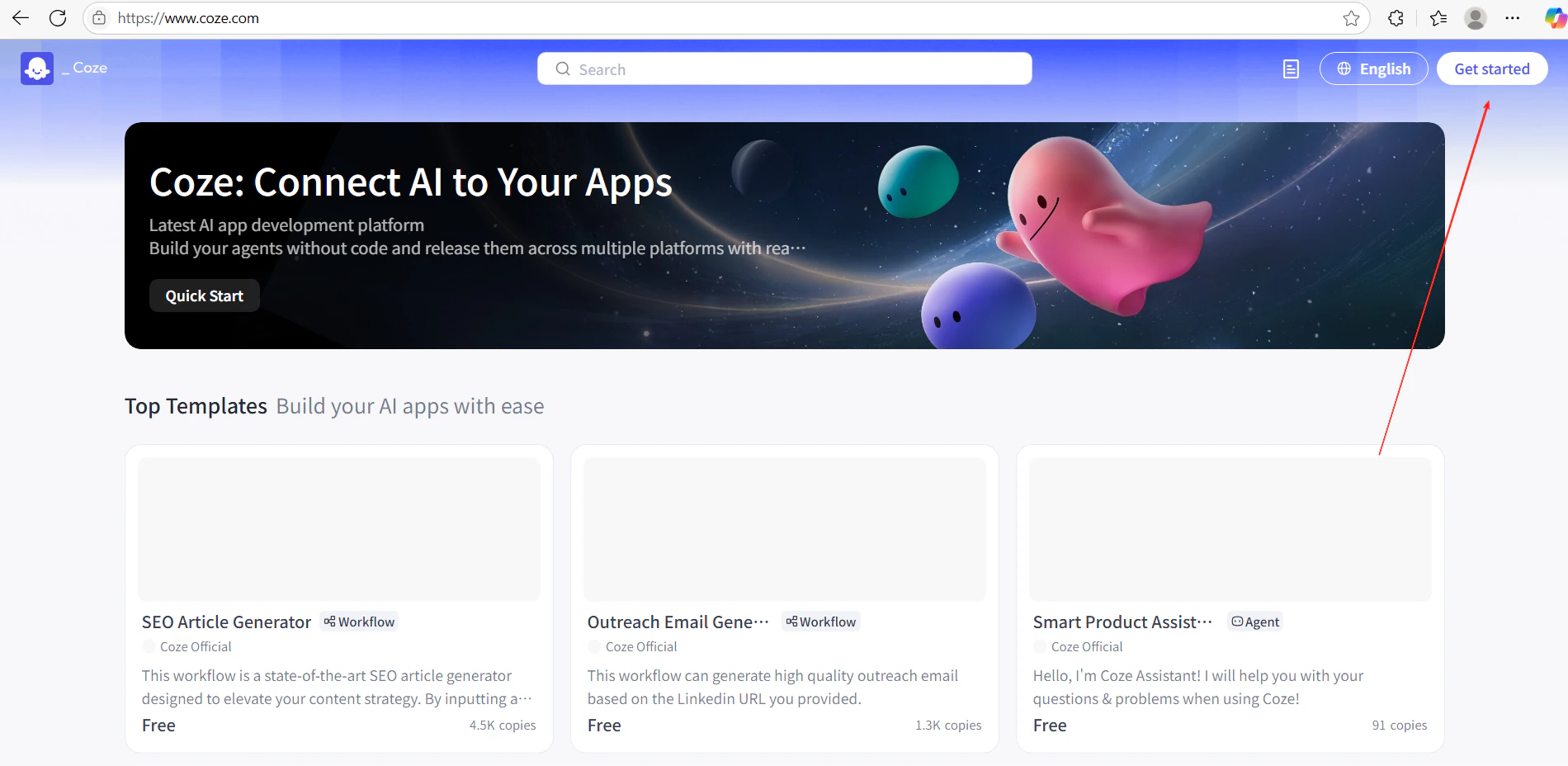
        1. Di Coze, klik **Get Started** dan buat workflow baru.
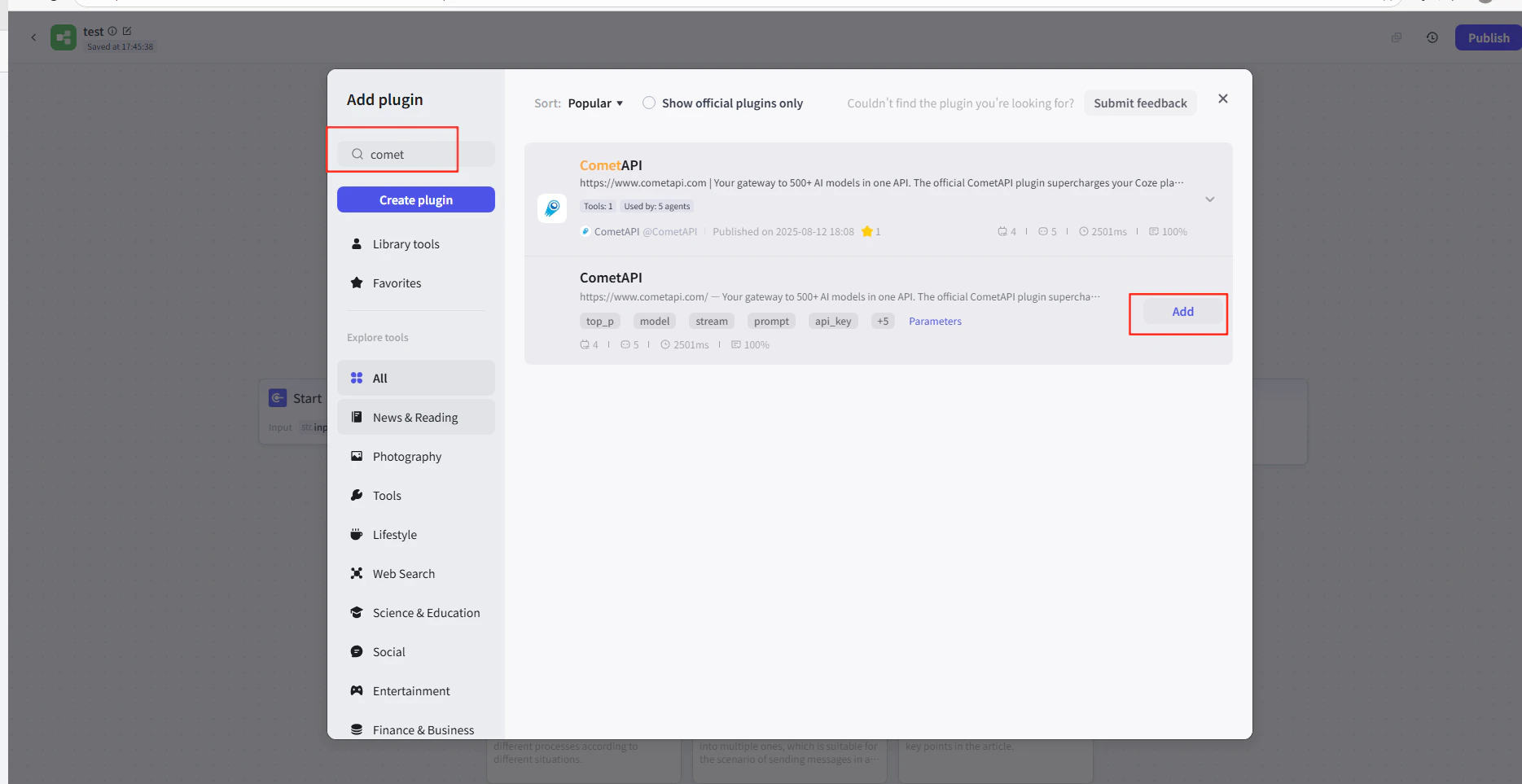
        2. Di editor workflow, klik **Add Node → Plugins** dan cari **CometAPI**.
        3. Tambahkan node plugin CometAPI ke workflow Anda.
        <Frame>
          <img src="https://mintcdn.com/cometapi/E4FFvyMYmaOZoldp/images/integrations/810968_355124.png?fit=max&auto=format&n=E4FFvyMYmaOZoldp&q=85&s=31a8c613d735f88246baa86ae399fa11" alt="Editor workflow Coze yang menampilkan pencarian plugin" width="1900" height="928" data-path="images/integrations/810968_355124.png" />
        </Frame>

        <Frame>
          <img src="https://mintcdn.com/cometapi/E4FFvyMYmaOZoldp/images/integrations/810968_355125.png?fit=max&auto=format&n=E4FFvyMYmaOZoldp&q=85&s=75f2336cc40c9f21d757ced6ee227fd7" alt="Plugin CometAPI muncul dalam hasil pencarian" width="1904" height="940" data-path="images/integrations/810968_355125.png" />
        </Frame>

        <Frame>
          <img src="https://mintcdn.com/cometapi/E4FFvyMYmaOZoldp/images/integrations/810968_355126.png?fit=max&auto=format&n=E4FFvyMYmaOZoldp&q=85&s=1058980811bfc31c51715a76e048cc02" alt="Node plugin CometAPI ditambahkan ke canvas" width="1938" height="908" data-path="images/integrations/810968_355126.png" />
        </Frame>

        <Frame>
          <img src="https://mintcdn.com/cometapi/E4FFvyMYmaOZoldp/images/integrations/810968_360283.png?fit=max&auto=format&n=E4FFvyMYmaOZoldp&q=85&s=f89b117699a4d46802c62436ae92bd84" alt="Panel konfigurasi node plugin" width="1869" height="963" data-path="images/integrations/810968_360283.png" />
        </Frame>

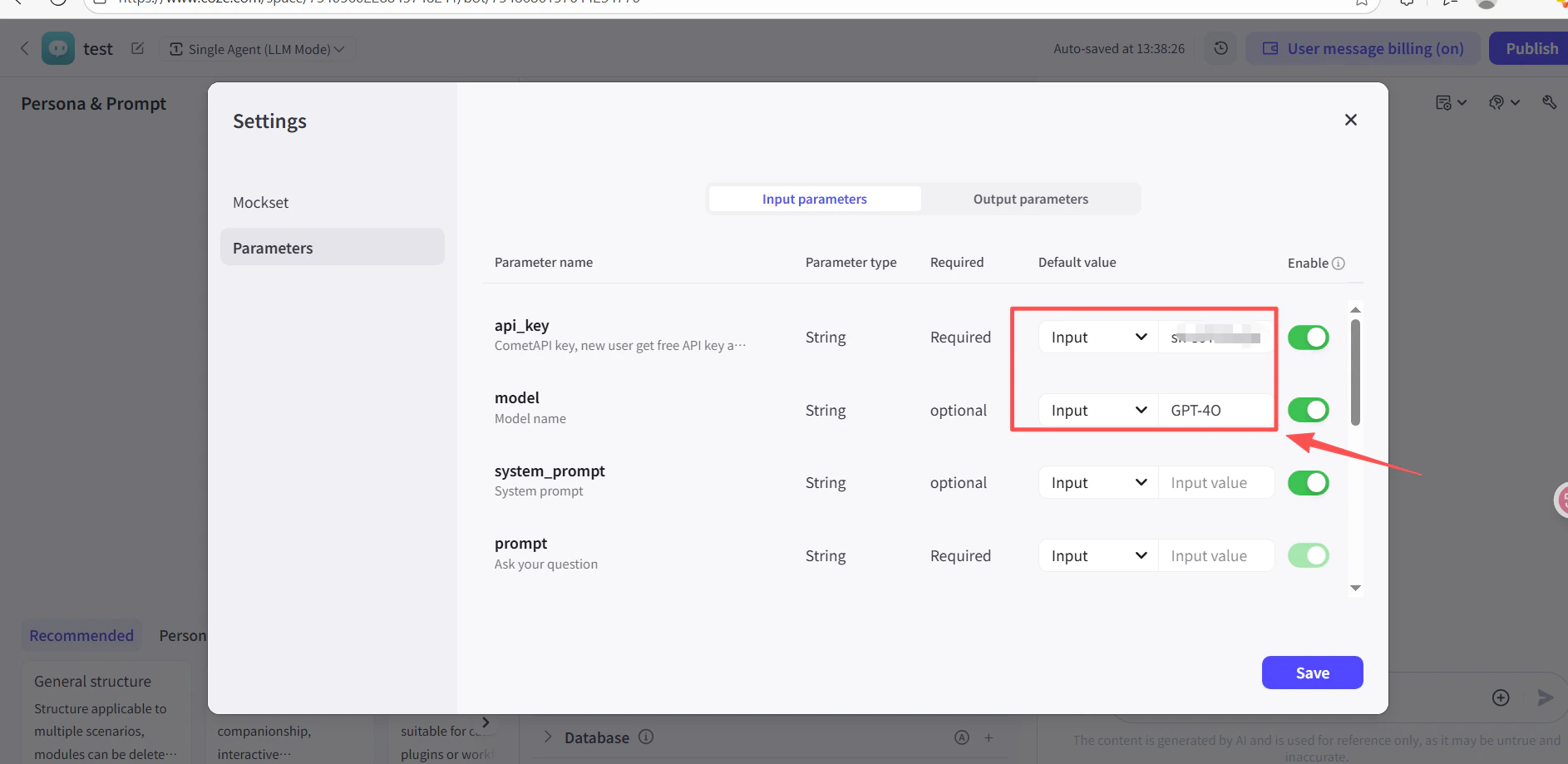
        4. Di kolom **API Key** pada node plugin, tempel API key CometAPI Anda.
        5. Klik **Test** untuk memverifikasi koneksi, lalu **Publish**.
        <Frame>
          <img src="https://mintcdn.com/cometapi/SZhlxZhCnMLn__BW/images/integrations/810968_361332.png?fit=max&auto=format&n=SZhlxZhCnMLn__BW&q=85&s=0f41c0cfaf3cdcebd45d740ce96fd178" alt="Node plugin dengan API key sudah diisi" width="1886" height="919" data-path="images/integrations/810968_361332.png" />
        </Frame>

        <Frame>
          <img src="https://mintcdn.com/cometapi/SZhlxZhCnMLn__BW/images/integrations/810968_361333.png?fit=max&auto=format&n=SZhlxZhCnMLn__BW&q=85&s=17b349b2c651c6e5193bfde6b63e0c17" alt="Hasil pengujian yang berhasil untuk plugin CometAPI" width="1884" height="903" data-path="images/integrations/810968_361333.png" />
        </Frame>
      </Tab>

      <Tab title="Metode 2: Node HTTP Request">
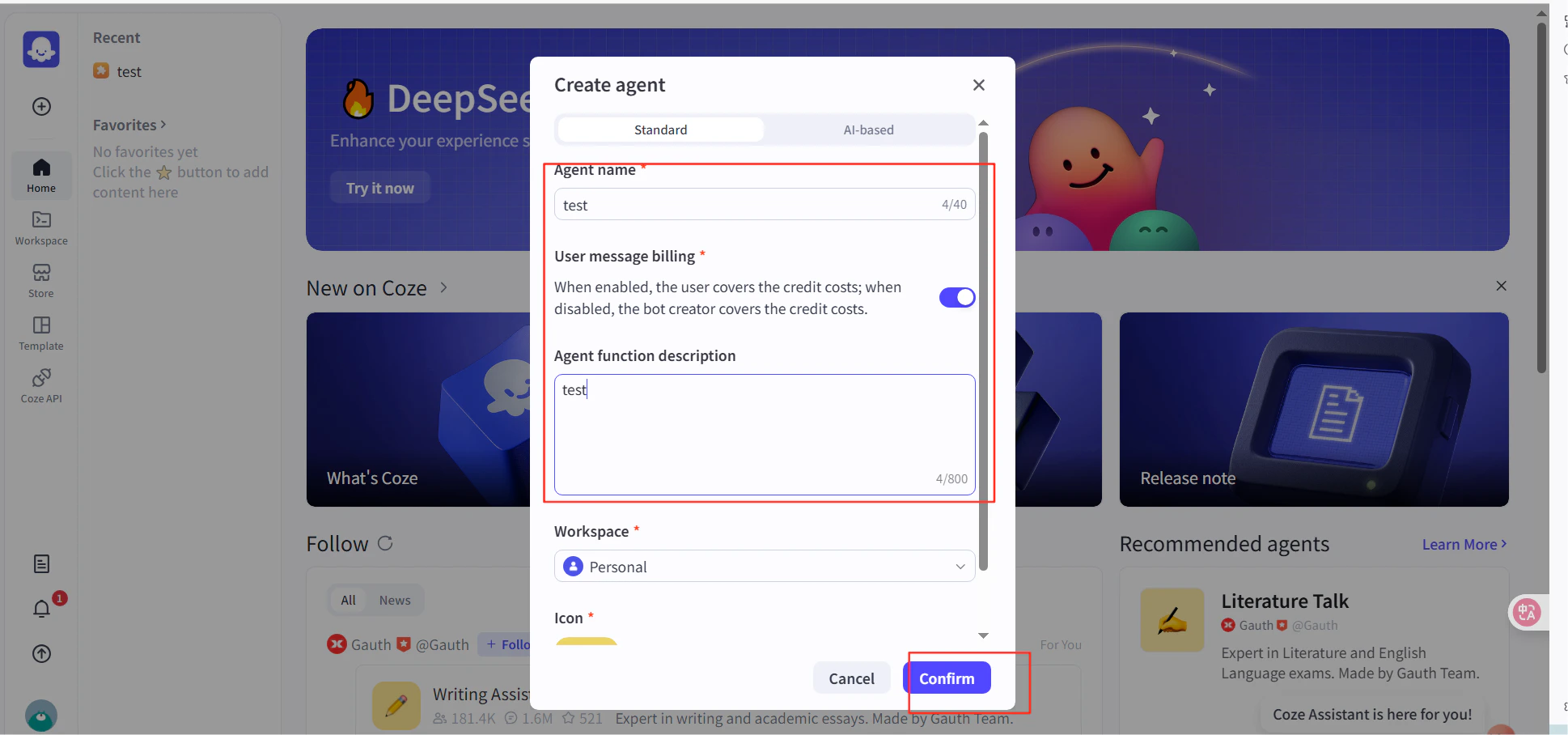
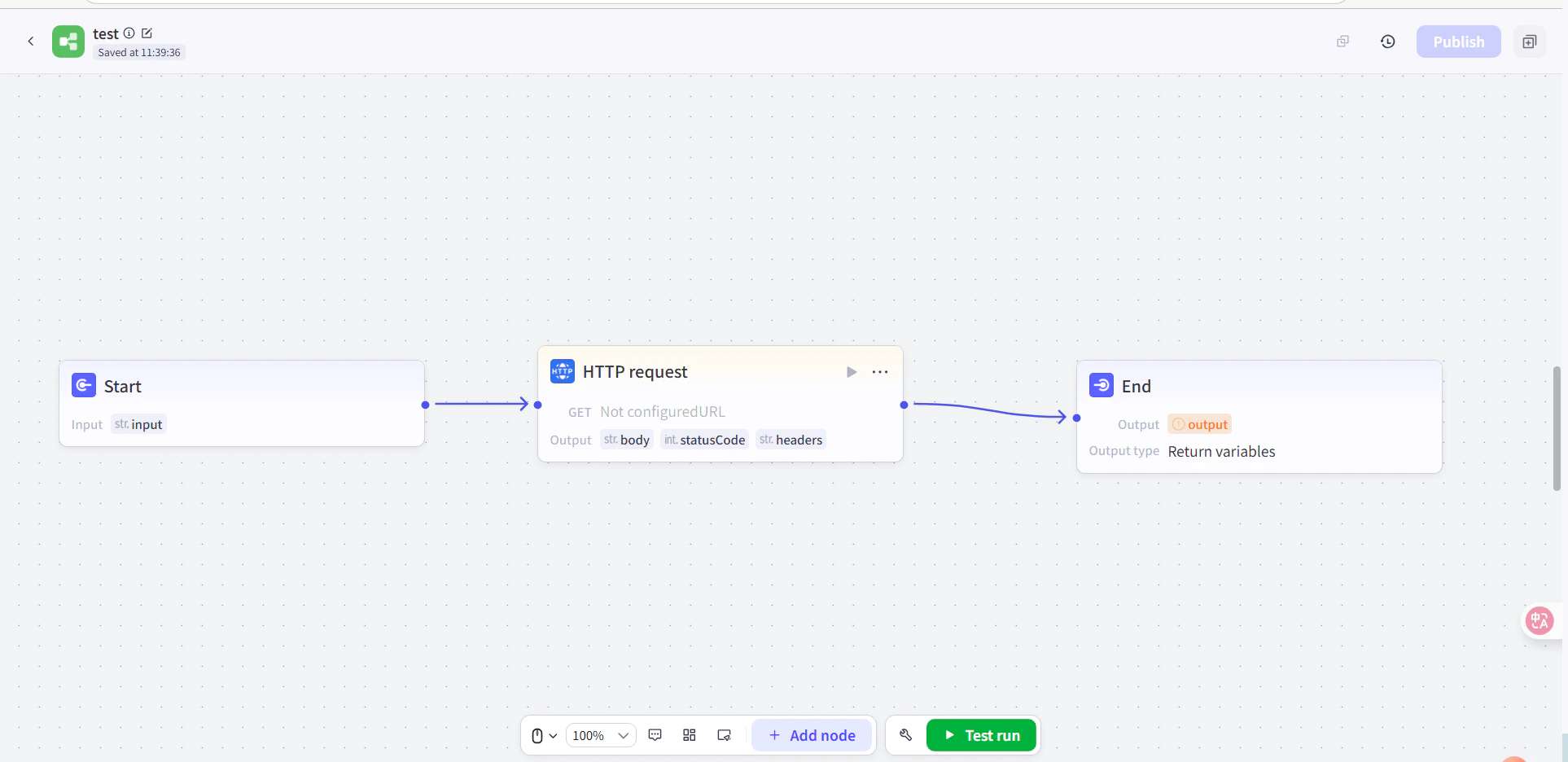
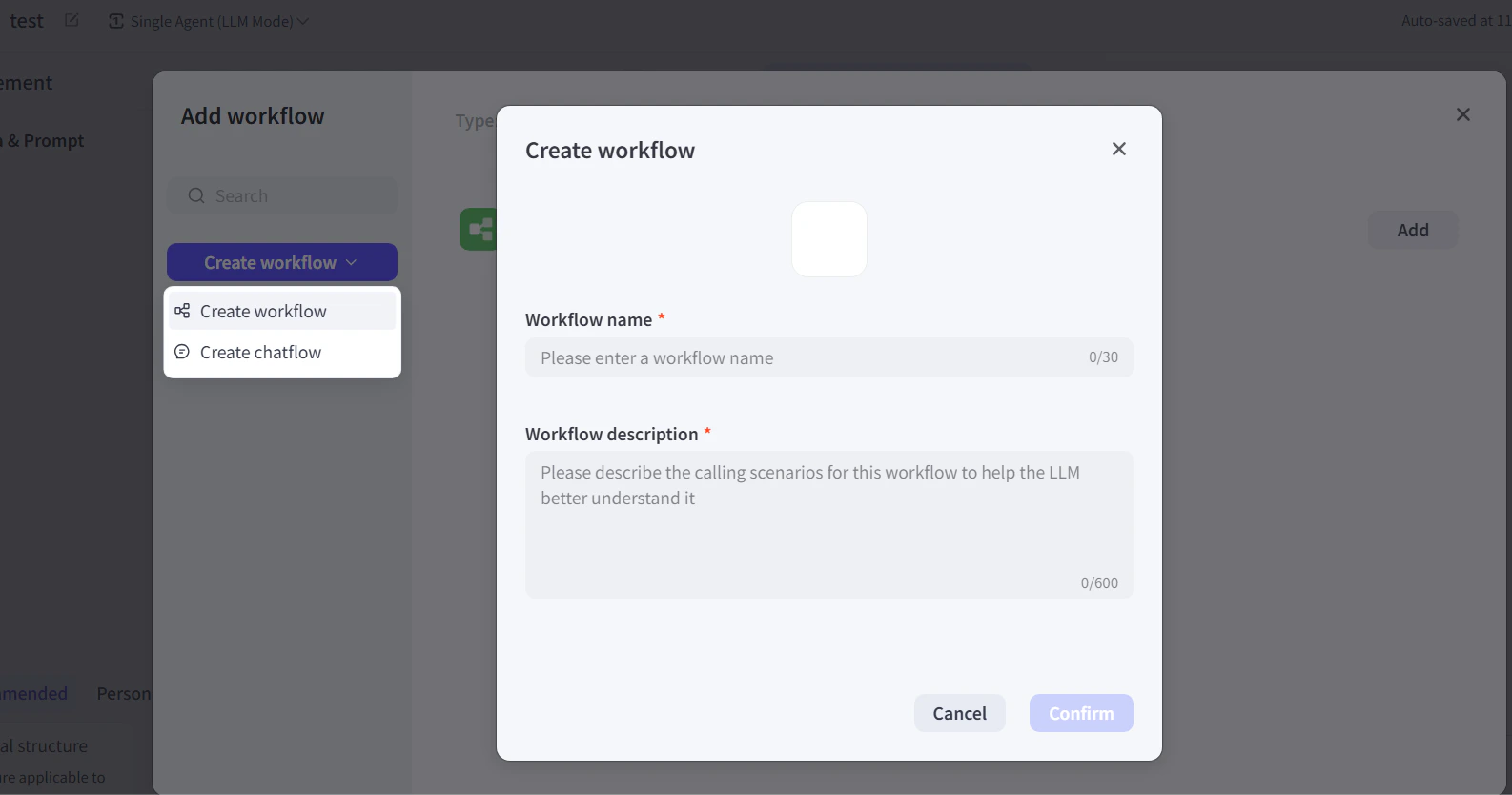
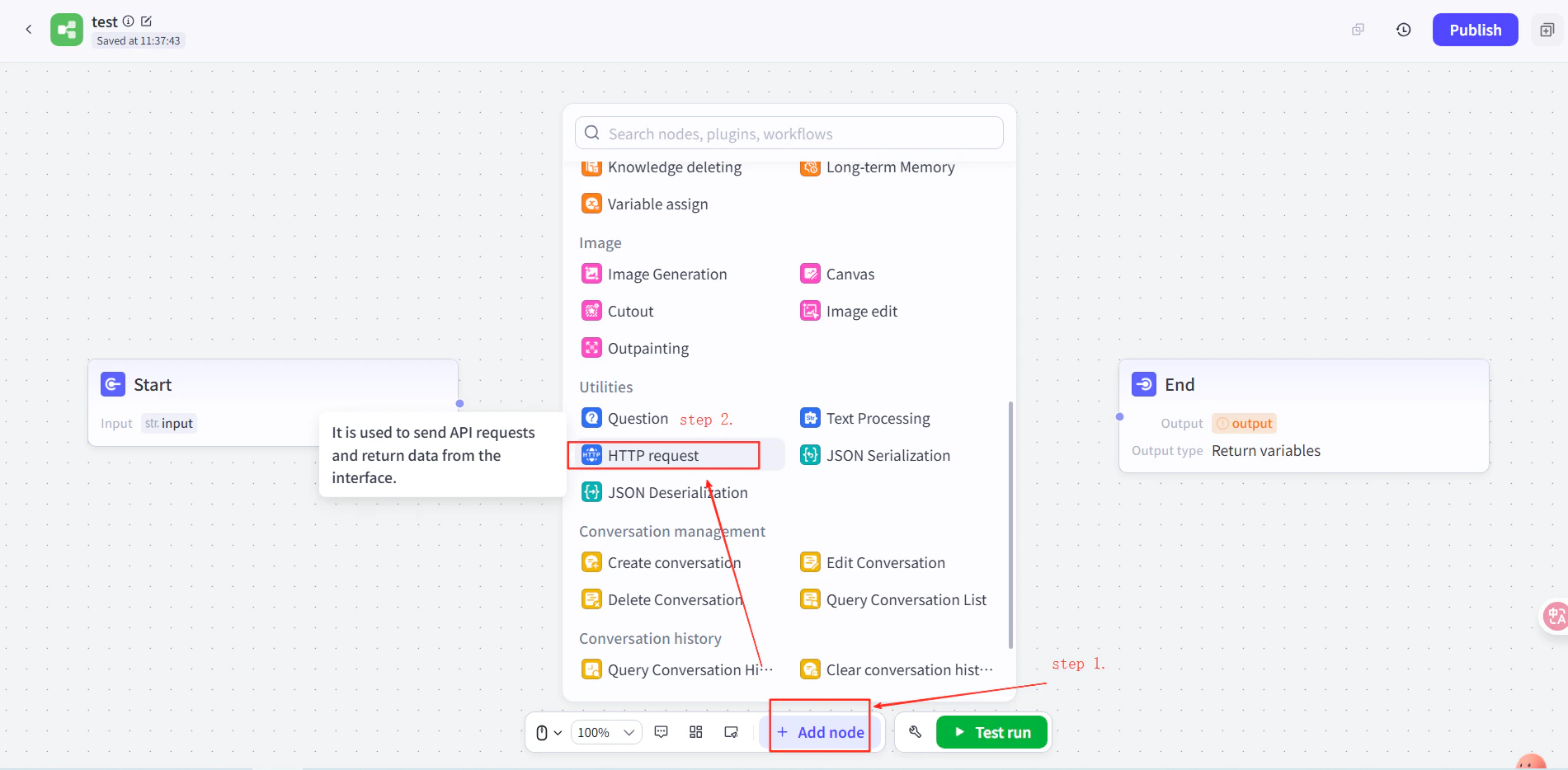
        1. Buat agent di Coze, lalu pada workflow agent tambahkan node **HTTP Request** di antara node Start dan End.
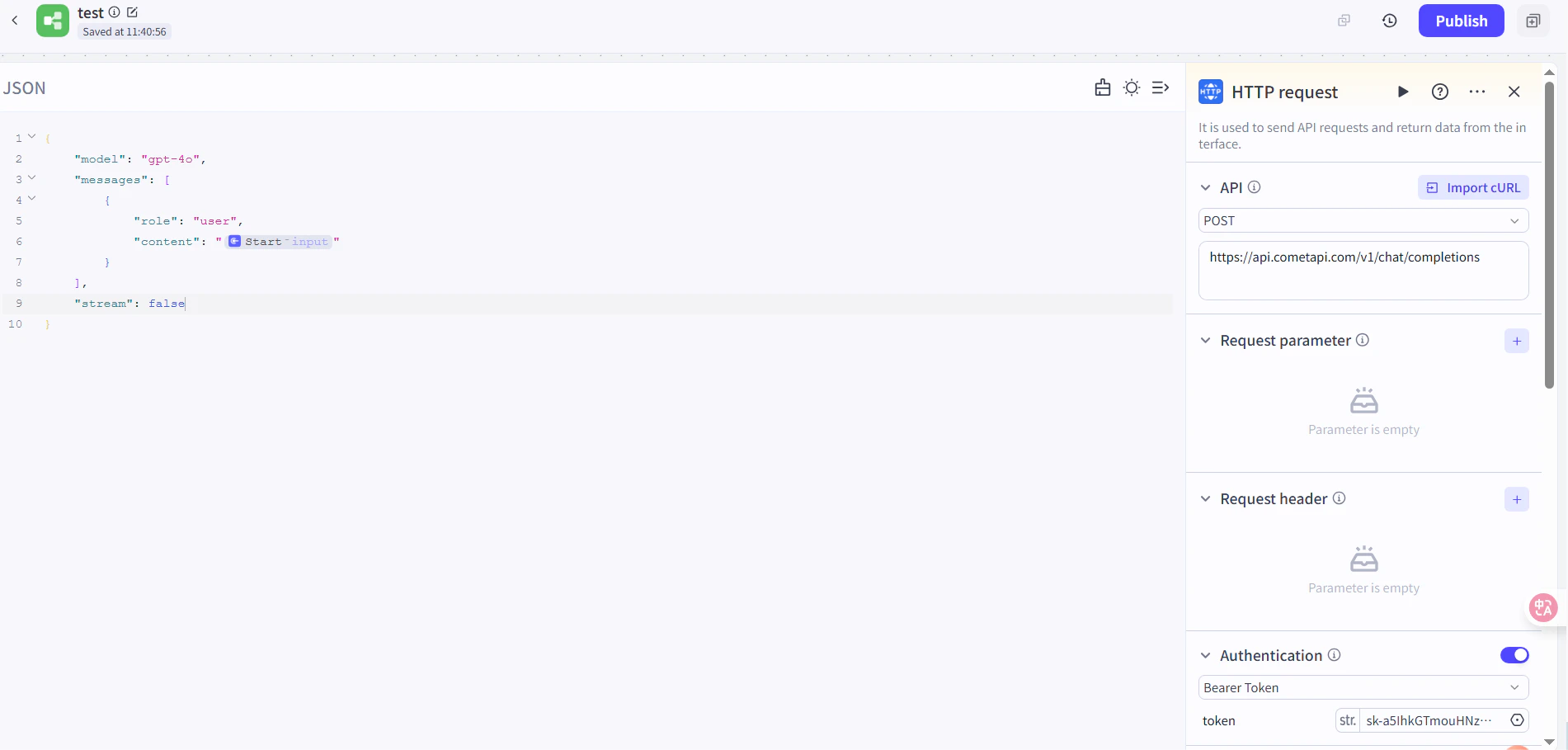
        2. Atur hal berikut:
           * **Method**: `POST`
           * **URL**: `https://api.cometapi.com/v1/chat/completions`
           * **Authentication Token**: tempel API key CometAPI Anda, lalu klik **Confirm**
        3. Atur body request:

        ```json theme={null}
        {
          "model": "your-model-id",
          "messages": [
            {
              "role": "user",
              "content": "{{block_output_100001.input}}"
            }
          ],
          "stream": false
        }
        ```

        4. Di node End, atur output ke response body dari HTTP request. Ganti `your-model-id` dengan model ID saat ini dari [halaman Model CometAPI](/id/overview/models).
        <Frame>
          <img src="https://mintcdn.com/cometapi/E4FFvyMYmaOZoldp/images/integrations/810968_355128.png?fit=max&auto=format&n=E4FFvyMYmaOZoldp&q=85&s=862c588b2f301bd66b89366c5344fbdc" alt="Node HTTP Request dengan URL dan auth token yang sudah dikonfigurasi" width="1586" height="834" data-path="images/integrations/810968_355128.png" />
        </Frame>

        <Frame>
          <img src="https://mintcdn.com/cometapi/E4FFvyMYmaOZoldp/images/integrations/810968_355129.png?fit=max&auto=format&n=E4FFvyMYmaOZoldp&q=85&s=a438417210684dddf988307c448edb57" alt="JSON body request yang dikonfigurasi di node HTTP" width="1901" height="934" data-path="images/integrations/810968_355129.png" />
        </Frame>

        <Frame>
          <img src="https://mintcdn.com/cometapi/E4FFvyMYmaOZoldp/images/integrations/810968_355130.png?fit=max&auto=format&n=E4FFvyMYmaOZoldp&q=85&s=18254fe80669e295bd7b8ac2e48c3d45" alt="Node End dengan response body HTTP dipilih sebagai output" width="1926" height="936" data-path="images/integrations/810968_355130.png" />
        </Frame>

        <Frame>
          <img src="https://mintcdn.com/cometapi/E4FFvyMYmaOZoldp/images/integrations/810968_355131.png?fit=max&auto=format&n=E4FFvyMYmaOZoldp&q=85&s=5fde76e14e42d41311076f7eb1d0fd77" alt="Workflow Coze dengan semua node sudah terhubung" width="1901" height="909" data-path="images/integrations/810968_355131.png" />
        </Frame>
      </Tab>
    </Tabs>
  </Step>

  <Step title="Uji dan publikasikan">
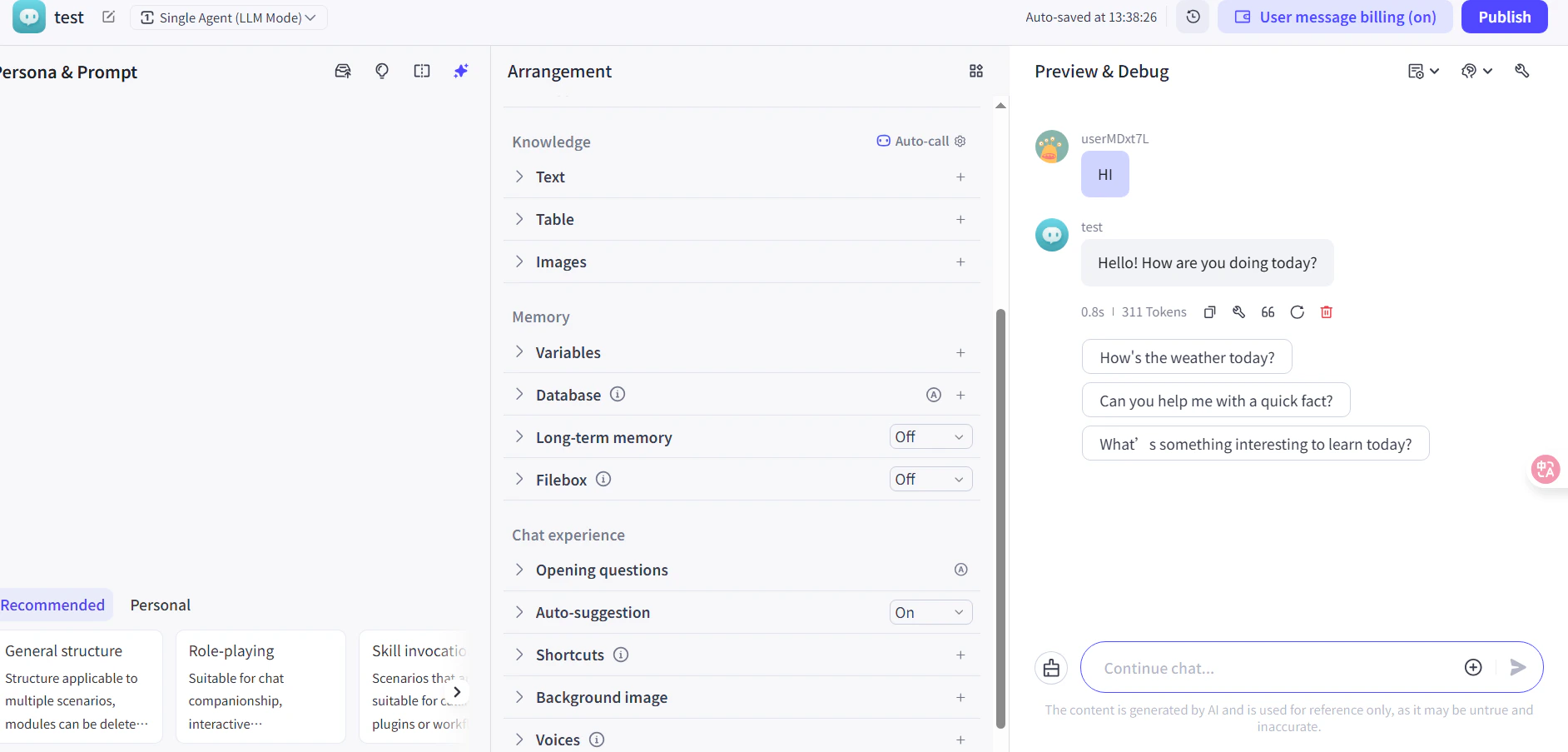
    Jalankan pesan uji di workflow (misalnya meminta waktu saat ini). Balasan AI yang berhasil mengonfirmasi bahwa integrasi berfungsi. Publikasikan workflow agar aktif.
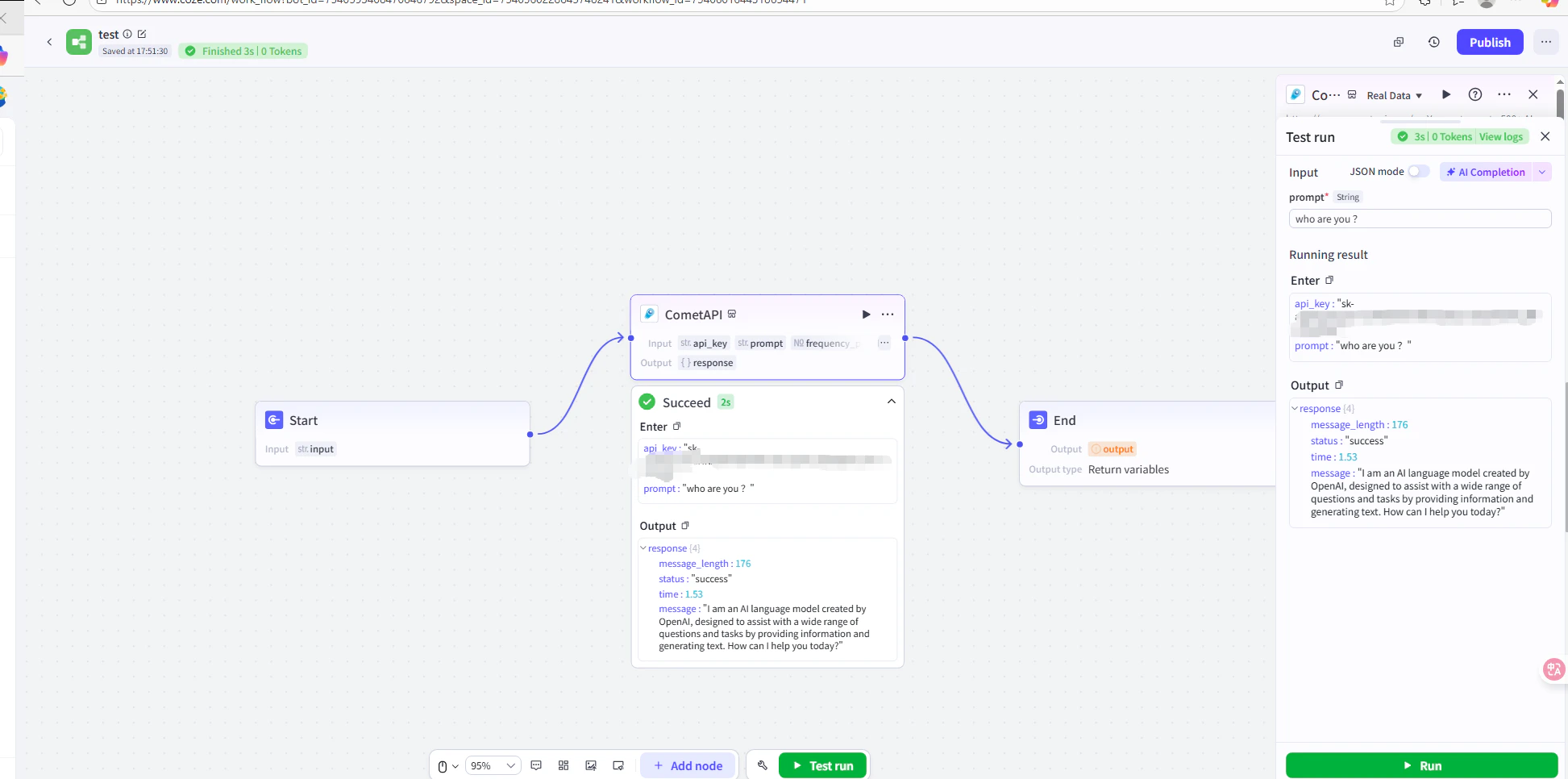
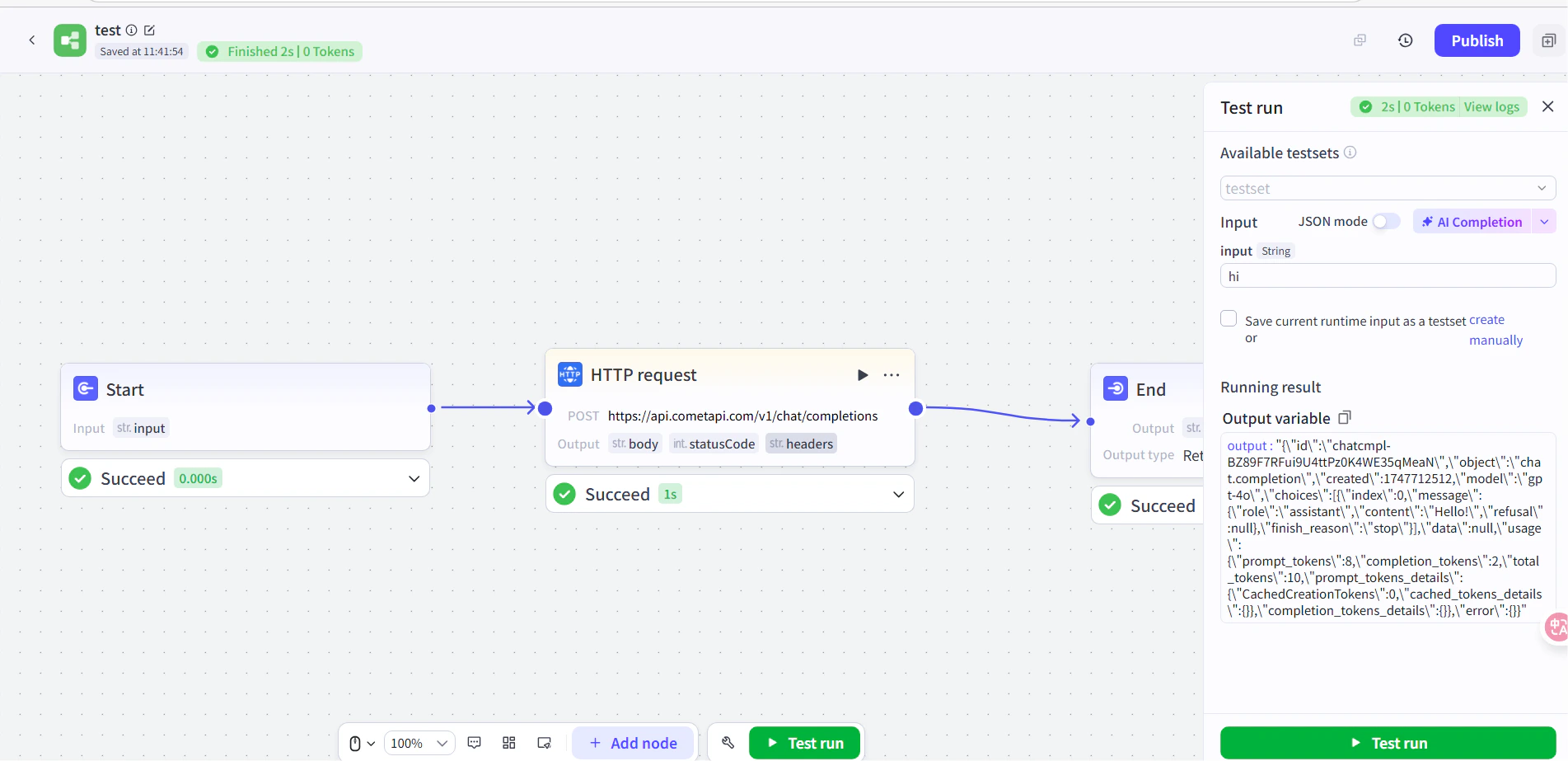
    <Frame>
      <img src="https://mintcdn.com/cometapi/E4FFvyMYmaOZoldp/images/integrations/810968_360285.png?fit=max&auto=format&n=E4FFvyMYmaOZoldp&q=85&s=5f362ef3274c53c47a8f3793d4fa6966" alt="Workflow Coze yang menampilkan respons pengujian yang berhasil" width="1945" height="966" data-path="images/integrations/810968_360285.png" />
    </Frame>

    <Frame>
      <img src="https://mintcdn.com/cometapi/E4FFvyMYmaOZoldp/images/integrations/810968_355132.png?fit=max&auto=format&n=E4FFvyMYmaOZoldp&q=85&s=8b7fe683331ec5cb31222062c6f3aa80" alt="Agent Coze yang telah dipublikasikan merespons dengan benar" width="1903" height="923" data-path="images/integrations/810968_355132.png" />
    </Frame>

    Jika panggilan gagal, verifikasi API key dan URL endpoint Anda, atau hubungi [dukungan CometAPI](https://www.cometapi.com).
  </Step>
</Steps>

<Tip>
  Metode plugin direkomendasikan untuk sebagian besar pengguna — metode ini menangani autentikasi dan parsing respons secara otomatis. Gunakan node HTTP Request saat Anda membutuhkan kontrol penuh atas header request atau ingin memanggil endpoint non-chat.
</Tip>

<script type="application/ld+json">
  {`
    {
    "@context": "https://schema.org",
    "@graph": [
      {
        "@type": "HowTo",
        "@id": "https://apidoc.cometapi.com/integrations/coze#howto",
        "name": "Gunakan Coze dengan CometAPI",
        "description": "Gunakan panduan ini untuk mengonfigurasi Coze dengan CometAPI dengan menetapkan base URL, API key, serta opsi model atau provider.",
        "step": [
          {
            "@type": "HowToStep",
            "@id": "https://apidoc.cometapi.com/integrations/coze#step-1",
            "position": 1,
            "name": "Dapatkan API key CometAPI Anda",
            "text": "Buat atau buka akun CometAPI Anda, lalu salin API key aktif dari dasbor."
          },
          {
            "@type": "HowToStep",
            "@id": "https://apidoc.cometapi.com/integrations/coze#step-2",
            "position": 2,
            "name": "Tambahkan CometAPI ke workflow Coze",
            "text": "Selesaikan langkah Tambahkan CometAPI ke workflow Coze dalam panduan Gunakan Coze dengan CometAPI."
          },
          {
            "@type": "HowToStep",
            "@id": "https://apidoc.cometapi.com/integrations/coze#step-3",
            "position": 3,
            "name": "Uji dan publikasikan",
            "text": "Selesaikan langkah Uji dan publikasikan dalam panduan Gunakan Coze dengan CometAPI."
          }
        ]
      },
      {
        "@type": "BreadcrumbList",
        "itemListElement": [
          {
            "@type": "ListItem",
            "position": 1,
            "name": "Dokumentasi CometAPI",
            "item": "https://apidoc.cometapi.com/"
          },
          {
            "@type": "ListItem",
            "position": 2,
            "name": "Integrasi",
            "item": "https://apidoc.cometapi.com/integrations"
          },
          {
            "@type": "ListItem",
            "position": 3,
            "name": "Gunakan Coze dengan CometAPI",
            "item": "https://apidoc.cometapi.com/integrations/coze"
          }
        ]
      }
    ]
    }
    `}
</script>