> ## Documentation Index
> Fetch the complete documentation index at: https://apidoc.cometapi.com/llms.txt
> Use this file to discover all available pages before exploring further.

# Connect Activepieces to CometAPI

> Use this guide to connect Activepieces to CometAPI by setting the base URL, API key, and model or provider options.

[Activepieces](https://cloud.activepieces.com/) is an open-source automation platform. With the built-in CometAPI connector, you can add AI steps to any workflow in seconds.

## Prerequisites

* An [Activepieces](https://cloud.activepieces.com/) account
* A [CometAPI](https://www.cometapi.com) account with an active API key

## Setup

<Steps>
  <Step title="Get your CometAPI API key">
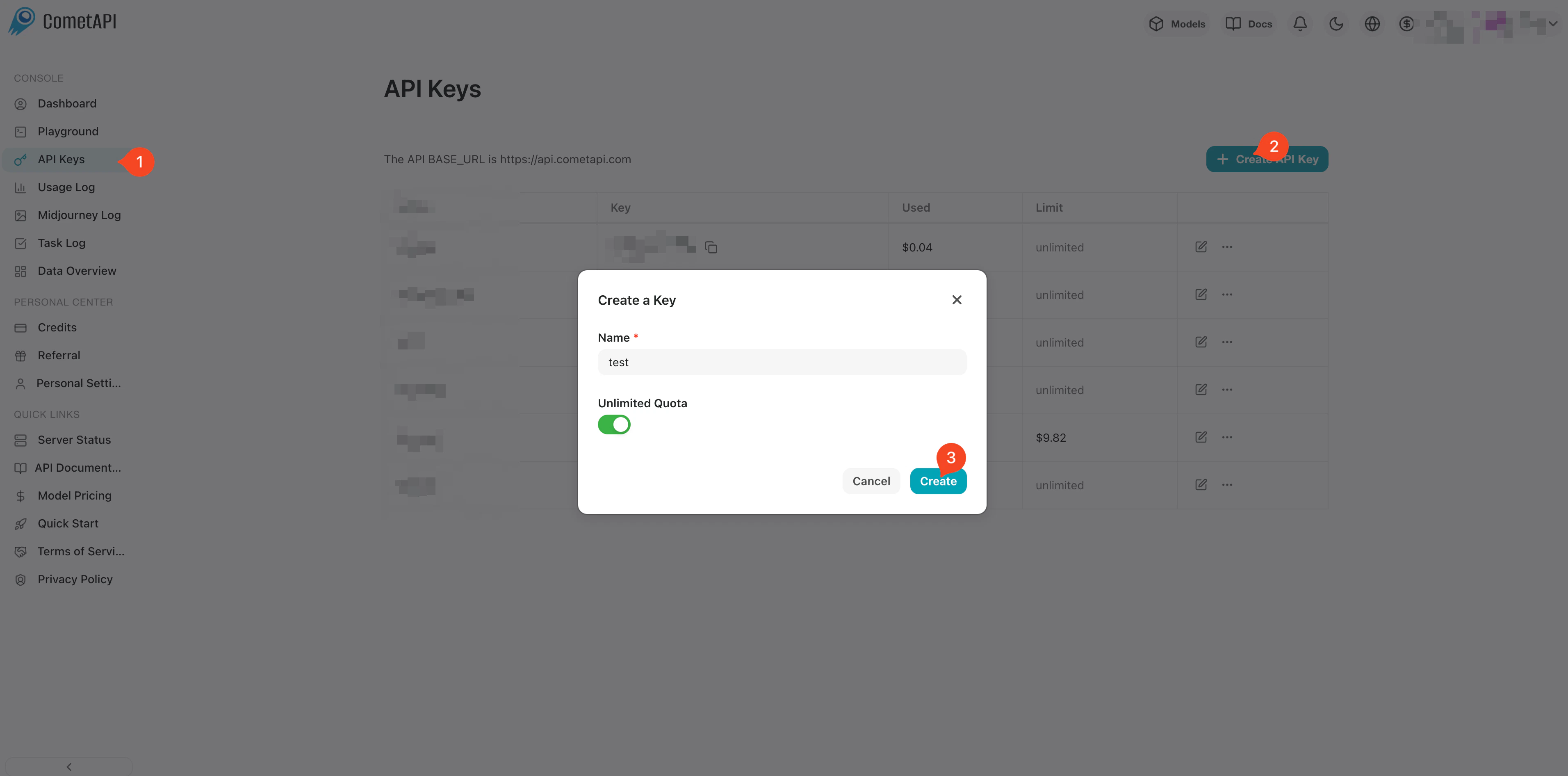
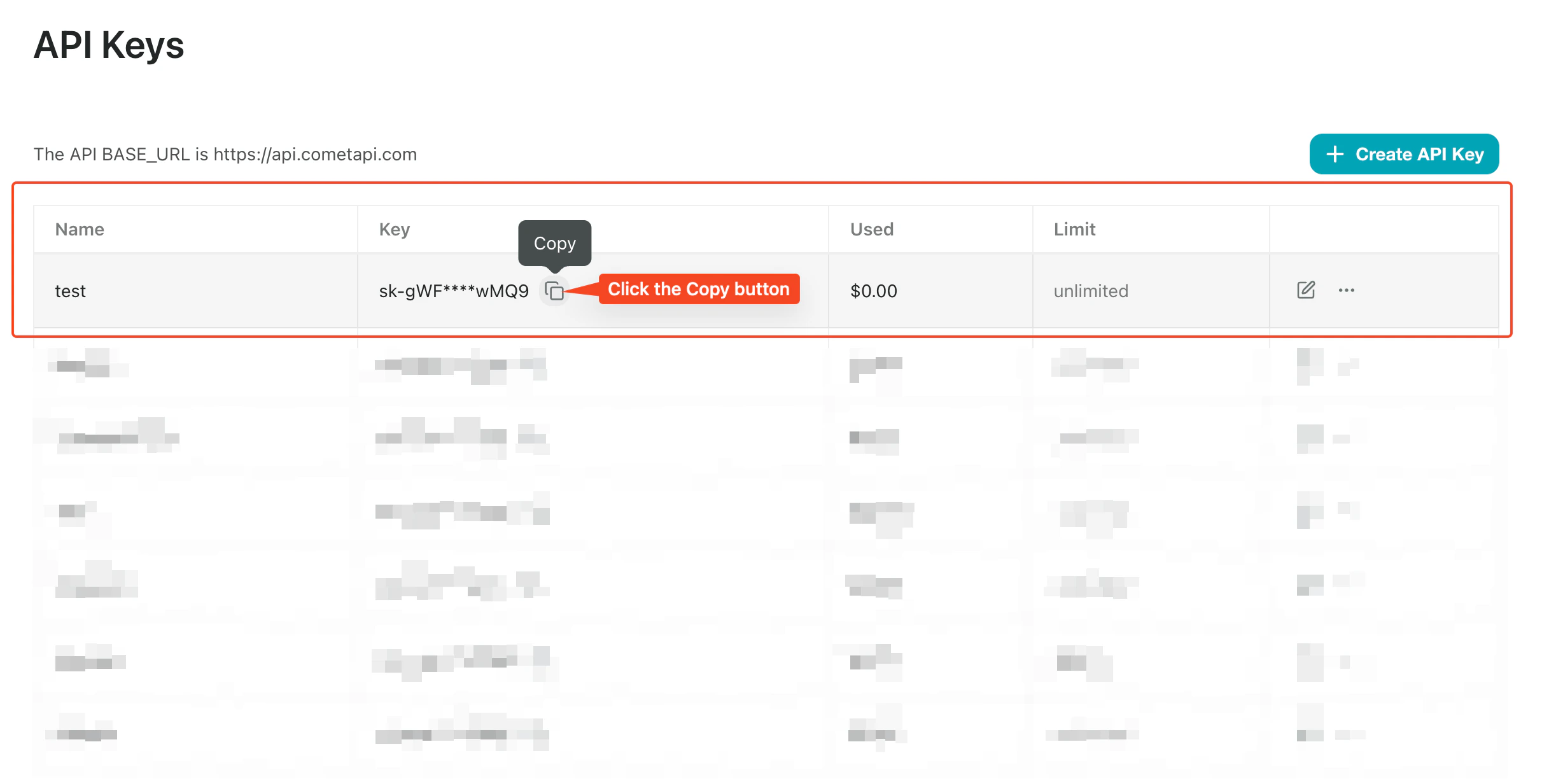
    Log in to the [CometAPI dashboard](https://www.cometapi.com/console). Click **Add API Key** and copy your key.
    <Frame>
      <img src="https://mintcdn.com/cometapi/SZhlxZhCnMLn__BW/images/overview/810968_364191.png?fit=max&auto=format&n=SZhlxZhCnMLn__BW&q=85&s=aef81a83f29f8eb16655ed4060425f50" alt="CometAPI dashboard — Add API Key button" width="3824" height="1892" data-path="images/overview/810968_364191.png" />
    </Frame>

    <Frame>
      <img src="https://mintcdn.com/cometapi/HhtmQffktazbxUvS/images/overview/810968_364193.png?fit=max&auto=format&n=HhtmQffktazbxUvS&q=85&s=d893f659267150d0faf45f99eb5dffc1" alt="CometAPI API key details and base URL" width="2434" height="1232" data-path="images/overview/810968_364193.png" />
    </Frame>
  </Step>

  <Step title="Create a flow and add the CometAPI step">
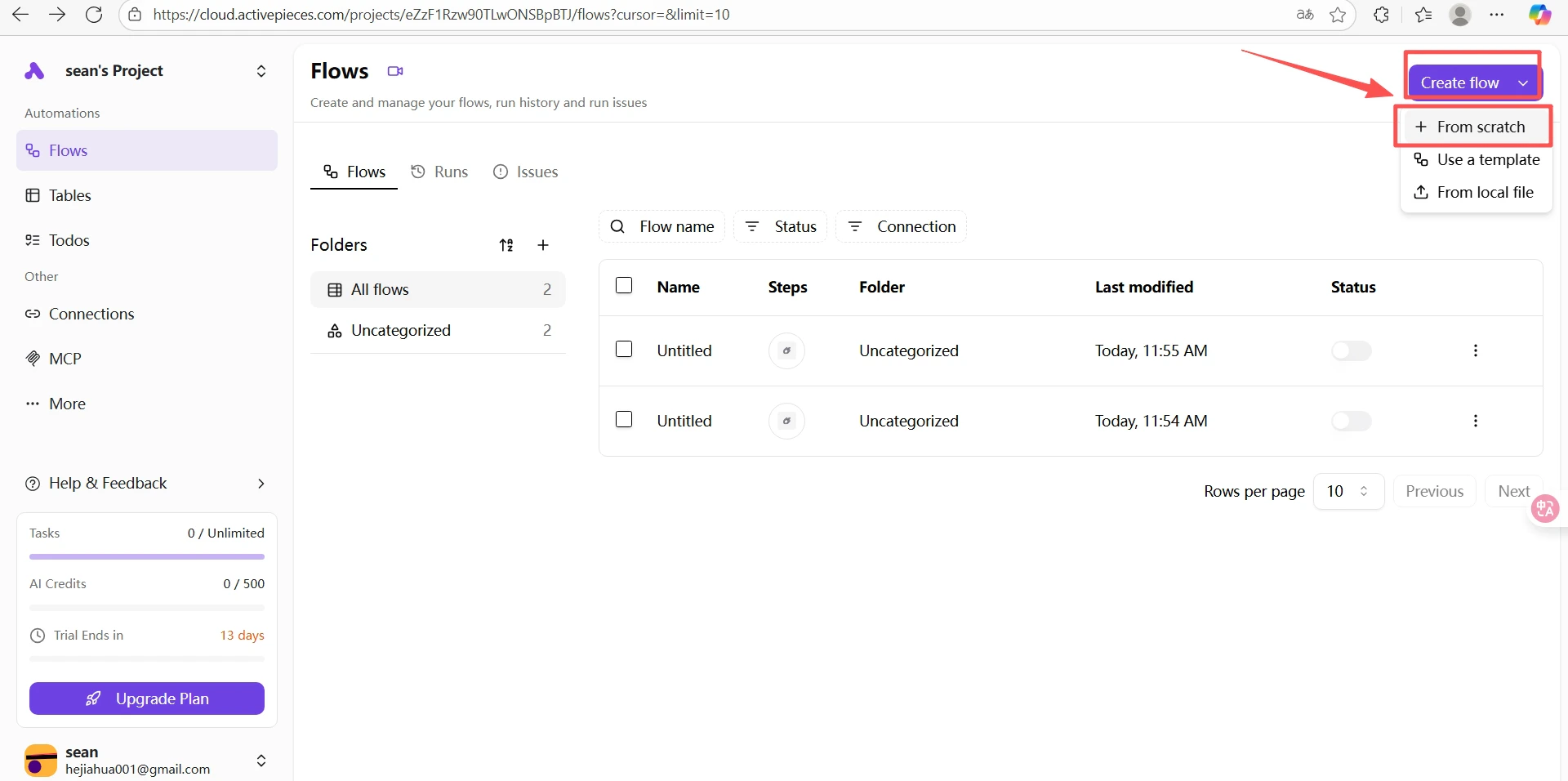
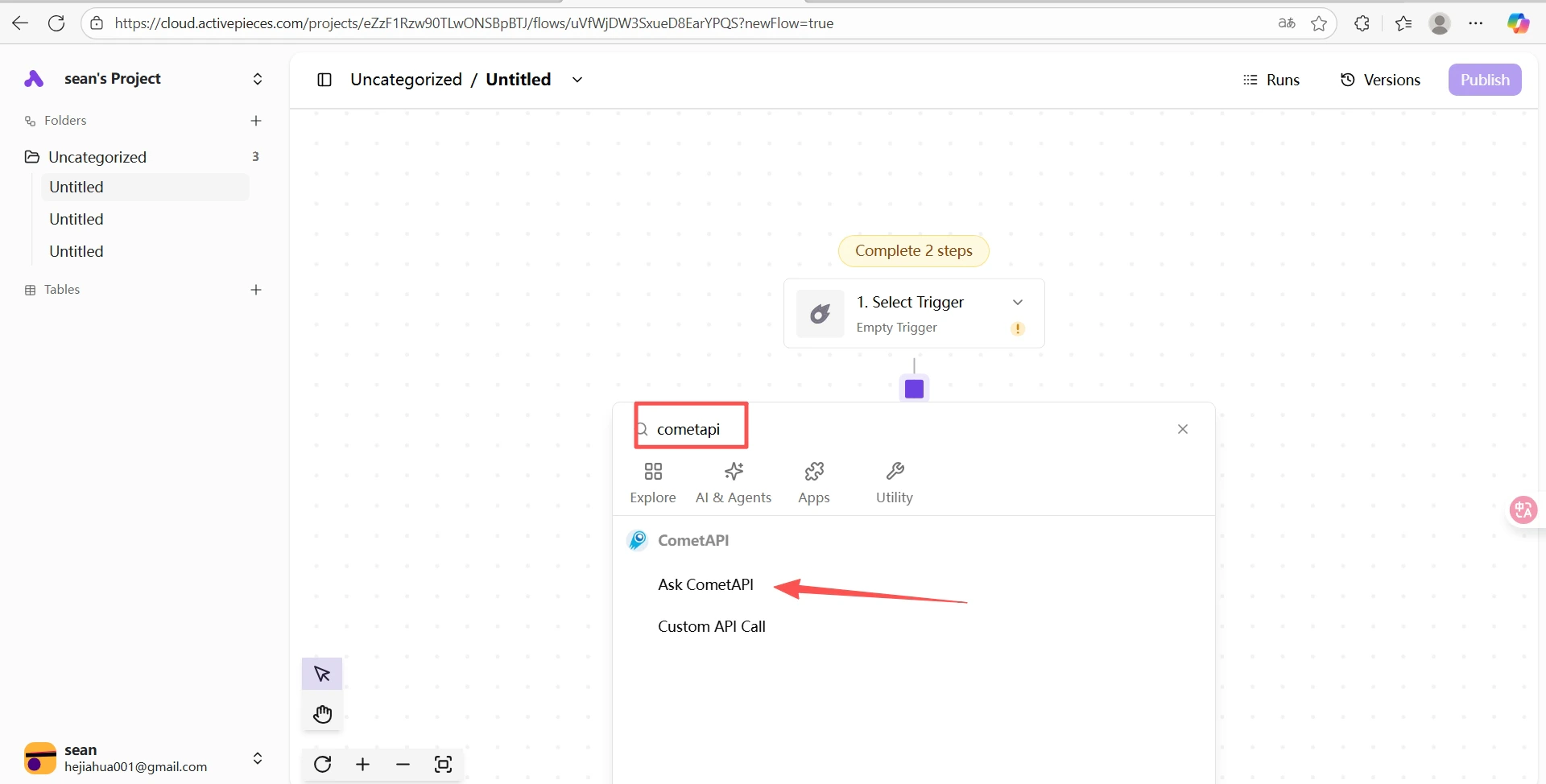
    In your Activepieces project, click **Create Flow** → **From Scratch**. Click the **+** button on the canvas, search for `cometapi`, and select **Ask CometAPI**.
    <Frame>
      <img src="https://mintcdn.com/cometapi/SZhlxZhCnMLn__BW/images/integrations/810968_361326.png?fit=max&auto=format&n=SZhlxZhCnMLn__BW&q=85&s=20fd998714bb23dc7c28dbad4315c152" alt="Activepieces canvas with the + button to add a step" width="1920" height="956" data-path="images/integrations/810968_361326.png" />
    </Frame>

    <Frame>
      <img src="https://mintcdn.com/cometapi/SZhlxZhCnMLn__BW/images/integrations/810968_361327.png?fit=max&auto=format&n=SZhlxZhCnMLn__BW&q=85&s=084735cca2fbbb0b5e49672c029ff34c" alt="Search results showing the CometAPI connector" width="1920" height="974" data-path="images/integrations/810968_361327.png" />
    </Frame>

    <Frame>
      <img src="https://mintcdn.com/cometapi/SZhlxZhCnMLn__BW/images/integrations/810968_361328.png?fit=max&auto=format&n=SZhlxZhCnMLn__BW&q=85&s=a68000d40dcdfdd14af3a0954ab0c34b" alt="Ask CometAPI step selected in the connector list" width="1920" height="909" data-path="images/integrations/810968_361328.png" />
    </Frame>
  </Step>

  <Step title="Configure the CometAPI step">
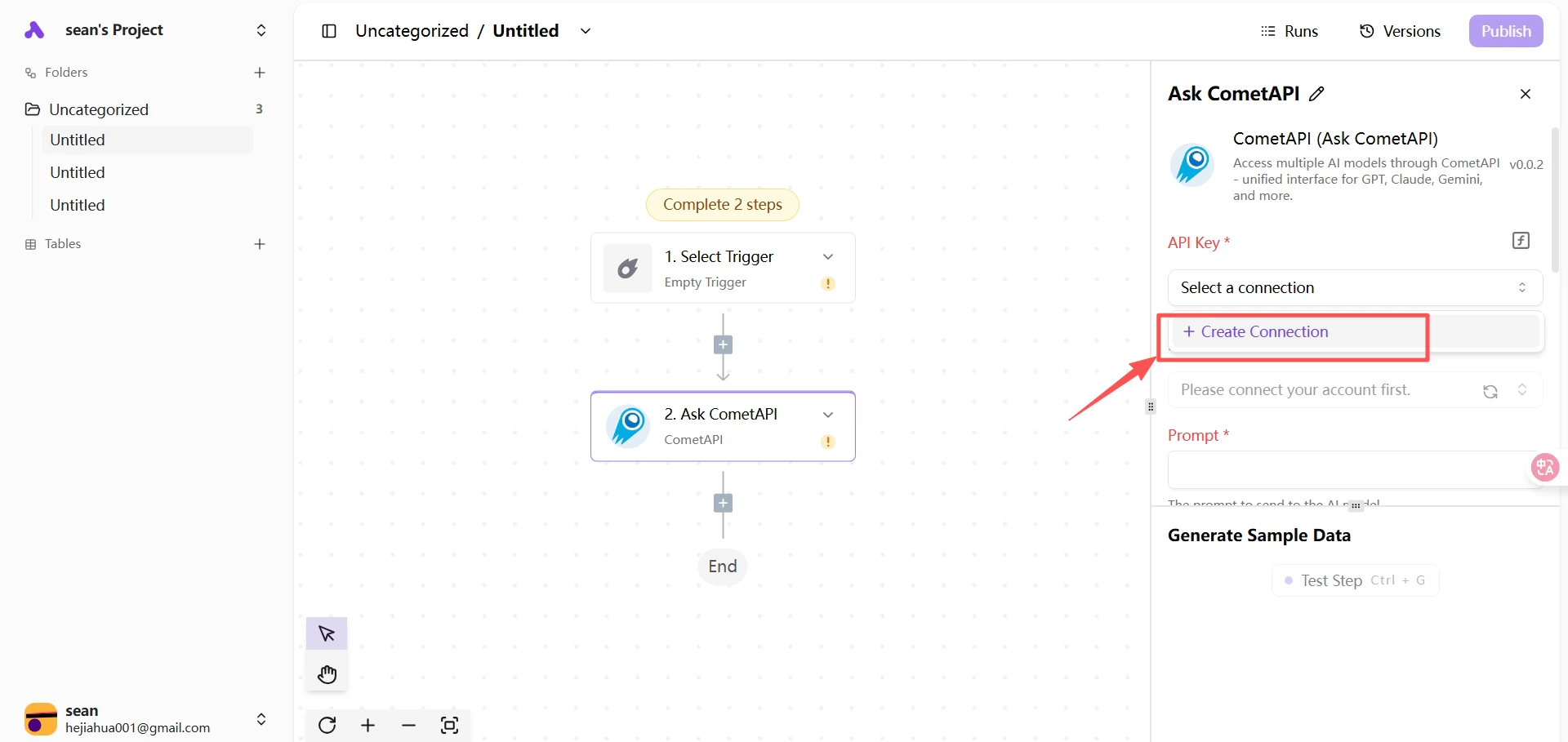
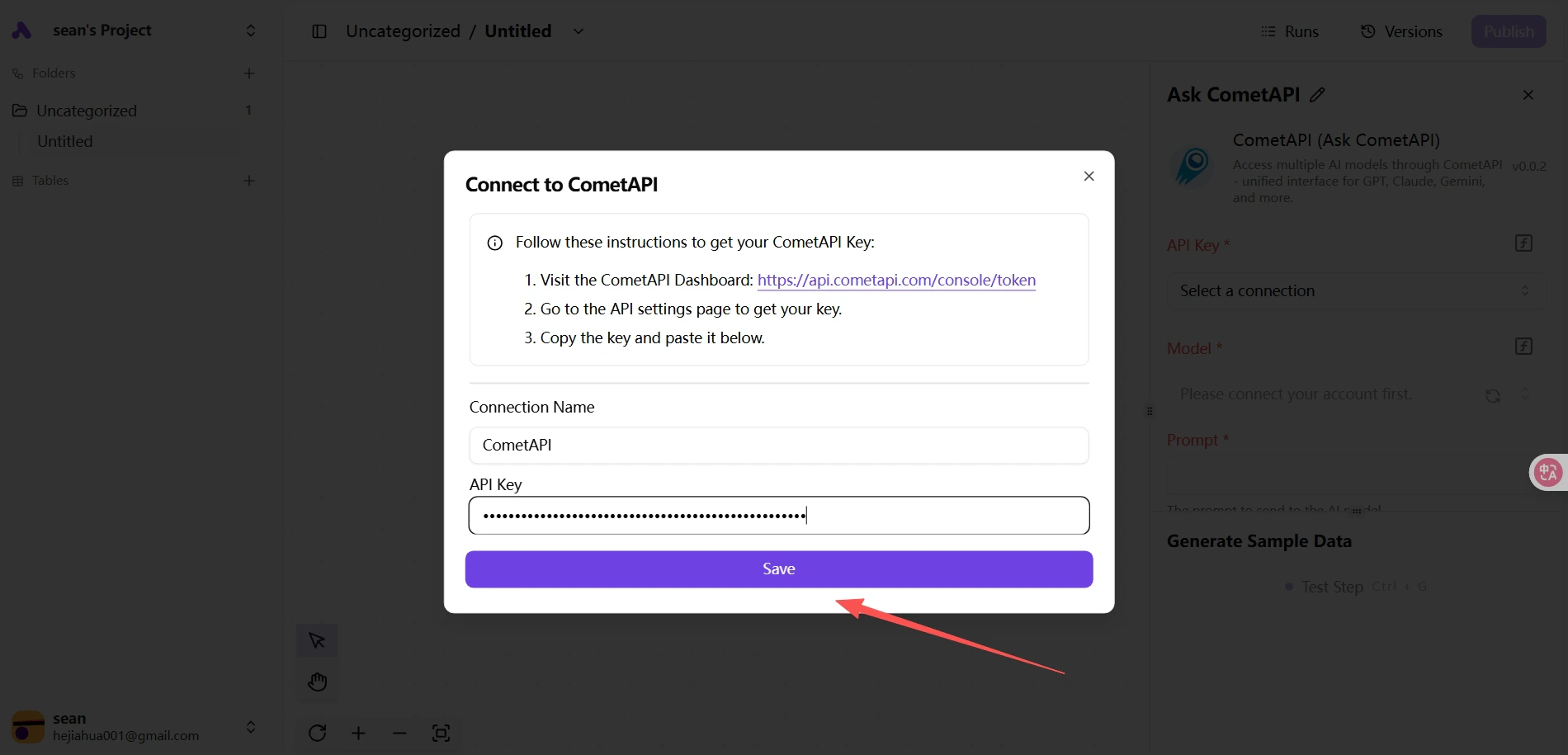
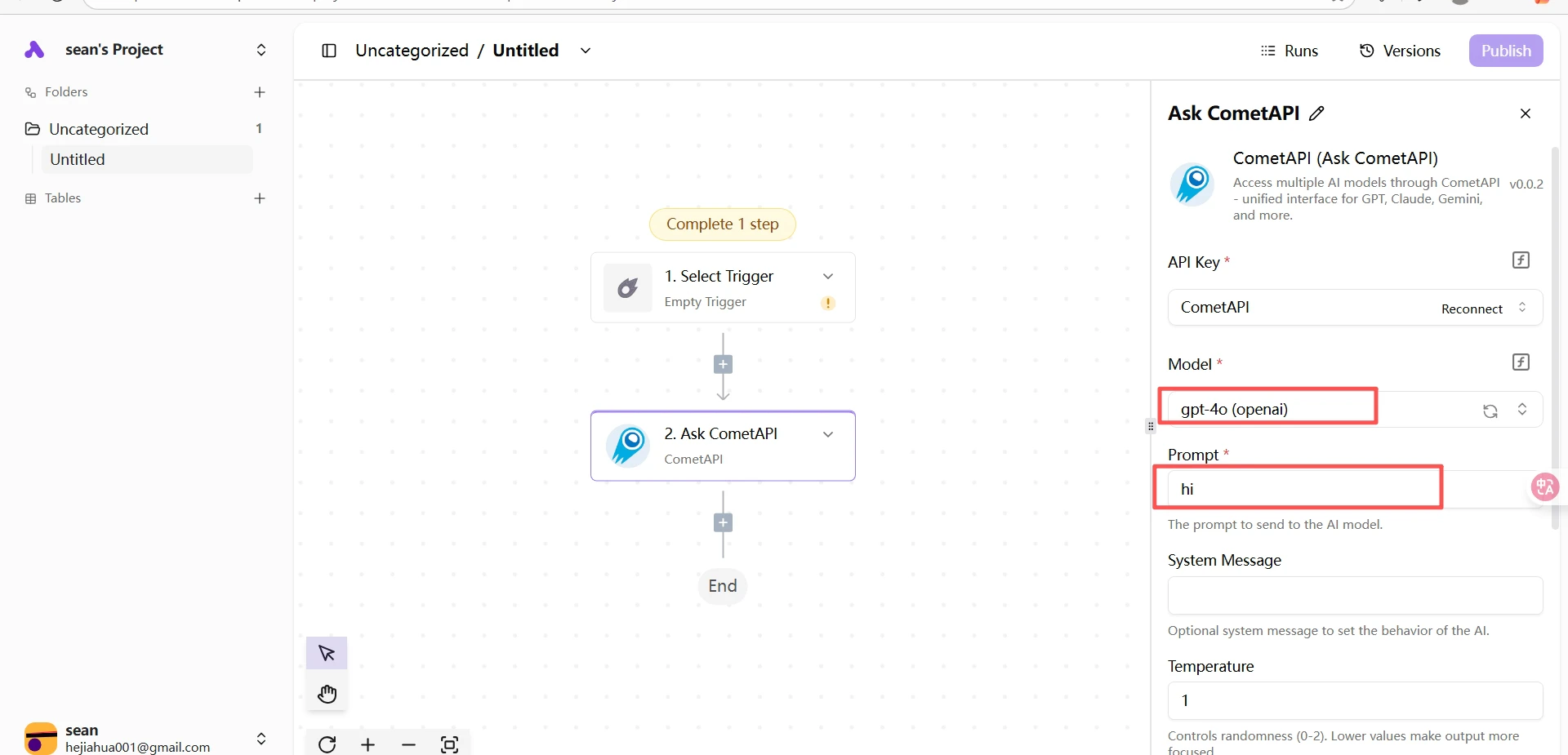
    Paste your API key into the **API Key** field. Select the current model you want to use and fill in your prompt.
    <Frame>
      <img src="https://mintcdn.com/cometapi/SZhlxZhCnMLn__BW/images/integrations/810968_361329.png?fit=max&auto=format&n=SZhlxZhCnMLn__BW&q=85&s=b3ea4a155f705dfb8cd0956a3cfc7fc8" alt="CometAPI step — API key and model selection" width="1900" height="915" data-path="images/integrations/810968_361329.png" />
    </Frame>

    <Frame>
      <img src="https://mintcdn.com/cometapi/SZhlxZhCnMLn__BW/images/integrations/810968_361330.png?fit=max&auto=format&n=SZhlxZhCnMLn__BW&q=85&s=344e62888e22f3ef1d34109e95ee8baf" alt="Prompt configuration for the Ask CometAPI step" width="1920" height="925" data-path="images/integrations/810968_361330.png" />
    </Frame>
  </Step>

  <Step title="Test the flow">
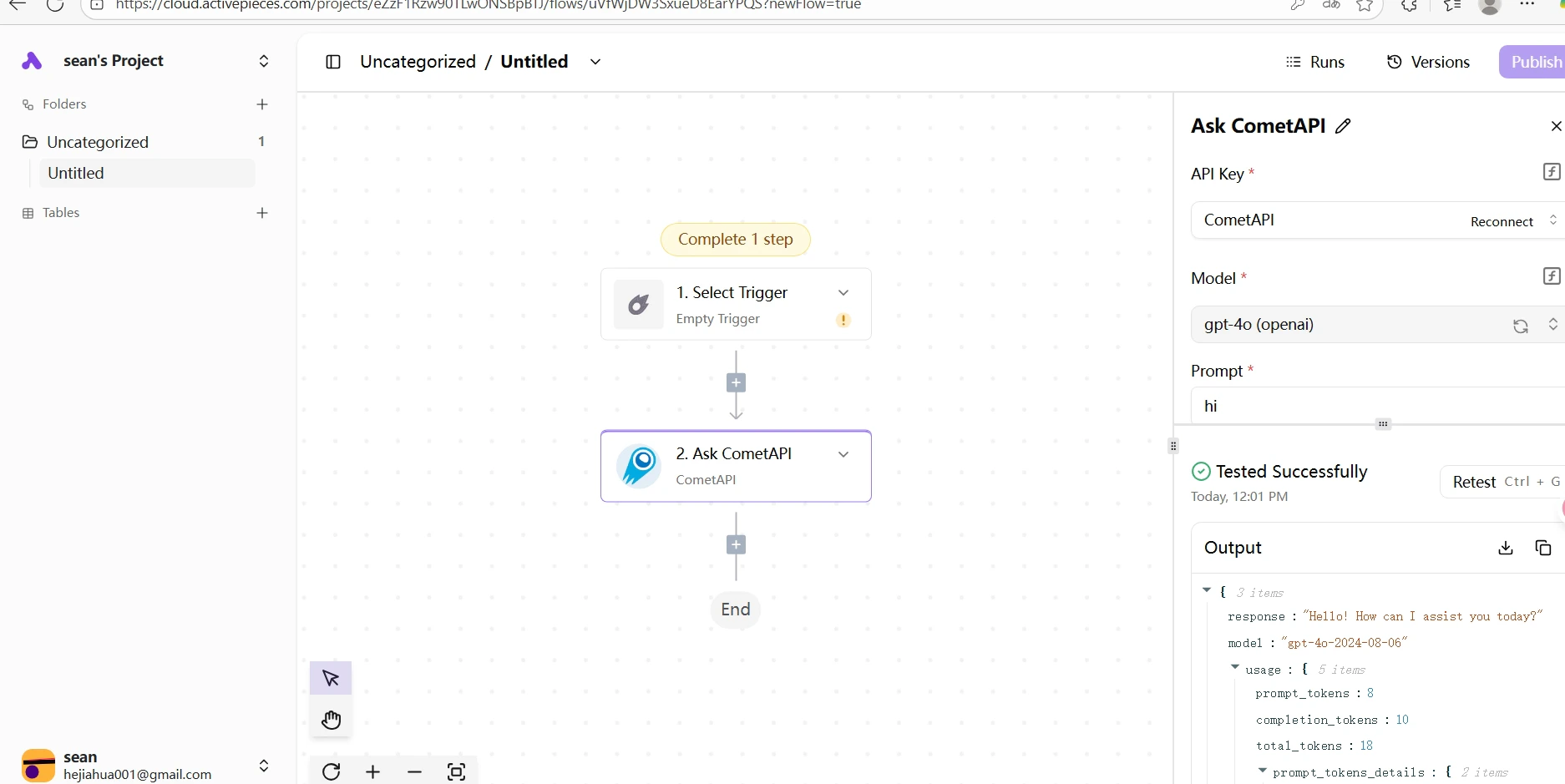
    Click **Test** to run the step. A successful response confirms the integration is working.
    <Frame>
      <img src="https://mintcdn.com/cometapi/SZhlxZhCnMLn__BW/images/integrations/810968_361331.png?fit=max&auto=format&n=SZhlxZhCnMLn__BW&q=85&s=92fd6c62bcf33f681b053668a9ac6687" alt="Successful test response from the CometAPI step" width="1874" height="939" data-path="images/integrations/810968_361331.png" />
    </Frame>
  </Step>
</Steps>

<Note>
  If the test fails, verify your API key is correct and your account has available balance. Contact [CometAPI support](https://www.cometapi.com) if the issue persists.
</Note>