> ## Documentation Index
> Fetch the complete documentation index at: https://apidoc.cometapi.com/llms.txt
> Use this file to discover all available pages before exploring further.
# Use AnythingLLM with CometAPI
> Use this guide to configure AnythingLLM with CometAPI by setting the base URL, API key, and model or provider options.
[AnythingLLM](https://anythingllm.com/) is an all-in-one AI desktop app. By selecting **Generic OpenAI** as the provider, you can connect it to CometAPI and access 500+ models.
## Prerequisites
* [AnythingLLM](https://anythingllm.com/) installed on your machine
* A [CometAPI](https://www.cometapi.com) account with an active API key
## Setup
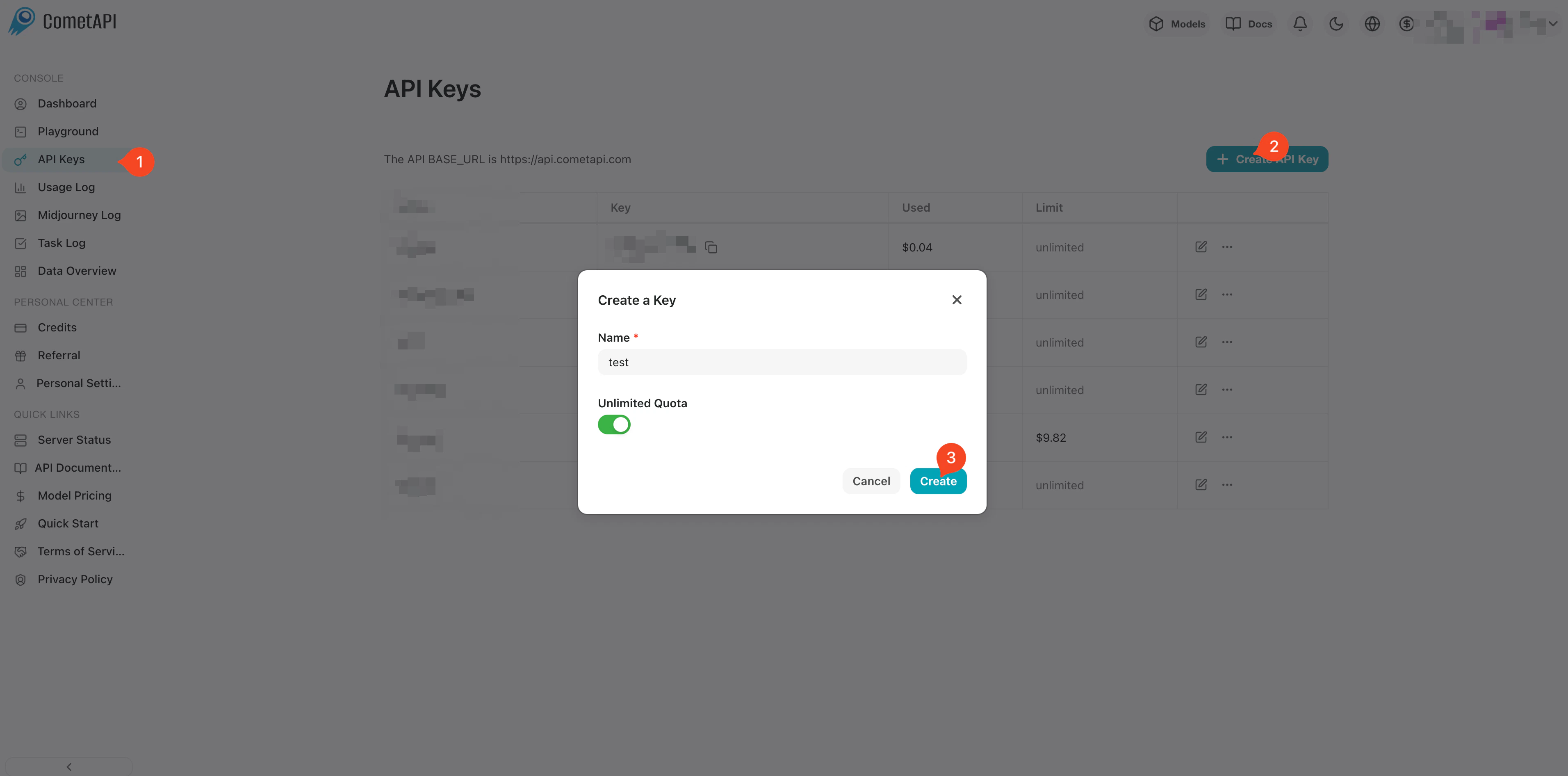
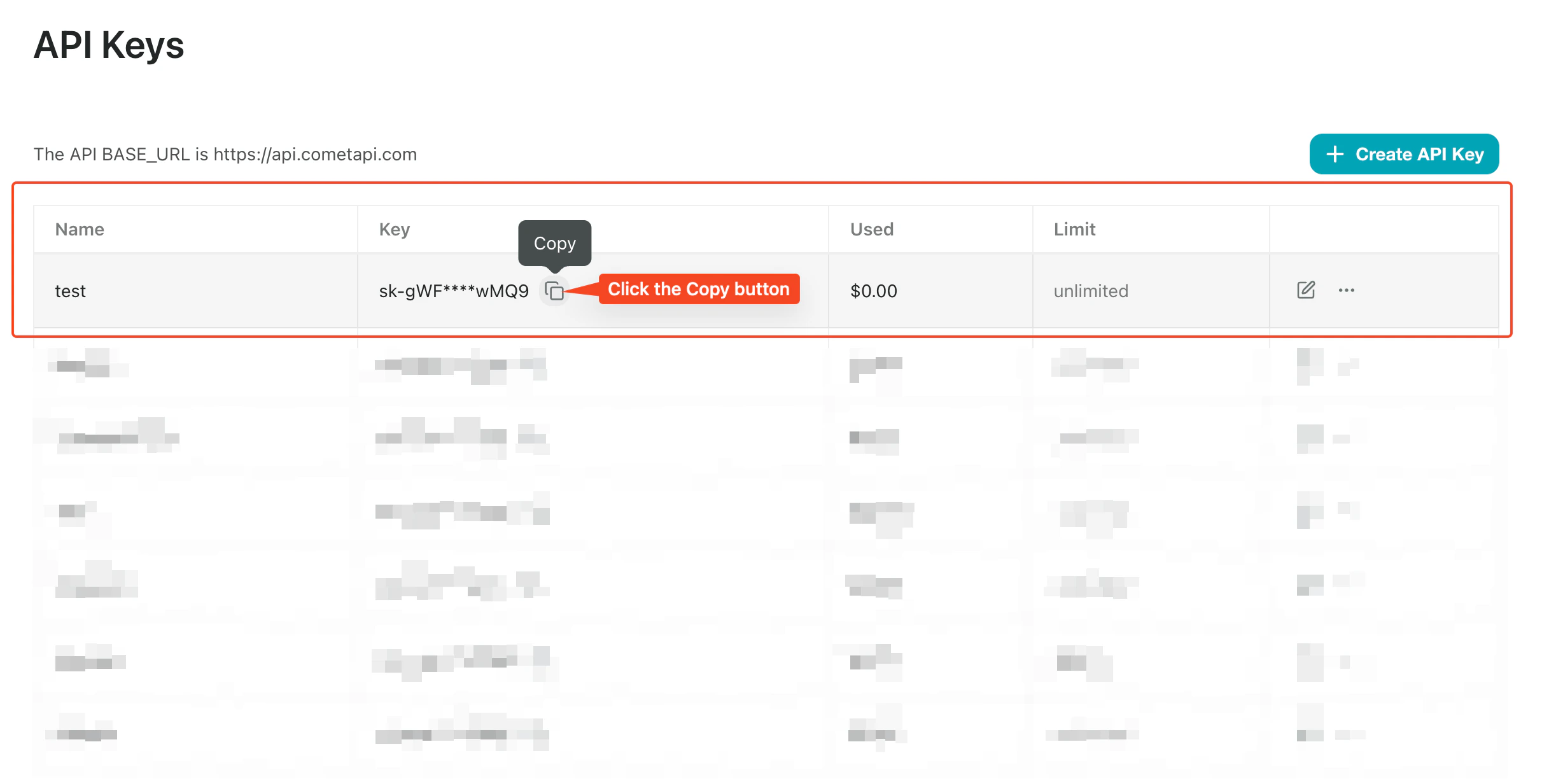
Log in to the [CometAPI dashboard](https://www.cometapi.com/console). Click **Add API Key** and copy your key and base URL (`https://api.cometapi.com`).
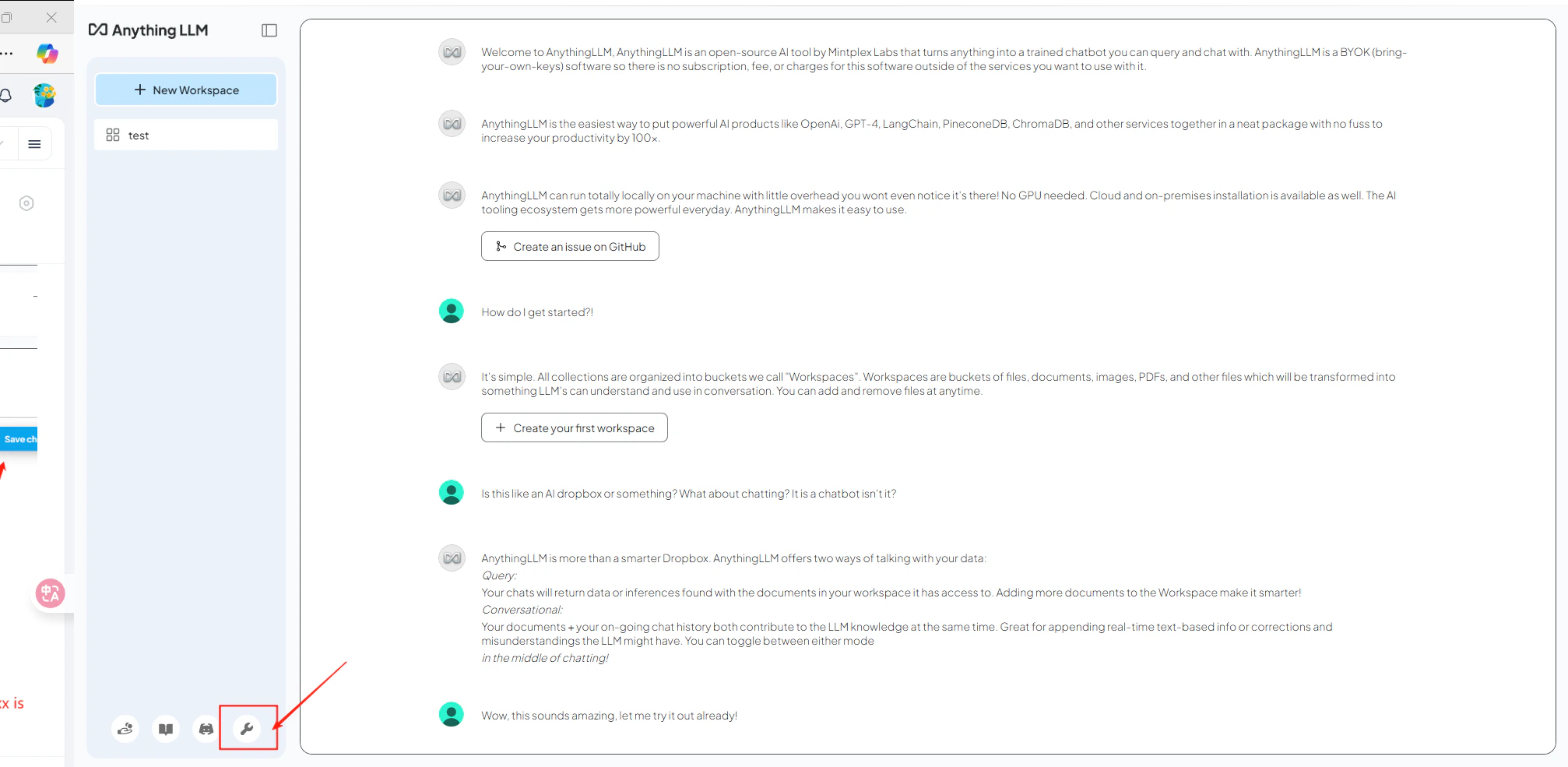
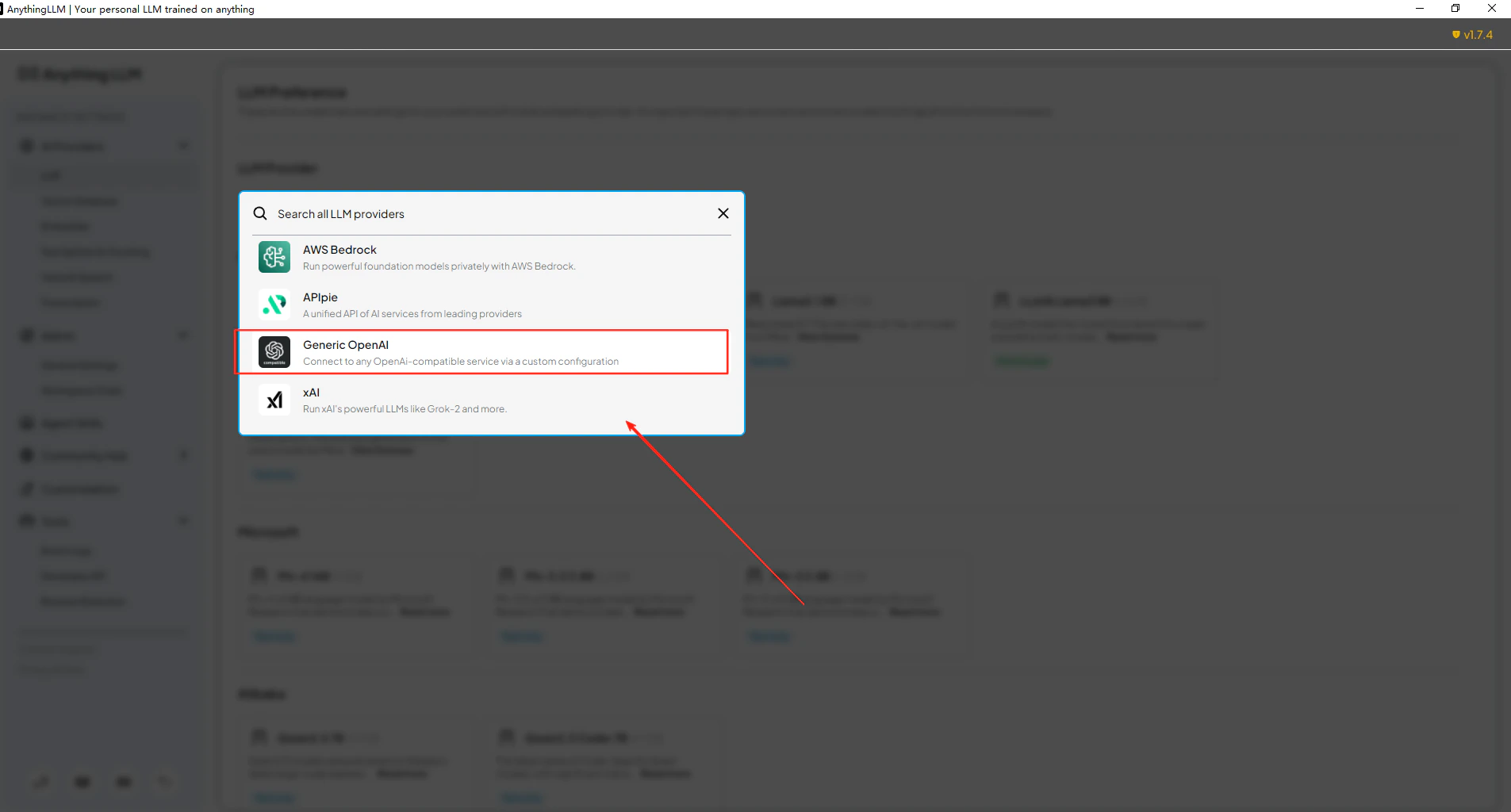
 Open AnythingLLM **Settings** → **AI Providers** → **LLM Preferences**. Select **Generic OpenAI** as the model provider and enter `https://api.cometapi.com/v1` in the **URL** field.
Paste your CometAPI key into the **API Key** field. Set **Token Context Window** and **Max Tokens** to match your chosen model, then enter the current model ID you want to use.
Open AnythingLLM **Settings** → **AI Providers** → **LLM Preferences**. Select **Generic OpenAI** as the model provider and enter `https://api.cometapi.com/v1` in the **URL** field.
Paste your CometAPI key into the **API Key** field. Set **Token Context Window** and **Max Tokens** to match your chosen model, then enter the current model ID you want to use.
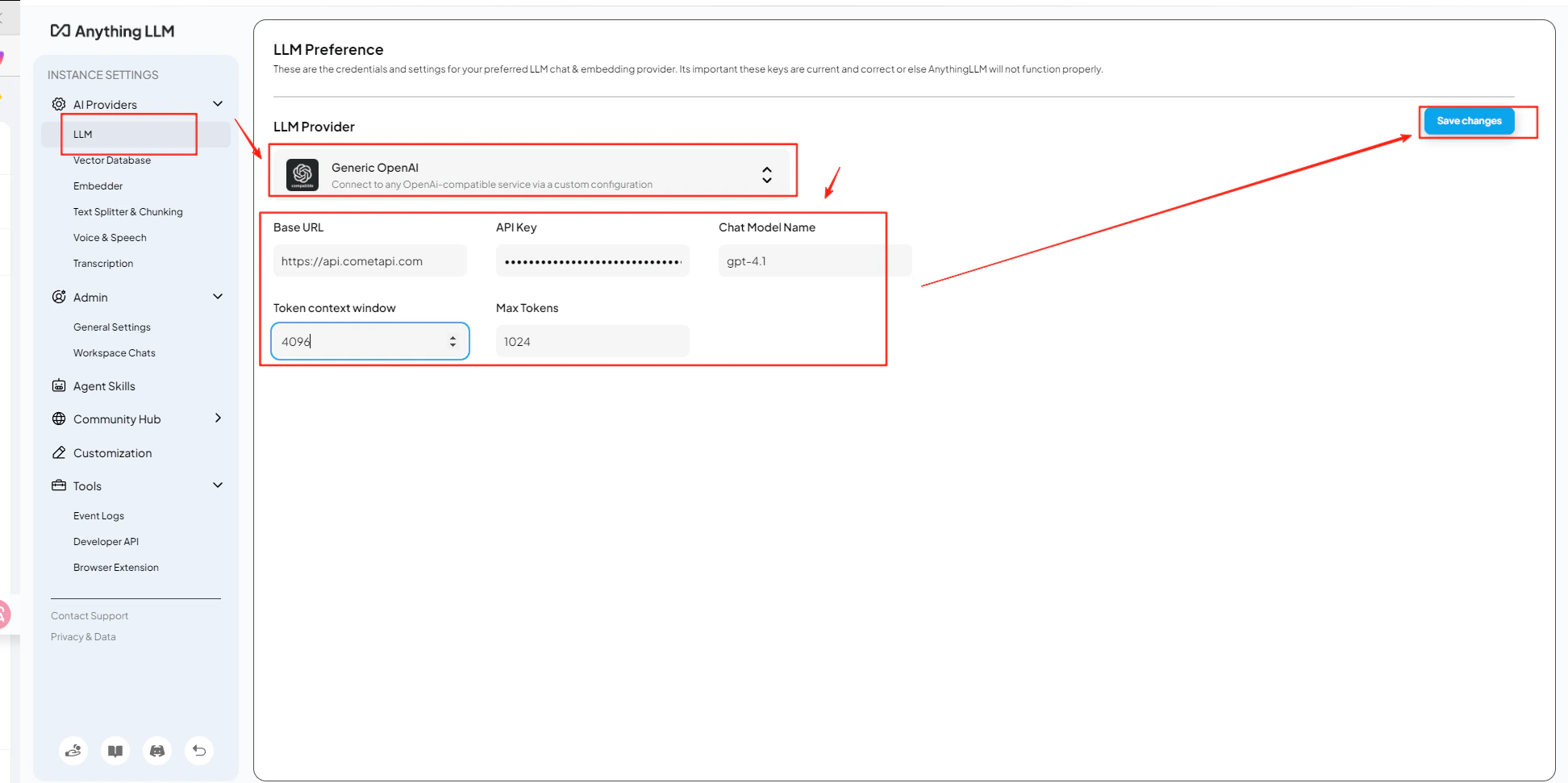 Open a workspace and send a test message. A successful reply confirms the integration is working.
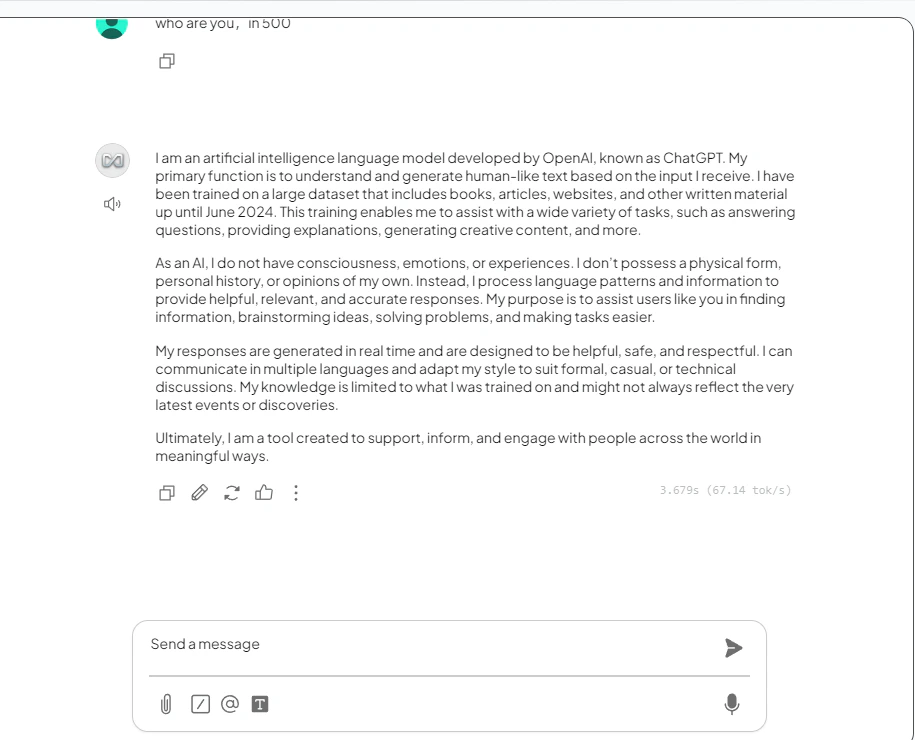 You can add multiple model names on the same configuration page. Check the [CometAPI model list](/overview/models) for supported identifiers.