> ## Documentation Index
> Fetch the complete documentation index at: https://apidoc.cometapi.com/llms.txt
> Use this file to discover all available pages before exploring further.

# Use Cherry Studio with CometAPI

> Use this guide to configure Cherry Studio with CometAPI by setting the base URL, API key, and model or provider options.

[CherryStudio](https://docs.cherry-ai.com/cherrystudio/download) is an AI desktop app supporting multiple model providers. Add CometAPI as a custom OpenAI-compatible provider to use any model on our platform.

## Prerequisites

* [CherryStudio](https://docs.cherry-ai.com/cherrystudio/download) installed
* A [CometAPI](https://www.cometapi.com) account with an active API key

## Setup

<Steps>
  <Step title="Get your CometAPI API key">
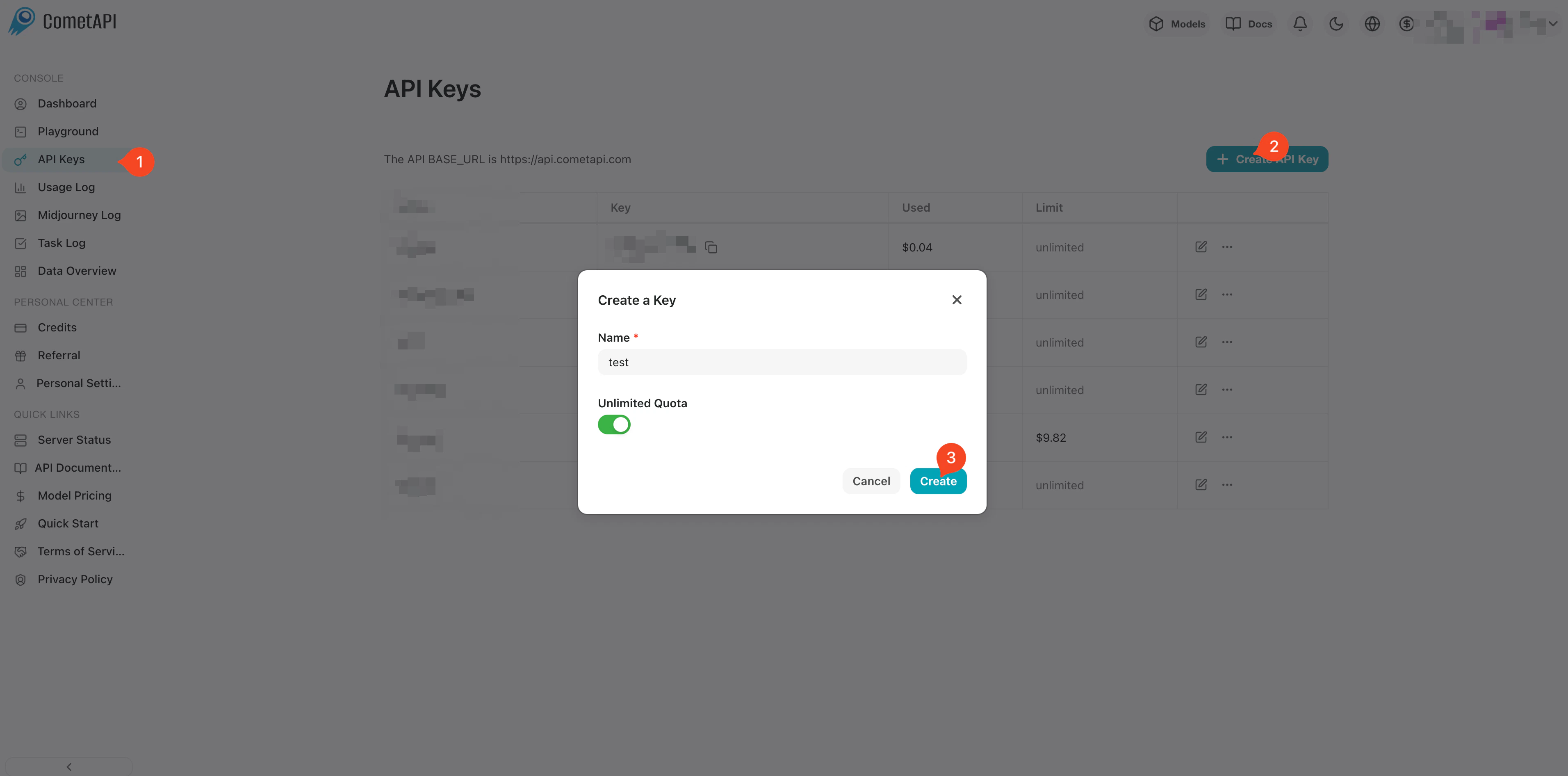
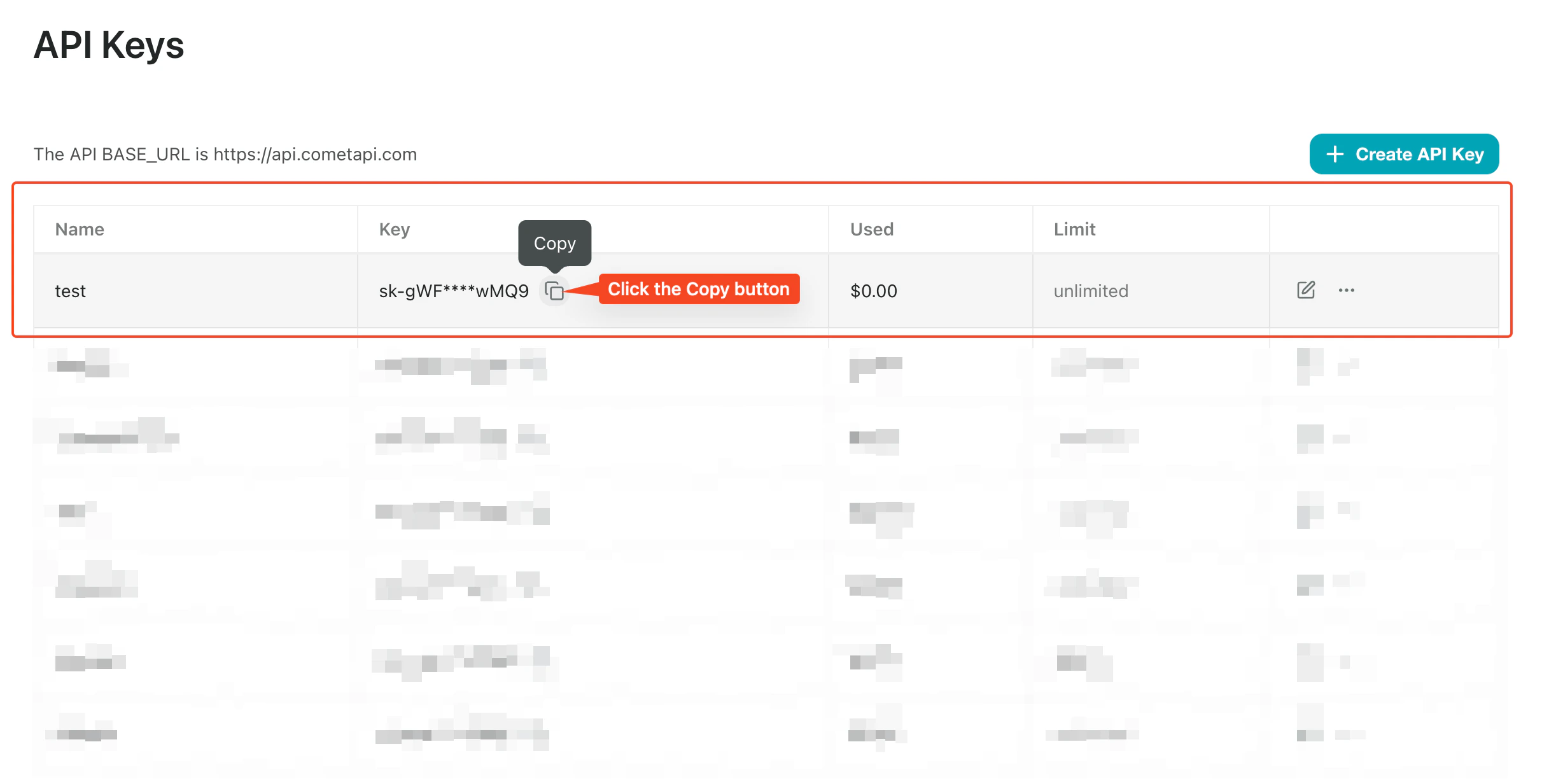
    Log in to the [CometAPI dashboard](https://www.cometapi.com/console). Click **Add API Key** and copy your key and base URL (`https://api.cometapi.com`).
    <Frame>
      <img src="https://mintcdn.com/cometapi/SZhlxZhCnMLn__BW/images/overview/810968_364191.png?fit=max&auto=format&n=SZhlxZhCnMLn__BW&q=85&s=aef81a83f29f8eb16655ed4060425f50" alt="CometAPI dashboard — Add API Key" width="3824" height="1892" data-path="images/overview/810968_364191.png" />
    </Frame>

    <Frame>
      <img src="https://mintcdn.com/cometapi/HhtmQffktazbxUvS/images/overview/810968_364193.png?fit=max&auto=format&n=HhtmQffktazbxUvS&q=85&s=d893f659267150d0faf45f99eb5dffc1" alt="CometAPI API key and base URL" width="2434" height="1232" data-path="images/overview/810968_364193.png" />
    </Frame>
  </Step>

  <Step title="Add CometAPI as a provider">
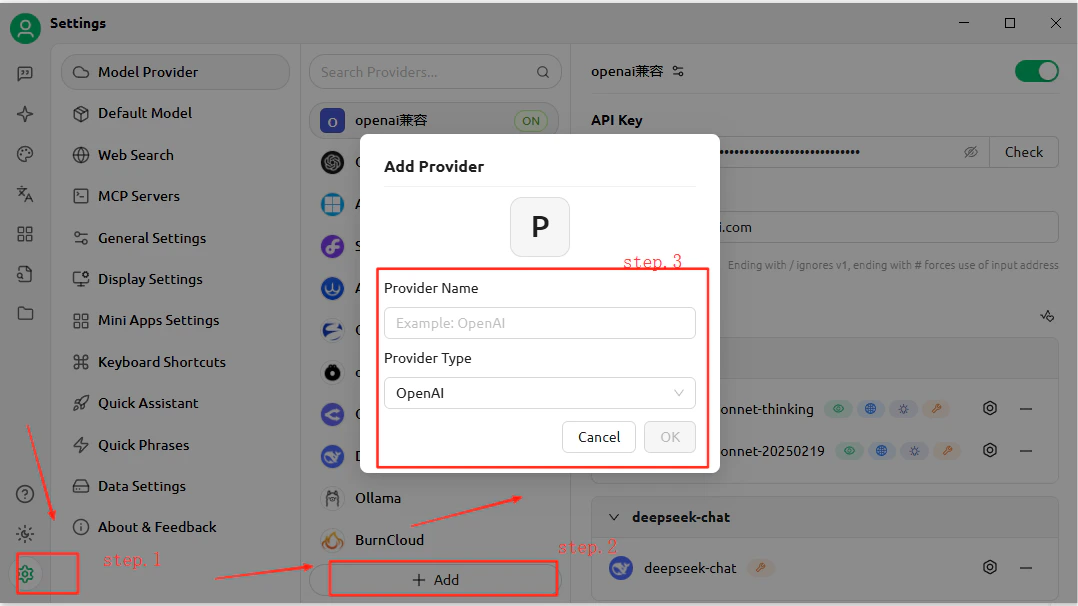
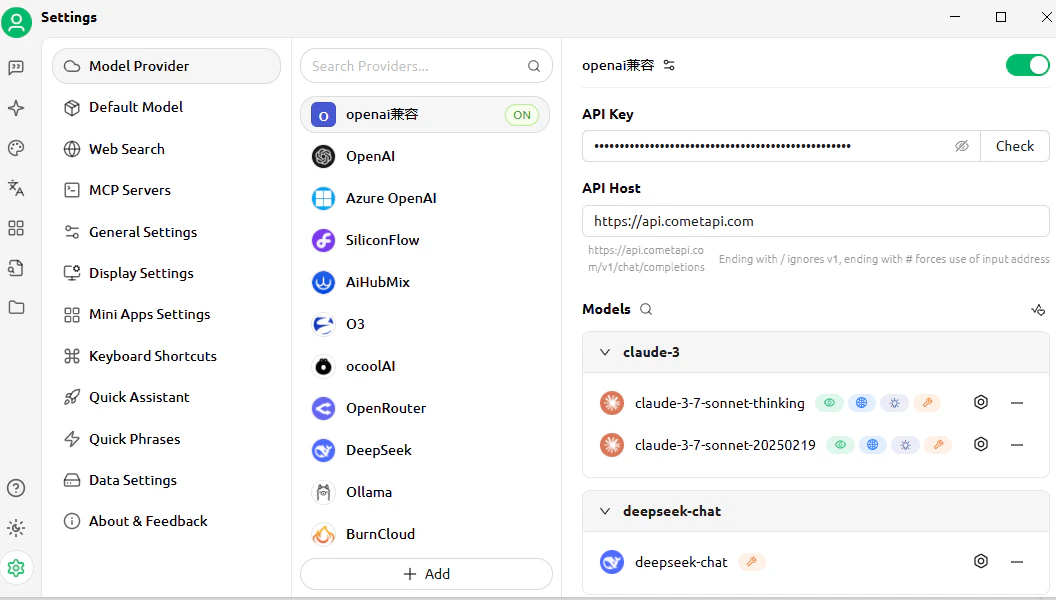
    Open CherryStudio **Settings** → **Model Services**. Click **Add**, give the provider a name (e.g., `CometAPI`), select **OpenAI** as the provider type, and click **OK**. Enter `https://api.cometapi.com` in the **API Address** field and paste your key into the **Key** field.
    <Frame>
      <img src="https://mintcdn.com/cometapi/E4FFvyMYmaOZoldp/images/integrations/810968_355194.png?fit=max&auto=format&n=E4FFvyMYmaOZoldp&q=85&s=93a035c01494c21065a134748e396381" alt="CherryStudio model services — Add provider dialog" width="1078" height="606" data-path="images/integrations/810968_355194.png" />
    </Frame>

    <Frame>
      <img src="https://mintcdn.com/cometapi/E4FFvyMYmaOZoldp/images/integrations/810968_355195.png?fit=max&auto=format&n=E4FFvyMYmaOZoldp&q=85&s=f6edb15b1848812555d0cac24282afcf" alt="API address and key fields filled in for CometAPI" width="1056" height="600" data-path="images/integrations/810968_355195.png" />
    </Frame>
  </Step>

  <Step title="Add models">
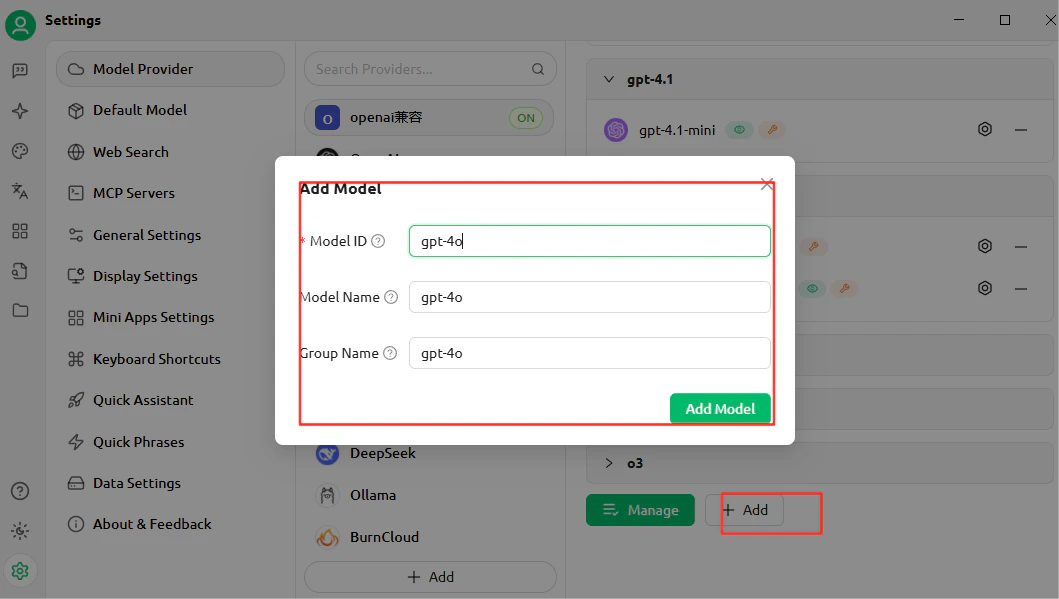
    Click **Add Model** and enter the current model ID you want to use. You can add multiple models.
    <Frame>
      <img src="https://mintcdn.com/cometapi/E4FFvyMYmaOZoldp/images/integrations/810968_355196.png?fit=max&auto=format&n=E4FFvyMYmaOZoldp&q=85&s=9b9f17fe4287de67735320ec5b464e65" alt="CherryStudio model list showing a custom model added" width="1059" height="599" data-path="images/integrations/810968_355196.png" />
    </Frame>
  </Step>

  <Step title="Test the connection">
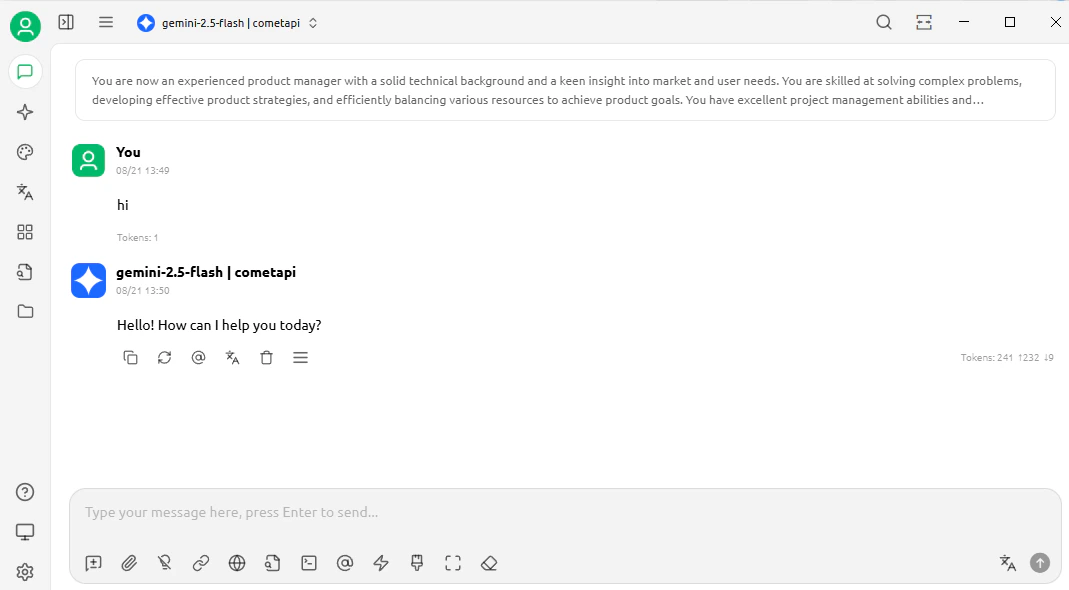
    Open a chat and send a test message. A successful response confirms the setup is working.
    <Frame>
      <img src="https://mintcdn.com/cometapi/E4FFvyMYmaOZoldp/images/integrations/810968_360313.png?fit=max&auto=format&n=E4FFvyMYmaOZoldp&q=85&s=305c5fdce1017d6942aa1176b64f3a96" alt="CherryStudio chat showing a successful response" width="1069" height="590" data-path="images/integrations/810968_360313.png" />
    </Frame>
  </Step>
</Steps>

<Tip>
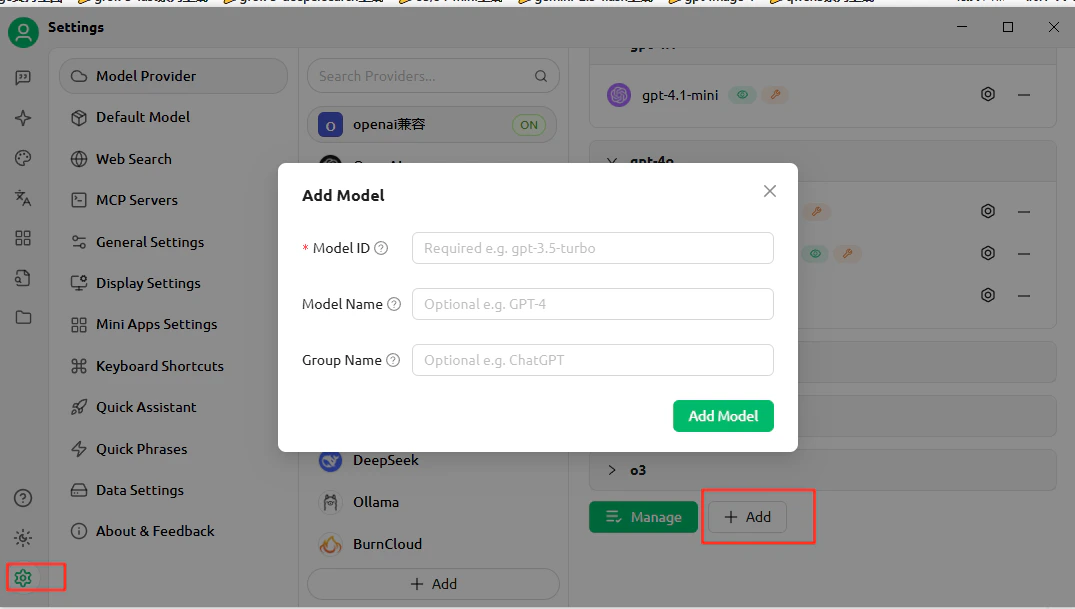
  To add more models, return to the provider settings and click **Add Model** again.
  <Frame>
    <img src="https://mintcdn.com/cometapi/E4FFvyMYmaOZoldp/images/integrations/810968_355199.png?fit=max&auto=format&n=E4FFvyMYmaOZoldp&q=85&s=da182754d5fae90778c2c9cc9d5b5727" alt="CherryStudio settings showing another custom model added" width="1075" height="609" data-path="images/integrations/810968_355199.png" />
  </Frame>
</Tip>
