> ## Documentation Index
> Fetch the complete documentation index at: https://apidoc.cometapi.com/llms.txt
> Use this file to discover all available pages before exploring further.
# Use Claude Desktop with CometAPI
> Use this guide to configure Claude Desktop with CometAPI by setting the base URL, API key, and model or provider options.
Use this guide to connect Claude Desktop Cowork on third-party inference to CometAPI. This configuration lets Claude Desktop send Claude Messages API requests to CometAPI from the Cowork, Projects, and supported desktop workflows.
Official references:
* [Claude Desktop installation and setup](https://claude.com/docs/cowork/3p/installation)
* [Claude Desktop gateway configuration](https://claude.com/docs/cowork/3p/gateway)
* [Claude Desktop configuration reference](https://claude.com/docs/cowork/3p/configuration)
Claude Desktop third-party inference requires an Anthropic-compatible gateway. CometAPI supports Claude models through the [Anthropic Messages API](/api/text/anthropic-messages).
Content that you send from Claude Desktop is processed by CometAPI and the selected model provider. Do not send confidential data unless your organization allows that workflow.
## Prerequisites
* Claude Desktop installed from [claude.com/download](https://claude.com/download)
* A Claude Desktop build that includes **Developer mode** and **Configure third-party inference**
* A CometAPI account with an active API key
* Access to Claude models in CometAPI
* A network path that can reach `https://api.cometapi.com`
Start from the Claude Desktop sign-in screen. If you already signed in with an Anthropic account, sign out before you configure third-party inference.
## Configuration
Open Claude Desktop and stay on the sign-in screen. In the application menu, open **Help** → **Troubleshooting**, then select **Enable Developer Mode**.
On Windows, the menu can be hard to reach before sign-in. Focus the email field, press `Tab` until the menu is focused, then press `Enter`.
After developer mode is enabled, open **Developer** → **Configure third-party inference**.
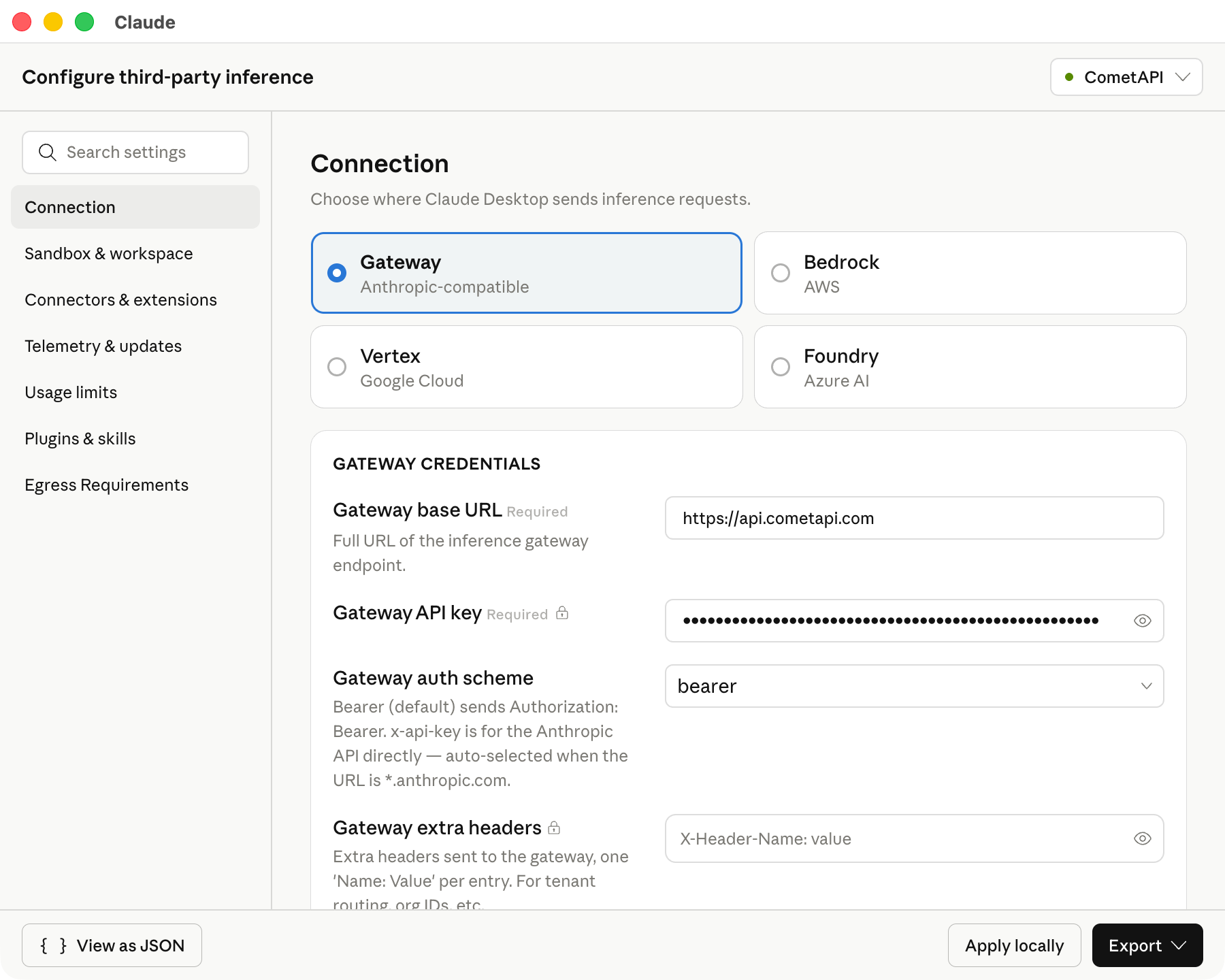
The configuration window opens with several sections in the left sidebar. Use the **Connection** section for the CometAPI settings.
In the **Connection** section, enter the CometAPI values below:
| Field | Value |
| --------------------- | ---------------------------------------------- |
| Inference provider | Gateway |
| Gateway | Anthropic-compatible |
| Gateway base URL | `https://api.cometapi.com` |
| Gateway API key | Your CometAPI API key, such as `$COMETAPI_KEY` |
| Gateway auth scheme | Bearer |
| Gateway extra headers | Leave blank |
Keep the base URL exactly as shown. Claude Desktop requires an HTTPS base URL.
The following screenshot shows the Connection section filled with CometAPI values.
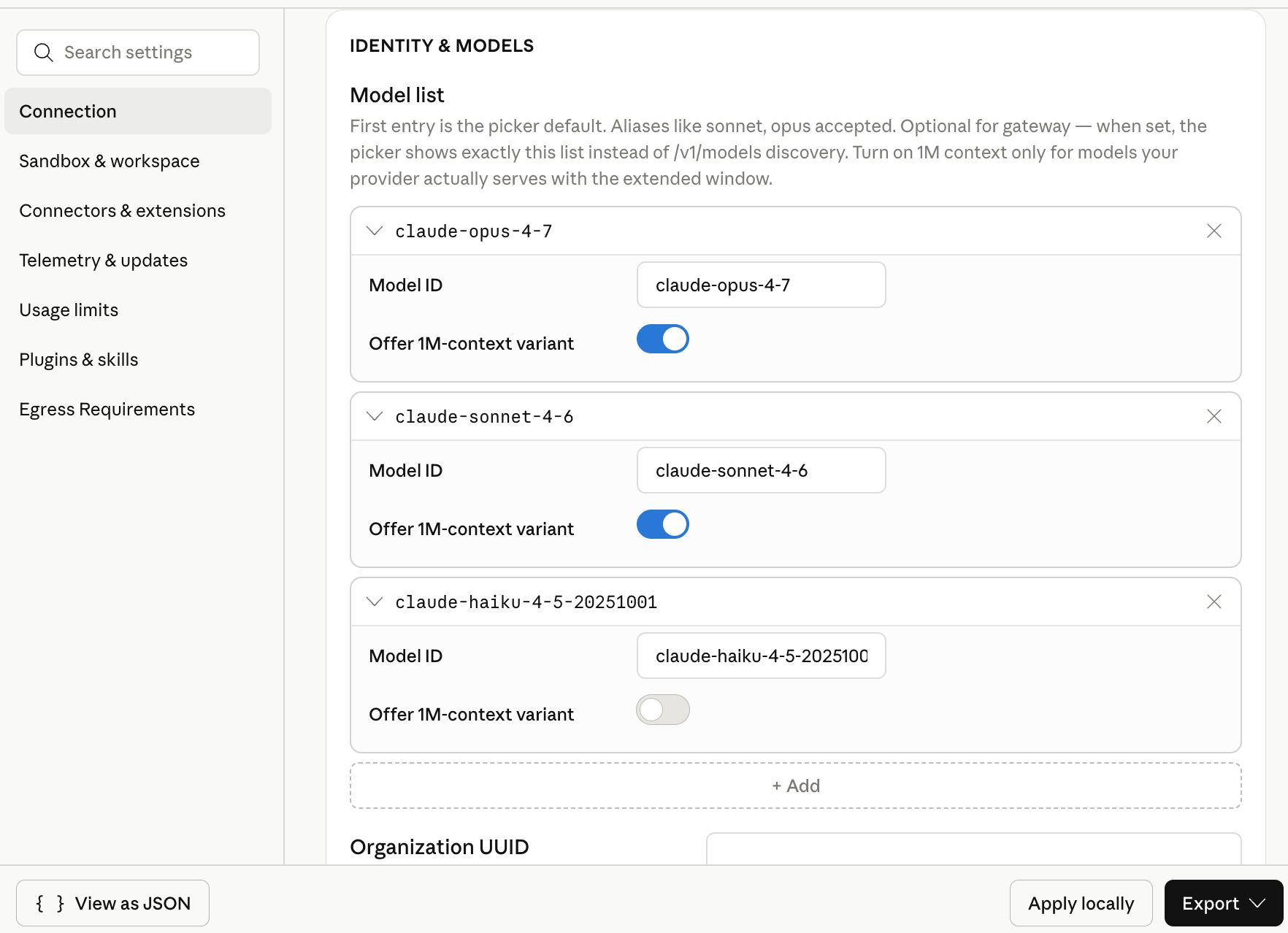
 In **Model list**, add these model IDs manually:
| Model ID | Recommended use |
| --------------------------- | ------------------------------------ |
| `claude-opus-4-7` | Complex planning and agent tasks |
| `claude-sonnet-4-6` | General desktop use |
| `claude-haiku-4-5-20251001` | Lightweight prompts and quick drafts |
The first model in the list becomes the default model. Put `claude-sonnet-4-6` first if you want a general-purpose default.
Model availability can change. If a model does not appear in Claude Desktop after configuration, verify access on the [CometAPI Models page](/overview/models).
The following screenshot shows the model list with the three Claude model IDs configured for CometAPI.
In **Model list**, add these model IDs manually:
| Model ID | Recommended use |
| --------------------------- | ------------------------------------ |
| `claude-opus-4-7` | Complex planning and agent tasks |
| `claude-sonnet-4-6` | General desktop use |
| `claude-haiku-4-5-20251001` | Lightweight prompts and quick drafts |
The first model in the list becomes the default model. Put `claude-sonnet-4-6` first if you want a general-purpose default.
Model availability can change. If a model does not appear in Claude Desktop after configuration, verify access on the [CometAPI Models page](/overview/models).
The following screenshot shows the model list with the three Claude model IDs configured for CometAPI.
 Click **Apply locally**. Claude Desktop writes the selected configuration to the local user profile and relaunches the app.
If the app does not relaunch, quit Claude Desktop completely and open it again.
On the sign-in screen, choose the option for Cowork on third-party inference. Open Cowork or Projects, select one of the configured Claude models, and send a short test prompt.
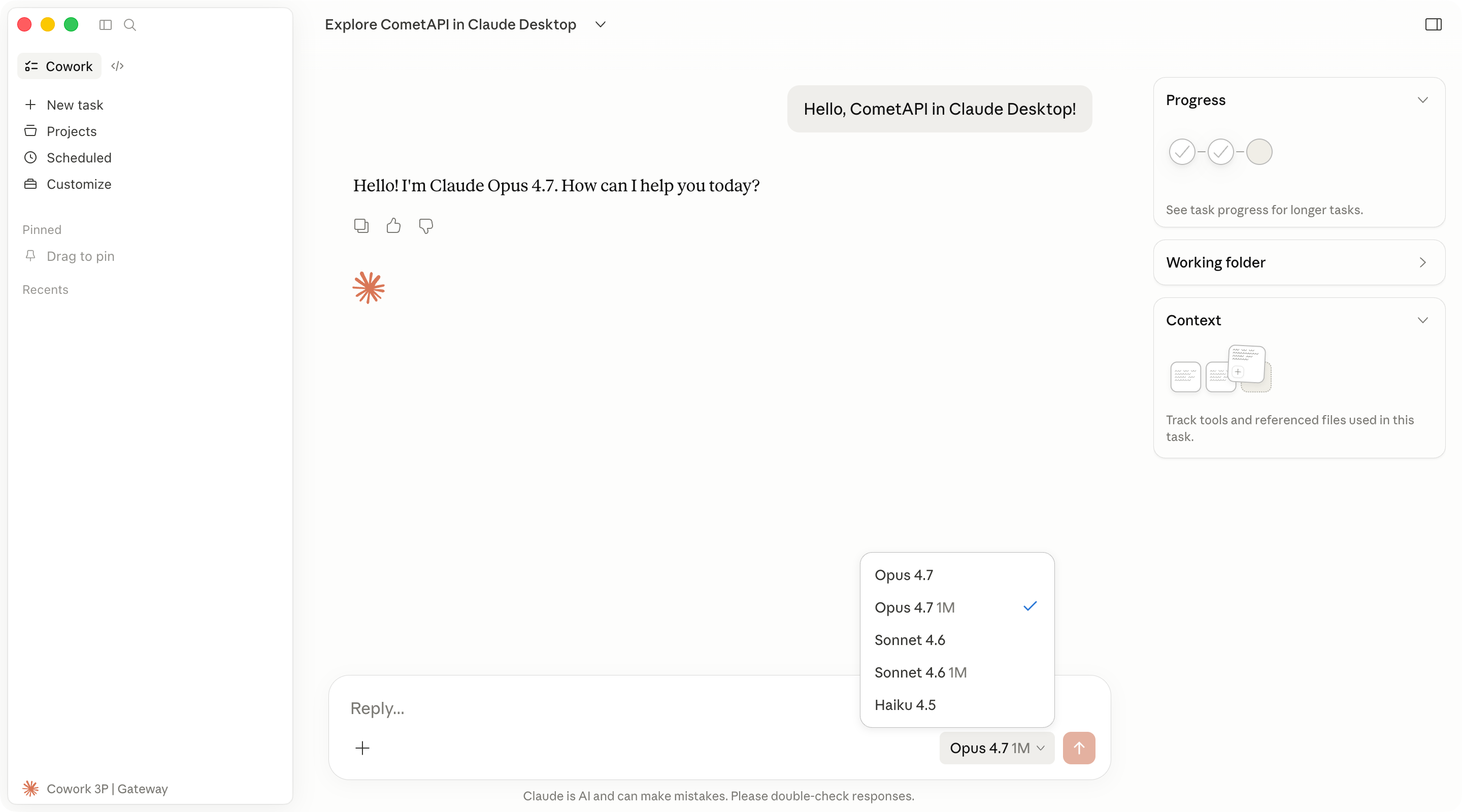
A successful response confirms that Claude Desktop is using CometAPI for model calls.
## Verify the configuration
Use a short prompt that does not require external tools:
```text theme={null}
Reply with one sentence: Claude Desktop is connected through CometAPI.
```
If Claude Desktop returns a response, then the base URL, API key, and model list are configured correctly.
The following screenshot shows a successful Cowork reply through CometAPI.
Click **Apply locally**. Claude Desktop writes the selected configuration to the local user profile and relaunches the app.
If the app does not relaunch, quit Claude Desktop completely and open it again.
On the sign-in screen, choose the option for Cowork on third-party inference. Open Cowork or Projects, select one of the configured Claude models, and send a short test prompt.
A successful response confirms that Claude Desktop is using CometAPI for model calls.
## Verify the configuration
Use a short prompt that does not require external tools:
```text theme={null}
Reply with one sentence: Claude Desktop is connected through CometAPI.
```
If Claude Desktop returns a response, then the base URL, API key, and model list are configured correctly.
The following screenshot shows a successful Cowork reply through CometAPI.
 To inspect the detected settings, open **Help** → **Troubleshooting** → **Copy Managed Configuration Report**. Secret values are redacted in the copied report.
## Troubleshooting
Confirm that you selected **Help** → **Troubleshooting** → **Enable Developer Mode**. Then quit Claude Desktop completely and open it again.
If the option is missing, install a Claude Desktop build that includes third-party inference configuration.
Check these items:
* **Inference provider** is set to **Gateway**.
* **Gateway base URL** is `https://api.cometapi.com`.
* **Gateway API key** contains your CometAPI API key with no extra spaces.
* You clicked **Apply locally** and fully restarted Claude Desktop.
Confirm that the base URL starts with `https://`. Claude Desktop does not accept plain HTTP gateway URLs.
Also confirm that your CometAPI account has access to Claude models and that the API key has not been deleted or disabled.
Reopen **Developer** → **Configure third-party inference** and check the **Model list** entries. Model IDs must match the IDs that CometAPI exposes.
Add each model ID as a separate entry. Do not include quotes, commas, or extra spaces in the UI fields.
Claude Desktop third-party inference expects an Anthropic-compatible gateway for this flow. Use `https://api.cometapi.com` and the Claude model IDs listed above.
The Code tab uses the Claude Code engine inside Claude Desktop. Some desktop settings may not apply to Code sessions in the same way that they apply to Cowork.
For standalone terminal usage, see the [Claude Code integration guide](/integrations/claude-code).
To inspect the detected settings, open **Help** → **Troubleshooting** → **Copy Managed Configuration Report**. Secret values are redacted in the copied report.
## Troubleshooting
Confirm that you selected **Help** → **Troubleshooting** → **Enable Developer Mode**. Then quit Claude Desktop completely and open it again.
If the option is missing, install a Claude Desktop build that includes third-party inference configuration.
Check these items:
* **Inference provider** is set to **Gateway**.
* **Gateway base URL** is `https://api.cometapi.com`.
* **Gateway API key** contains your CometAPI API key with no extra spaces.
* You clicked **Apply locally** and fully restarted Claude Desktop.
Confirm that the base URL starts with `https://`. Claude Desktop does not accept plain HTTP gateway URLs.
Also confirm that your CometAPI account has access to Claude models and that the API key has not been deleted or disabled.
Reopen **Developer** → **Configure third-party inference** and check the **Model list** entries. Model IDs must match the IDs that CometAPI exposes.
Add each model ID as a separate entry. Do not include quotes, commas, or extra spaces in the UI fields.
Claude Desktop third-party inference expects an Anthropic-compatible gateway for this flow. Use `https://api.cometapi.com` and the Claude model IDs listed above.
The Code tab uses the Claude Code engine inside Claude Desktop. Some desktop settings may not apply to Code sessions in the same way that they apply to Cowork.
For standalone terminal usage, see the [Claude Code integration guide](/integrations/claude-code).