> ## Documentation Index
> Fetch the complete documentation index at: https://apidoc.cometapi.com/llms.txt
> Use this file to discover all available pages before exploring further.

# Use Continue with CometAPI

> Use this guide to configure Continue with CometAPI by setting the base URL, API key, and model or provider options.

[Continue](https://continue.dev) is an open-source VS Code extension for AI-powered coding assistance. It has a first-party CometAPI provider — no manual URL configuration needed.

## Prerequisites

* [Continue](https://marketplace.visualstudio.com/items?itemName=Continue.continue) installed in VS Code
* A [CometAPI](https://www.cometapi.com) account with an active API key

## Setup

<Steps>
  <Step title="Install Continue in VS Code">
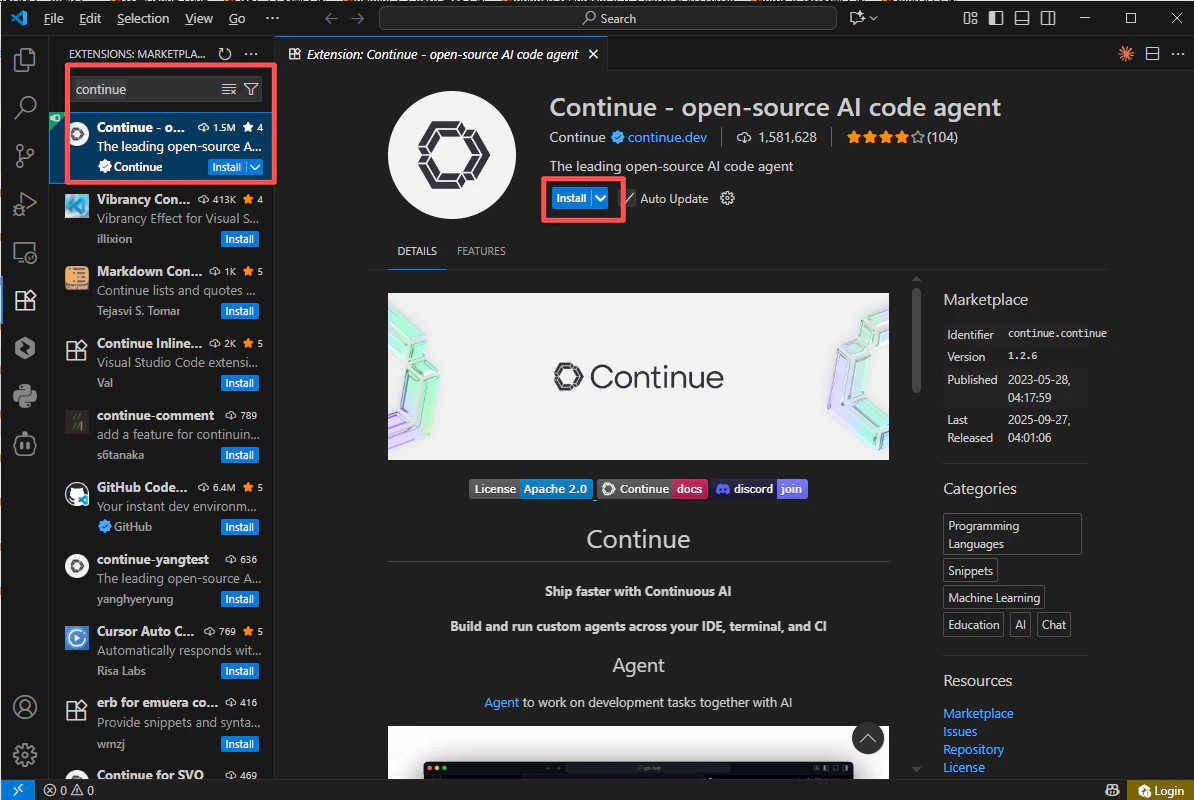
    Search for **Continue** in the VS Code Extensions panel and install it.
    <Frame>
      <img src="https://mintcdn.com/cometapi/SZhlxZhCnMLn__BW/images/integrations/810968_362621.png?fit=max&auto=format&n=SZhlxZhCnMLn__BW&q=85&s=6e94ab329f18d8e02387dc6fe8c798e3" alt="VS Code Extensions panel showing the Continue extension" width="1194" height="800" data-path="images/integrations/810968_362621.png" />
    </Frame>
  </Step>

  <Step title="Get your CometAPI API key">
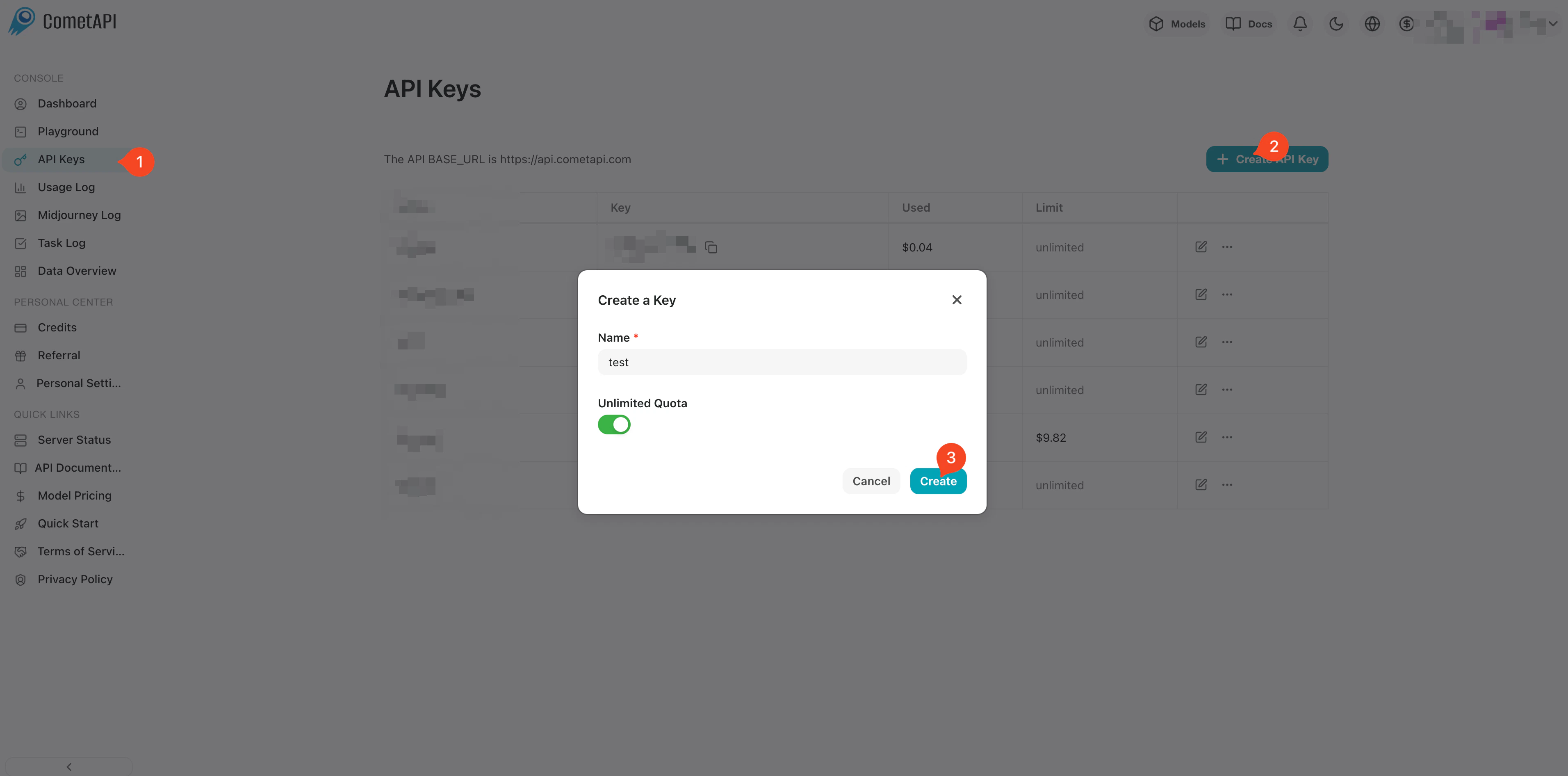
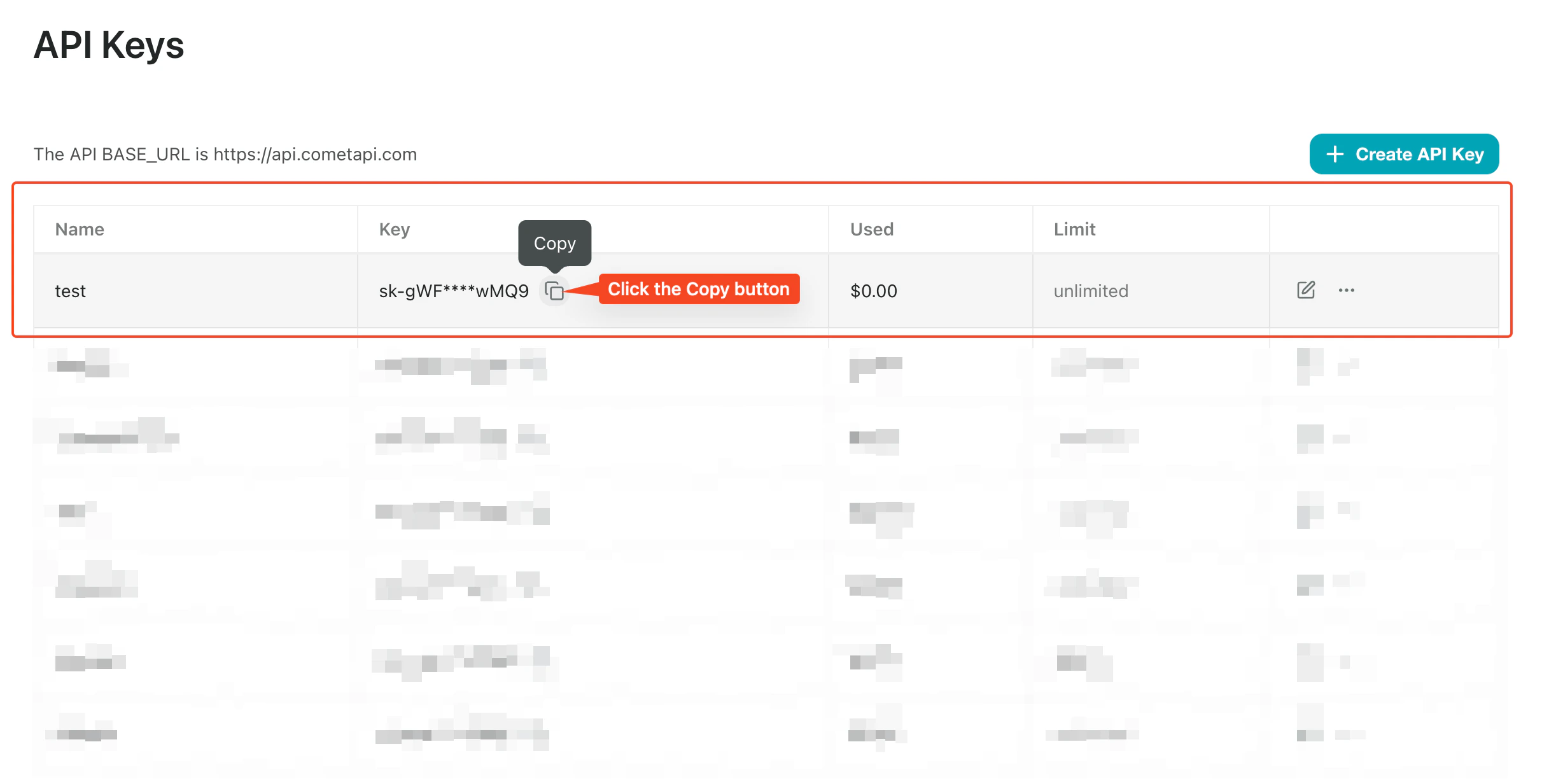
    Log in to the [CometAPI dashboard](https://www.cometapi.com/console). Click **Add API Key** and copy your key.
    <Frame>
      <img src="https://mintcdn.com/cometapi/SZhlxZhCnMLn__BW/images/overview/810968_364191.png?fit=max&auto=format&n=SZhlxZhCnMLn__BW&q=85&s=aef81a83f29f8eb16655ed4060425f50" alt="CometAPI dashboard — Add API Key" width="3824" height="1892" data-path="images/overview/810968_364191.png" />
    </Frame>

    <Frame>
      <img src="https://mintcdn.com/cometapi/HhtmQffktazbxUvS/images/overview/810968_364193.png?fit=max&auto=format&n=HhtmQffktazbxUvS&q=85&s=d893f659267150d0faf45f99eb5dffc1" alt="CometAPI API key and base URL" width="2434" height="1232" data-path="images/overview/810968_364193.png" />
    </Frame>
  </Step>

  <Step title="Add CometAPI as a provider">
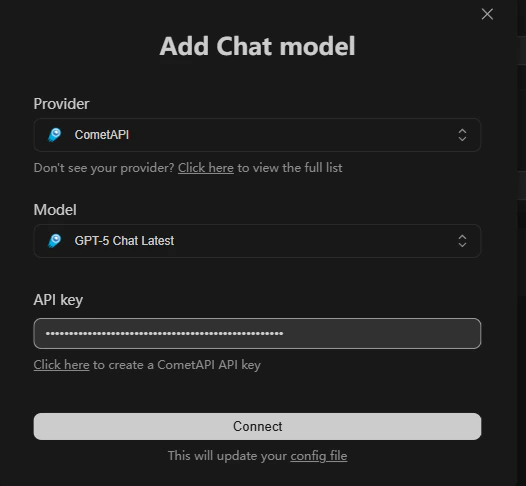
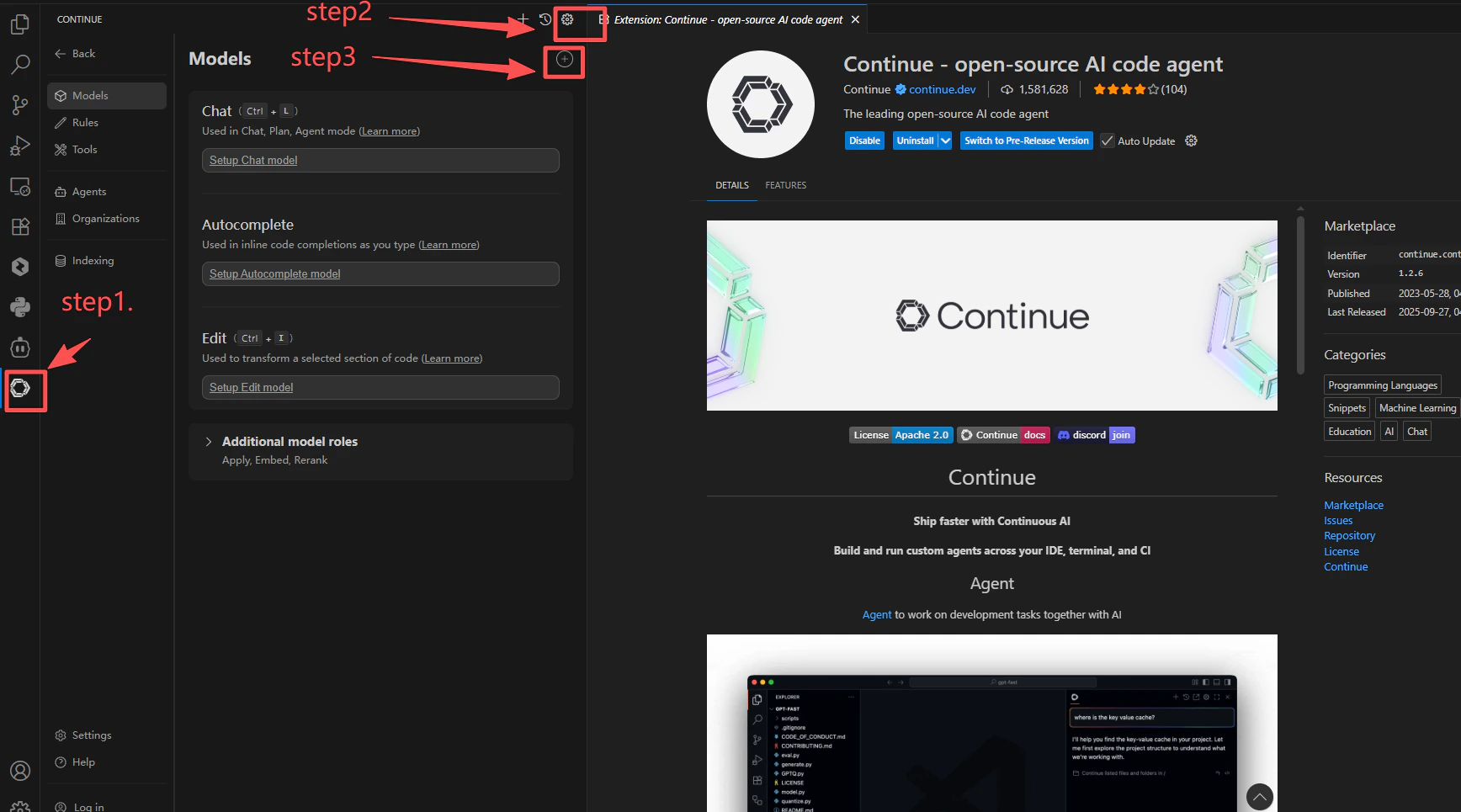
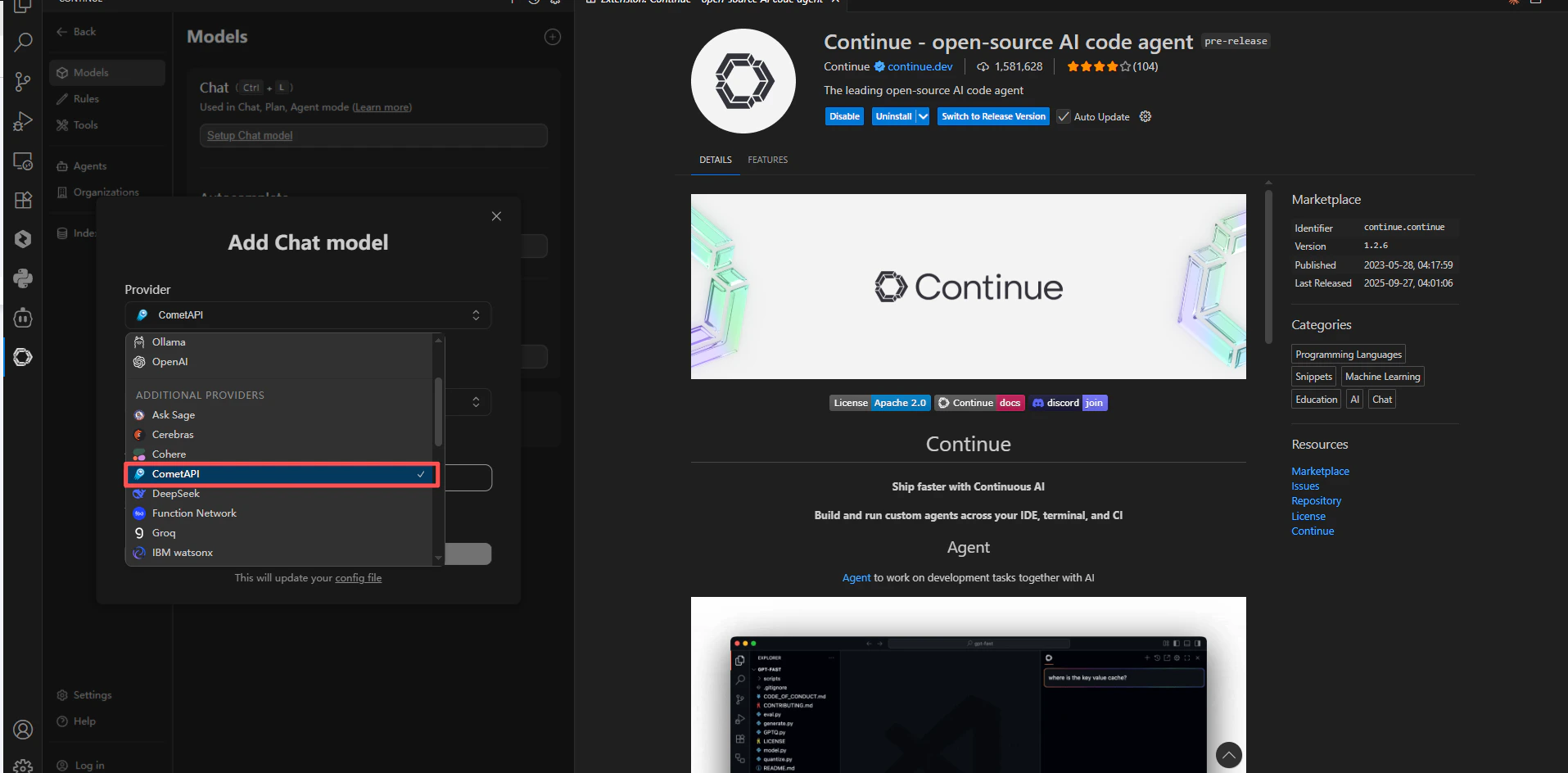
    Open Continue **Settings** → **Models** → **+**. Search for `cometapi` in the provider list and select it. Paste your API key and choose the models you want to use.
    <Frame>
      <img src="https://mintcdn.com/cometapi/SZhlxZhCnMLn__BW/images/integrations/810968_362622.png?fit=max&auto=format&n=SZhlxZhCnMLn__BW&q=85&s=7d9ad8d97240036f8eabad68ac872f7e" alt="Continue settings — provider search with cometapi selected" width="1736" height="965" data-path="images/integrations/810968_362622.png" />
    </Frame>

    <Frame>
      <img src="https://mintcdn.com/cometapi/SZhlxZhCnMLn__BW/images/integrations/810968_362623.png?fit=max&auto=format&n=SZhlxZhCnMLn__BW&q=85&s=53d3b5b690328196cbc0c7aeeb39ad9b" alt="CometAPI provider configuration in Continue" width="1915" height="944" data-path="images/integrations/810968_362623.png" />
    </Frame>

    <Frame>
      <img src="https://mintcdn.com/cometapi/SZhlxZhCnMLn__BW/images/integrations/810968_362624.png?fit=max&auto=format&n=SZhlxZhCnMLn__BW&q=85&s=e9fee9dd542d42a4415f0a41827124e5" alt="Model selection in Continue with CometAPI provider" width="526" height="486" data-path="images/integrations/810968_362624.png" />
    </Frame>
  </Step>

  <Step title="Test the connection">
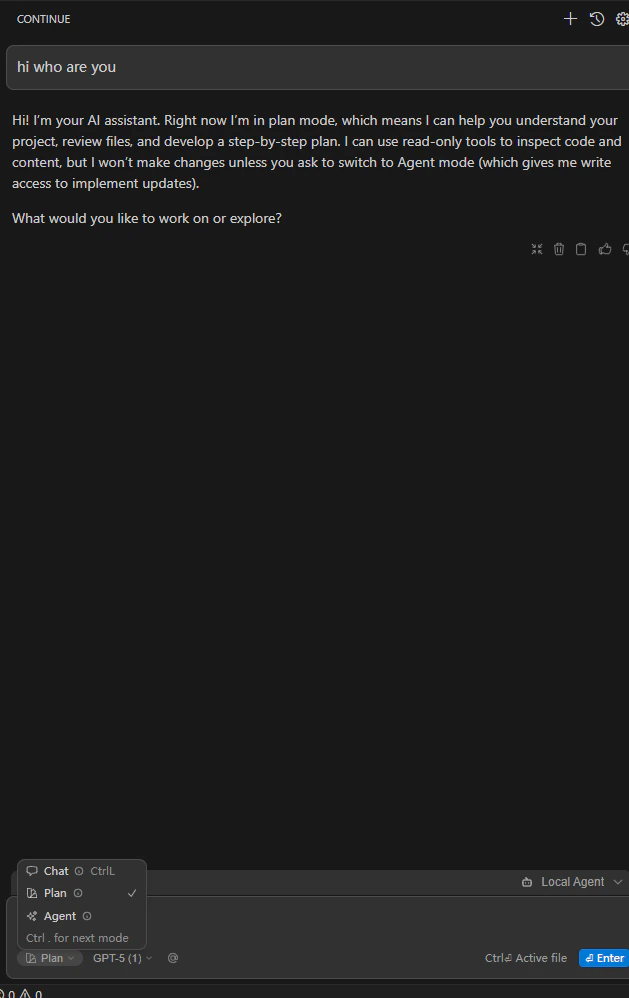
    Open a file and send a test prompt via Continue. A successful response confirms the integration is working.
    <Frame>
      <img src="https://mintcdn.com/cometapi/SZhlxZhCnMLn__BW/images/integrations/810968_362626.png?fit=max&auto=format&n=SZhlxZhCnMLn__BW&q=85&s=765ce3c34f80b122bab7b763d970bd4f" alt="Continue chat showing a successful response from CometAPI" width="629" height="998" data-path="images/integrations/810968_362626.png" />
    </Frame>
  </Step>
</Steps>

<Note>
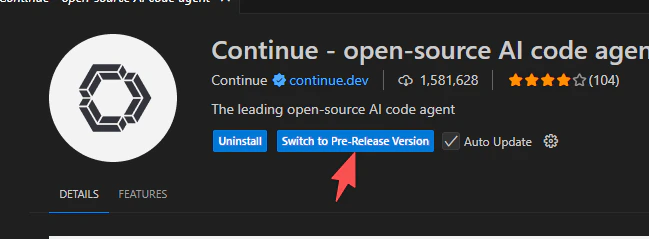
  If CometAPI does not appear in the provider list, switch Continue to the **Preview** version and reopen the extension.
  <Frame>
    <img src="https://mintcdn.com/cometapi/SZhlxZhCnMLn__BW/images/integrations/810968_362627.png?fit=max&auto=format&n=SZhlxZhCnMLn__BW&q=85&s=54d4157b18c9134ec966daf66ec36e45" alt="Continue extension panel showing the Preview version toggle" width="649" height="239" data-path="images/integrations/810968_362627.png" />
  </Frame>
</Note>