> ## Documentation Index
> Fetch the complete documentation index at: https://apidoc.cometapi.com/llms.txt
> Use this file to discover all available pages before exploring further.

# Use Coze with CometAPI

> Use this guide to configure Coze with CometAPI by setting the base URL, API key, and model or provider options.

Coze is an AI agent and workflow builder. You can connect CometAPI to Coze in two ways: via the native **CometAPI plugin** (simplest) or via a generic **HTTP Request node** for maximum flexibility.

## Prerequisites

* A CometAPI account with an active API key — [get yours here](https://www.cometapi.com/console/token)
* A Coze account — [sign up here](https://www.coze.com)

<Steps>
  <Step title="Get your CometAPI API key">
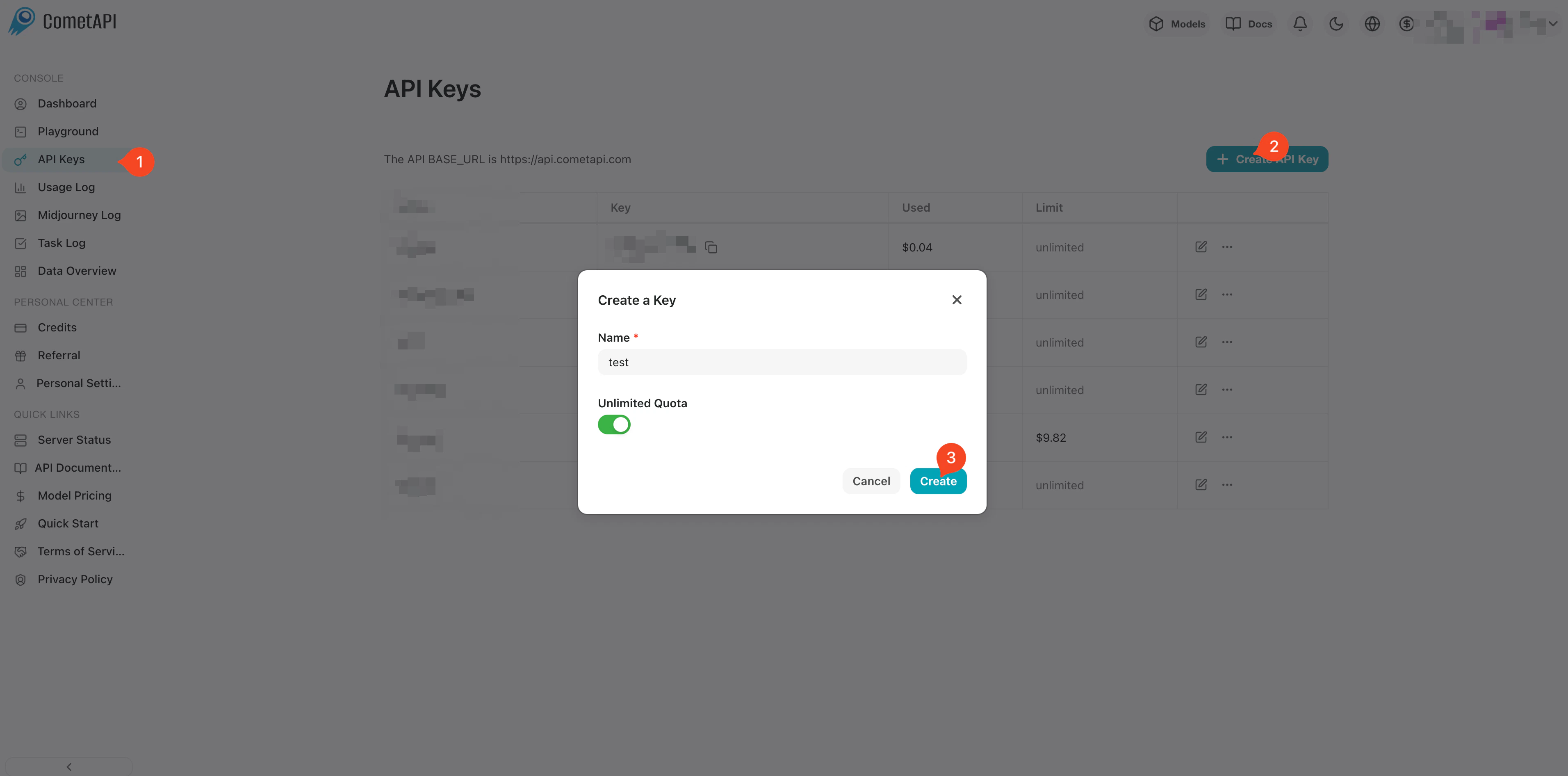
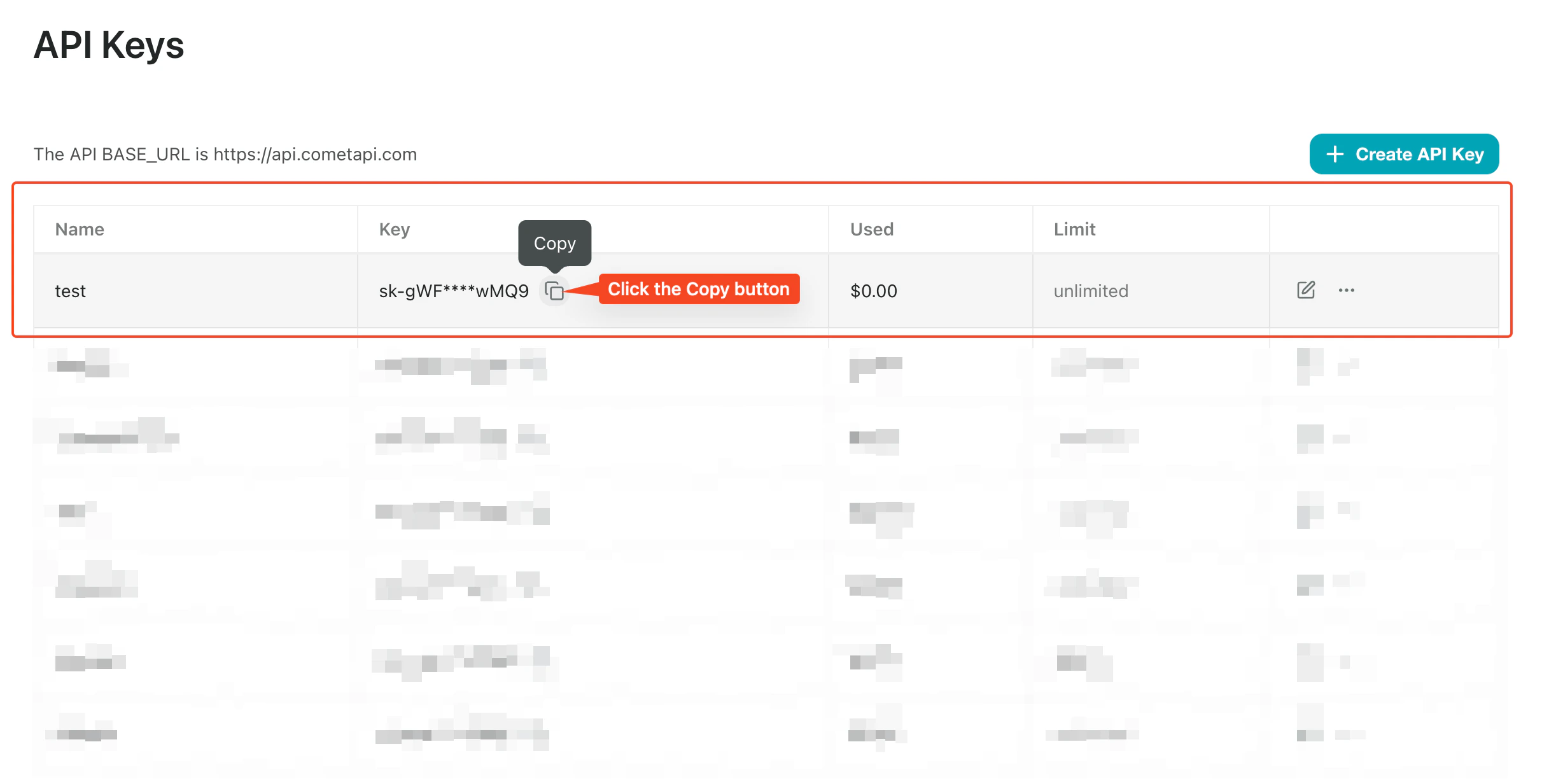
    Log in to the [CometAPI console](https://www.cometapi.com/console/token). Click **Add API Key** and copy your CometAPI API key.
    <Frame>
      <img src="https://mintcdn.com/cometapi/SZhlxZhCnMLn__BW/images/overview/810968_364191.png?fit=max&auto=format&n=SZhlxZhCnMLn__BW&q=85&s=aef81a83f29f8eb16655ed4060425f50" alt="CometAPI dashboard showing the Add API Key button" width="3824" height="1892" data-path="images/overview/810968_364191.png" />
    </Frame>

    <Frame>
      <img src="https://mintcdn.com/cometapi/HhtmQffktazbxUvS/images/overview/810968_364193.png?fit=max&auto=format&n=HhtmQffktazbxUvS&q=85&s=d893f659267150d0faf45f99eb5dffc1" alt="CometAPI API key details with base URL" width="2434" height="1232" data-path="images/overview/810968_364193.png" />
    </Frame>
  </Step>

  <Step title="Add CometAPI to a Coze workflow">
    <Tabs>
      <Tab title="Method 1: CometAPI Plugin (Recommended)">
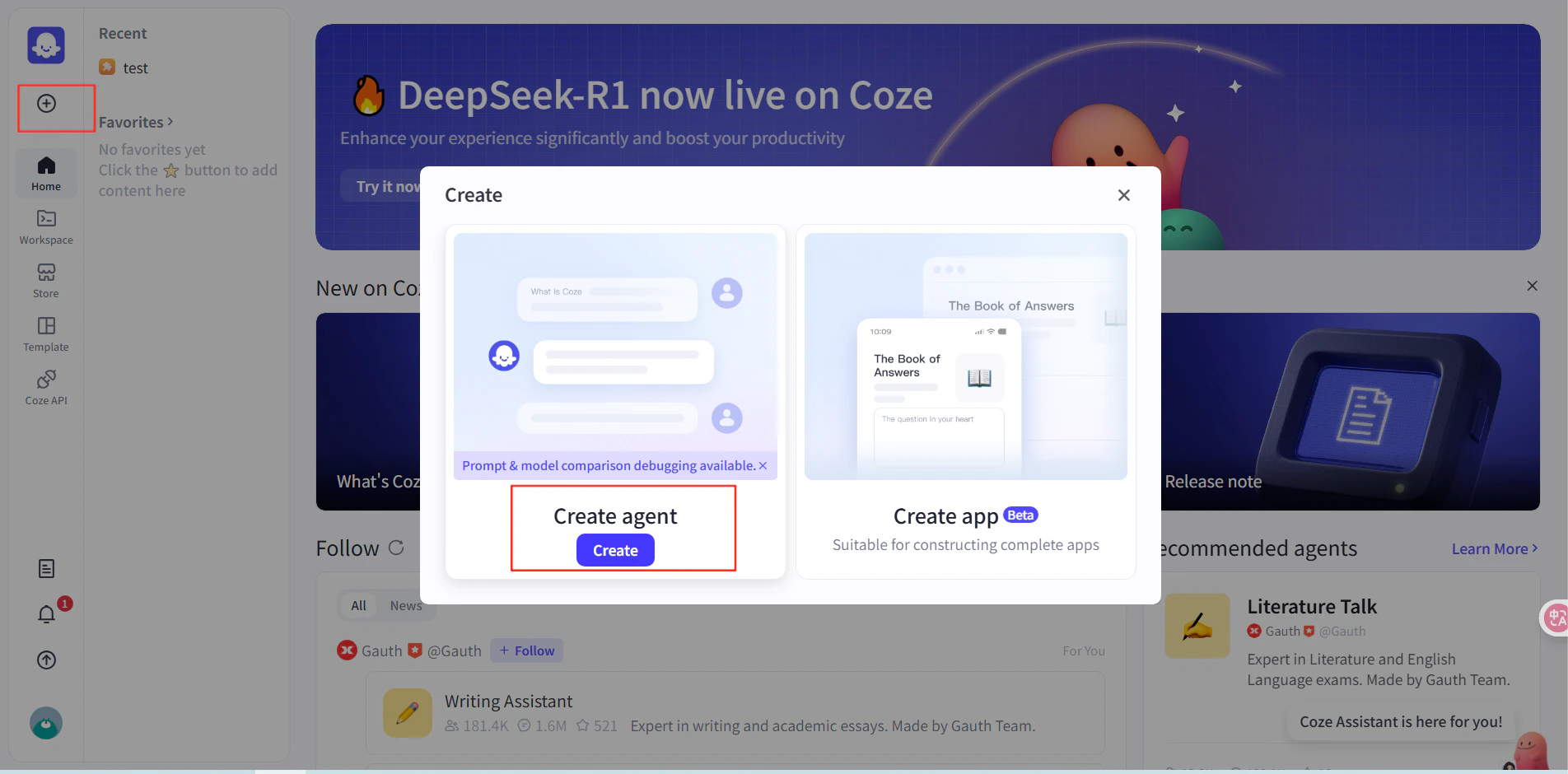
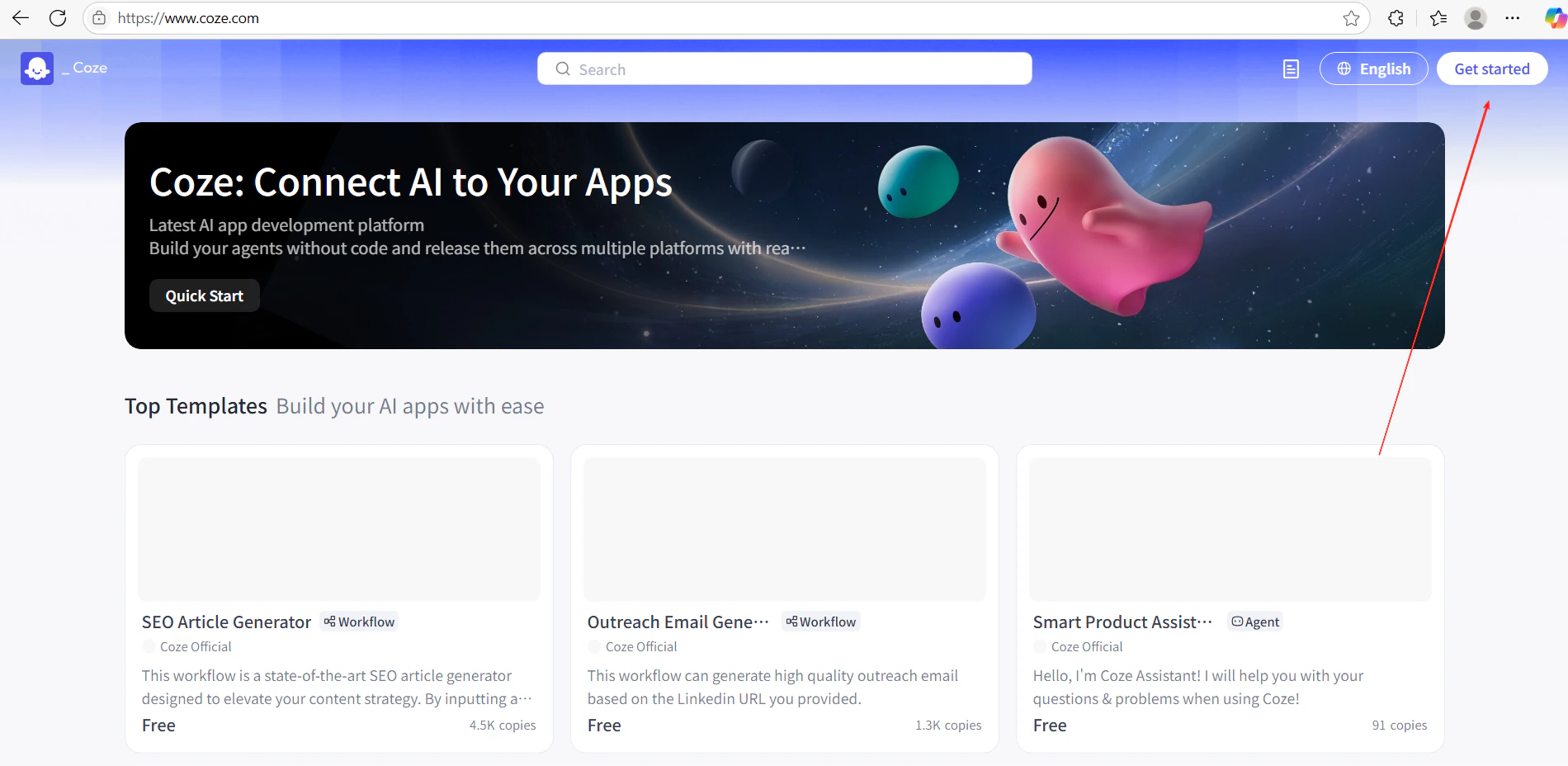
        1. In Coze, click **Get Started** and create a new workflow.
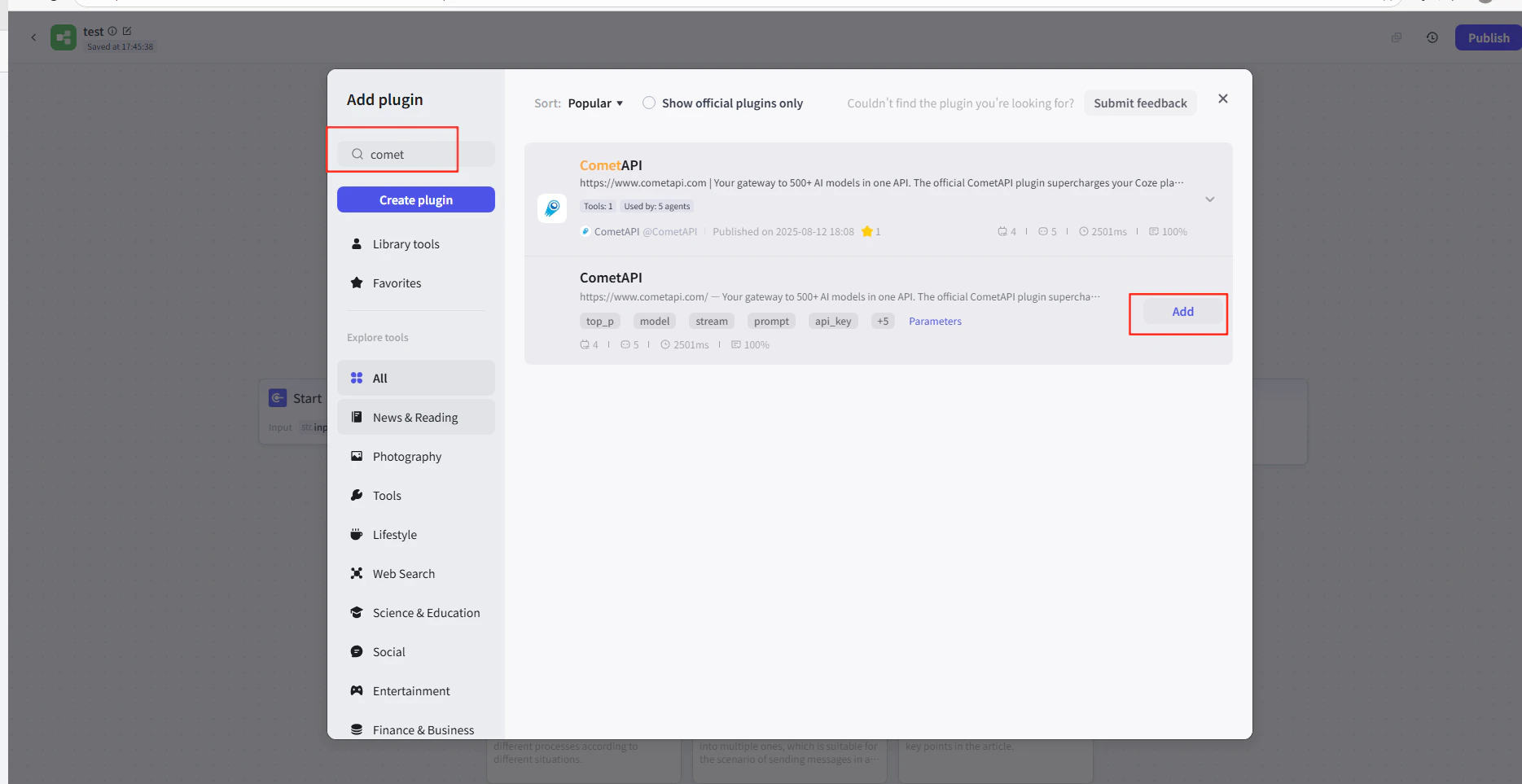
        2. In the workflow editor, click **Add Node → Plugins** and search for **CometAPI**.
        3. Add the CometAPI plugin node to your workflow.
        <Frame>
          <img src="https://mintcdn.com/cometapi/E4FFvyMYmaOZoldp/images/integrations/810968_355124.png?fit=max&auto=format&n=E4FFvyMYmaOZoldp&q=85&s=31a8c613d735f88246baa86ae399fa11" alt="Coze workflow editor showing plugin search" width="1900" height="928" data-path="images/integrations/810968_355124.png" />
        </Frame>

        <Frame>
          <img src="https://mintcdn.com/cometapi/E4FFvyMYmaOZoldp/images/integrations/810968_355125.png?fit=max&auto=format&n=E4FFvyMYmaOZoldp&q=85&s=75f2336cc40c9f21d757ced6ee227fd7" alt="CometAPI plugin appearing in search results" width="1904" height="940" data-path="images/integrations/810968_355125.png" />
        </Frame>

        <Frame>
          <img src="https://mintcdn.com/cometapi/E4FFvyMYmaOZoldp/images/integrations/810968_355126.png?fit=max&auto=format&n=E4FFvyMYmaOZoldp&q=85&s=1058980811bfc31c51715a76e048cc02" alt="CometAPI plugin node added to canvas" width="1938" height="908" data-path="images/integrations/810968_355126.png" />
        </Frame>

        <Frame>
          <img src="https://mintcdn.com/cometapi/E4FFvyMYmaOZoldp/images/integrations/810968_360283.png?fit=max&auto=format&n=E4FFvyMYmaOZoldp&q=85&s=f89b117699a4d46802c62436ae92bd84" alt="Plugin node configuration panel" width="1869" height="963" data-path="images/integrations/810968_360283.png" />
        </Frame>

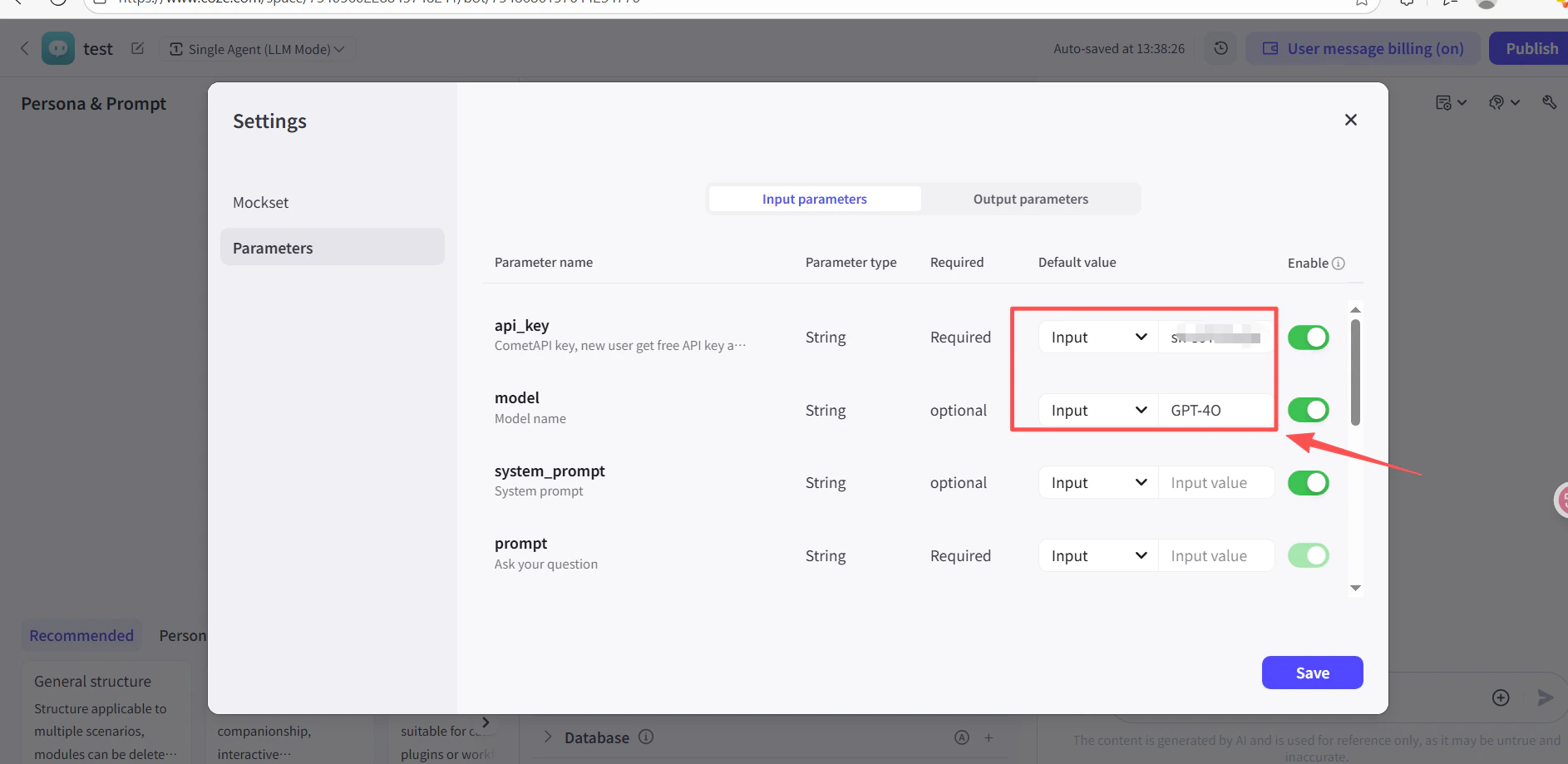
        4. In the **API Key** field of the plugin node, paste your CometAPI API key.
        5. Click **Test** to verify the connection, then **Publish**.
        <Frame>
          <img src="https://mintcdn.com/cometapi/SZhlxZhCnMLn__BW/images/integrations/810968_361332.png?fit=max&auto=format&n=SZhlxZhCnMLn__BW&q=85&s=0f41c0cfaf3cdcebd45d740ce96fd178" alt="Plugin node with API key filled in" width="1886" height="919" data-path="images/integrations/810968_361332.png" />
        </Frame>

        <Frame>
          <img src="https://mintcdn.com/cometapi/SZhlxZhCnMLn__BW/images/integrations/810968_361333.png?fit=max&auto=format&n=SZhlxZhCnMLn__BW&q=85&s=17b349b2c651c6e5193bfde6b63e0c17" alt="Successful test result for the CometAPI plugin" width="1884" height="903" data-path="images/integrations/810968_361333.png" />
        </Frame>
      </Tab>

      <Tab title="Method 2: HTTP Request Node">
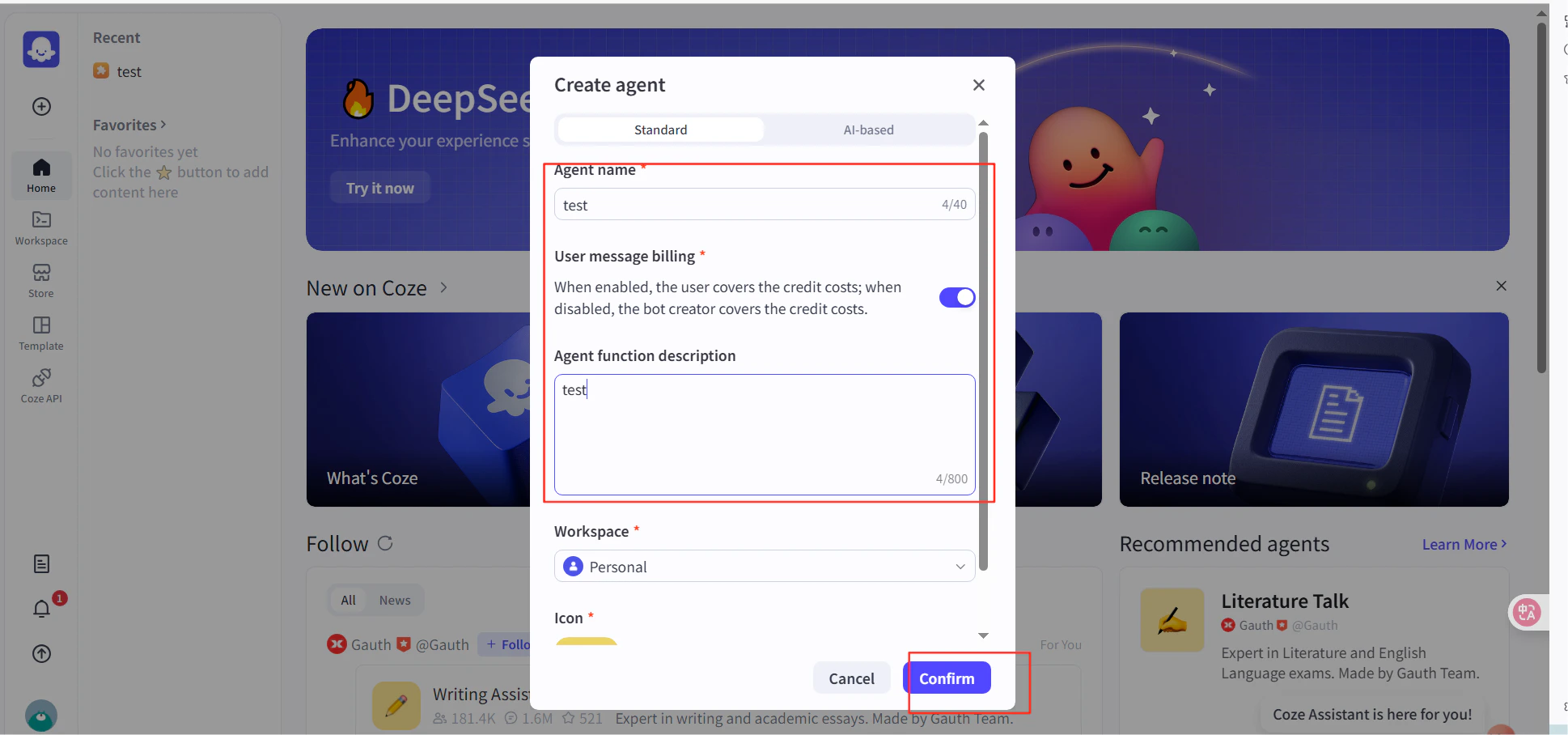
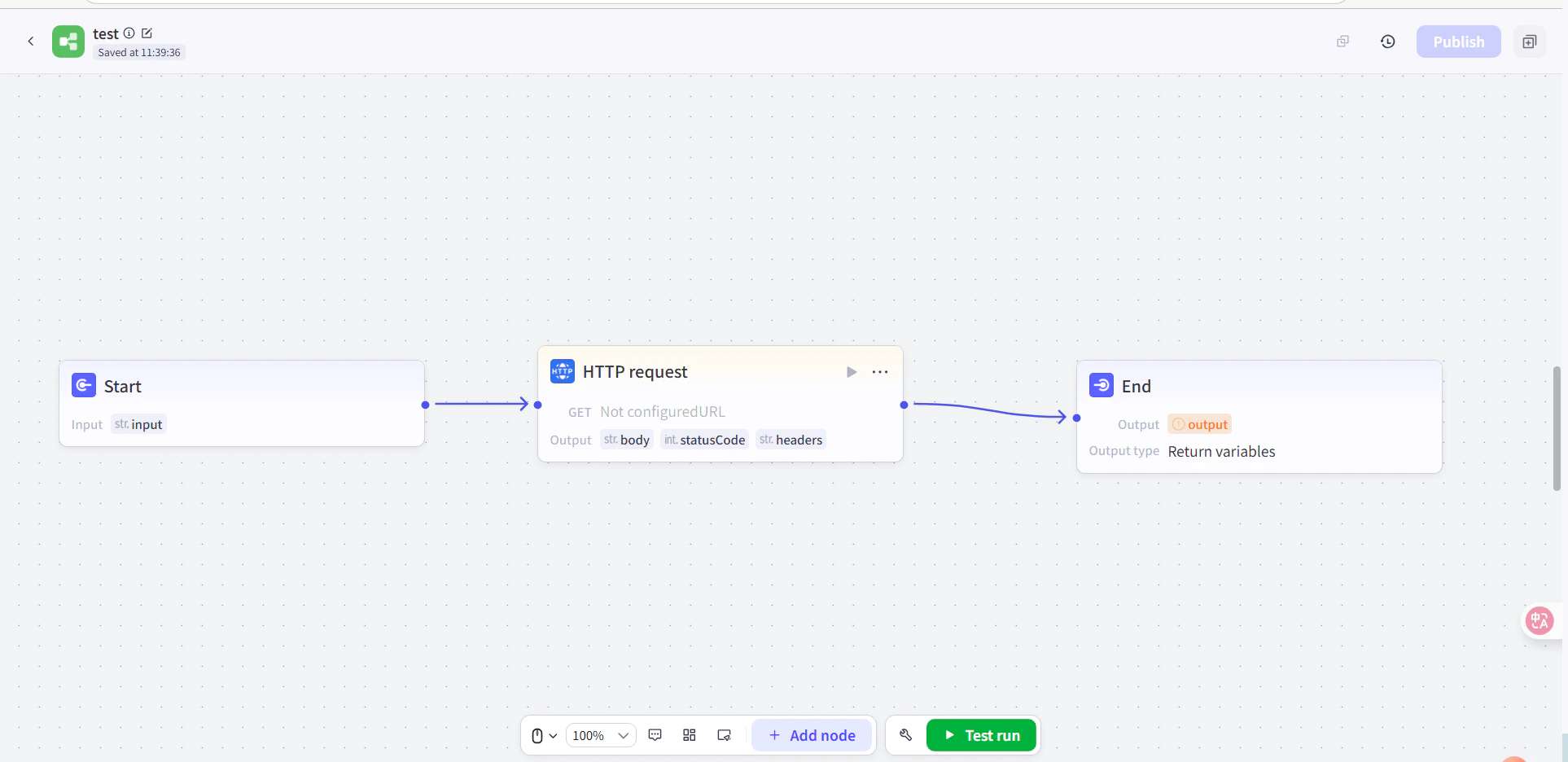
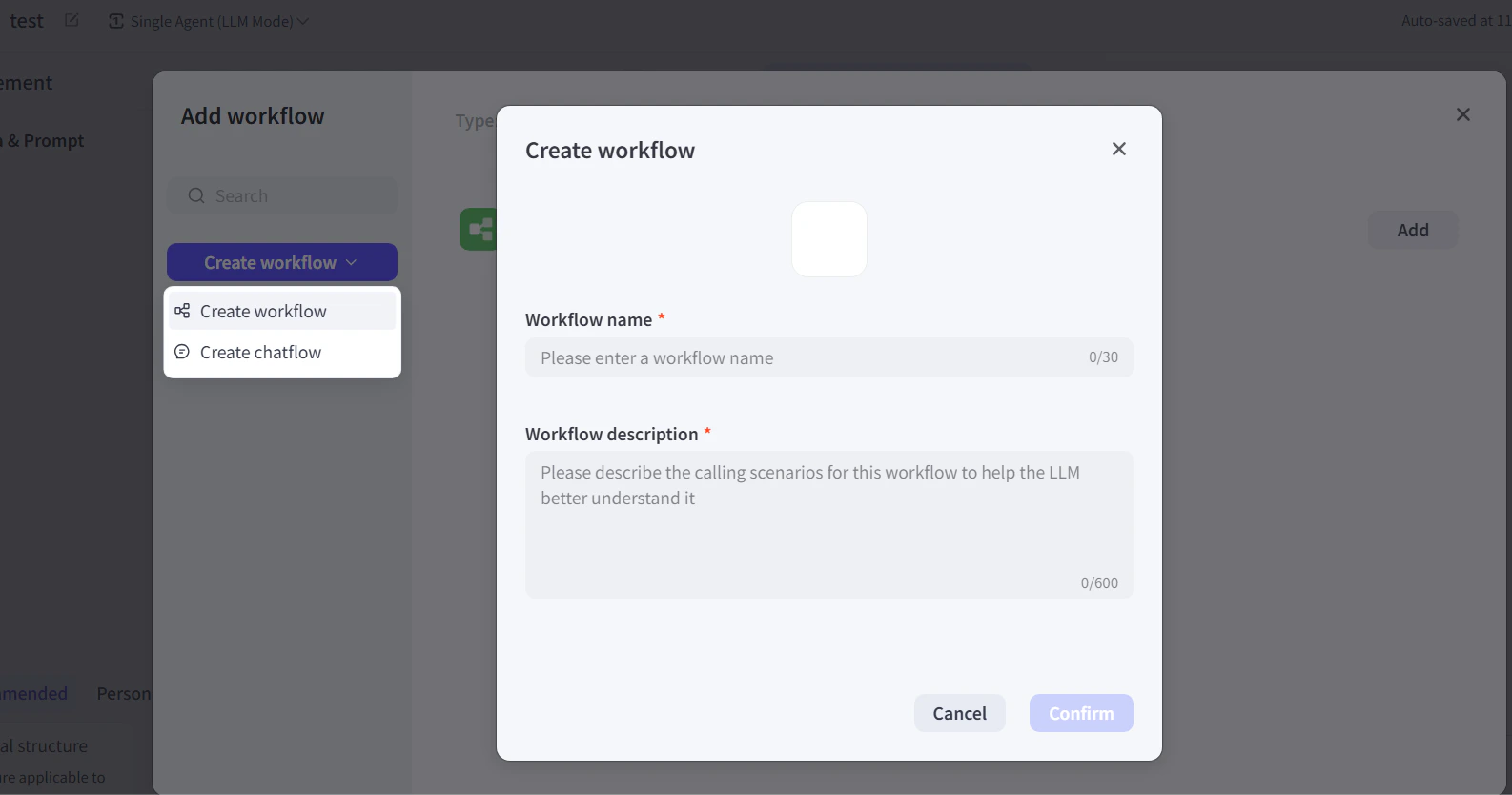
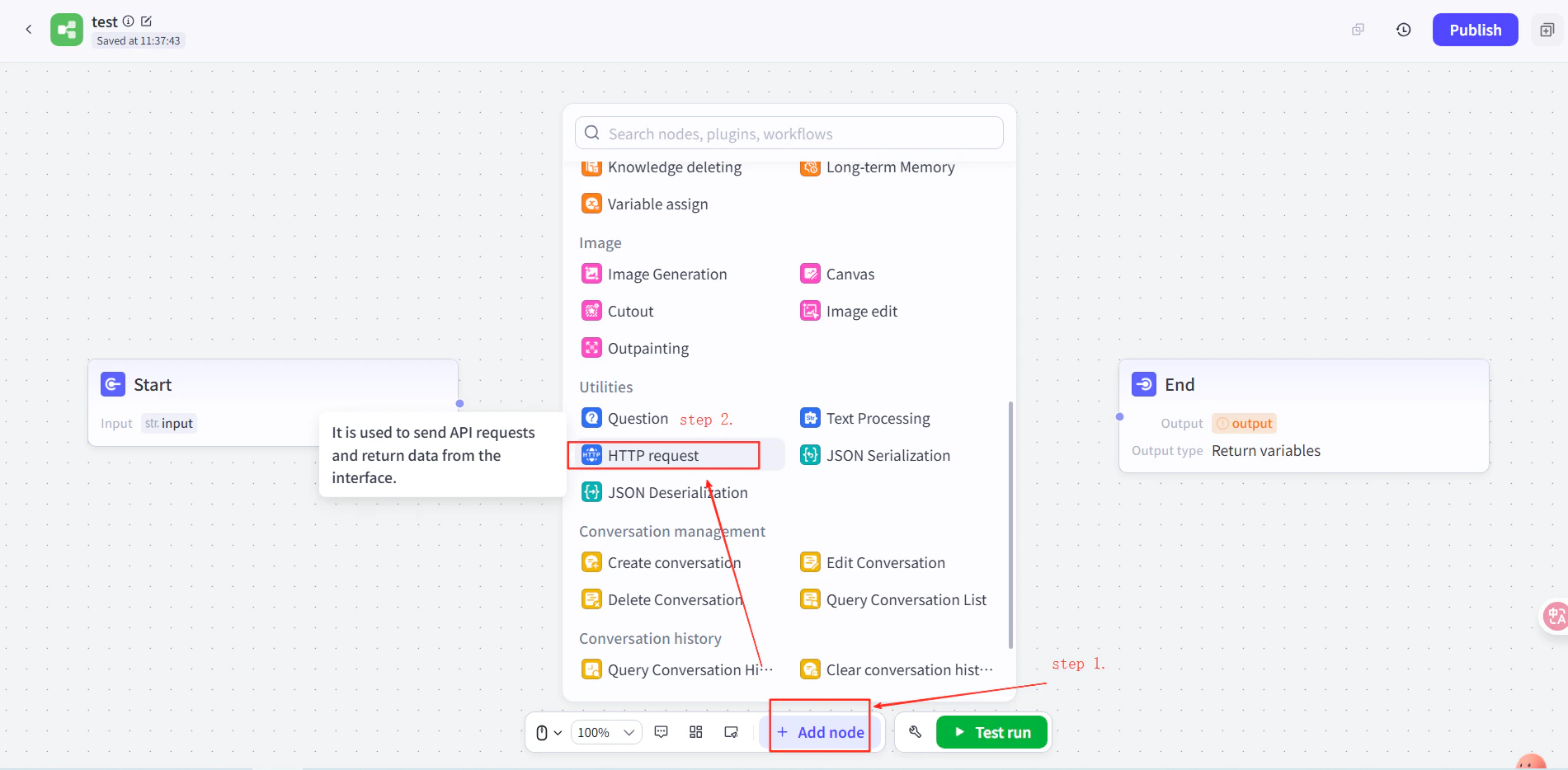
        1. Create an agent in Coze, then in the agent's workflow add an **HTTP Request** node between the Start and End nodes.
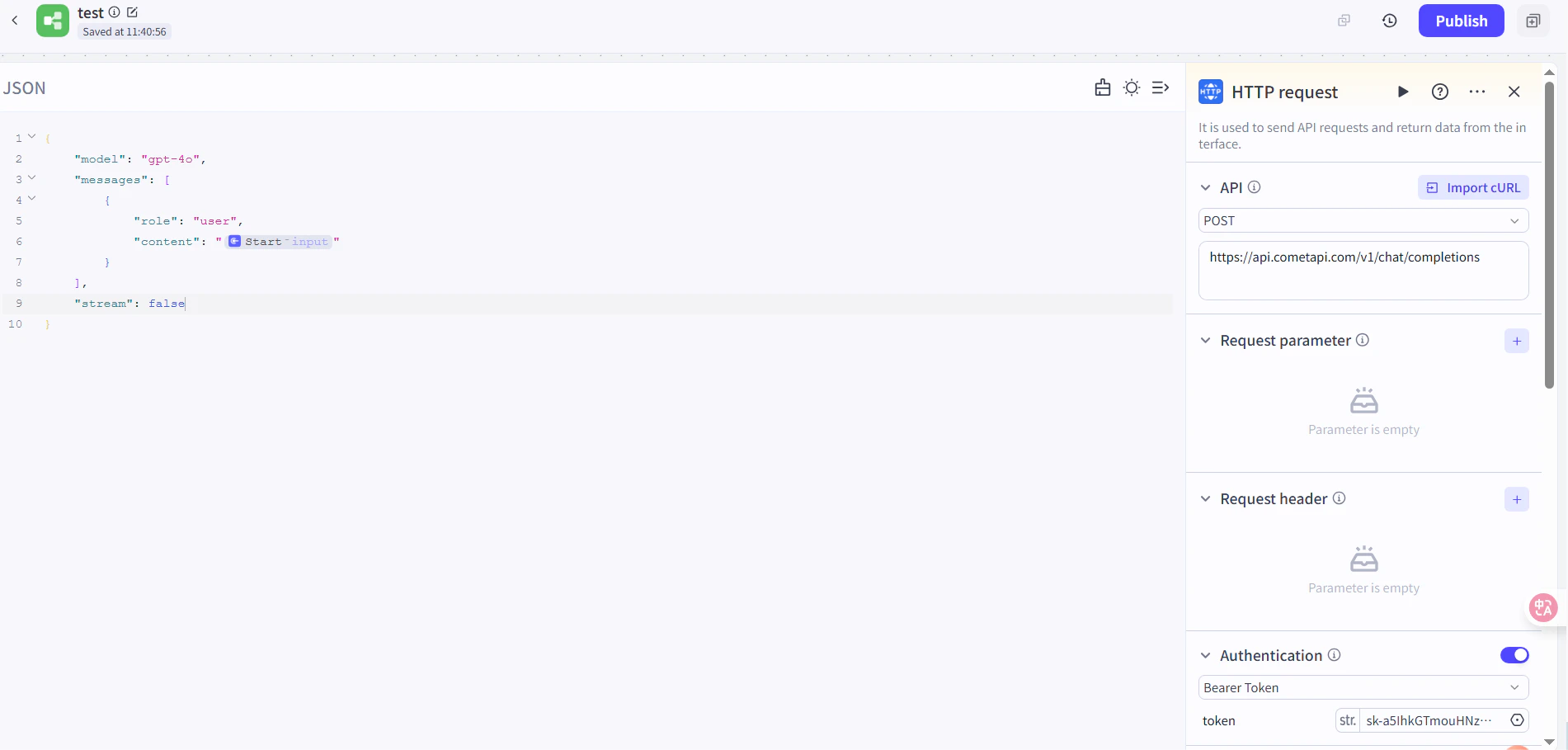
        2. Set the following:
           * **Method**: `POST`
           * **URL**: `https://api.cometapi.com/v1/chat/completions`
           * **Authentication Token**: paste your CometAPI API key, then click **Confirm**
        3. Set the request body:

        ```json theme={null}
        {
          "model": "your-model-id",
          "messages": [
            {
              "role": "user",
              "content": "{{block_output_100001.input}}"
            }
          ],
          "stream": false
        }
        ```

        4. In the End node, set the output to the HTTP request's response body. Replace `your-model-id` with a current model ID from the [CometAPI Models page](/overview/models).
        <Frame>
          <img src="https://mintcdn.com/cometapi/E4FFvyMYmaOZoldp/images/integrations/810968_355128.png?fit=max&auto=format&n=E4FFvyMYmaOZoldp&q=85&s=862c588b2f301bd66b89366c5344fbdc" alt="HTTP Request node with URL and auth token configured" width="1586" height="834" data-path="images/integrations/810968_355128.png" />
        </Frame>

        <Frame>
          <img src="https://mintcdn.com/cometapi/E4FFvyMYmaOZoldp/images/integrations/810968_355129.png?fit=max&auto=format&n=E4FFvyMYmaOZoldp&q=85&s=a438417210684dddf988307c448edb57" alt="Request body JSON configured in the HTTP node" width="1901" height="934" data-path="images/integrations/810968_355129.png" />
        </Frame>

        <Frame>
          <img src="https://mintcdn.com/cometapi/E4FFvyMYmaOZoldp/images/integrations/810968_355130.png?fit=max&auto=format&n=E4FFvyMYmaOZoldp&q=85&s=18254fe80669e295bd7b8ac2e48c3d45" alt="End node with HTTP response body selected as output" width="1926" height="936" data-path="images/integrations/810968_355130.png" />
        </Frame>

        <Frame>
          <img src="https://mintcdn.com/cometapi/E4FFvyMYmaOZoldp/images/integrations/810968_355131.png?fit=max&auto=format&n=E4FFvyMYmaOZoldp&q=85&s=5fde76e14e42d41311076f7eb1d0fd77" alt="Coze workflow with all nodes connected" width="1901" height="909" data-path="images/integrations/810968_355131.png" />
        </Frame>
      </Tab>
    </Tabs>
  </Step>

  <Step title="Test and publish">
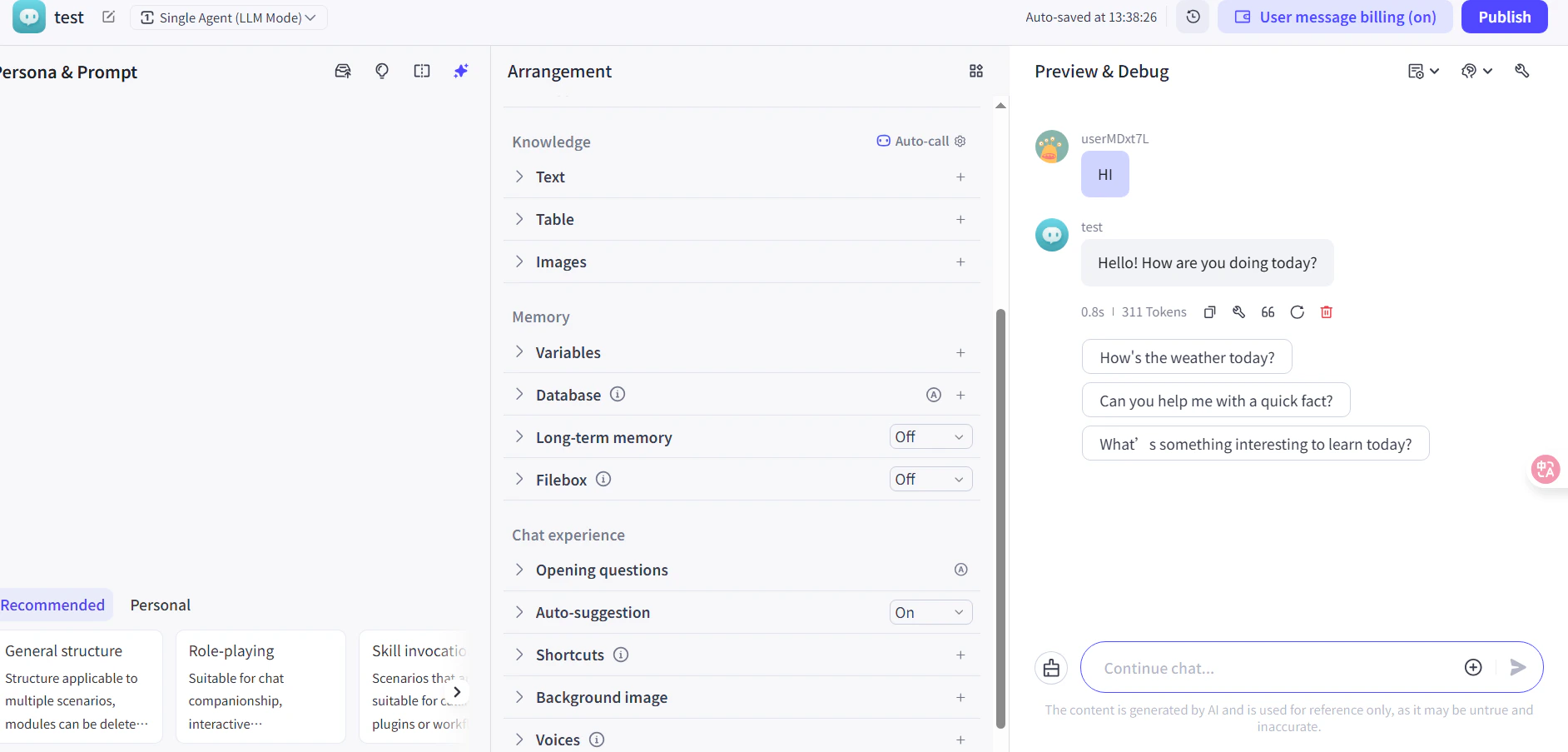
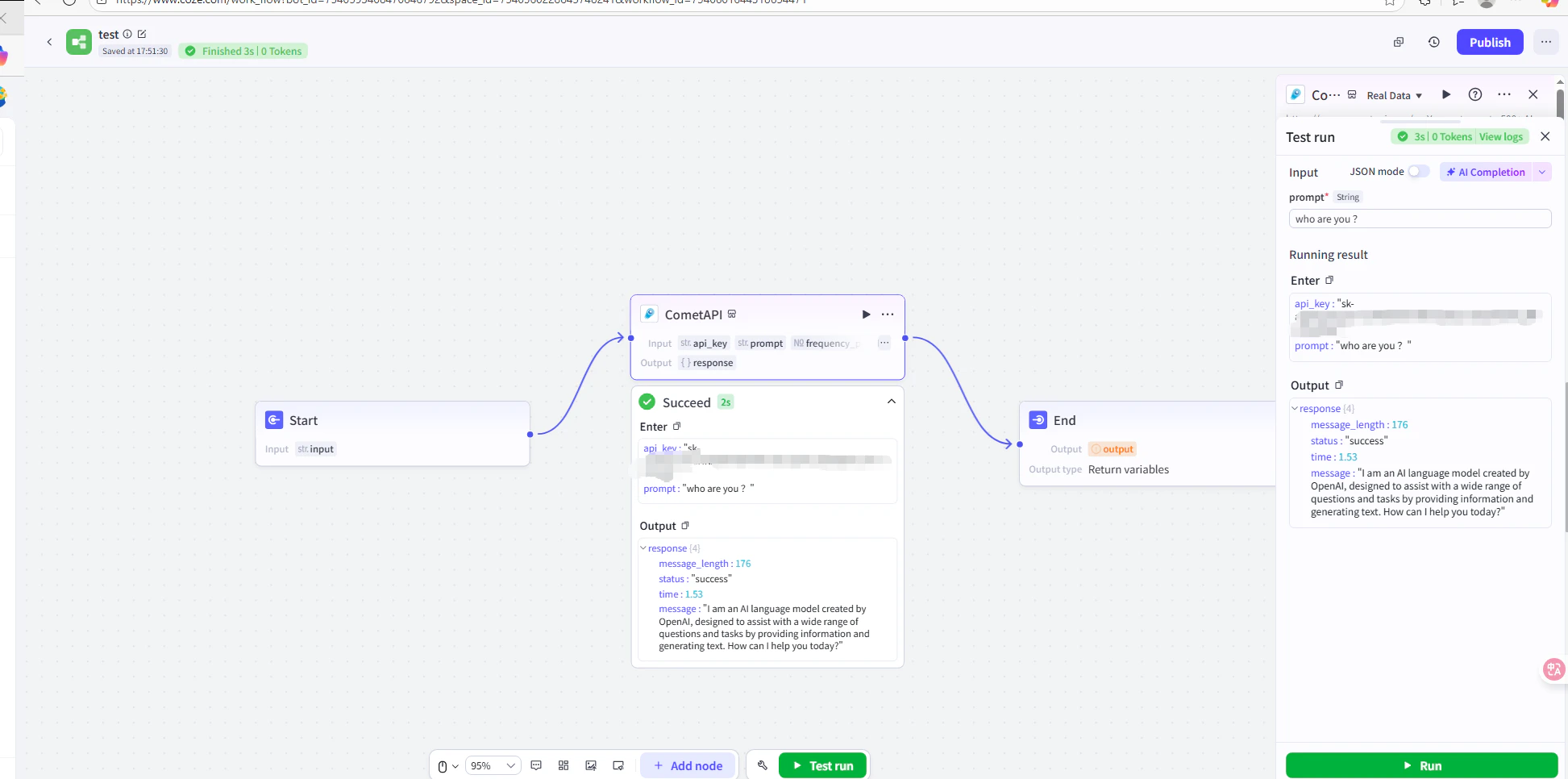
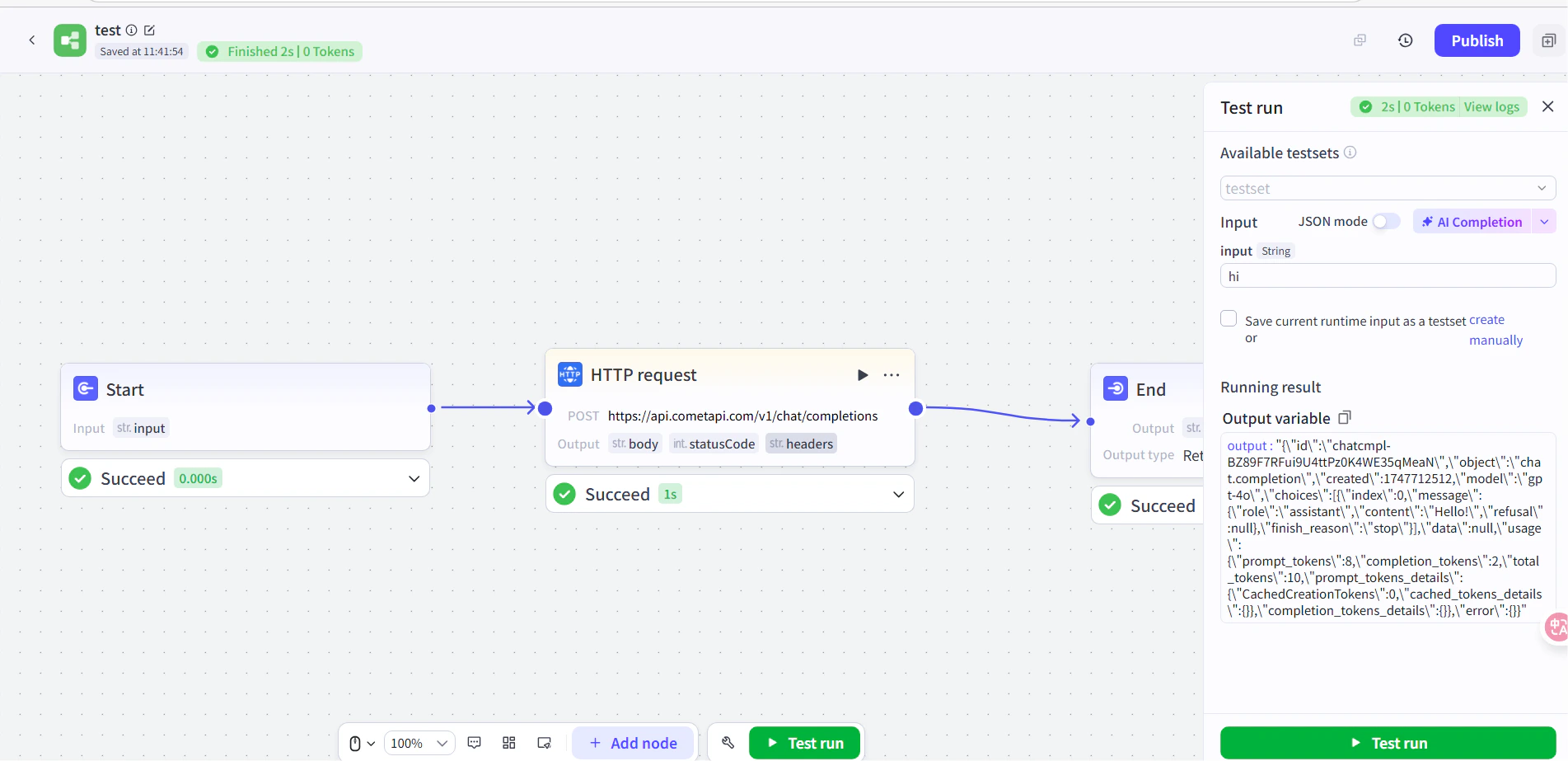
    Run a test message in the workflow (e.g. ask for the current time). A successful AI reply confirms the integration is working. Publish the workflow to make it live.
    <Frame>
      <img src="https://mintcdn.com/cometapi/E4FFvyMYmaOZoldp/images/integrations/810968_360285.png?fit=max&auto=format&n=E4FFvyMYmaOZoldp&q=85&s=5f362ef3274c53c47a8f3793d4fa6966" alt="Coze workflow showing a successful test response" width="1945" height="966" data-path="images/integrations/810968_360285.png" />
    </Frame>

    <Frame>
      <img src="https://mintcdn.com/cometapi/E4FFvyMYmaOZoldp/images/integrations/810968_355132.png?fit=max&auto=format&n=E4FFvyMYmaOZoldp&q=85&s=8b7fe683331ec5cb31222062c6f3aa80" alt="Published Coze agent responding correctly" width="1903" height="923" data-path="images/integrations/810968_355132.png" />
    </Frame>

    If the call fails, verify your API key and endpoint URL, or contact [CometAPI support](https://www.cometapi.com).
  </Step>
</Steps>

<Tip>
  The plugin method is recommended for most users — it handles authentication and response parsing automatically. Use the HTTP Request node when you need full control over request headers or want to call a non-chat endpoint.
</Tip>