> ## Documentation Index
> Fetch the complete documentation index at: https://apidoc.cometapi.com/llms.txt
> Use this file to discover all available pages before exploring further.
# Connect Dify to CometAPI
> Use this guide to connect Dify to CometAPI by setting the base URL, API key, and model or provider options.
[Dify](https://dify.ai) is an open-source LLM application development platform. By connecting it to CometAPI, you can use current CometAPI model IDs inside Dify's workflow, chatbot, and agent builders.
## Prerequisites
* A CometAPI account with an active API key — [sign in to get one](https://www.cometapi.com)
* A Dify account — [cloud](https://cloud.dify.ai/signin) or self-hosted
## Method 1: CometAPI plugin (recommended)
The easiest way to connect. Dify Marketplace provides an official CometAPI plugin that handles the integration automatically.
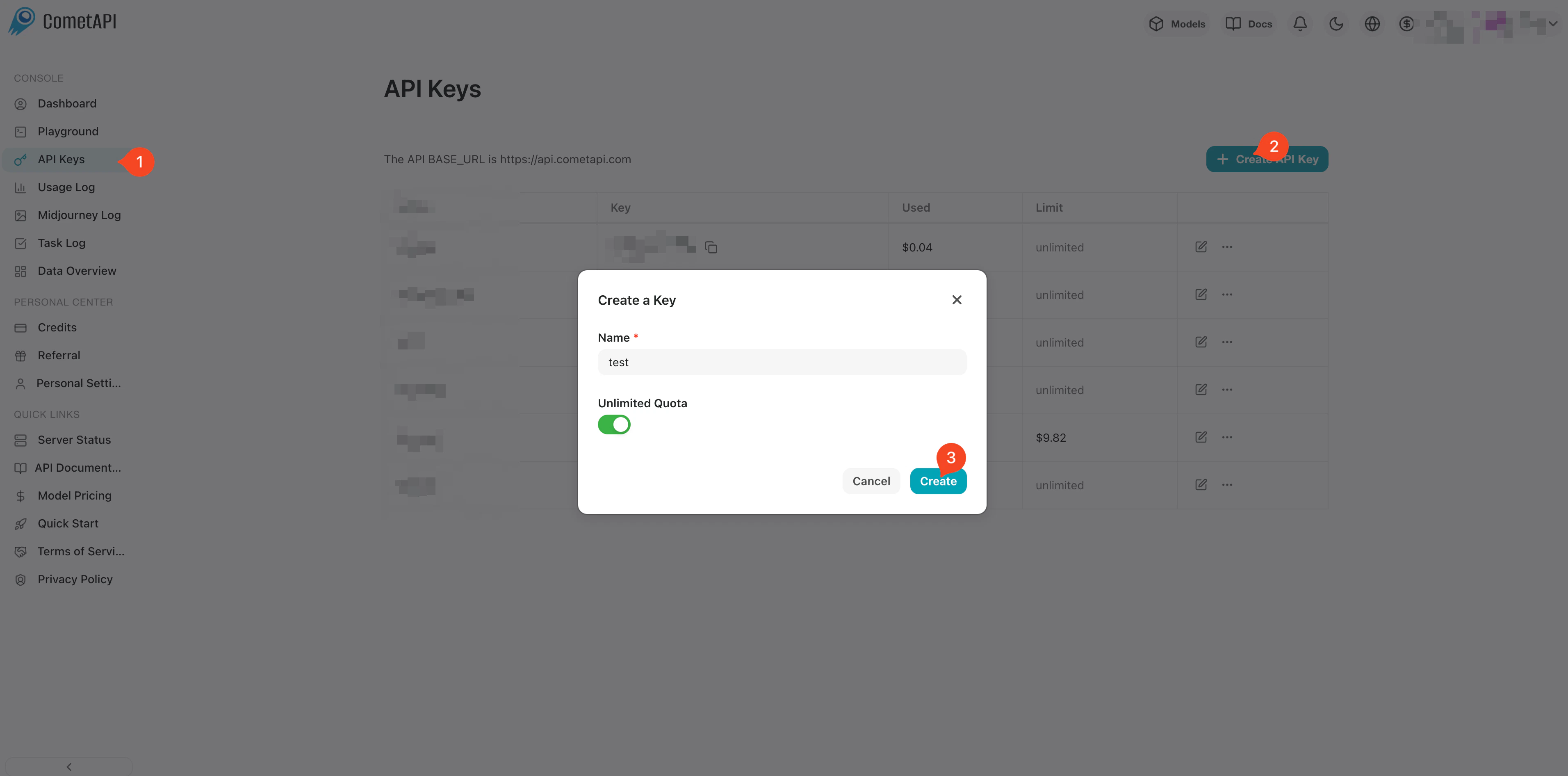
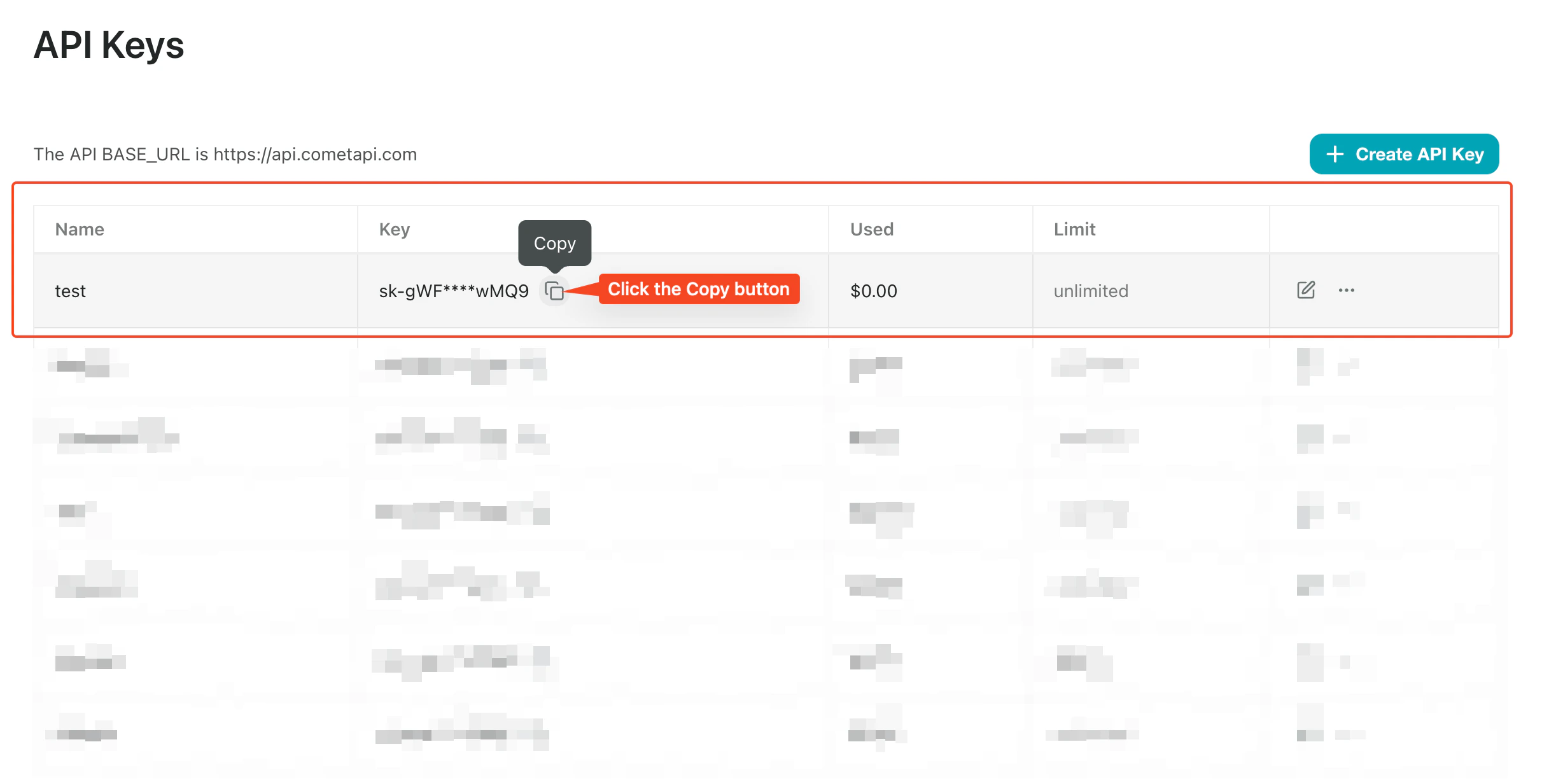
Log in to the [CometAPI dashboard](https://www.cometapi.com/console). Click **Add API Key** and copy your key.
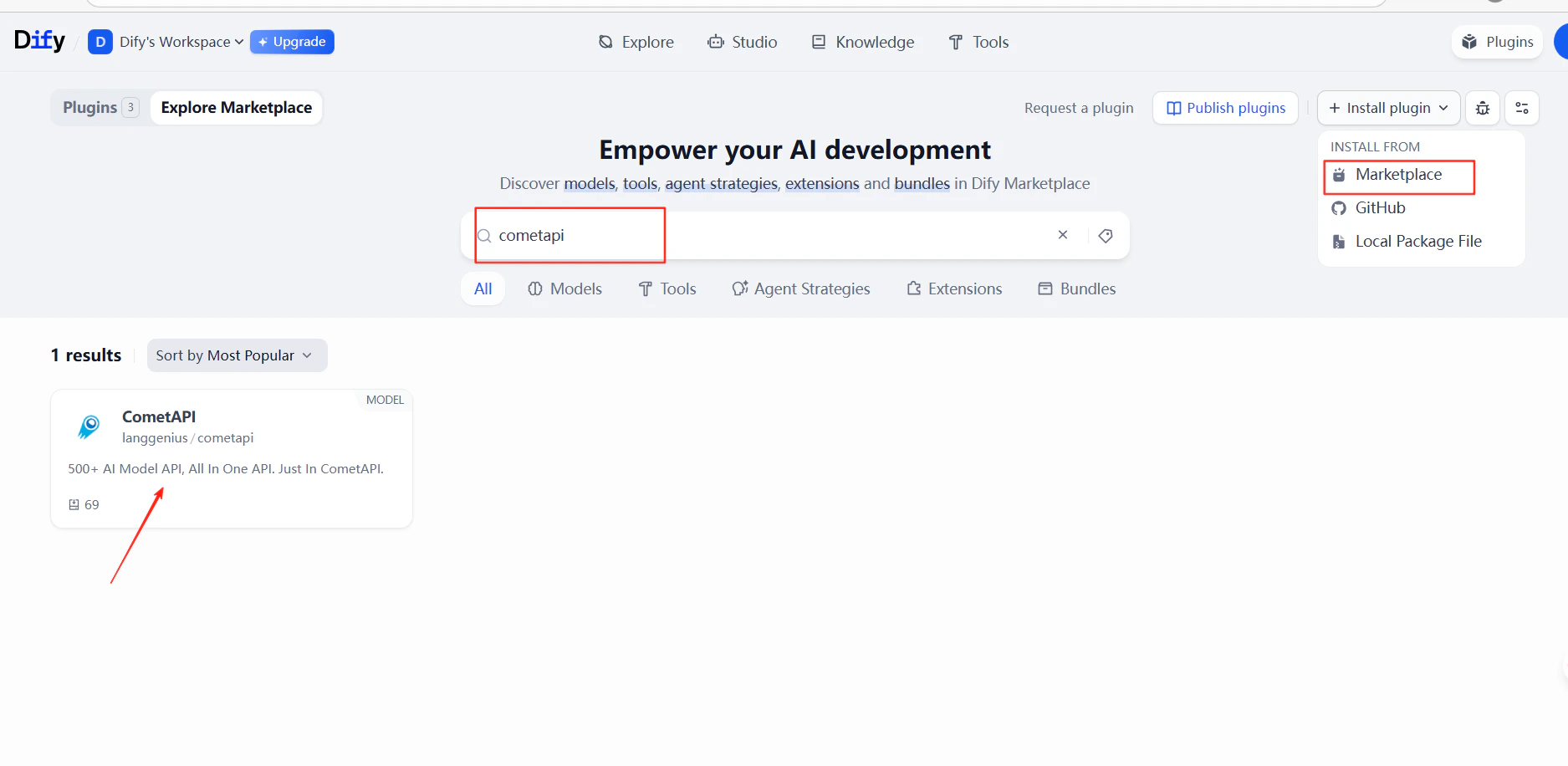
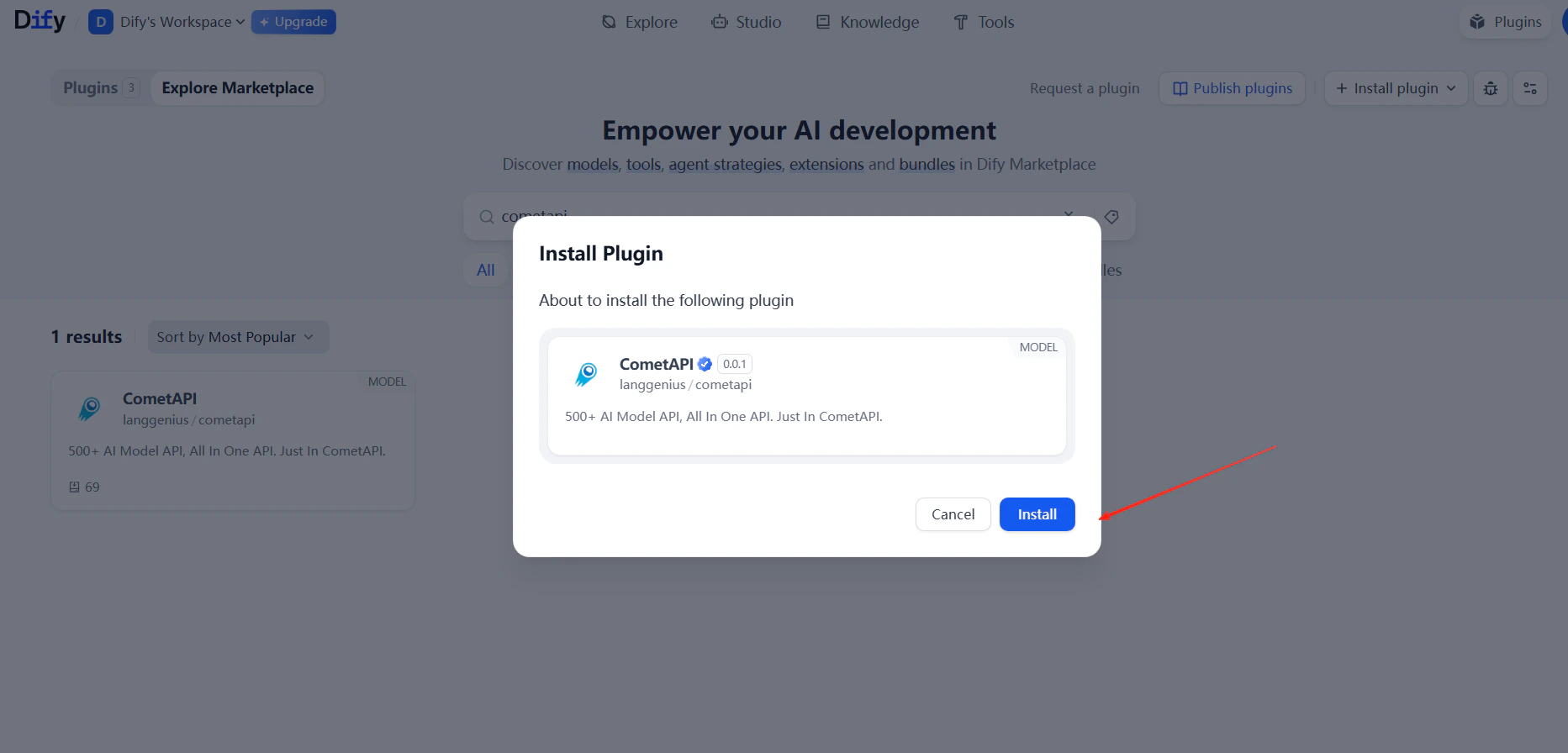
 In Dify, go to **Plugins** → **Install Plugin** → **Marketplace**. Search for `cometapi` and install it.
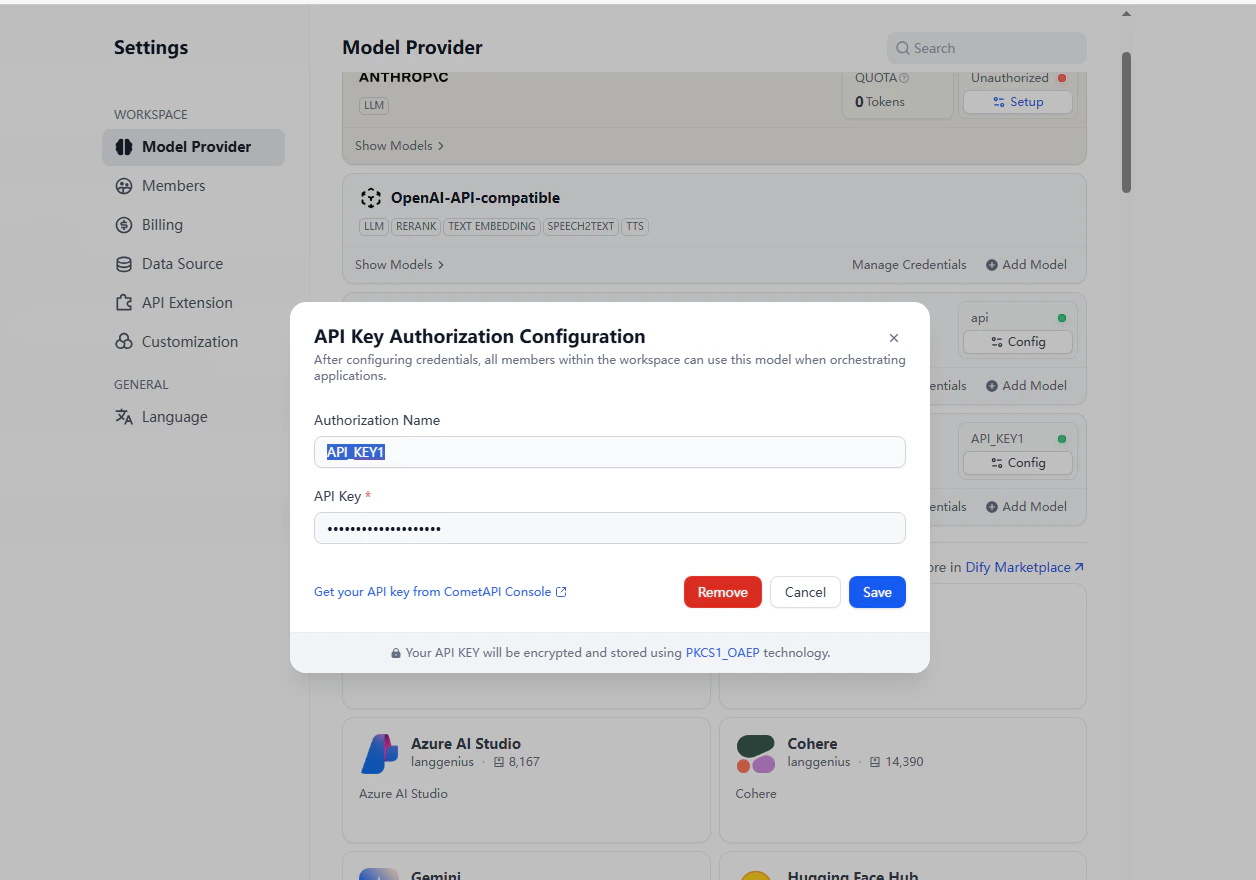
 Go to **Settings** → **Model Provider** → **CometAPI** → **Open Settings**. Paste your CometAPI API key and click **Save**.
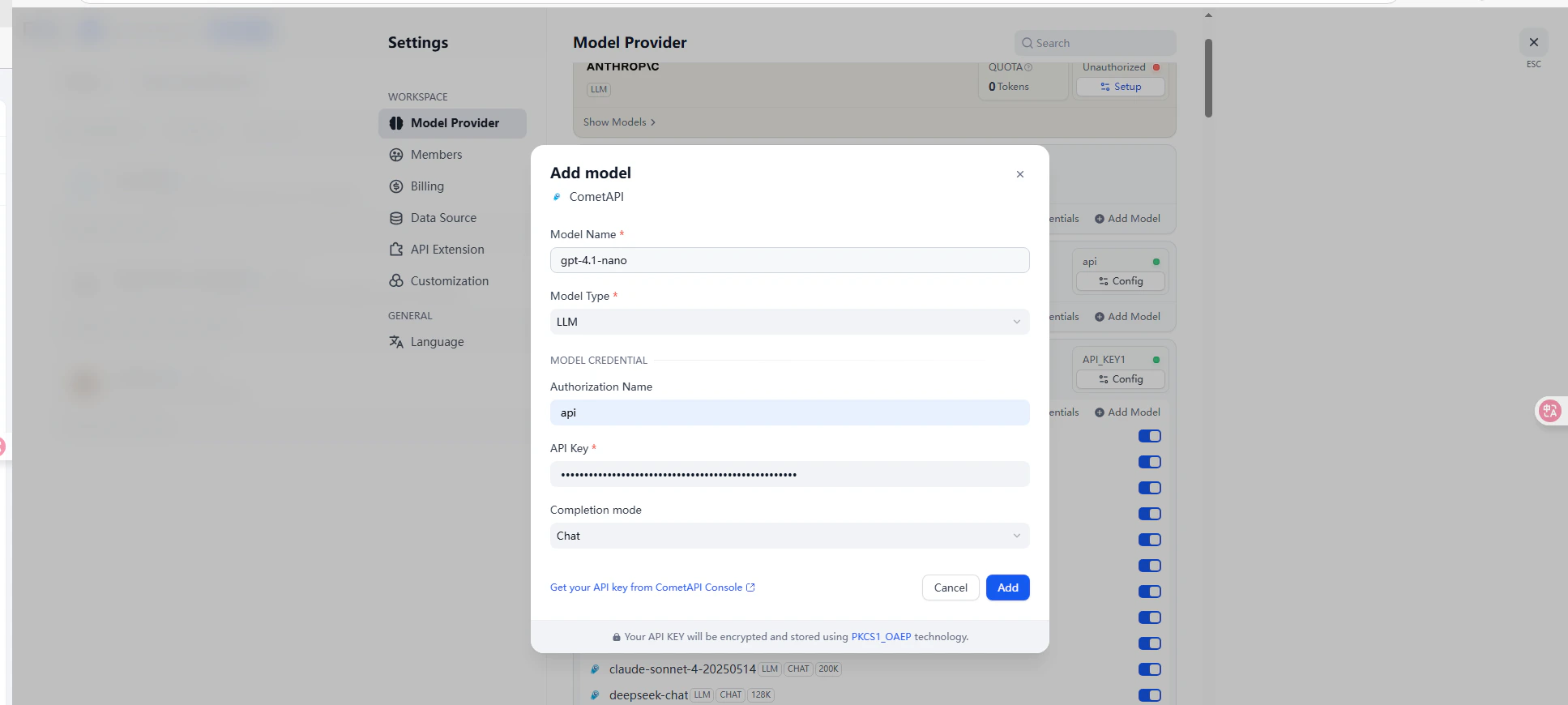
Enter a model ID from the [CometAPI Models page](/overview/models) and click **Add**.
Go to **Settings** → **Model Provider** → **CometAPI** → **Open Settings**. Paste your CometAPI API key and click **Save**.
Enter a model ID from the [CometAPI Models page](/overview/models) and click **Add**.
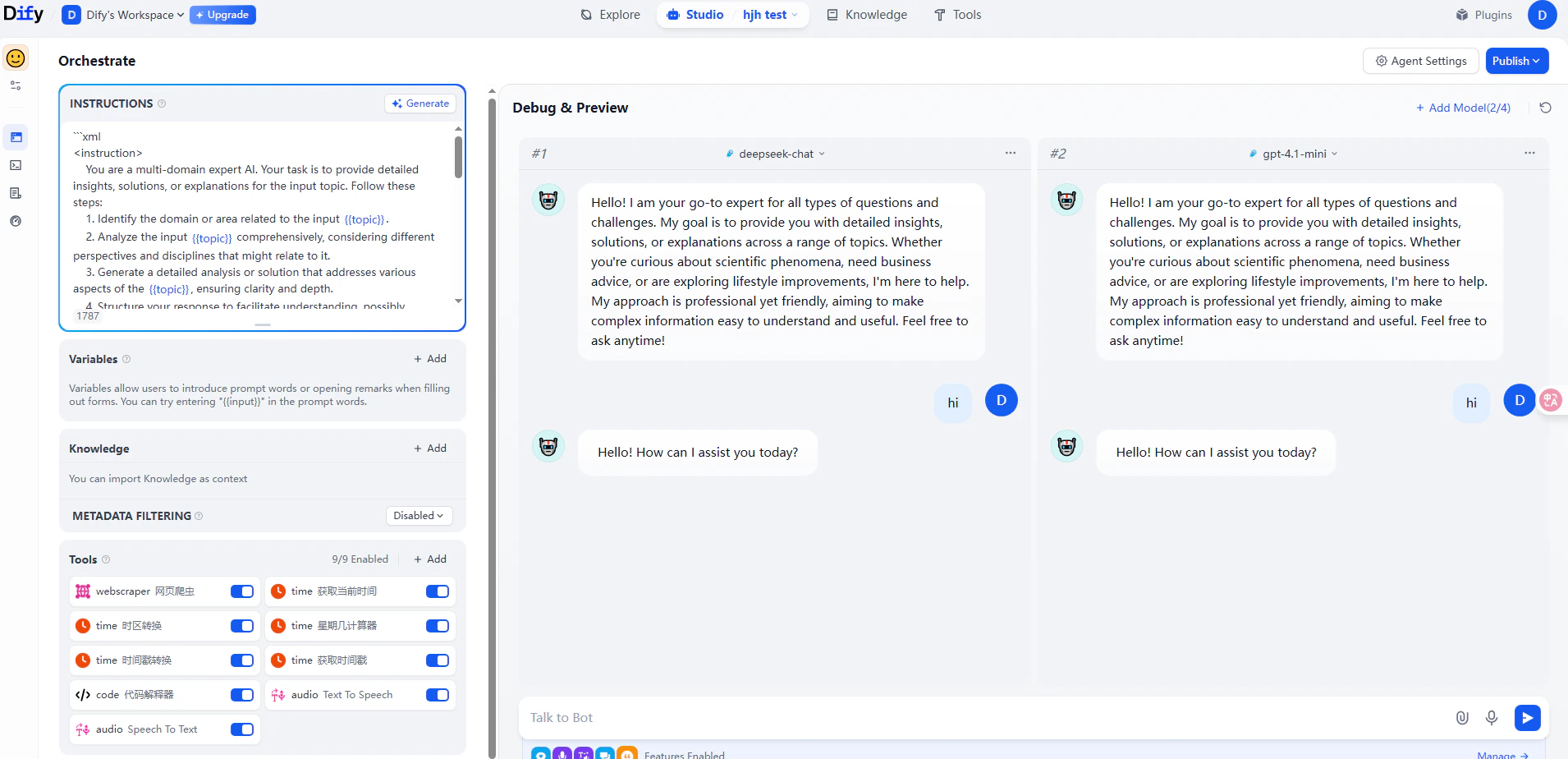
 Create a chatbot or workflow and select a CometAPI model. Send a test message — a successful response confirms the integration is working.
 ## Method 2: OpenAI-compatible provider
Use this method to add models not covered by the CometAPI plugin, such as Claude, Grok, or Gemini — or to use custom model names.
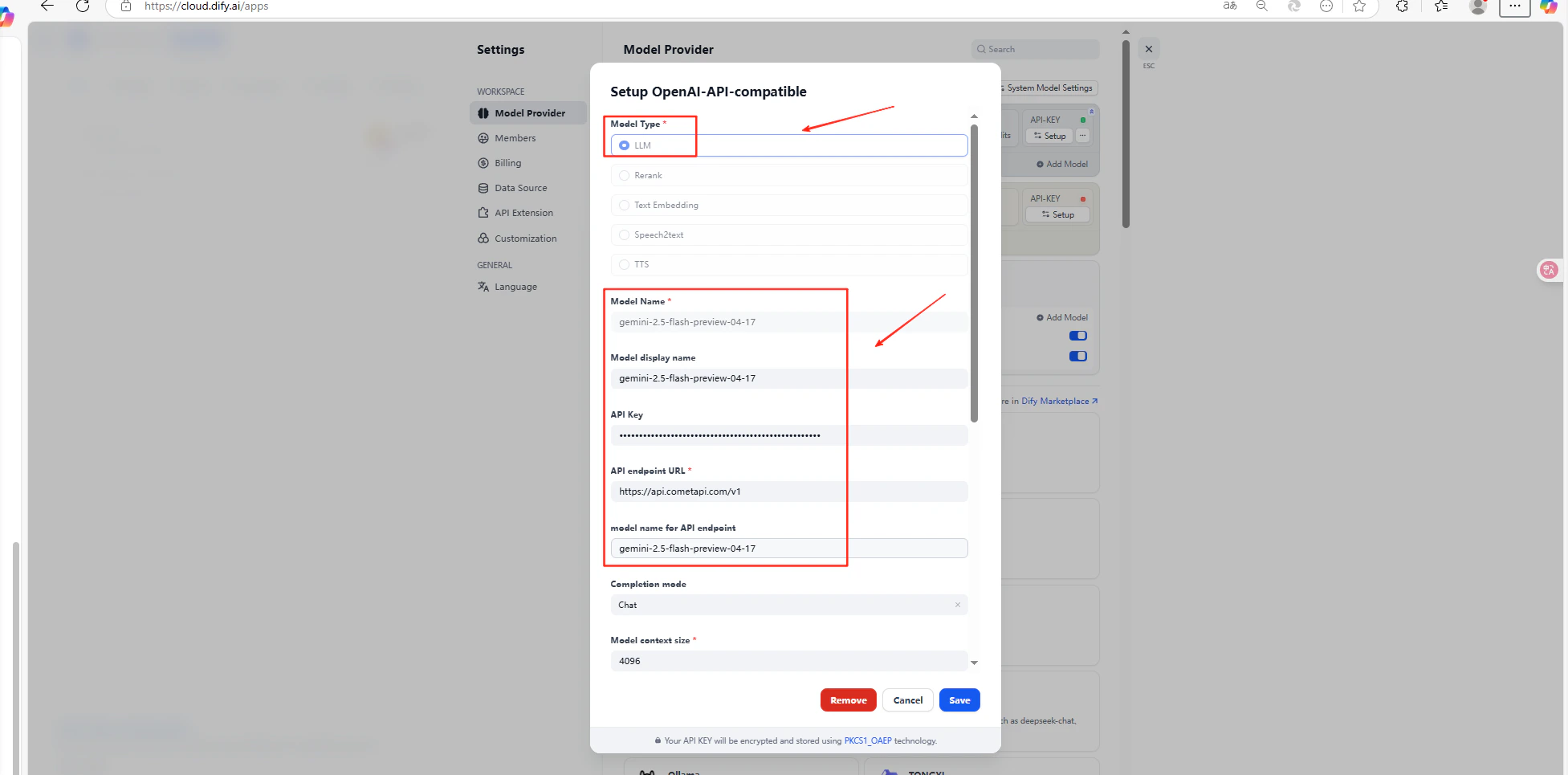
Go to **Settings** → **Model Provider** → **OpenAI-API-compatible** → **Add Model**.
Fill in the following fields:
| Field | Value |
| ------------ | ------------------------------------------- |
| Model type | LLM |
| Model name | Model ID from CometAPI (must match exactly) |
| API key | Your CometAPI API key |
| API base URL | `https://api.cometapi.com/v1` |
Click **Save**.
## Method 2: OpenAI-compatible provider
Use this method to add models not covered by the CometAPI plugin, such as Claude, Grok, or Gemini — or to use custom model names.
Go to **Settings** → **Model Provider** → **OpenAI-API-compatible** → **Add Model**.
Fill in the following fields:
| Field | Value |
| ------------ | ------------------------------------------- |
| Model type | LLM |
| Model name | Model ID from CometAPI (must match exactly) |
| API key | Your CometAPI API key |
| API base URL | `https://api.cometapi.com/v1` |
Click **Save**.
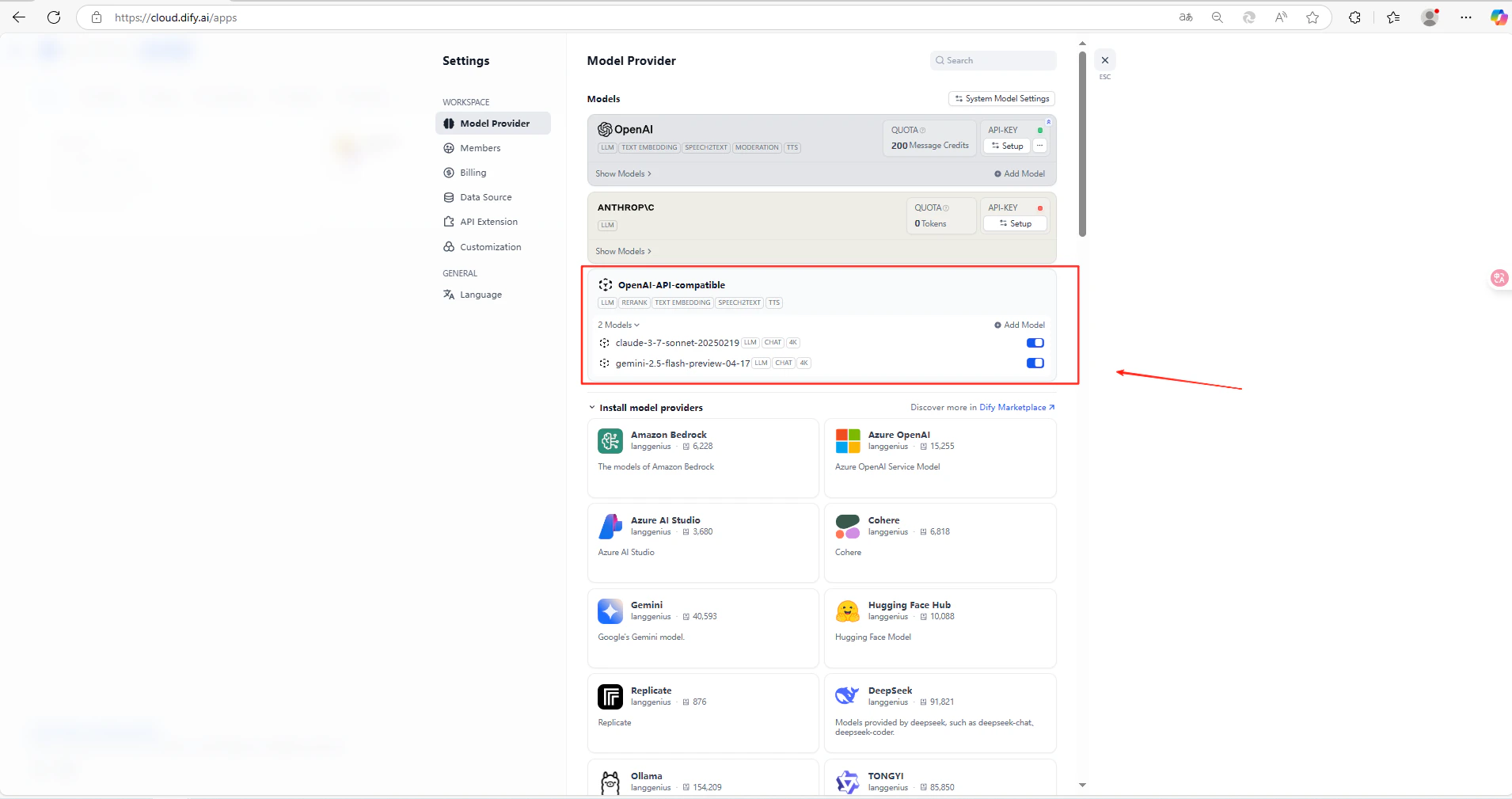
 For model identifiers, refer to the [CometAPI Models page](/overview/models). The model ID in Dify must exactly match the identifier used in CometAPI.
## Troubleshooting
If a call fails, check:
* The API key is correct and has available balance
* The model ID matches exactly what CometAPI expects
* The API base URL includes `/v1` (required for the OpenAI-compatible method)
For further help, visit the [CometAPI support page](https://www.cometapi.com/support/).
For model identifiers, refer to the [CometAPI Models page](/overview/models). The model ID in Dify must exactly match the identifier used in CometAPI.
## Troubleshooting
If a call fails, check:
* The API key is correct and has available balance
* The model ID matches exactly what CometAPI expects
* The API base URL includes `/v1` (required for the OpenAI-compatible method)
For further help, visit the [CometAPI support page](https://www.cometapi.com/support/).