> ## Documentation Index
> Fetch the complete documentation index at: https://apidoc.cometapi.com/llms.txt
> Use this file to discover all available pages before exploring further.
# Use Obsidian Text Generator with CometAPI
> Use this guide to configure Obsidian Text Generator with CometAPI by setting the base URL, API key, and model or provider options.
[Text Generator](https://text-gen.com/) is an Obsidian plugin for AI-assisted writing. Connect it to CometAPI using the OpenAI Chat settings to access any supported model.
## Prerequisites
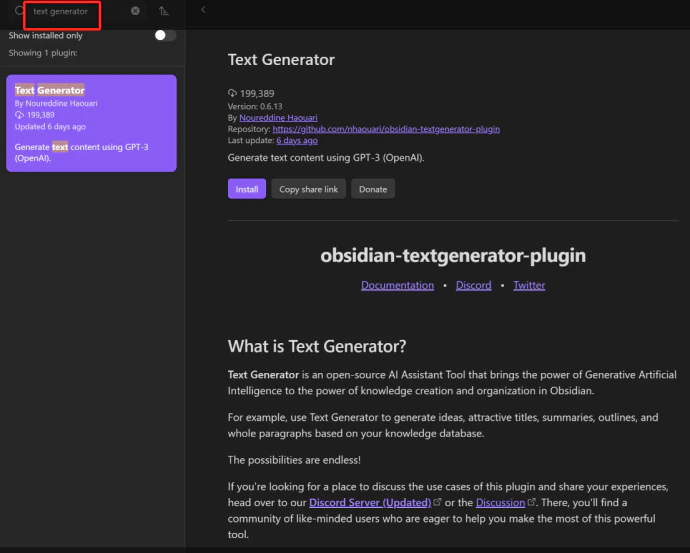
* [Obsidian](https://obsidian.md/) with the Text Generator plugin installed — search for it in **Settings** → **Community Plugins**
 * A [CometAPI](https://www.cometapi.com) account with an active API key
## Setup
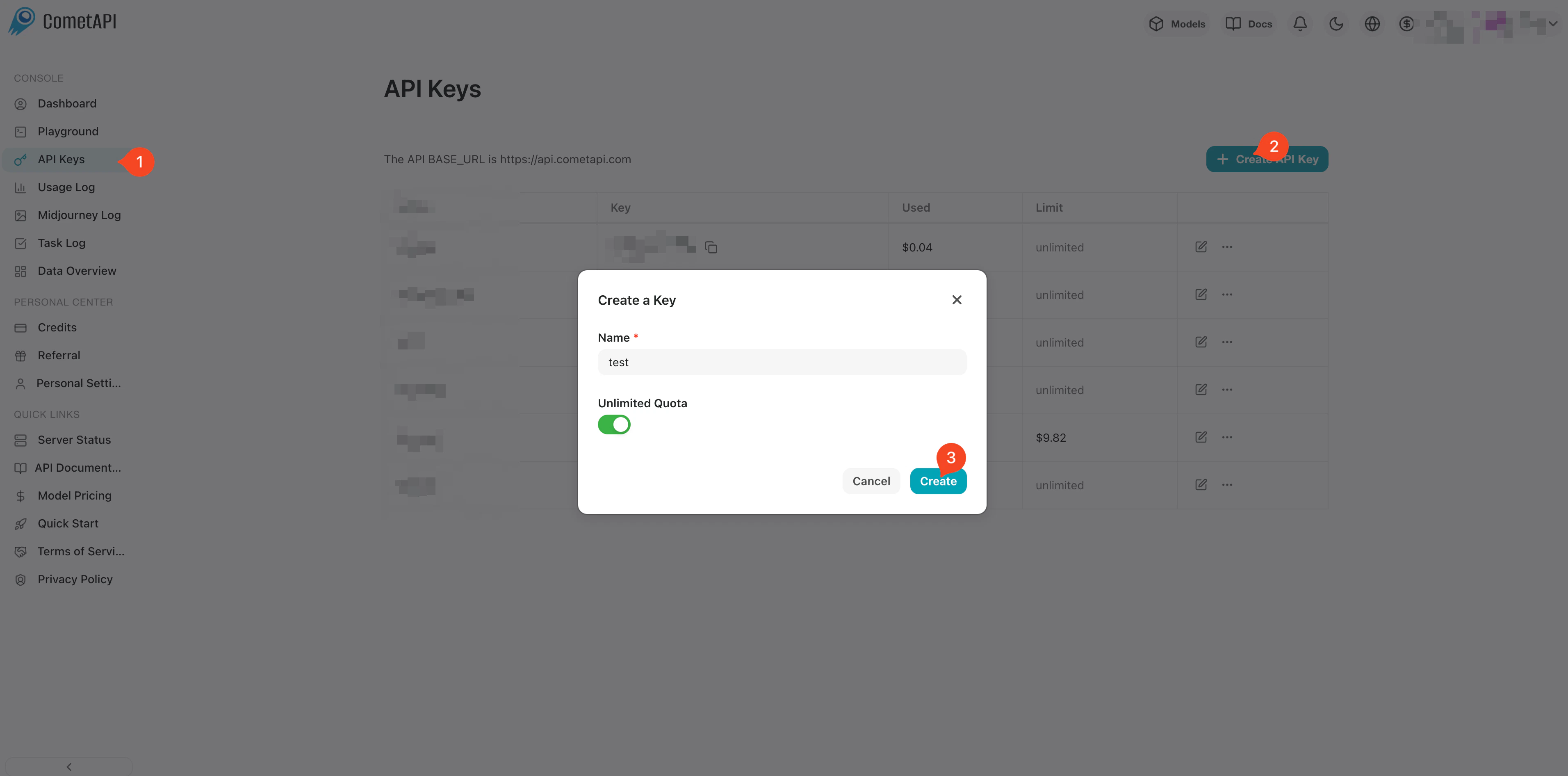
Log in to the [CometAPI dashboard](https://www.cometapi.com/console). Click **Add API Key** and copy your key and base URL (`https://api.cometapi.com`).
* A [CometAPI](https://www.cometapi.com) account with an active API key
## Setup
Log in to the [CometAPI dashboard](https://www.cometapi.com/console). Click **Add API Key** and copy your key and base URL (`https://api.cometapi.com`).
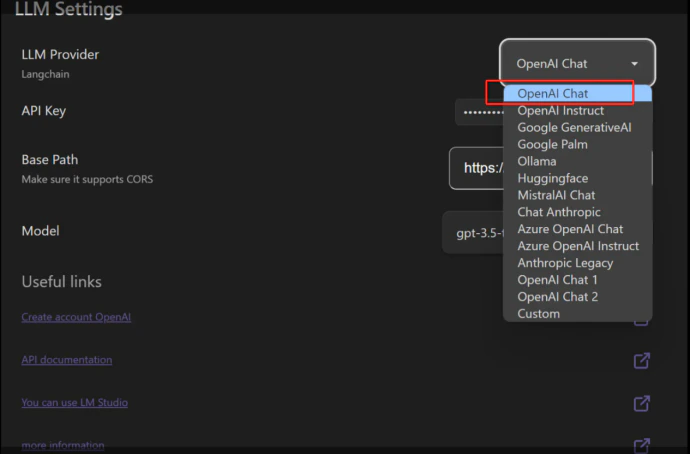
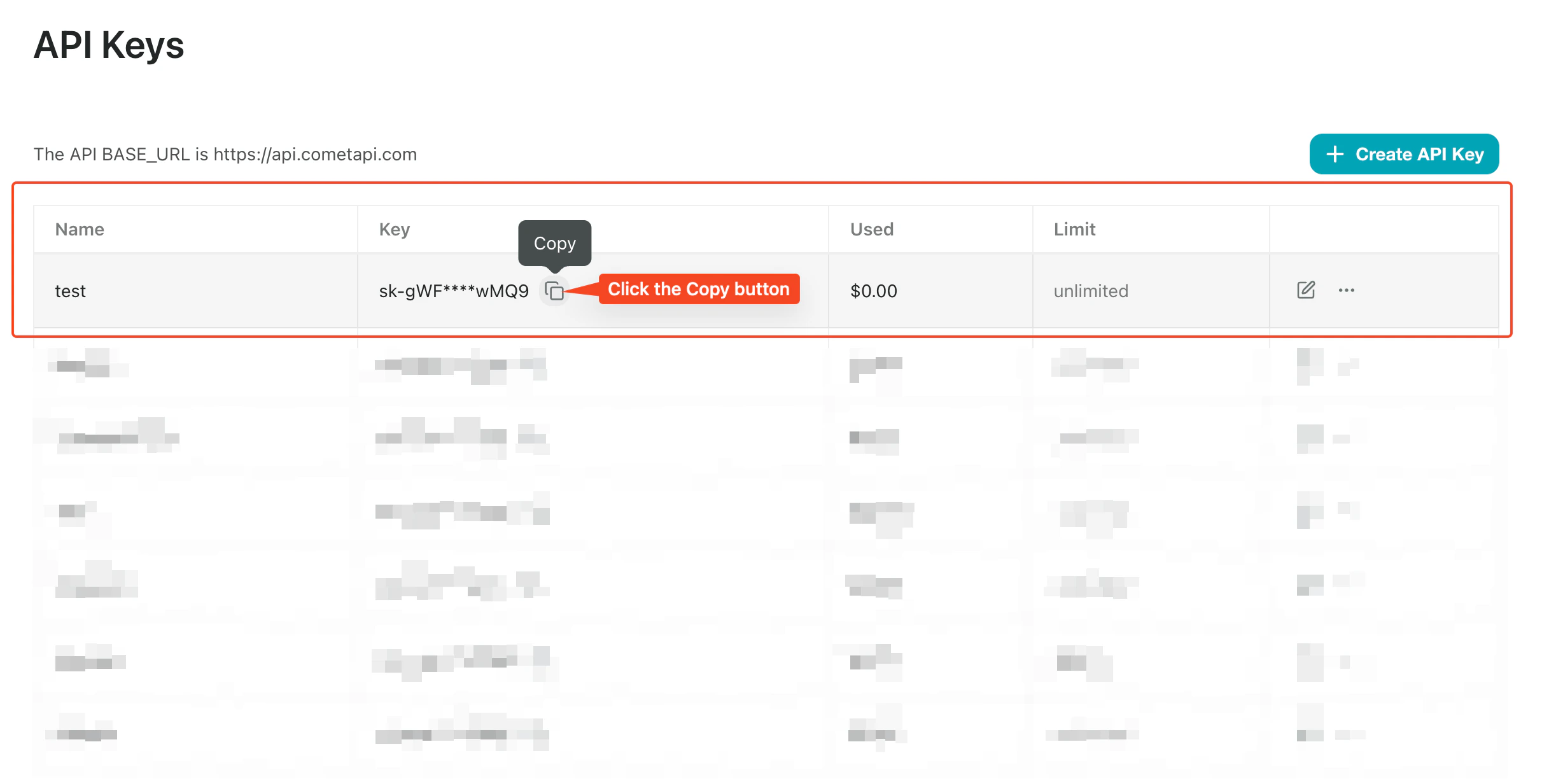 Open the Text Generator plugin settings. Select **OpenAI Chat** as the AI provider, enter `https://api.cometapi.com/v1` in the **API Address** field, and paste your CometAPI key into the **Key** field. Select a model and click **Save**.
 Open Obsidian and trigger a text generation prompt. A successful response confirms the integration is working.