> ## Documentation Index
> Fetch the complete documentation index at: https://apidoc.cometapi.com/llms.txt
> Use this file to discover all available pages before exploring further.
# Use Pot with CometAPI
> Use this guide to configure Pot with CometAPI by setting the base URL, API key, and model or provider options.
Pot is a cross-platform translation and OCR application. Connect it to CometAPI to power AI translation with any supported model.
## Prerequisites
* A CometAPI account with an active API key — [get yours here](https://www.cometapi.com/console/token)
* Pot installed — [download here](https://pot-app.com/)
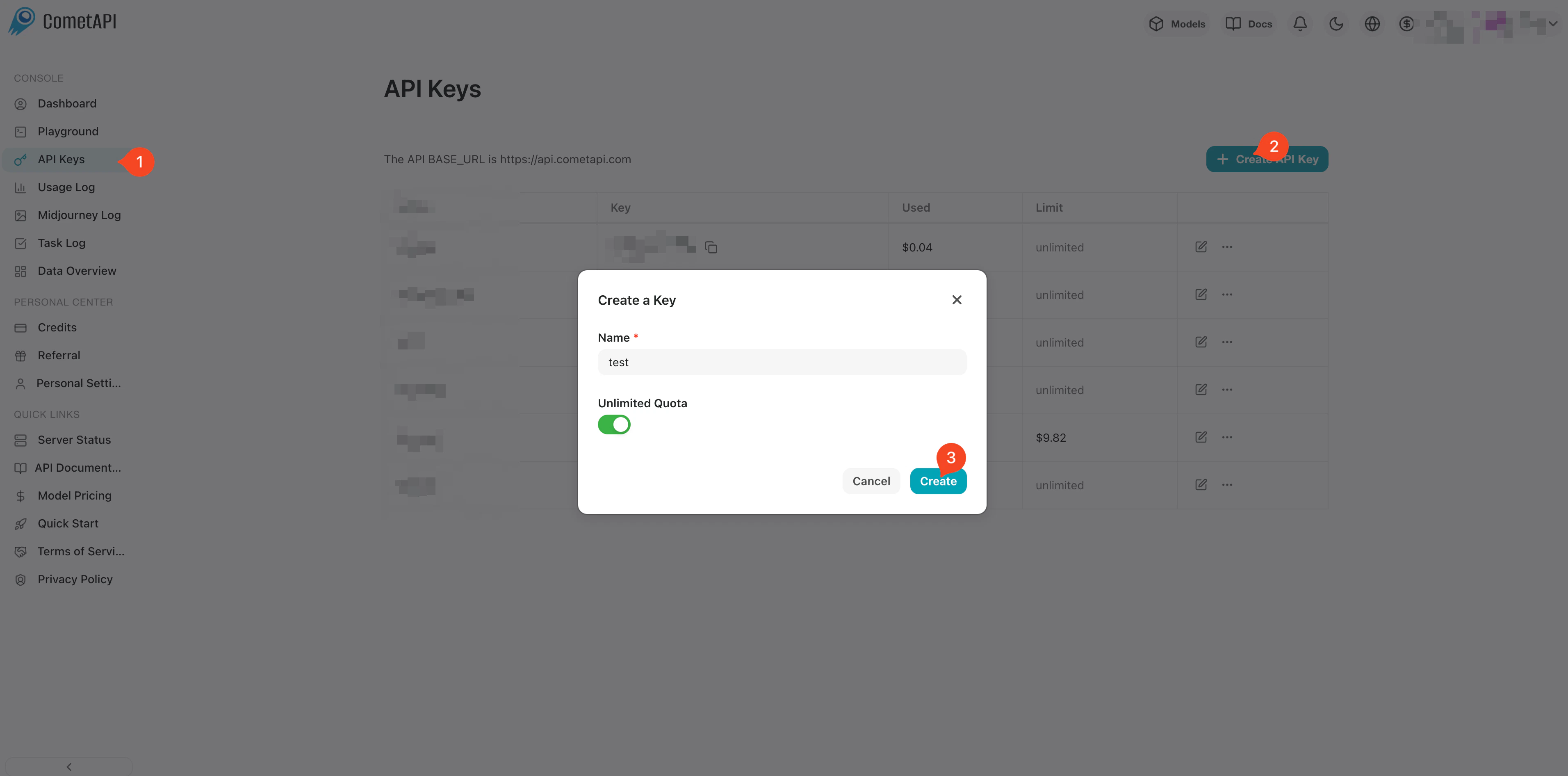
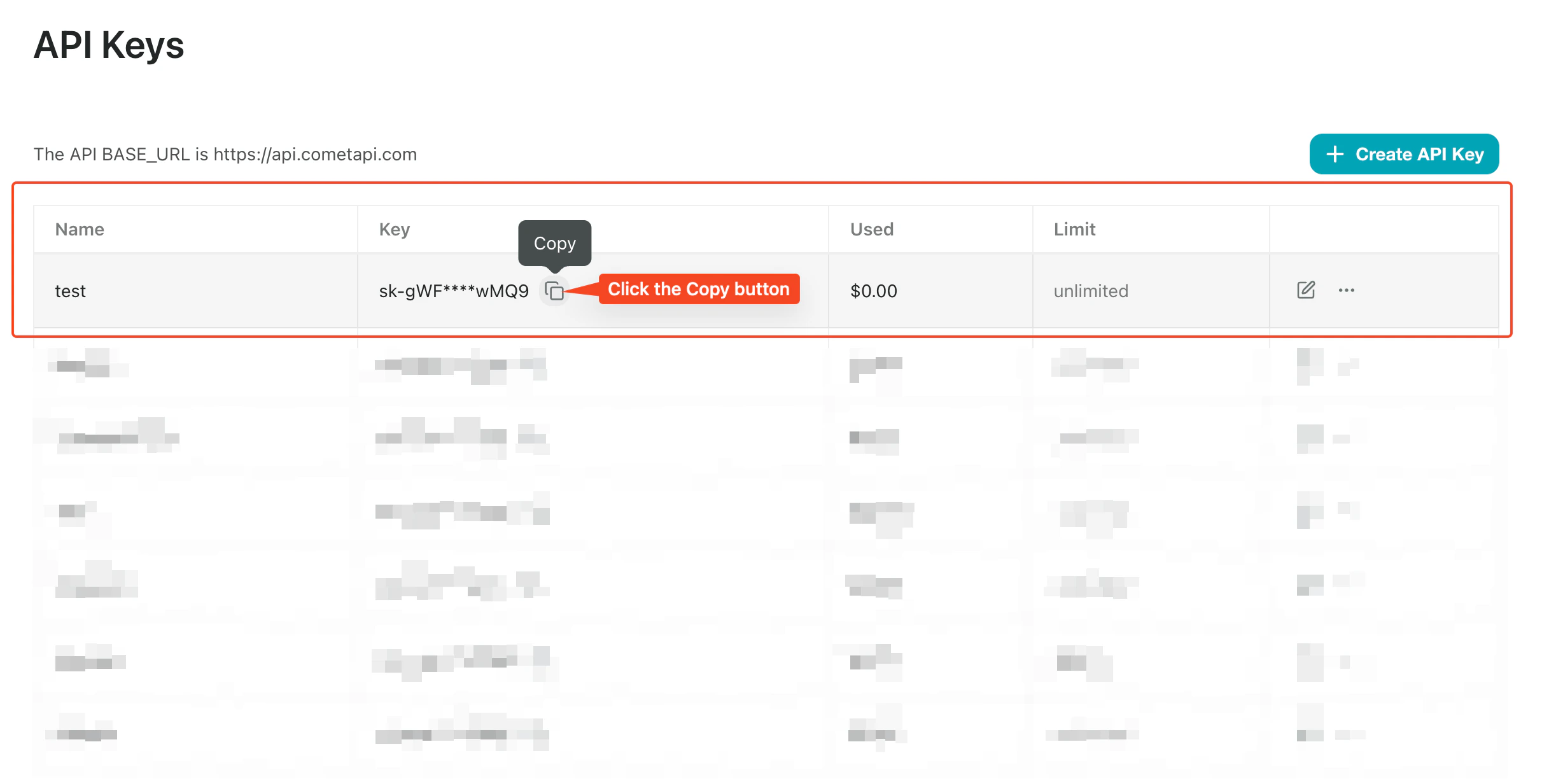
Log in to the [CometAPI console](https://www.cometapi.com/console/token). Click **Add API Key** and copy your CometAPI API key.
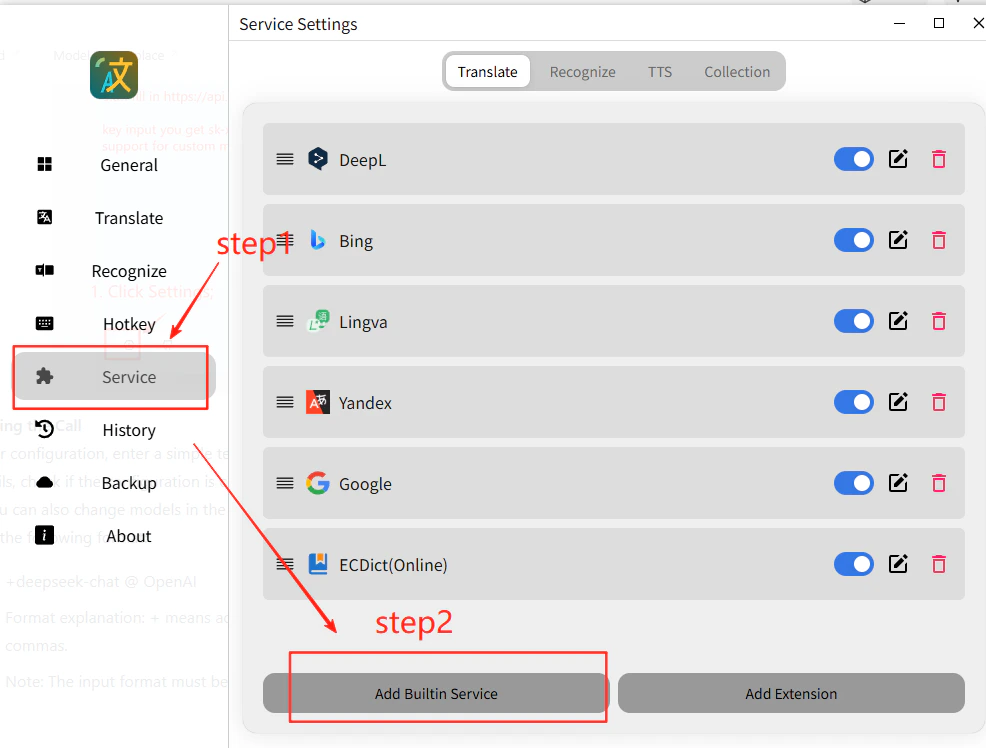
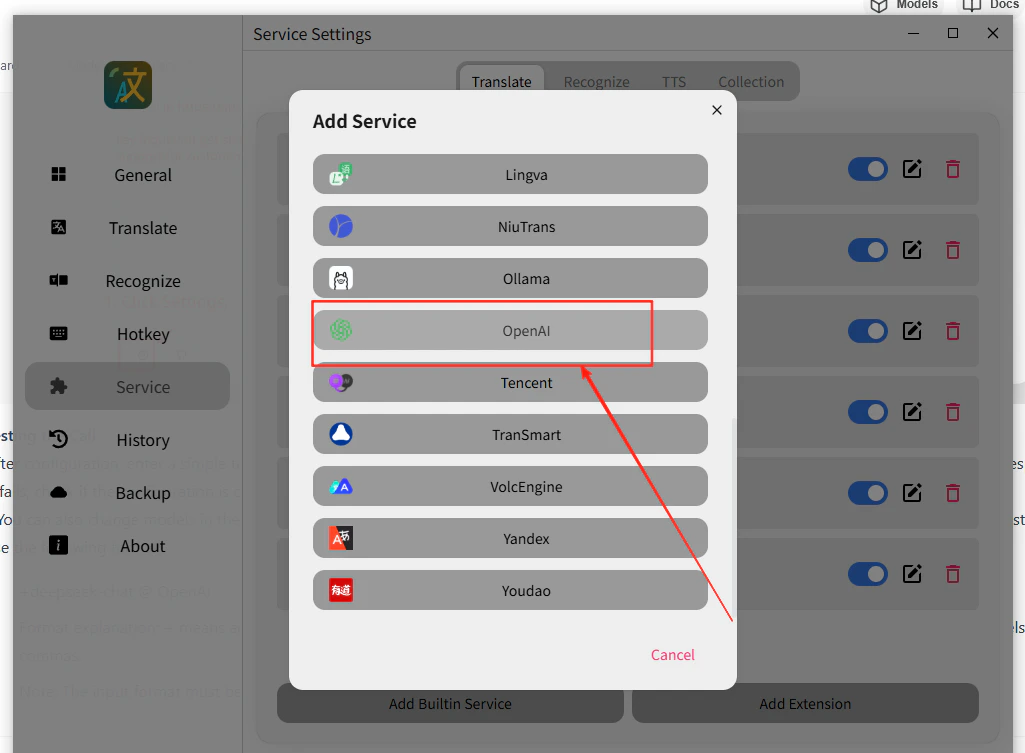
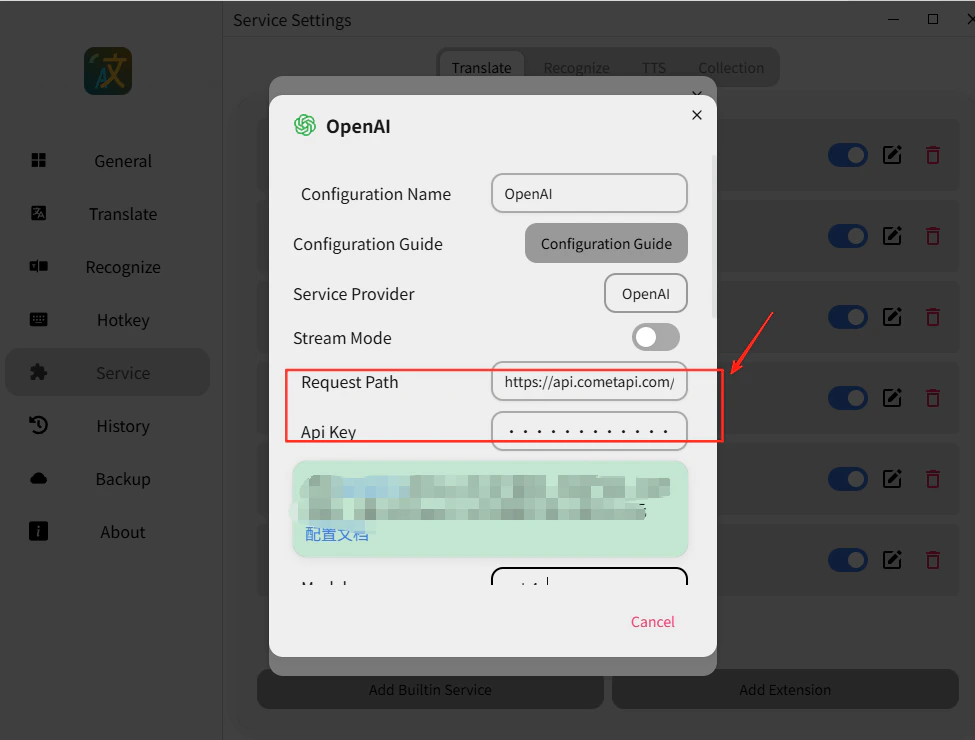
 Open Pot's menu, go to **Service Settings → Add Built-in Service**, select **OpenAI**, and enable **Stream Output**.
 * **API Address**: `https://api.cometapi.com/v1/chat/completions`
* **API Key**: paste your CometAPI API key
* **Model**: set the current model ID you want to use
Click **Save**.
* **API Address**: `https://api.cometapi.com/v1/chat/completions`
* **API Key**: paste your CometAPI API key
* **Model**: set the current model ID you want to use
Click **Save**.
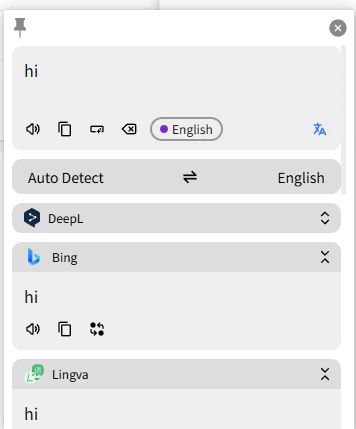
 Select any text and trigger a translation. A successful response confirms the integration is working.
 If the call fails, double-check your API key and the endpoint URL, or contact [CometAPI support](https://www.cometapi.com).
You can type any current CometAPI model ID directly into the **Model** field — for example, a GPT, Claude, Gemini, or DeepSeek model from the [CometAPI Models page](/overview/models).
If the call fails, double-check your API key and the endpoint URL, or contact [CometAPI support](https://www.cometapi.com).
You can type any current CometAPI model ID directly into the **Model** field — for example, a GPT, Claude, Gemini, or DeepSeek model from the [CometAPI Models page](/overview/models).