> ## Documentation Index
> Fetch the complete documentation index at: https://apidoc.cometapi.com/llms.txt
> Use this file to discover all available pages before exploring further.

# Usa Coze con CometAPI

> Usa questa guida per configurare Coze con CometAPI impostando la base URL, la chiave API e le opzioni di model o provider.

Coze è un generatore di agenti AI e workflow. Puoi collegare CometAPI a Coze in due modi: tramite il **plugin CometAPI** nativo (il più semplice) oppure tramite un **nodo HTTP Request** generico per la massima flessibilità.

## Prerequisiti

* Un account CometAPI con una chiave API attiva — [ottieni la tua qui](https://www.cometapi.com/console/token)
* Un account Coze — [registrati qui](https://www.coze.com)

<Steps>
  <Step title="Ottieni la tua chiave API CometAPI">
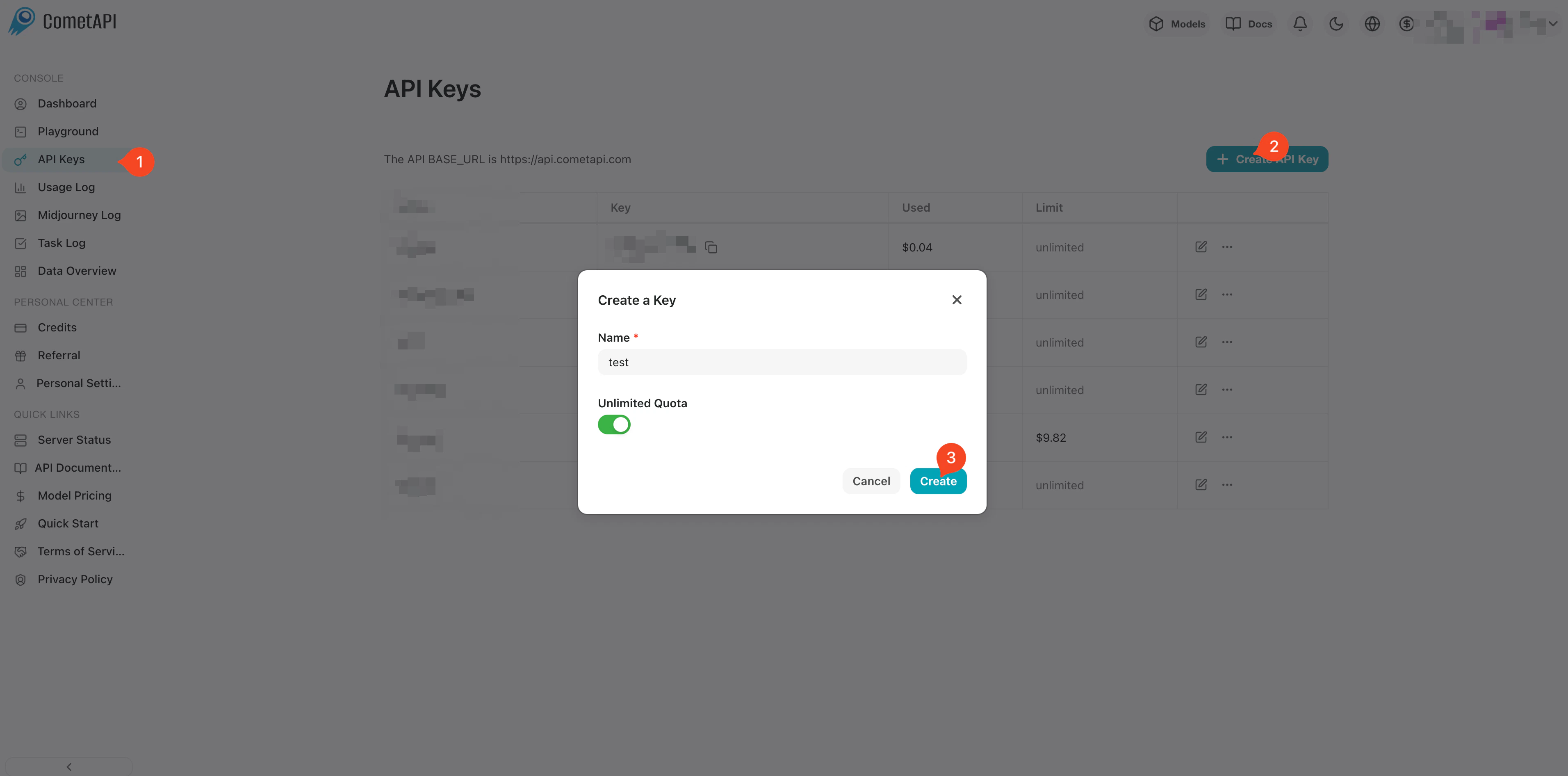
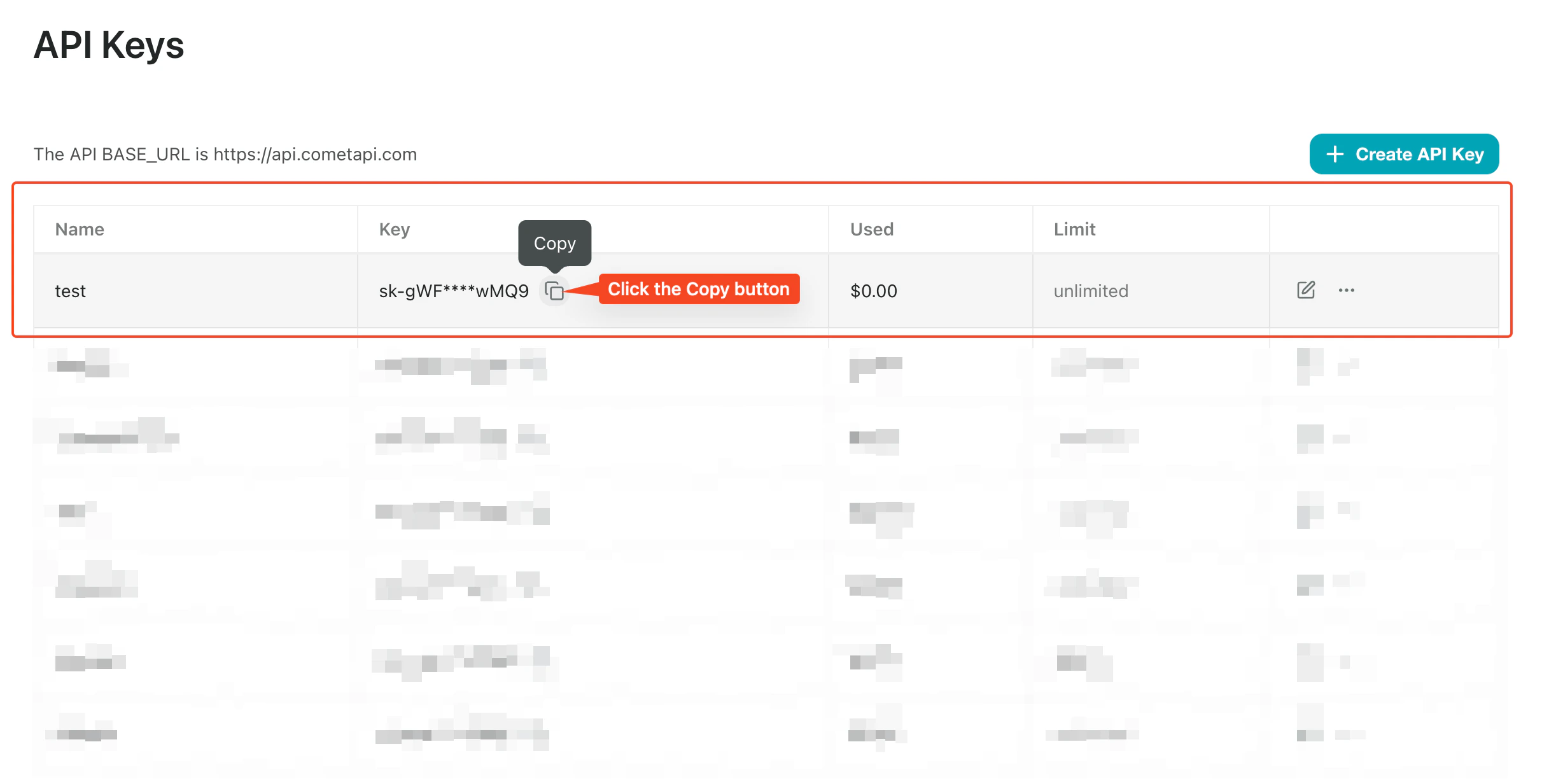
    Accedi alla [console CometAPI](https://www.cometapi.com/console/token). Fai clic su **Add API Key** e copia la tua chiave API CometAPI.
    <Frame>
      <img src="https://mintcdn.com/cometapi/SZhlxZhCnMLn__BW/images/overview/810968_364191.png?fit=max&auto=format&n=SZhlxZhCnMLn__BW&q=85&s=aef81a83f29f8eb16655ed4060425f50" alt="Dashboard di CometAPI che mostra il pulsante Add API Key" width="3824" height="1892" data-path="images/overview/810968_364191.png" />
    </Frame>

    <Frame>
      <img src="https://mintcdn.com/cometapi/HhtmQffktazbxUvS/images/overview/810968_364193.png?fit=max&auto=format&n=HhtmQffktazbxUvS&q=85&s=d893f659267150d0faf45f99eb5dffc1" alt="Dettagli della chiave API CometAPI con URL di base" width="2434" height="1232" data-path="images/overview/810968_364193.png" />
    </Frame>
  </Step>

  <Step title="Aggiungi CometAPI a un workflow di Coze">
    <Tabs>
      <Tab title="Metodo 1: plugin CometAPI (consigliato)">
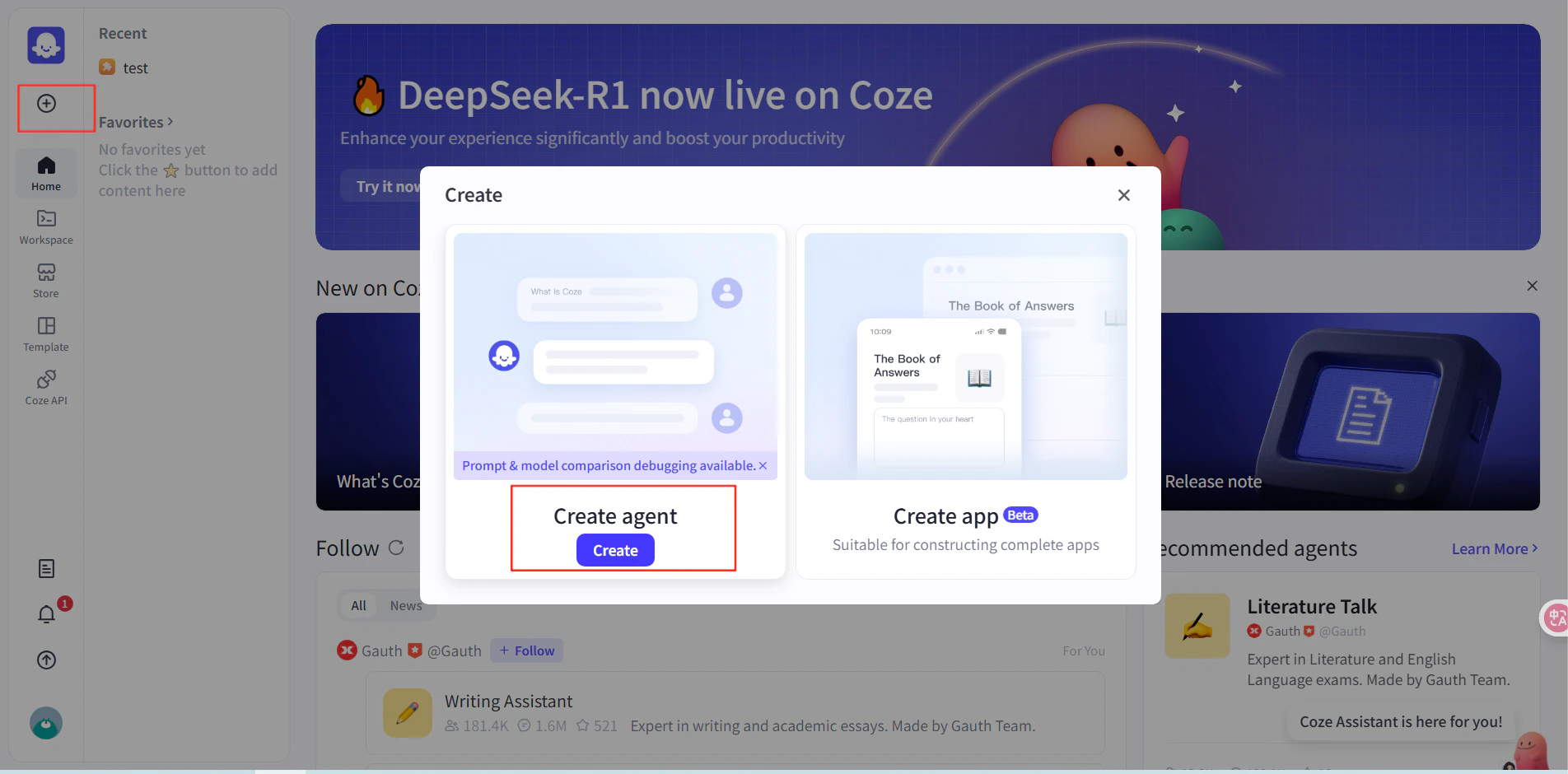
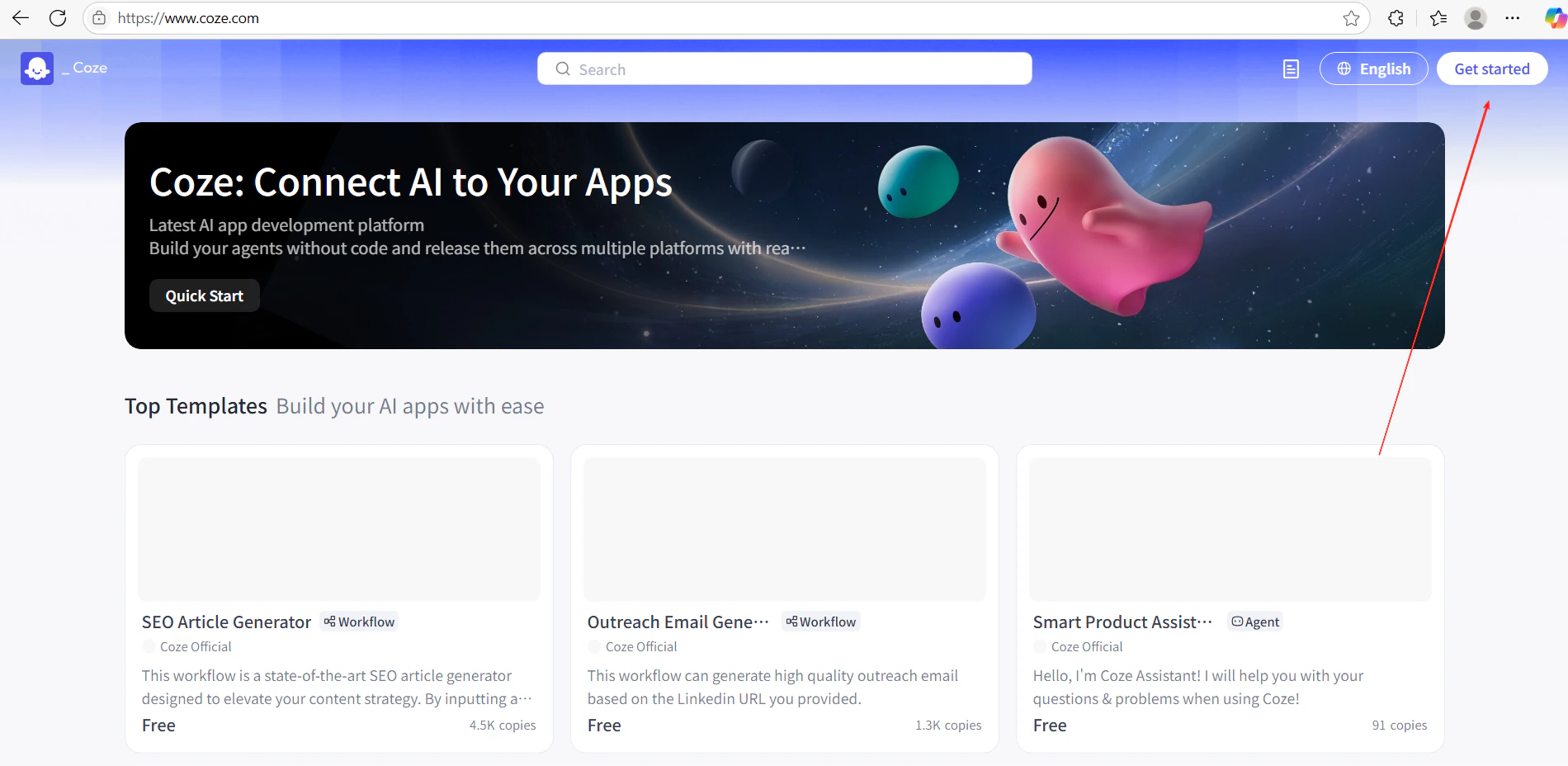
        1. In Coze, fai clic su **Get Started** e crea un nuovo workflow.
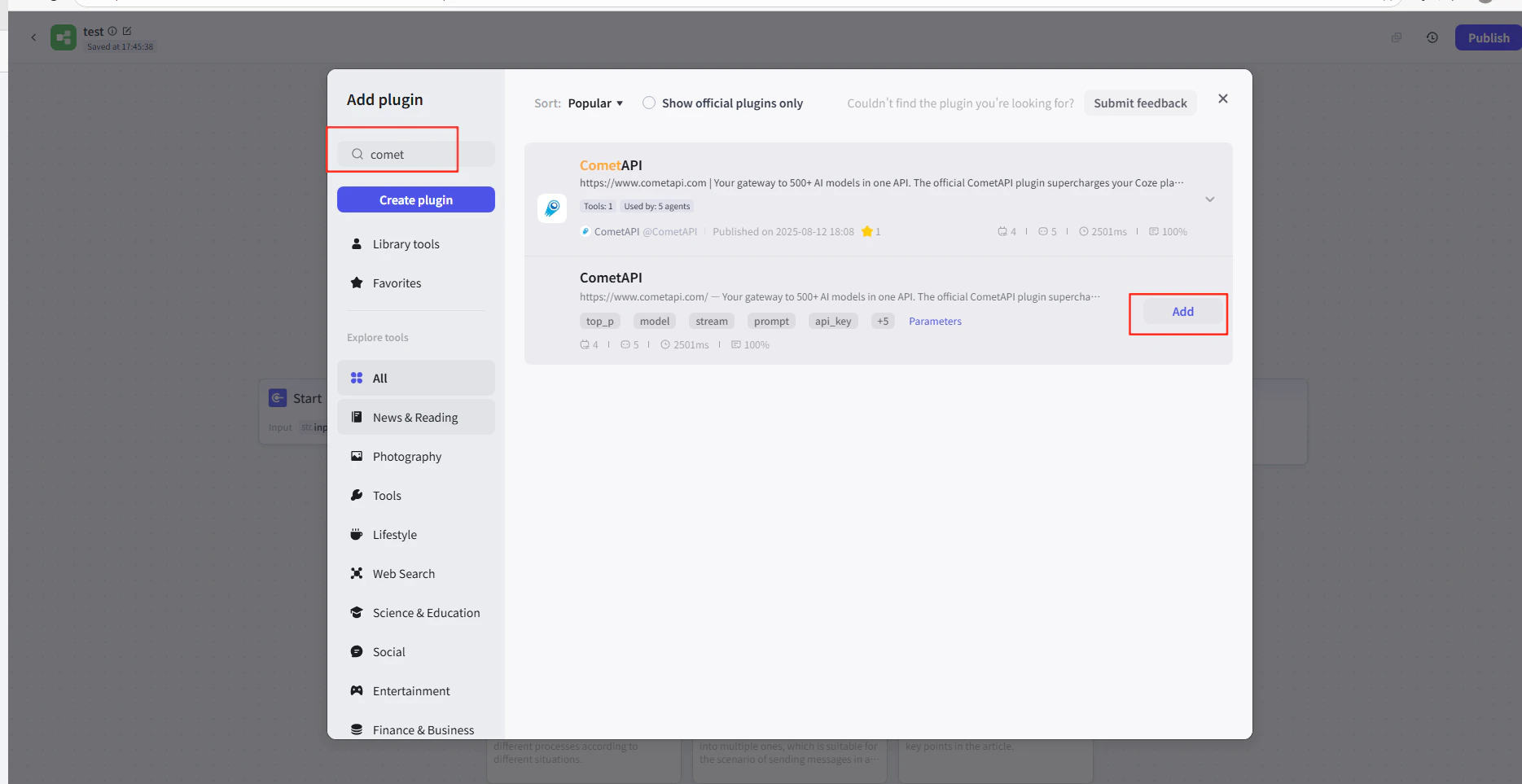
        2. Nell'editor del workflow, fai clic su **Add Node → Plugins** e cerca **CometAPI**.
        3. Aggiungi il nodo plugin CometAPI al tuo workflow.
        <Frame>
          <img src="https://mintcdn.com/cometapi/E4FFvyMYmaOZoldp/images/integrations/810968_355124.png?fit=max&auto=format&n=E4FFvyMYmaOZoldp&q=85&s=31a8c613d735f88246baa86ae399fa11" alt="Editor del workflow di Coze che mostra la ricerca del plugin" width="1900" height="928" data-path="images/integrations/810968_355124.png" />
        </Frame>

        <Frame>
          <img src="https://mintcdn.com/cometapi/E4FFvyMYmaOZoldp/images/integrations/810968_355125.png?fit=max&auto=format&n=E4FFvyMYmaOZoldp&q=85&s=75f2336cc40c9f21d757ced6ee227fd7" alt="Plugin CometAPI visualizzato nei risultati di ricerca" width="1904" height="940" data-path="images/integrations/810968_355125.png" />
        </Frame>

        <Frame>
          <img src="https://mintcdn.com/cometapi/E4FFvyMYmaOZoldp/images/integrations/810968_355126.png?fit=max&auto=format&n=E4FFvyMYmaOZoldp&q=85&s=1058980811bfc31c51715a76e048cc02" alt="Nodo del plugin CometAPI aggiunto all'area di lavoro" width="1938" height="908" data-path="images/integrations/810968_355126.png" />
        </Frame>

        <Frame>
          <img src="https://mintcdn.com/cometapi/E4FFvyMYmaOZoldp/images/integrations/810968_360283.png?fit=max&auto=format&n=E4FFvyMYmaOZoldp&q=85&s=f89b117699a4d46802c62436ae92bd84" alt="Pannello di configurazione del nodo plugin" width="1869" height="963" data-path="images/integrations/810968_360283.png" />
        </Frame>

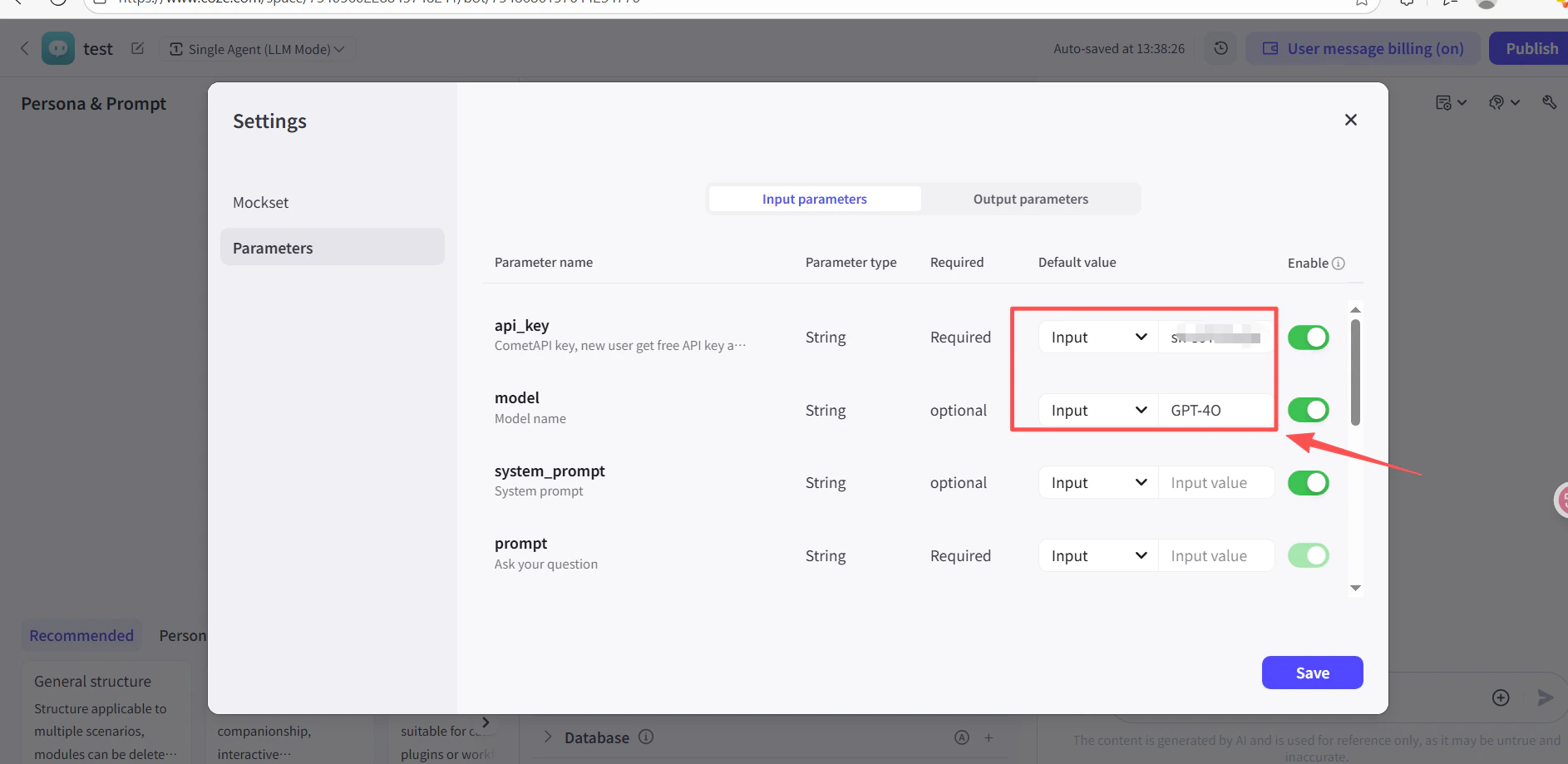
        4. Nel campo **API Key** del nodo plugin, incolla la tua chiave API CometAPI.
        5. Fai clic su **Test** per verificare la connessione, poi su **Publish**.
        <Frame>
          <img src="https://mintcdn.com/cometapi/SZhlxZhCnMLn__BW/images/integrations/810968_361332.png?fit=max&auto=format&n=SZhlxZhCnMLn__BW&q=85&s=0f41c0cfaf3cdcebd45d740ce96fd178" alt="Nodo plugin con chiave API inserita" width="1886" height="919" data-path="images/integrations/810968_361332.png" />
        </Frame>

        <Frame>
          <img src="https://mintcdn.com/cometapi/SZhlxZhCnMLn__BW/images/integrations/810968_361333.png?fit=max&auto=format&n=SZhlxZhCnMLn__BW&q=85&s=17b349b2c651c6e5193bfde6b63e0c17" alt="Risultato del test riuscito per il plugin CometAPI" width="1884" height="903" data-path="images/integrations/810968_361333.png" />
        </Frame>
      </Tab>

      <Tab title="Metodo 2: nodo HTTP Request">
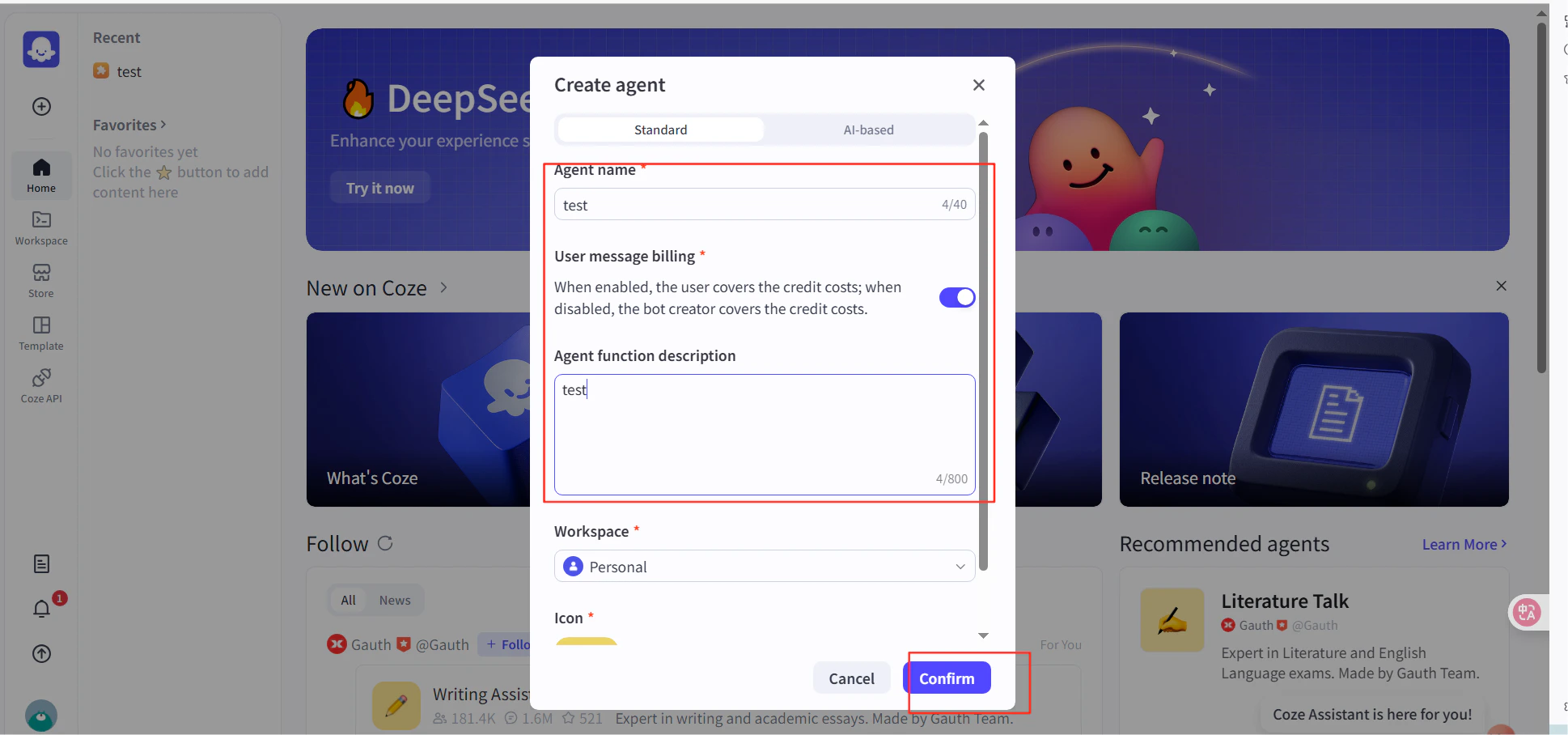
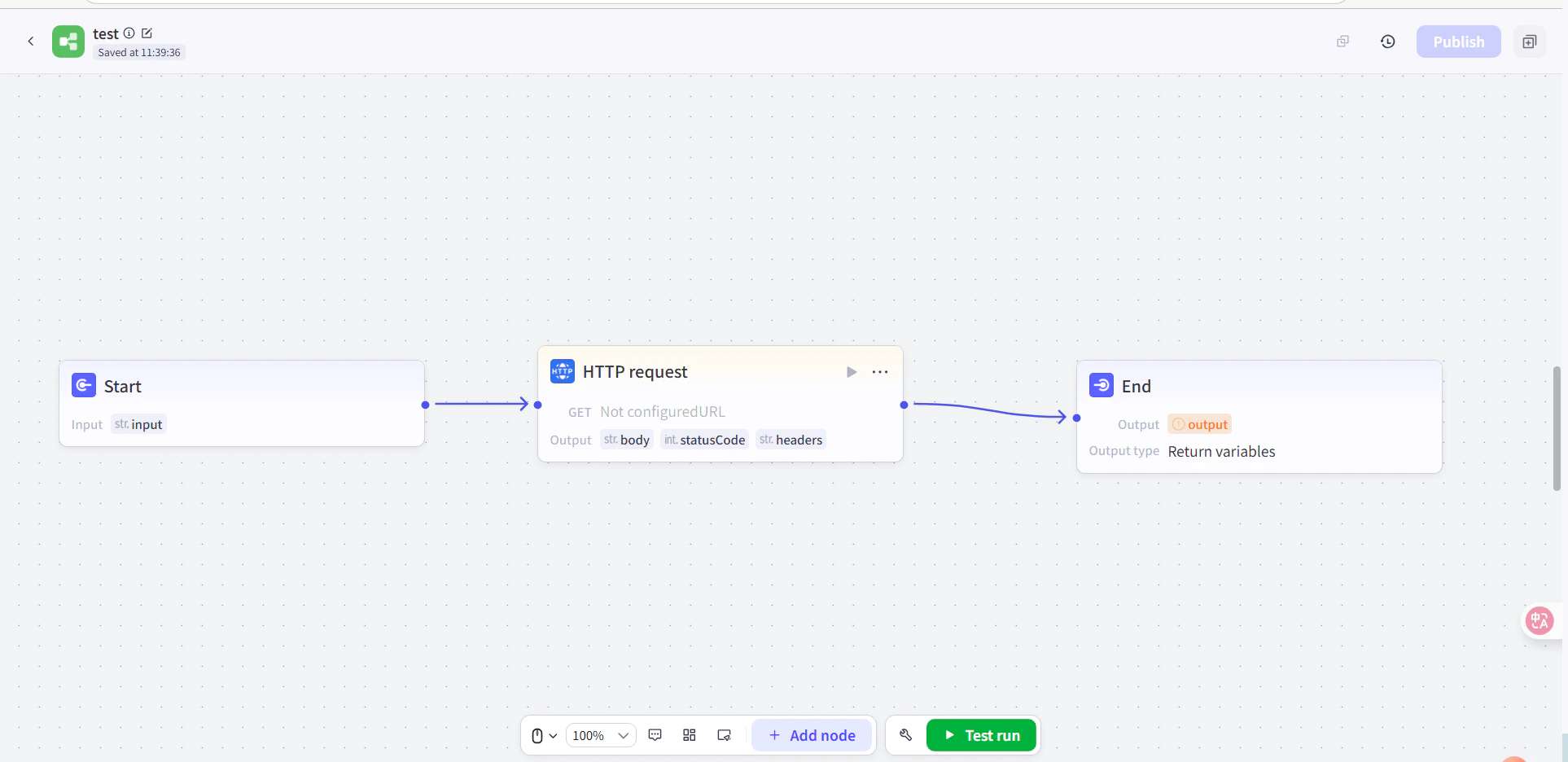
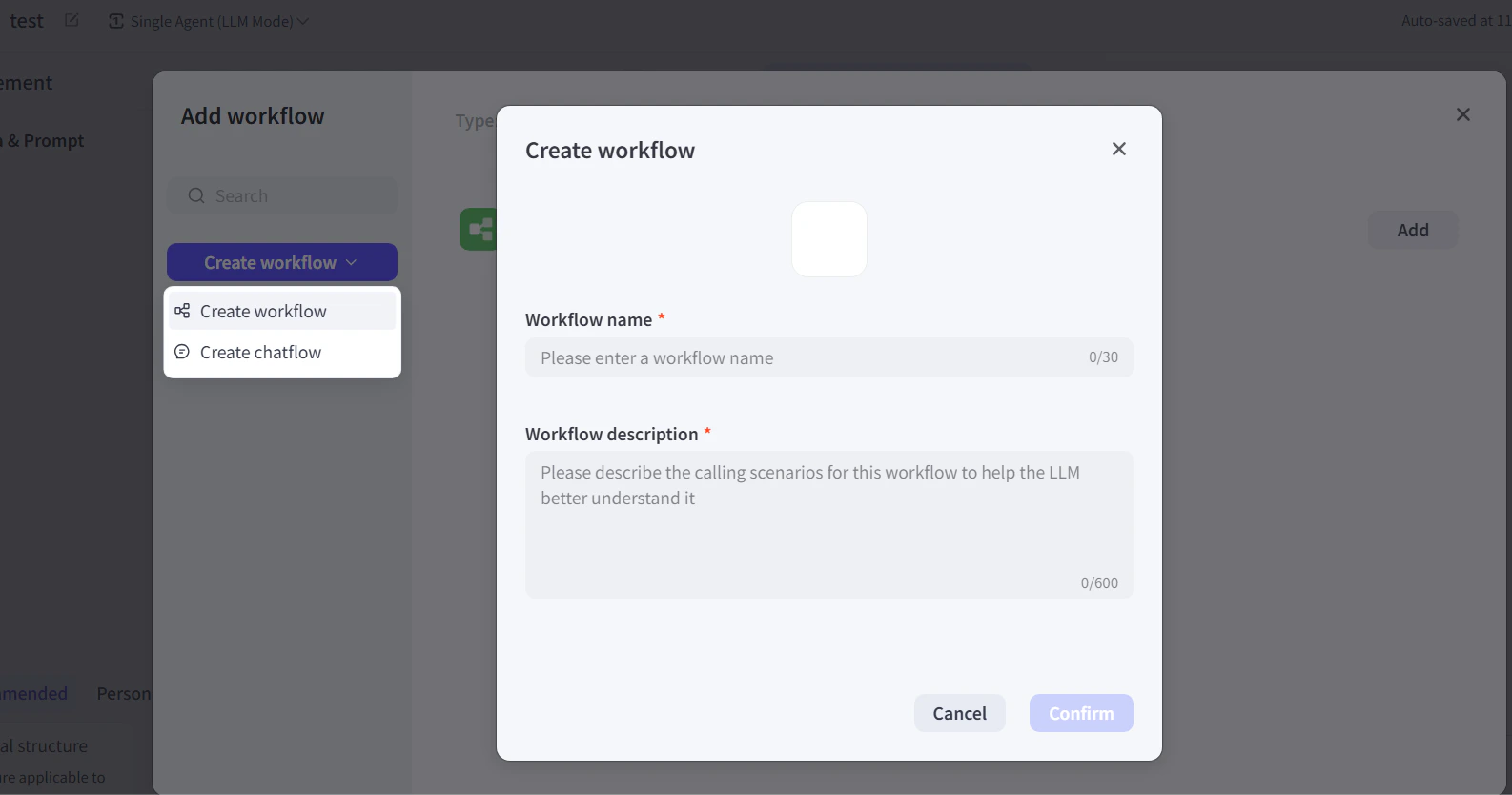
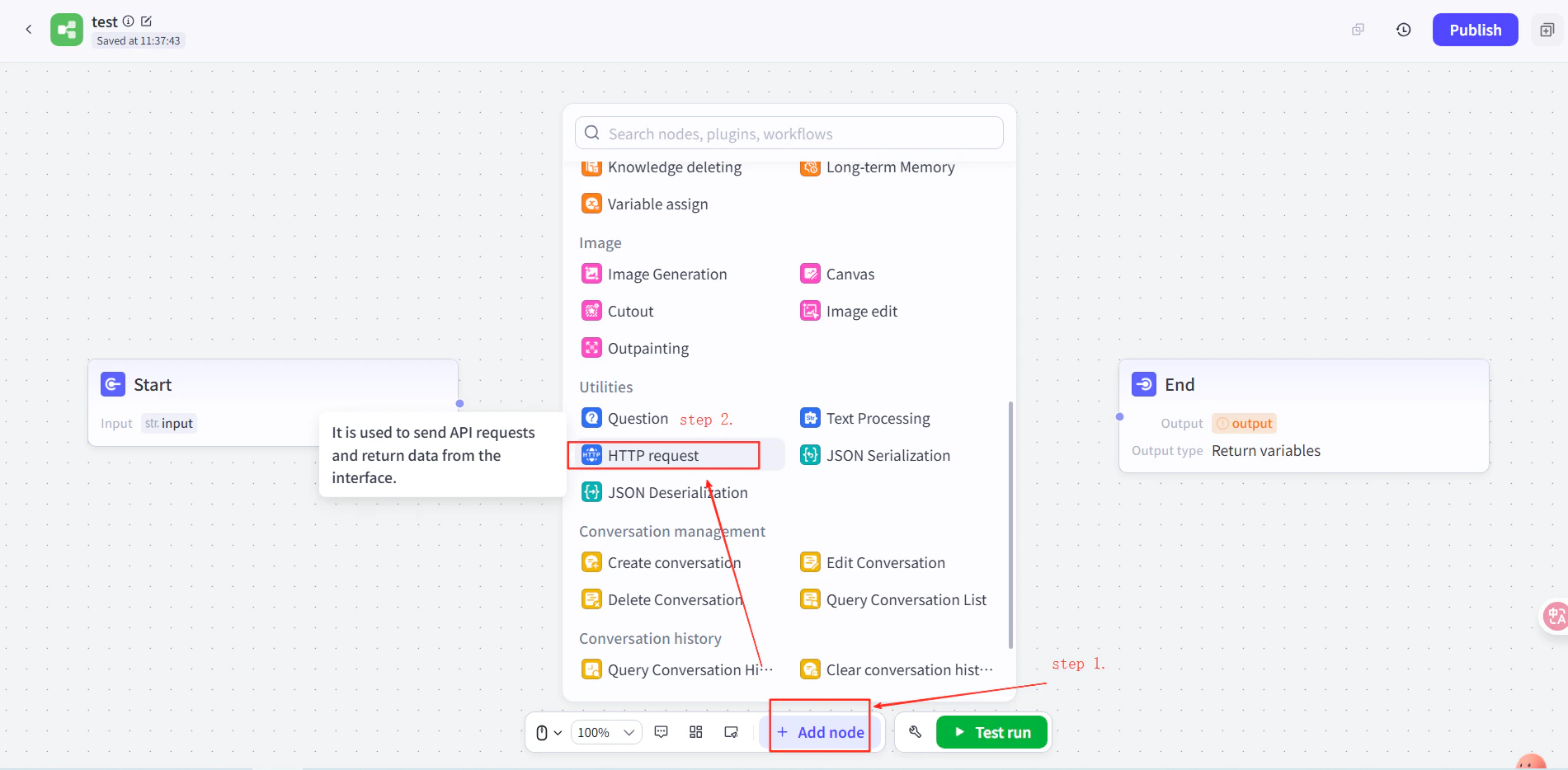
        1. Crea un agente in Coze, quindi nel workflow dell'agente aggiungi un nodo **HTTP Request** tra i nodi Start ed End.
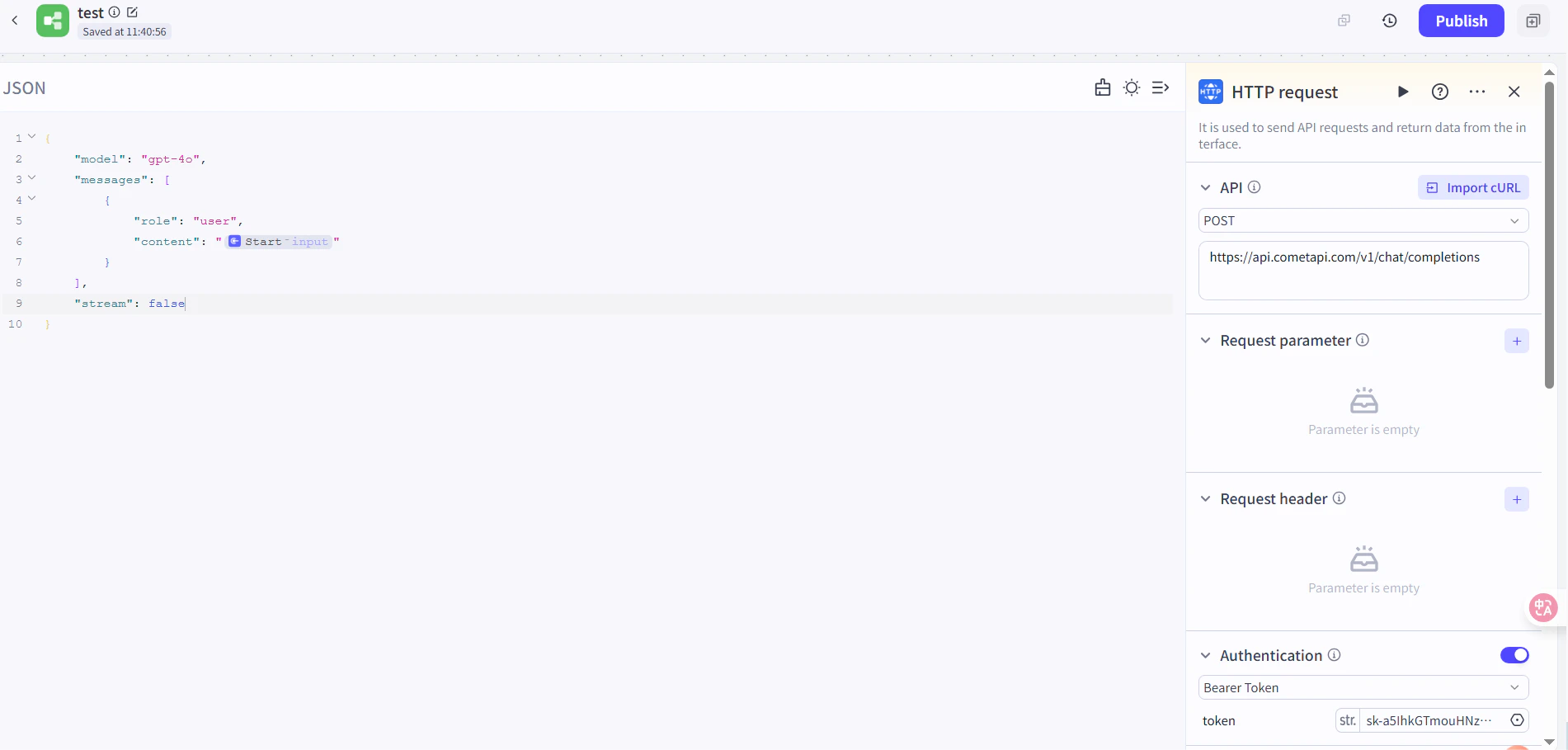
        2. Imposta quanto segue:
           * **Method**: `POST`
           * **URL**: `https://api.cometapi.com/v1/chat/completions`
           * **Authentication Token**: incolla la tua chiave API CometAPI, quindi fai clic su **Confirm**
        3. Imposta il corpo della richiesta:

        ```json theme={null}
        {
          "model": "your-model-id",
          "messages": [
            {
              "role": "user",
              "content": "{{block_output_100001.input}}"
            }
          ],
          "stream": false
        }
        ```

        4. Nel nodo End, imposta l'output sul corpo della risposta della richiesta HTTP. Sostituisci `your-model-id` con un model ID attuale dalla [pagina Modelli di CometAPI](/it/overview/models).
        <Frame>
          <img src="https://mintcdn.com/cometapi/E4FFvyMYmaOZoldp/images/integrations/810968_355128.png?fit=max&auto=format&n=E4FFvyMYmaOZoldp&q=85&s=862c588b2f301bd66b89366c5344fbdc" alt="Nodo HTTP Request con URL e token di autenticazione configurati" width="1586" height="834" data-path="images/integrations/810968_355128.png" />
        </Frame>

        <Frame>
          <img src="https://mintcdn.com/cometapi/E4FFvyMYmaOZoldp/images/integrations/810968_355129.png?fit=max&auto=format&n=E4FFvyMYmaOZoldp&q=85&s=a438417210684dddf988307c448edb57" alt="JSON del corpo della richiesta configurato nel nodo HTTP" width="1901" height="934" data-path="images/integrations/810968_355129.png" />
        </Frame>

        <Frame>
          <img src="https://mintcdn.com/cometapi/E4FFvyMYmaOZoldp/images/integrations/810968_355130.png?fit=max&auto=format&n=E4FFvyMYmaOZoldp&q=85&s=18254fe80669e295bd7b8ac2e48c3d45" alt="Nodo End con il corpo della risposta HTTP selezionato come output" width="1926" height="936" data-path="images/integrations/810968_355130.png" />
        </Frame>

        <Frame>
          <img src="https://mintcdn.com/cometapi/E4FFvyMYmaOZoldp/images/integrations/810968_355131.png?fit=max&auto=format&n=E4FFvyMYmaOZoldp&q=85&s=5fde76e14e42d41311076f7eb1d0fd77" alt="Workflow di Coze con tutti i nodi collegati" width="1901" height="909" data-path="images/integrations/810968_355131.png" />
        </Frame>
      </Tab>
    </Tabs>
  </Step>

  <Step title="Testa e pubblica">
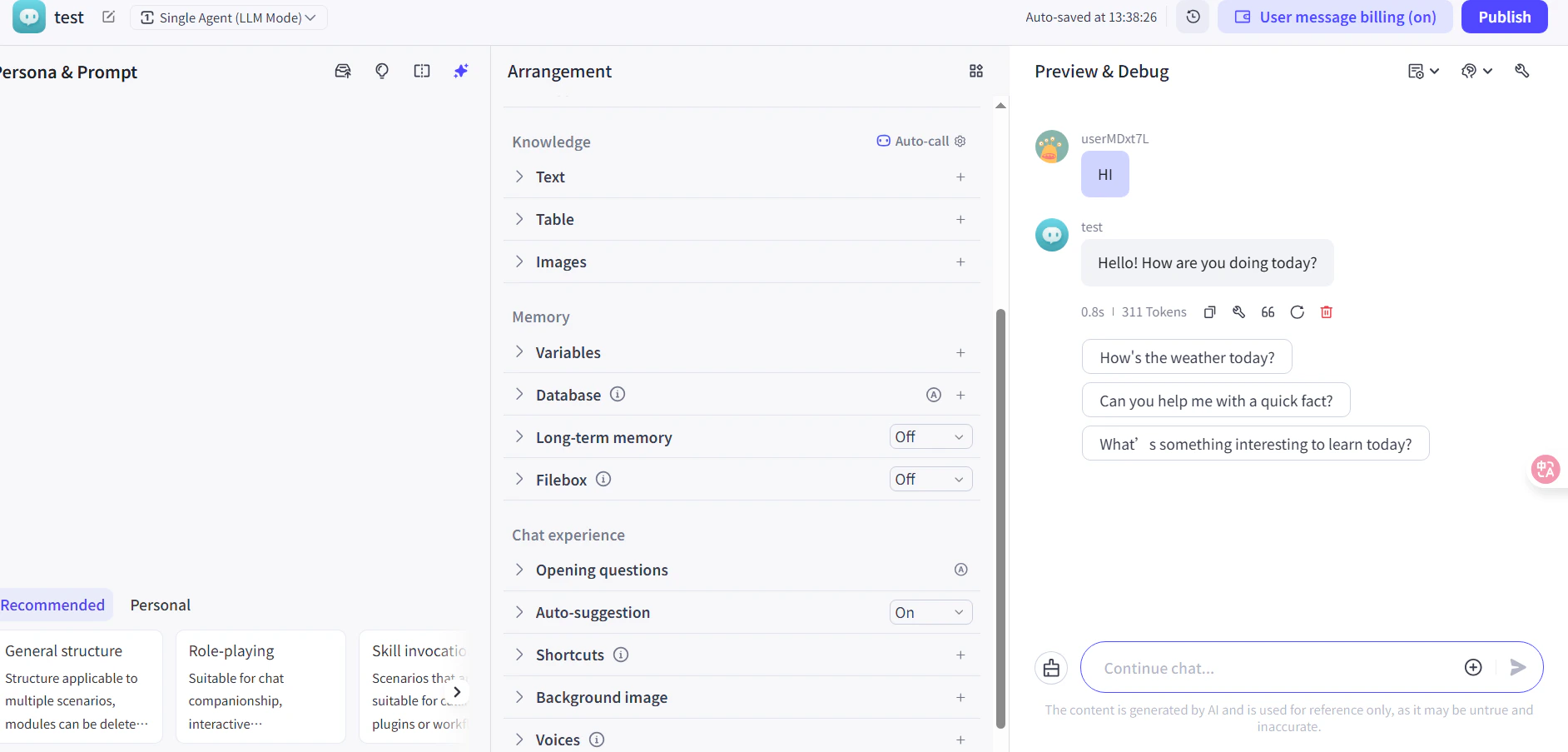
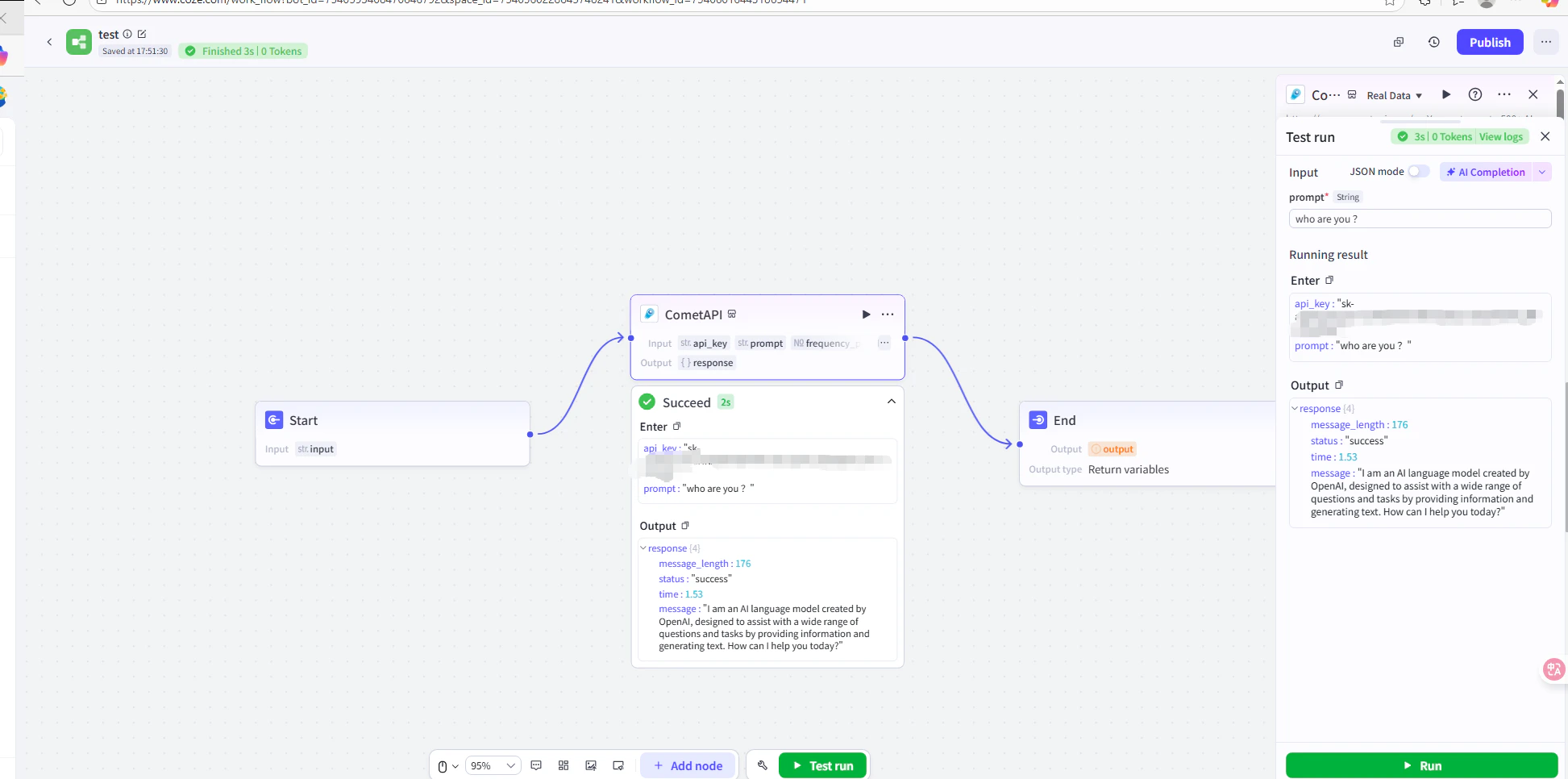
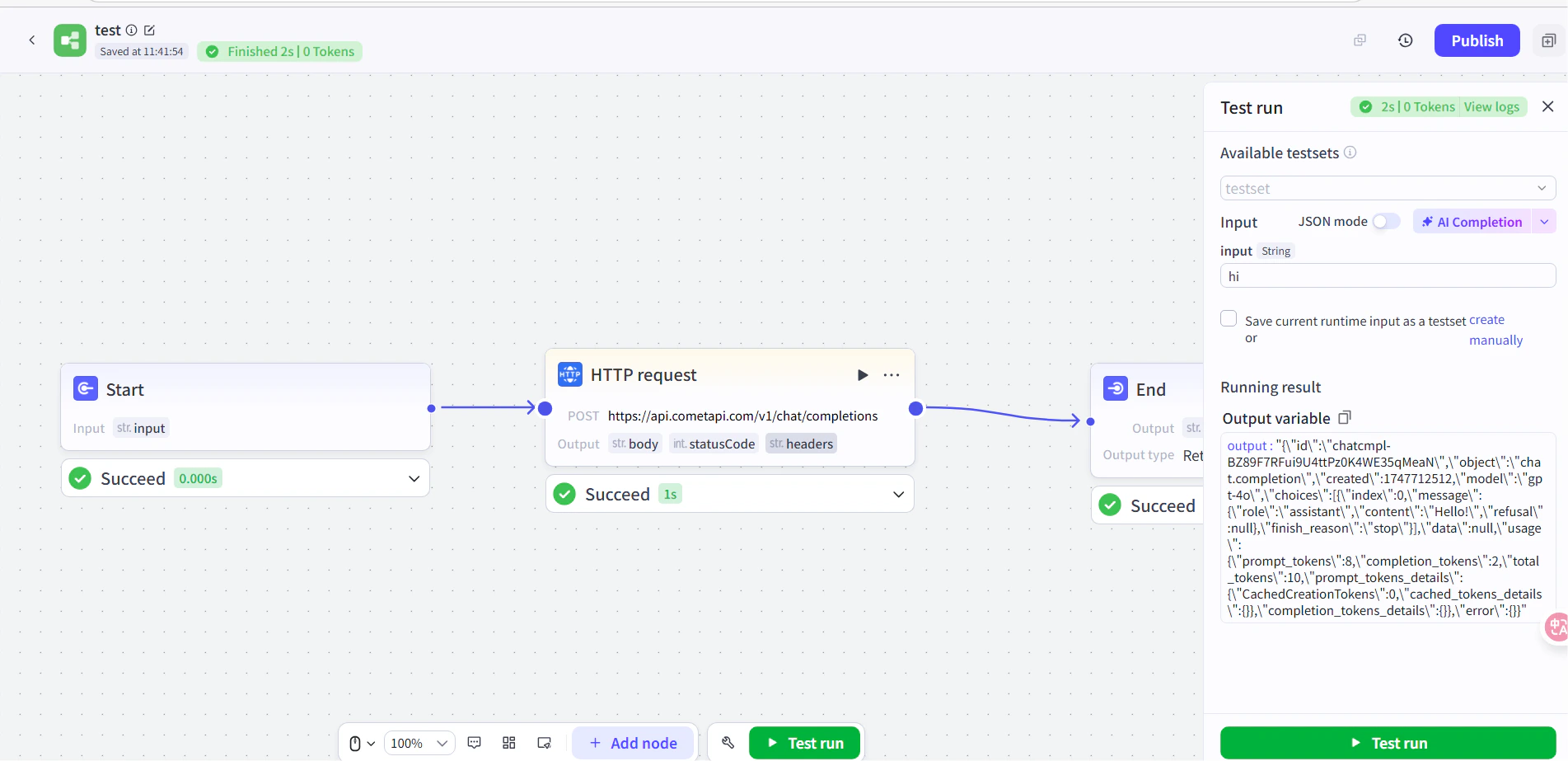
    Esegui un messaggio di test nel workflow (ad esempio chiedi l'ora corrente). Una risposta AI riuscita conferma che l'integrazione funziona. Pubblica il workflow per renderlo attivo.
    <Frame>
      <img src="https://mintcdn.com/cometapi/E4FFvyMYmaOZoldp/images/integrations/810968_360285.png?fit=max&auto=format&n=E4FFvyMYmaOZoldp&q=85&s=5f362ef3274c53c47a8f3793d4fa6966" alt="Workflow di Coze che mostra una risposta di test riuscita" width="1945" height="966" data-path="images/integrations/810968_360285.png" />
    </Frame>

    <Frame>
      <img src="https://mintcdn.com/cometapi/E4FFvyMYmaOZoldp/images/integrations/810968_355132.png?fit=max&auto=format&n=E4FFvyMYmaOZoldp&q=85&s=8b7fe683331ec5cb31222062c6f3aa80" alt="Agente Coze pubblicato che risponde correttamente" width="1903" height="923" data-path="images/integrations/810968_355132.png" />
    </Frame>

    Se la chiamata non riesce, verifica la tua chiave API e l'URL dell'endpoint, oppure contatta il [supporto CometAPI](https://www.cometapi.com).
  </Step>
</Steps>

<Tip>
  Il metodo del plugin è consigliato per la maggior parte degli utenti — gestisce automaticamente l'autenticazione e il parsing della risposta. Usa il nodo HTTP Request quando hai bisogno del pieno controllo sugli header della richiesta o vuoi chiamare un endpoint non chat.
</Tip>

<script type="application/ld+json">
  {`
    {
    "@context": "https://schema.org",
    "@graph": [
      {
        "@type": "HowTo",
        "@id": "https://apidoc.cometapi.com/integrations/coze#howto",
        "name": "Usa Coze con CometAPI",
        "description": "Usa questa guida per configurare Coze con CometAPI impostando l'URL di base, la chiave API e le opzioni del model o del provider.",
        "step": [
          {
            "@type": "HowToStep",
            "@id": "https://apidoc.cometapi.com/integrations/coze#step-1",
            "position": 1,
            "name": "Ottieni la tua chiave API CometAPI",
            "text": "Crea o apri il tuo account CometAPI, quindi copia una chiave API attiva dalla dashboard."
          },
          {
            "@type": "HowToStep",
            "@id": "https://apidoc.cometapi.com/integrations/coze#step-2",
            "position": 2,
            "name": "Aggiungi CometAPI a un workflow di Coze",
            "text": "Completa il passaggio Aggiungi CometAPI a un workflow di Coze nella guida Usa Coze con CometAPI."
          },
          {
            "@type": "HowToStep",
            "@id": "https://apidoc.cometapi.com/integrations/coze#step-3",
            "position": 3,
            "name": "Testa e pubblica",
            "text": "Completa il passaggio Testa e pubblica nella guida Usa Coze con CometAPI."
          }
        ]
      },
      {
        "@type": "BreadcrumbList",
        "itemListElement": [
          {
            "@type": "ListItem",
            "position": 1,
            "name": "Documentazione CometAPI",
            "item": "https://apidoc.cometapi.com/"
          },
          {
            "@type": "ListItem",
            "position": 2,
            "name": "Integrazioni",
            "item": "https://apidoc.cometapi.com/integrations"
          },
          {
            "@type": "ListItem",
            "position": 3,
            "name": "Usa Coze con CometAPI",
            "item": "https://apidoc.cometapi.com/integrations/coze"
          }
        ]
      }
    ]
    }
    `}
</script>