> ## Documentation Index
> Fetch the complete documentation index at: https://apidoc.cometapi.com/llms.txt
> Use this file to discover all available pages before exploring further.

# CometAPI で Immersive Translation を使う

> このガイドでは、base URL、API key、model または provider オプションを設定して、CometAPI で Immersive Translation を構成する方法を説明します。

[Immersive Translation](https://immersivetranslate.com/) は、バイリンガル翻訳のためのブラウザー拡張機能です。CometAPI に接続すると、当社プラットフォーム上の任意のモデルで翻訳を動かせます。

## 前提条件

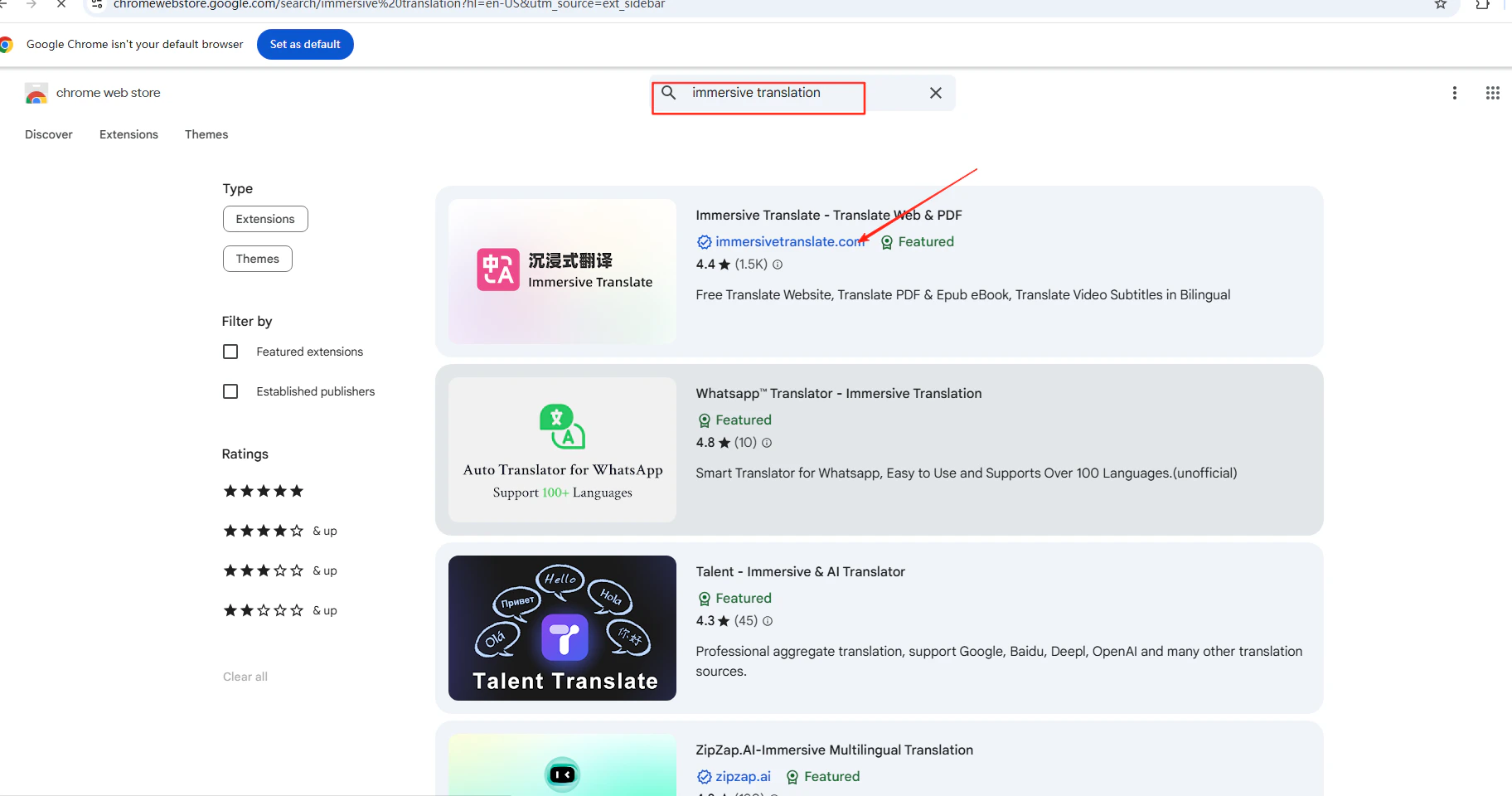
* Immersive Translation ブラウザー拡張機能がインストールされていること — ブラウザーの拡張機能ストアで検索してください
  <Frame>
    <img src="https://mintcdn.com/cometapi/E4FFvyMYmaOZoldp/images/integrations/810968_360315.png?fit=max&auto=format&n=E4FFvyMYmaOZoldp&q=85&s=f922401fe2555358631fed147db49b0f" alt="Immersive Translation が表示されたブラウザー拡張機能ストア" width="549" height="278" data-path="images/integrations/810968_360315.png" />
  </Frame>

  <Frame>
    <img src="https://mintcdn.com/cometapi/E4FFvyMYmaOZoldp/images/integrations/810968_360316.png?fit=max&auto=format&n=E4FFvyMYmaOZoldp&q=85&s=c504344ed770c68c806c17bca6b3084b" alt="Immersive Translation 拡張機能のインストールページ" width="1824" height="960" data-path="images/integrations/810968_360316.png" />
  </Frame>

* 有効な API key を持つ [CometAPI](https://www.cometapi.com) アカウント

## セットアップ

<Steps>
  <Step title="CometAPI API キーを取得する">
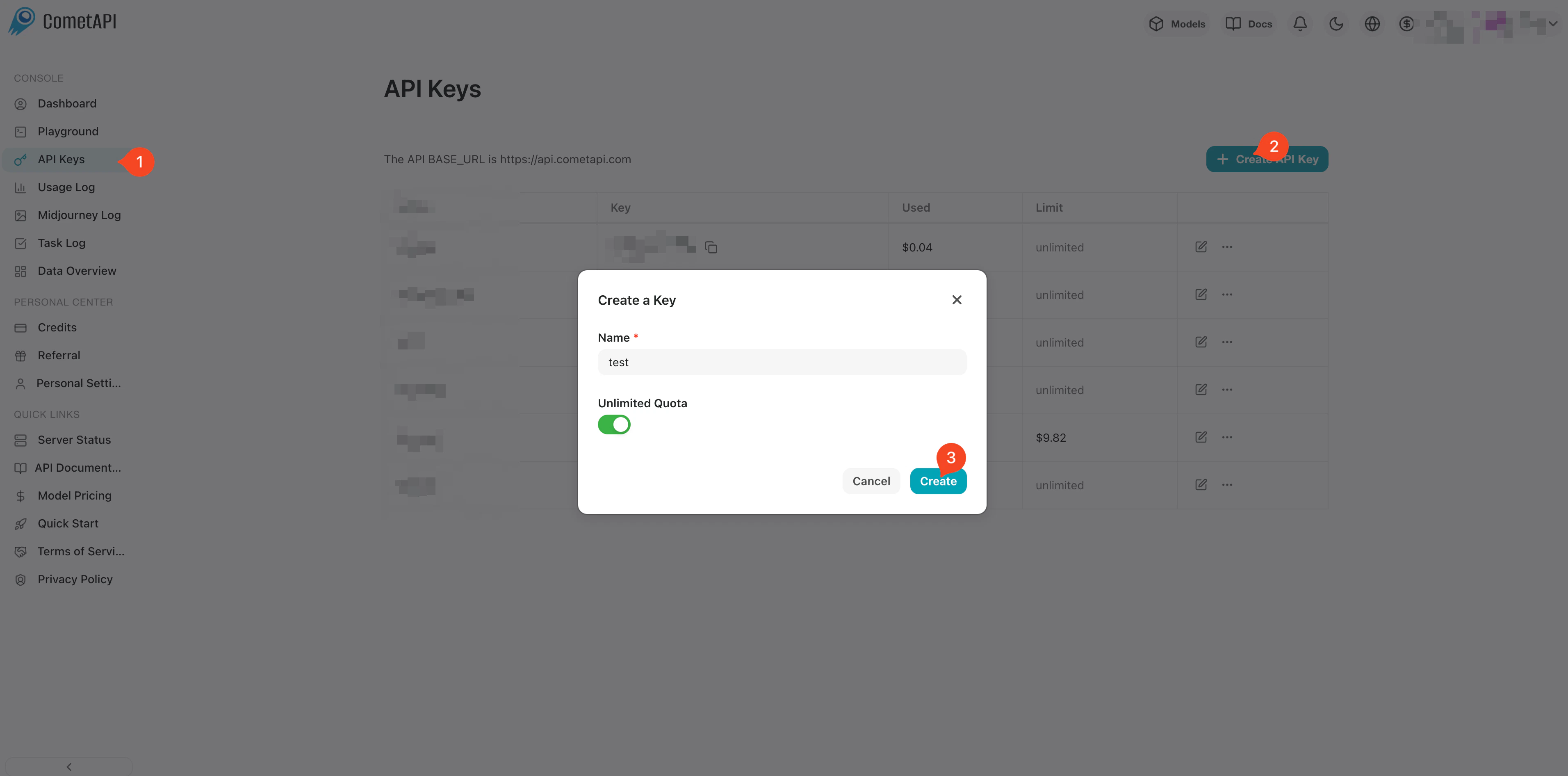
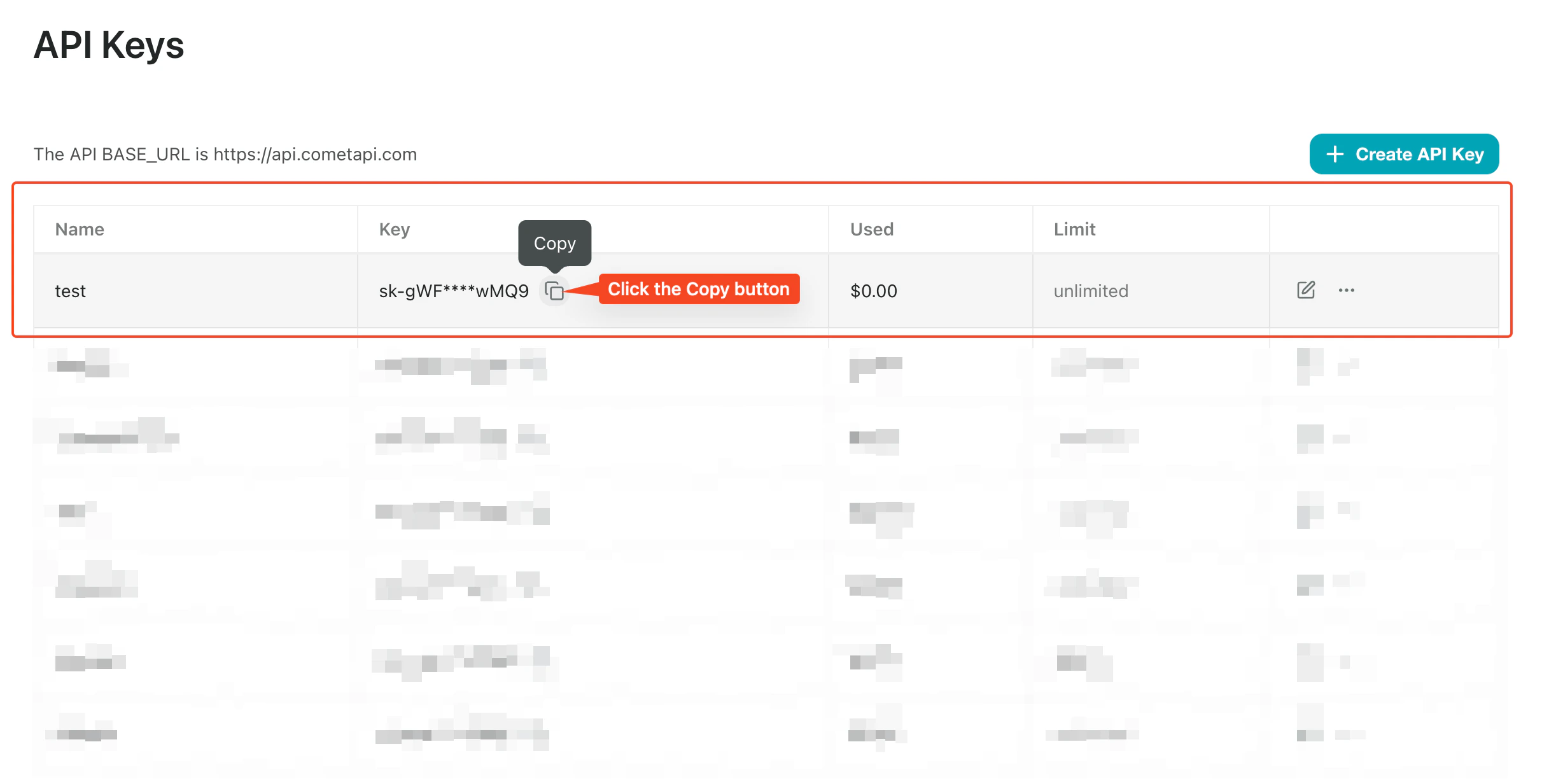
    [CometAPI ダッシュボード](https://www.cometapi.com/console)にログインします。**Add API Key** をクリックし、キーとベース URL（`https://api.cometapi.com`）をコピーします。

    <Frame>
      <img src="https://mintcdn.com/cometapi/SZhlxZhCnMLn__BW/images/overview/810968_364191.png?fit=max&auto=format&n=SZhlxZhCnMLn__BW&q=85&s=aef81a83f29f8eb16655ed4060425f50" alt="CometAPI ダッシュボード — API キーを追加" width="3824" height="1892" data-path="images/overview/810968_364191.png" />
    </Frame>

    <Frame>
      <img src="https://mintcdn.com/cometapi/HhtmQffktazbxUvS/images/overview/810968_364193.png?fit=max&auto=format&n=HhtmQffktazbxUvS&q=85&s=d893f659267150d0faf45f99eb5dffc1" alt="CometAPI API キーとベース URL" width="2434" height="1232" data-path="images/overview/810968_364193.png" />
    </Frame>
  </Step>

  <Step title="CometAPI を OpenAI 互換サービスとして追加する">
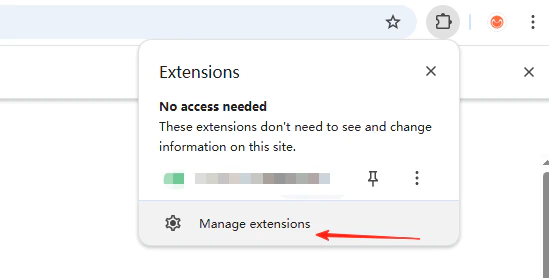
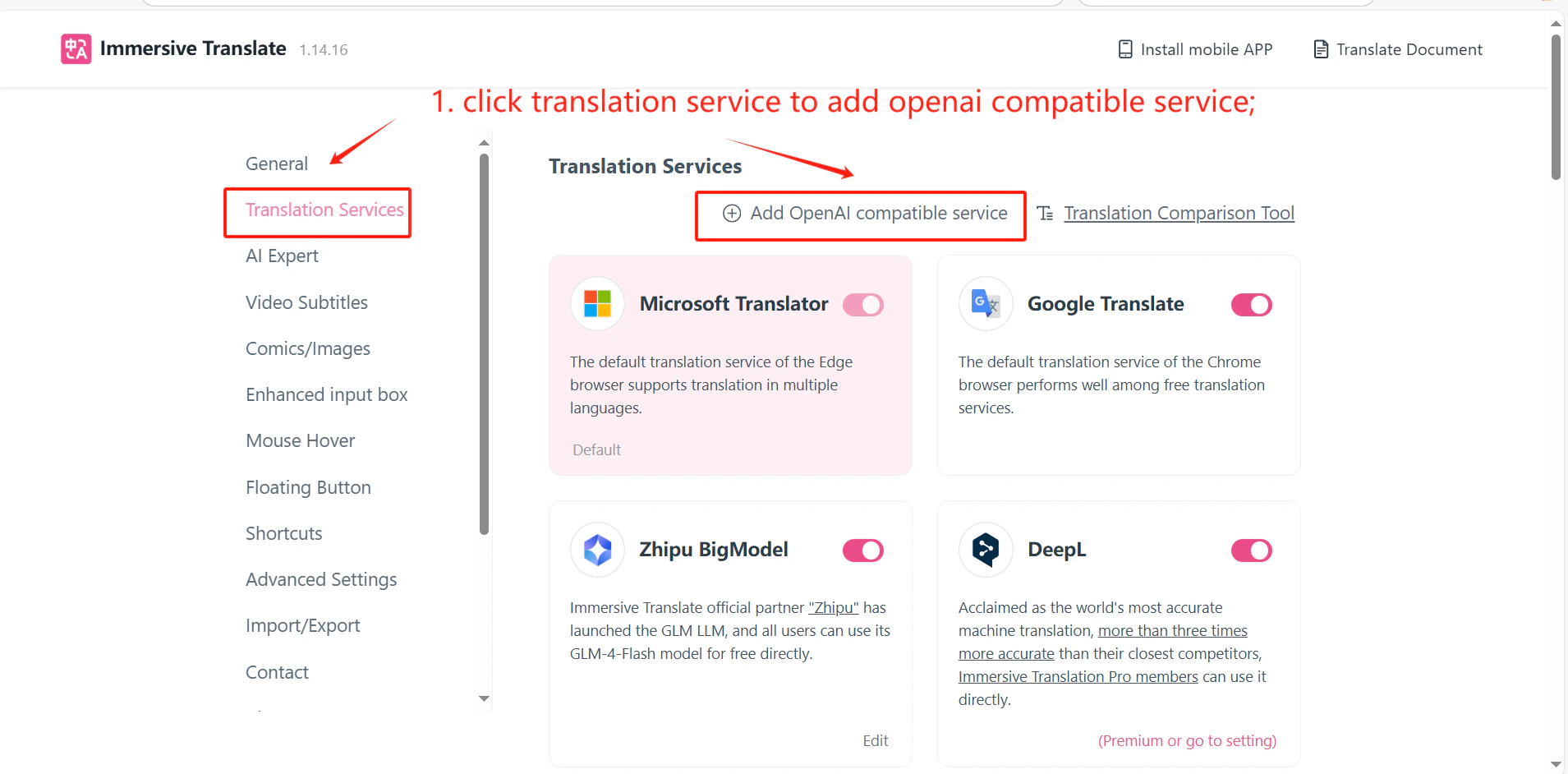
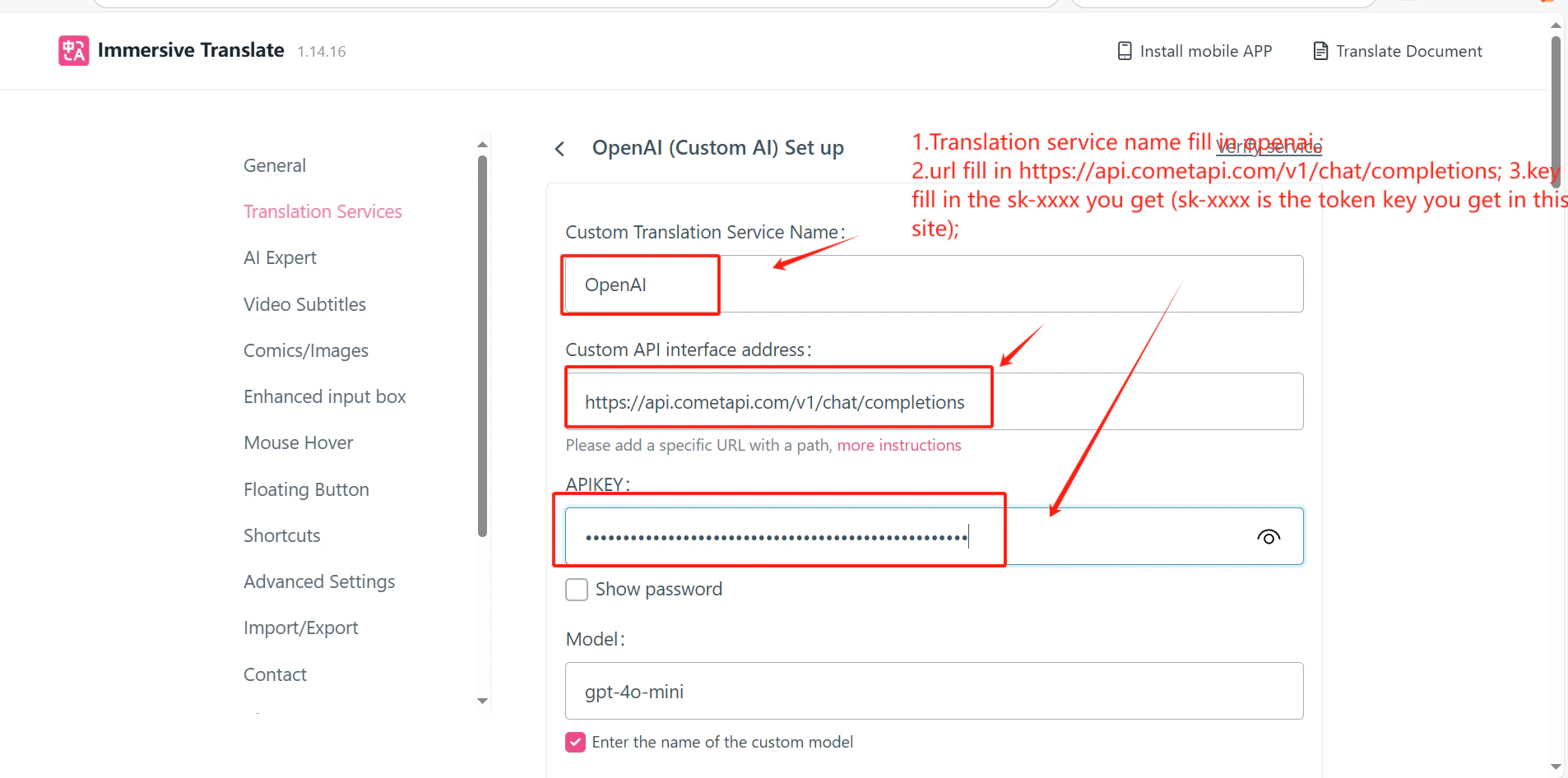
    Immersive Translation 拡張機能のアイコンを右クリック → **Extension Settings** → **Translation Services** の順に進みます。**Add OpenAI Compatible Service** をクリックし、**API Address** フィールドに `https://api.cometapi.com/v1/chat/completions` を入力し、**API Key** にキーを貼り付けます。
    <Frame>
      <img src="https://mintcdn.com/cometapi/mA1ovj6s0e3RM42l/images/integrations/810968_351546.png?fit=max&auto=format&n=mA1ovj6s0e3RM42l&q=85&s=e4437b20cd9e8cdbedfa0410b0cf1d3c" alt="Immersive Translation 拡張機能の設定 — サービス追加ダイアログ" width="1909" height="942" data-path="images/integrations/810968_351546.png" />
    </Frame>

    <Frame>
      <img src="https://mintcdn.com/cometapi/mA1ovj6s0e3RM42l/images/integrations/810968_351547.png?fit=max&auto=format&n=mA1ovj6s0e3RM42l&q=85&s=75c2bc0d71731de1c0da744aa106a0d8" alt="CometAPI 用に API アドレスとキーの各フィールドを入力" width="1906" height="946" data-path="images/integrations/810968_351547.png" />
    </Frame>
  </Step>

  <Step title="サービスをテストする">
    設定パネルで **Test Service** をクリックします。検証が成功すれば、連携が正しく動作していることを確認できます。
    <Frame>
      <img src="https://mintcdn.com/cometapi/mA1ovj6s0e3RM42l/images/integrations/810968_351548.png?fit=max&auto=format&n=mA1ovj6s0e3RM42l&q=85&s=d5f341f7b99ab31d939ac1f10f5ad06f" alt="成功結果を示す Immersive Translation のサービステスト" width="1916" height="934" data-path="images/integrations/810968_351548.png" />
    </Frame>
  </Step>
</Steps>

<Tip>
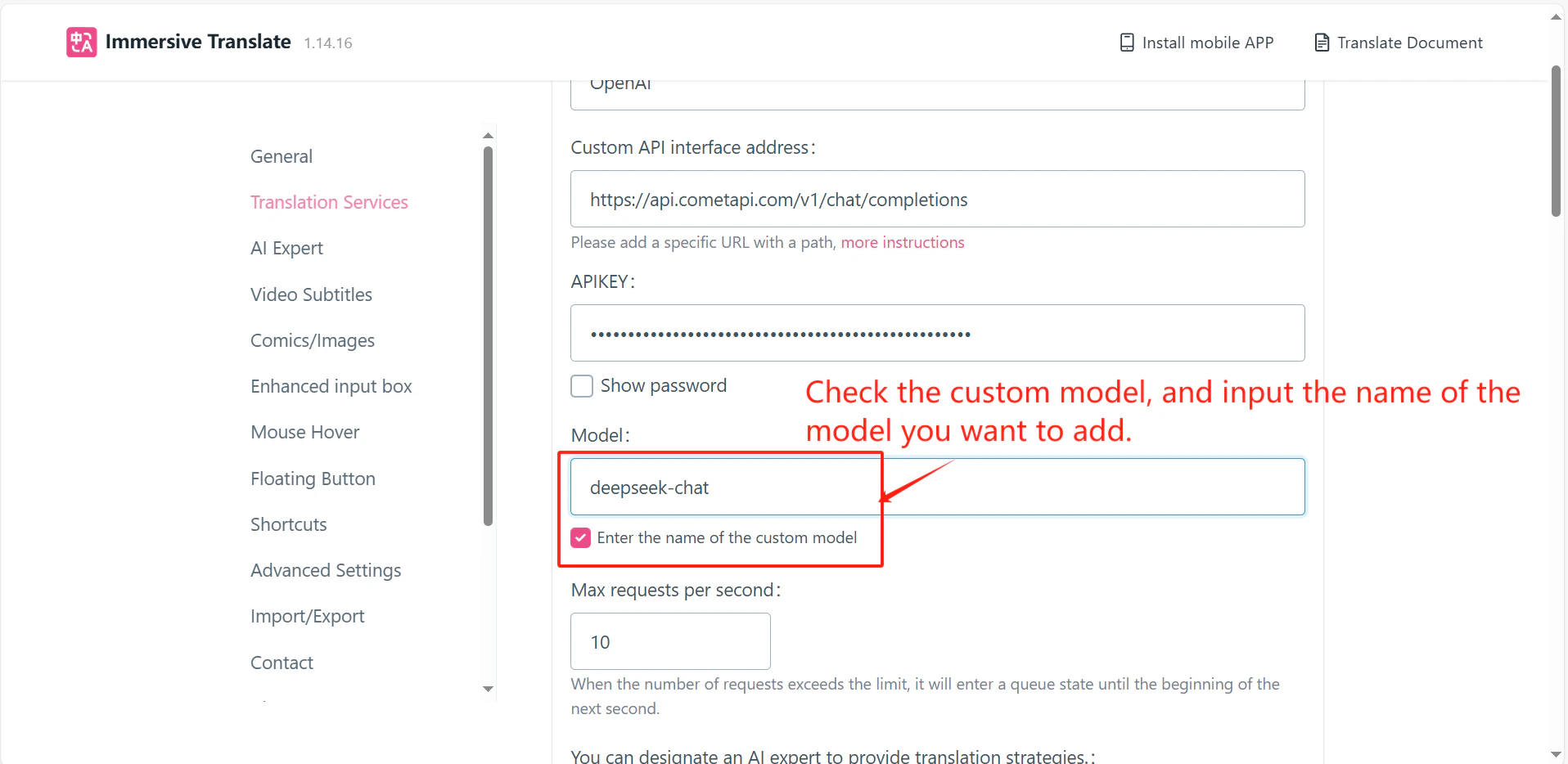
  設定ページでは、使用したい model ID を入力して model ID をカスタマイズすることもできます。
</Tip>

<script type="application/ld+json">
  {`
    {
    "@context": "https://schema.org",
    "@graph": [
      {
        "@type": "HowTo",
        "@id": "https://apidoc.cometapi.com/integrations/immersive-translation#howto",
        "name": "CometAPI で Immersive Translation を使用する",
        "description": "このガイドでは、ベース URL、API キー、model または provider オプションを設定して、CometAPI で Immersive Translation を構成する方法を説明します。",
        "step": [
          {
            "@type": "HowToStep",
            "@id": "https://apidoc.cometapi.com/integrations/immersive-translation#step-1",
            "position": 1,
            "name": "CometAPI API キーを取得する",
            "text": "CometAPI アカウントを作成または開き、ダッシュボードから有効な API キーをコピーします。"
          },
          {
            "@type": "HowToStep",
            "@id": "https://apidoc.cometapi.com/integrations/immersive-translation#step-2",
            "position": 2,
            "name": "CometAPI を OpenAI 互換サービスとして追加する",
            "text": "「CometAPI で Immersive Translation を使用する」ガイドの「CometAPI を OpenAI 互換サービスとして追加する」手順を完了します。"
          },
          {
            "@type": "HowToStep",
            "@id": "https://apidoc.cometapi.com/integrations/immersive-translation#step-3",
            "position": 3,
            "name": "サービスをテストする",
            "text": "「CometAPI で Immersive Translation を使用する」ガイドの「サービスをテストする」手順を完了します。"
          }
        ]
      },
      {
        "@type": "BreadcrumbList",
        "itemListElement": [
          {
            "@type": "ListItem",
            "position": 1,
            "name": "CometAPI ドキュメント",
            "item": "https://apidoc.cometapi.com/"
          },
          {
            "@type": "ListItem",
            "position": 2,
            "name": "連携",
            "item": "https://apidoc.cometapi.com/integrations"
          },
          {
            "@type": "ListItem",
            "position": 3,
            "name": "CometAPI で Immersive Translation を使用する",
            "item": "https://apidoc.cometapi.com/integrations/immersive-translation"
          }
        ]
      }
    ]
    }
    `}
</script>