> ## Documentation Index
> Fetch the complete documentation index at: https://apidoc.cometapi.com/llms.txt
> Use this file to discover all available pages before exploring further.

# Sử dụng Coze với CometAPI

> Sử dụng hướng dẫn này để cấu hình Coze với CometAPI bằng cách thiết lập base URL, API key và các tùy chọn model hoặc provider.

Coze là một trình xây dựng AI agent và workflow. Bạn có thể kết nối CometAPI với Coze theo hai cách: thông qua **plugin CometAPI** gốc (đơn giản nhất) hoặc thông qua **nút HTTP Request** chung để có độ linh hoạt tối đa.

## Điều kiện tiên quyết

* Một tài khoản CometAPI có API key đang hoạt động — [lấy tại đây](https://www.cometapi.com/console/token)
* Một tài khoản Coze — [đăng ký tại đây](https://www.coze.com)

<Steps>
  <Step title="Lấy CometAPI API key của bạn">
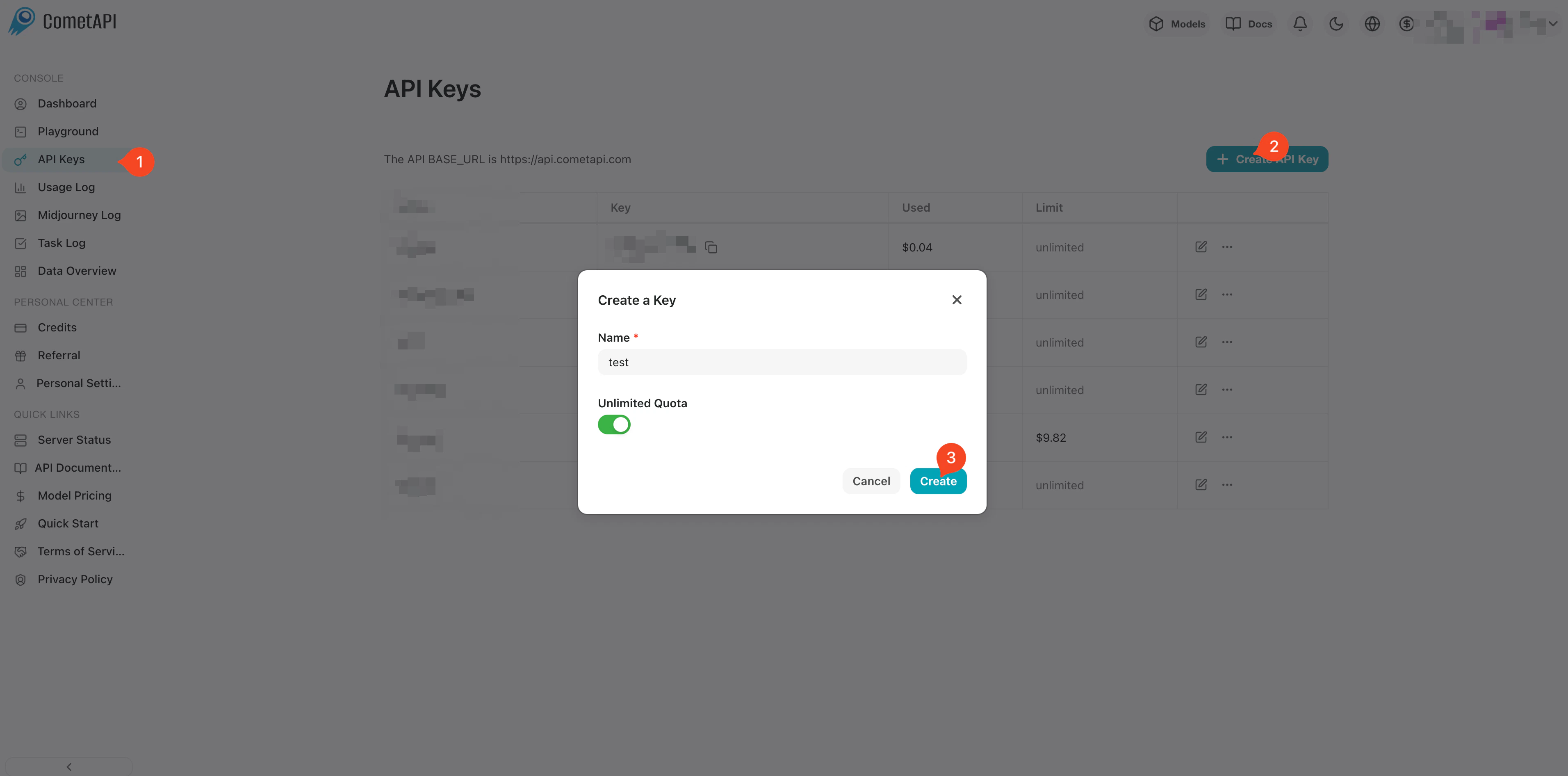
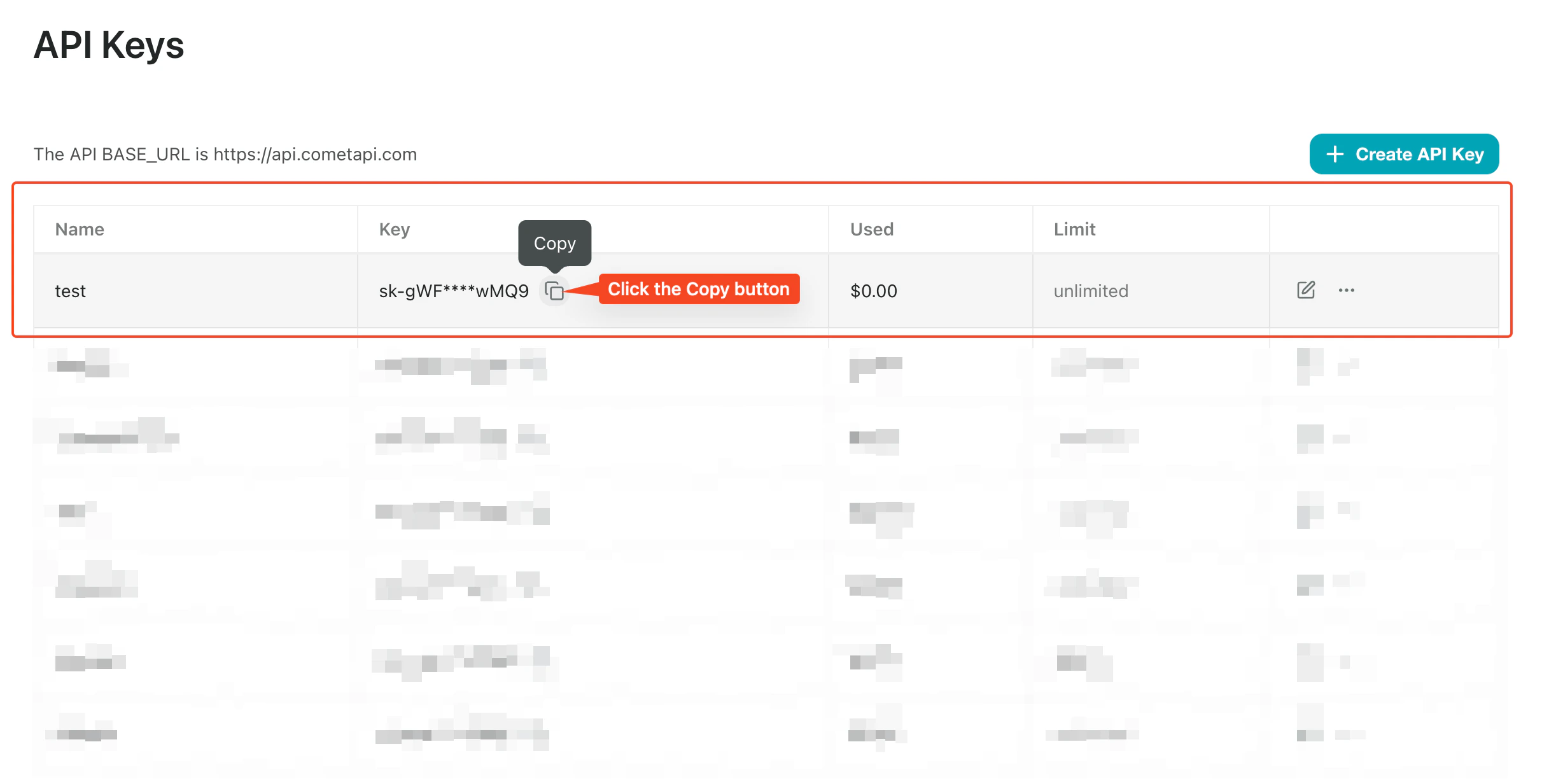
    Đăng nhập vào [bảng điều khiển CometAPI](https://www.cometapi.com/console/token). Nhấp vào **Add API Key** và sao chép CometAPI API key của bạn.
    <Frame>
      <img src="https://mintcdn.com/cometapi/SZhlxZhCnMLn__BW/images/overview/810968_364191.png?fit=max&auto=format&n=SZhlxZhCnMLn__BW&q=85&s=aef81a83f29f8eb16655ed4060425f50" alt="Bảng điều khiển CometAPI hiển thị nút Add API Key" width="3824" height="1892" data-path="images/overview/810968_364191.png" />
    </Frame>

    <Frame>
      <img src="https://mintcdn.com/cometapi/HhtmQffktazbxUvS/images/overview/810968_364193.png?fit=max&auto=format&n=HhtmQffktazbxUvS&q=85&s=d893f659267150d0faf45f99eb5dffc1" alt="Chi tiết CometAPI API key kèm base URL" width="2434" height="1232" data-path="images/overview/810968_364193.png" />
    </Frame>
  </Step>

  <Step title="Thêm CometAPI vào workflow Coze">
    <Tabs>
      <Tab title="Phương pháp 1: Plugin CometAPI (Khuyến nghị)">
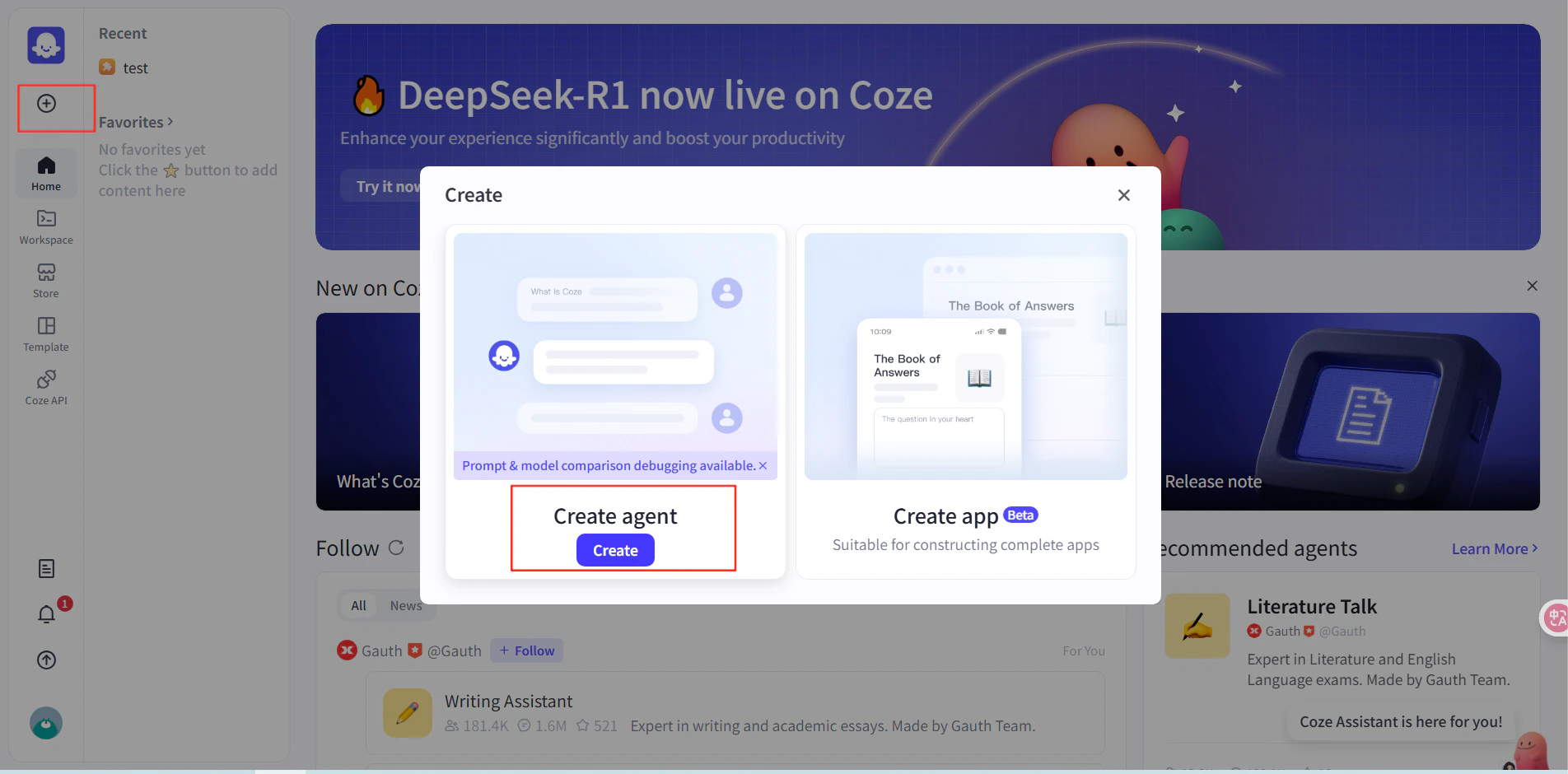
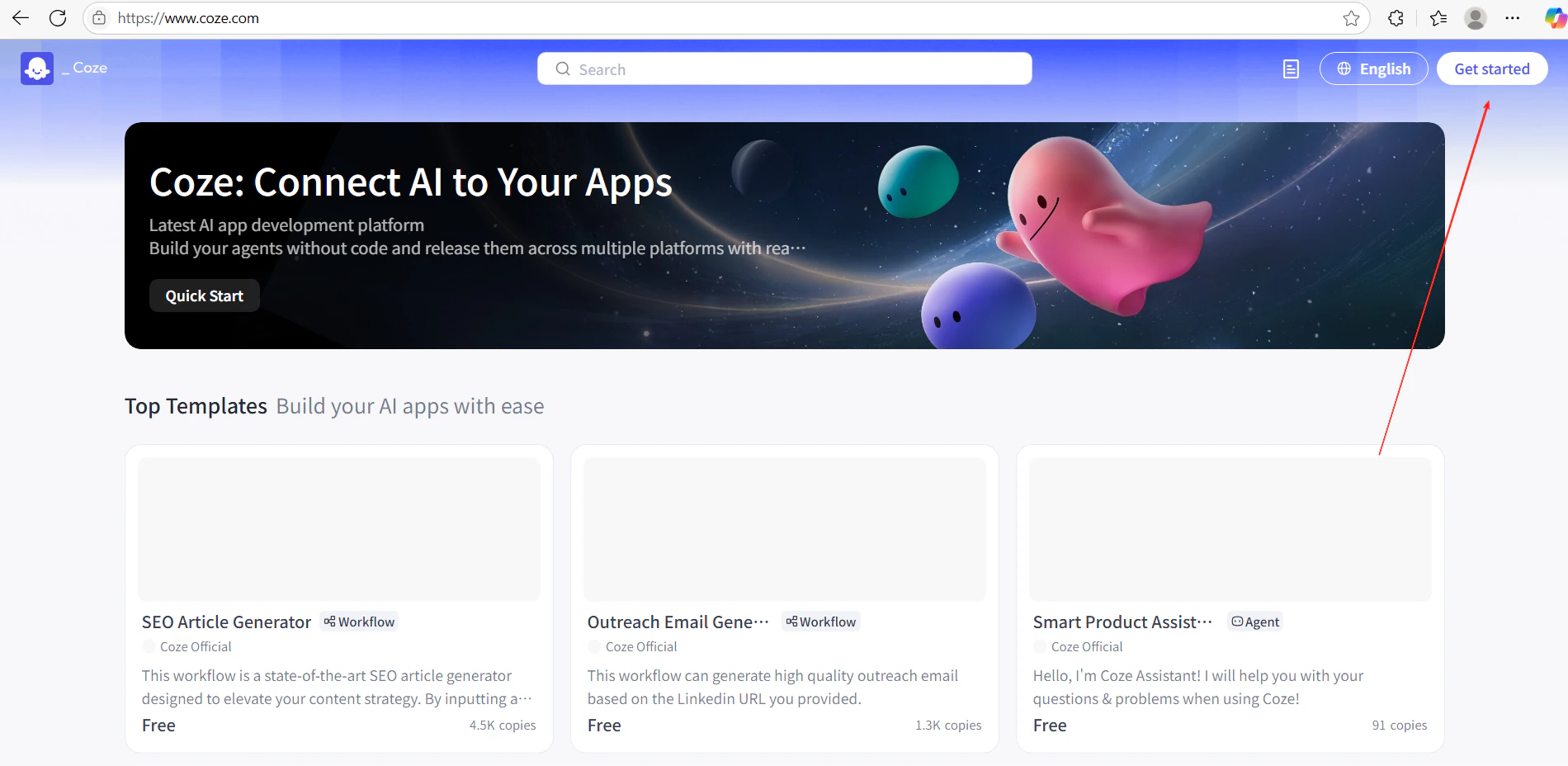
        1. Trong Coze, nhấp vào **Get Started** và tạo một workflow mới.
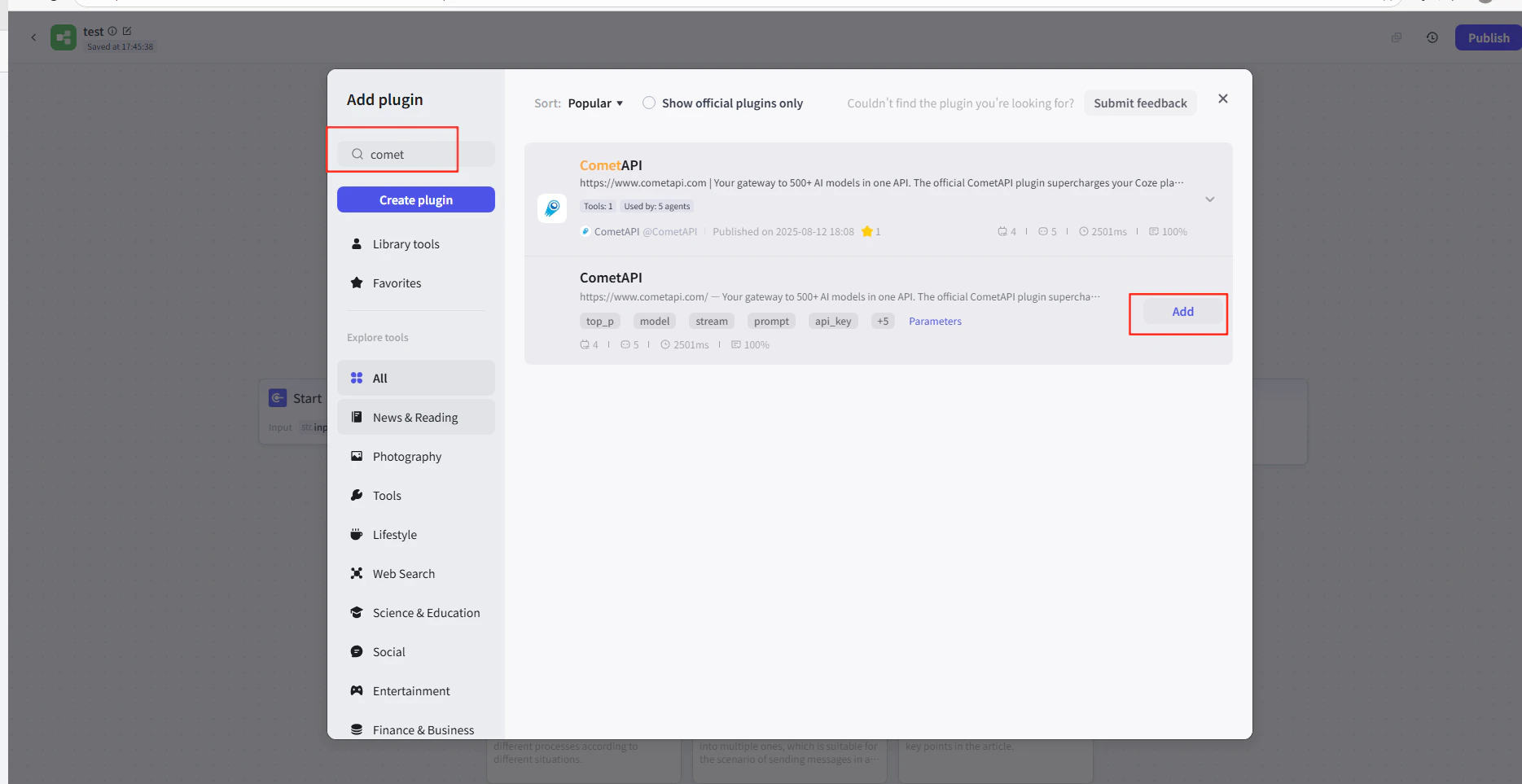
        2. Trong trình chỉnh sửa workflow, nhấp vào **Add Node → Plugins** và tìm kiếm **CometAPI**.
        3. Thêm node plugin CometAPI vào workflow của bạn.
        <Frame>
          <img src="https://mintcdn.com/cometapi/E4FFvyMYmaOZoldp/images/integrations/810968_355124.png?fit=max&auto=format&n=E4FFvyMYmaOZoldp&q=85&s=31a8c613d735f88246baa86ae399fa11" alt="Trình chỉnh sửa workflow Coze hiển thị tìm kiếm plugin" width="1900" height="928" data-path="images/integrations/810968_355124.png" />
        </Frame>

        <Frame>
          <img src="https://mintcdn.com/cometapi/E4FFvyMYmaOZoldp/images/integrations/810968_355125.png?fit=max&auto=format&n=E4FFvyMYmaOZoldp&q=85&s=75f2336cc40c9f21d757ced6ee227fd7" alt="Plugin CometAPI xuất hiện trong kết quả tìm kiếm" width="1904" height="940" data-path="images/integrations/810968_355125.png" />
        </Frame>

        <Frame>
          <img src="https://mintcdn.com/cometapi/E4FFvyMYmaOZoldp/images/integrations/810968_355126.png?fit=max&auto=format&n=E4FFvyMYmaOZoldp&q=85&s=1058980811bfc31c51715a76e048cc02" alt="Node plugin CometAPI đã được thêm vào canvas" width="1938" height="908" data-path="images/integrations/810968_355126.png" />
        </Frame>

        <Frame>
          <img src="https://mintcdn.com/cometapi/E4FFvyMYmaOZoldp/images/integrations/810968_360283.png?fit=max&auto=format&n=E4FFvyMYmaOZoldp&q=85&s=f89b117699a4d46802c62436ae92bd84" alt="Bảng cấu hình node plugin" width="1869" height="963" data-path="images/integrations/810968_360283.png" />
        </Frame>

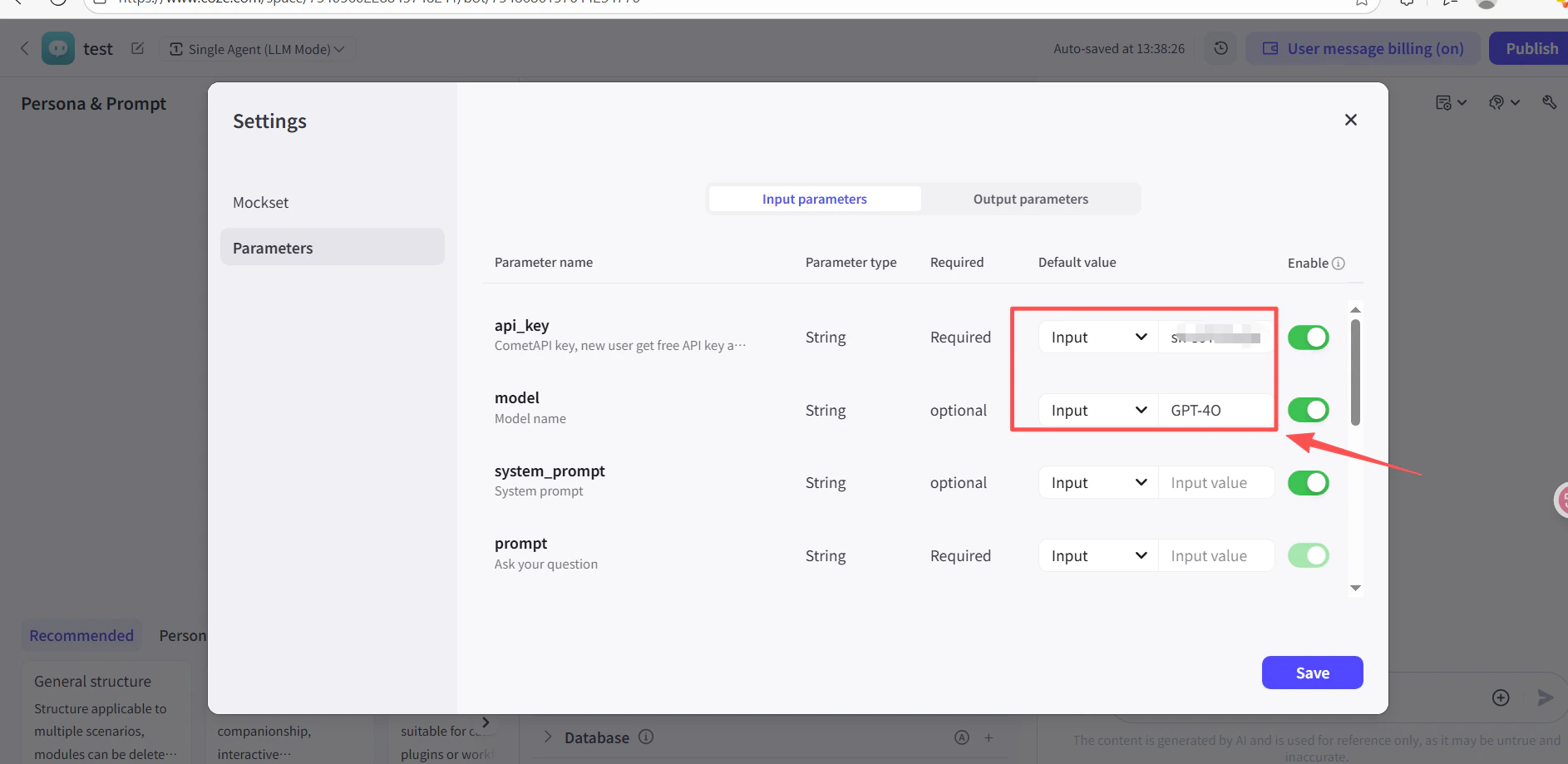
        4. Trong trường **API Key** của node plugin, dán CometAPI API key của bạn.
        5. Nhấp vào **Test** để xác minh kết nối, sau đó nhấp **Publish**.
        <Frame>
          <img src="https://mintcdn.com/cometapi/SZhlxZhCnMLn__BW/images/integrations/810968_361332.png?fit=max&auto=format&n=SZhlxZhCnMLn__BW&q=85&s=0f41c0cfaf3cdcebd45d740ce96fd178" alt="Node plugin với API key đã được điền" width="1886" height="919" data-path="images/integrations/810968_361332.png" />
        </Frame>

        <Frame>
          <img src="https://mintcdn.com/cometapi/SZhlxZhCnMLn__BW/images/integrations/810968_361333.png?fit=max&auto=format&n=SZhlxZhCnMLn__BW&q=85&s=17b349b2c651c6e5193bfde6b63e0c17" alt="Kết quả kiểm tra thành công cho plugin CometAPI" width="1884" height="903" data-path="images/integrations/810968_361333.png" />
        </Frame>
      </Tab>

      <Tab title="Phương pháp 2: Node HTTP Request">
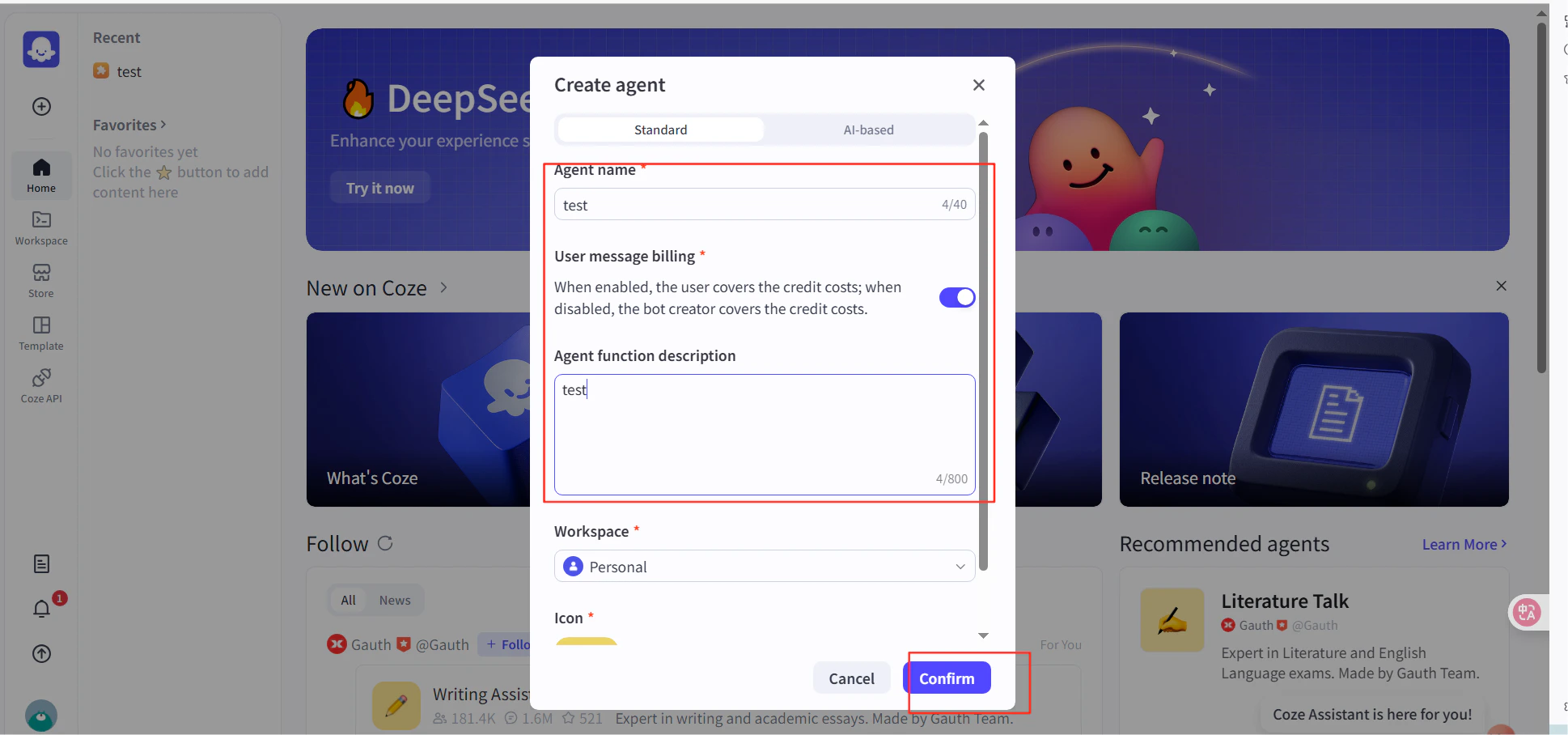
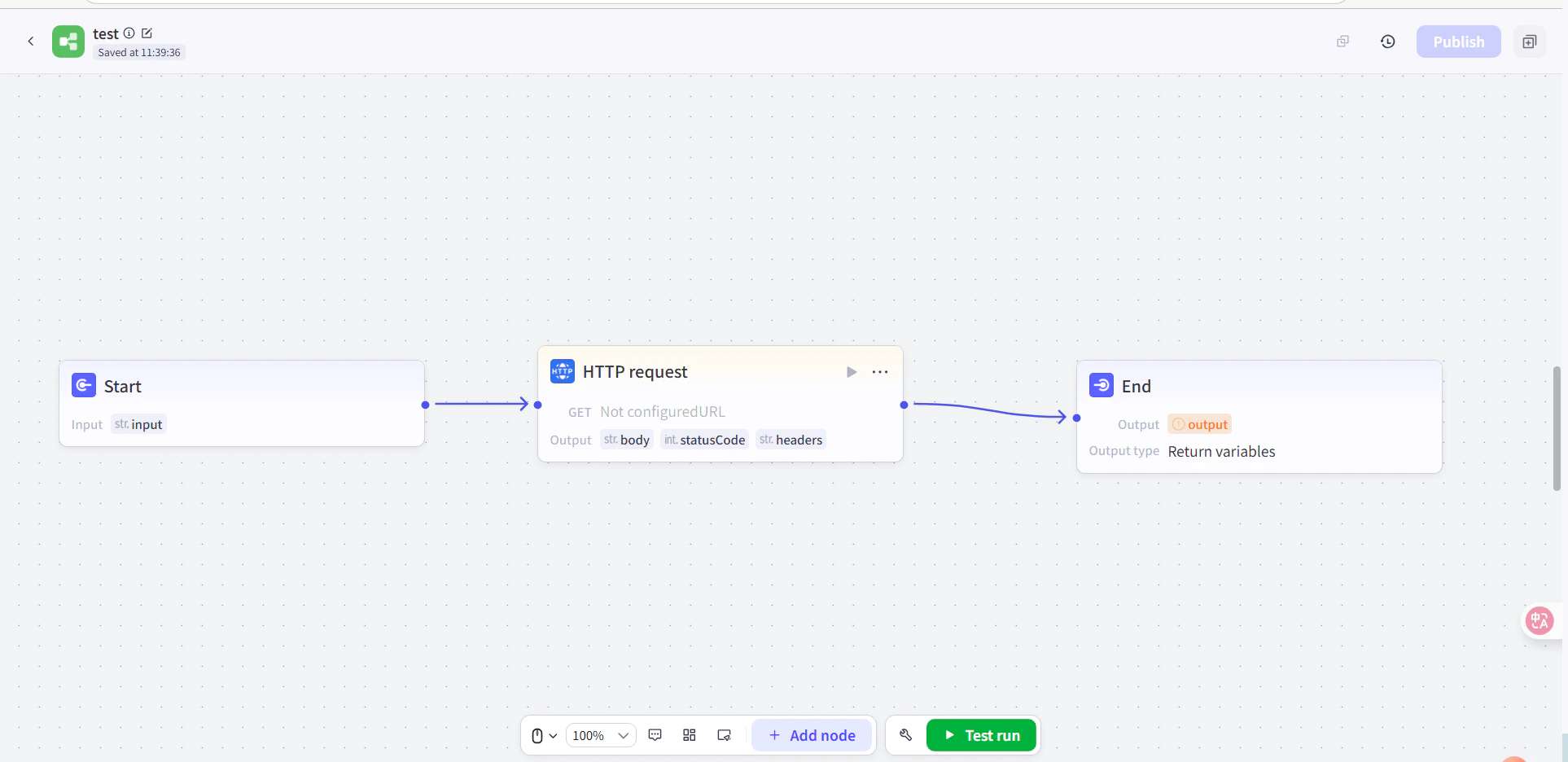
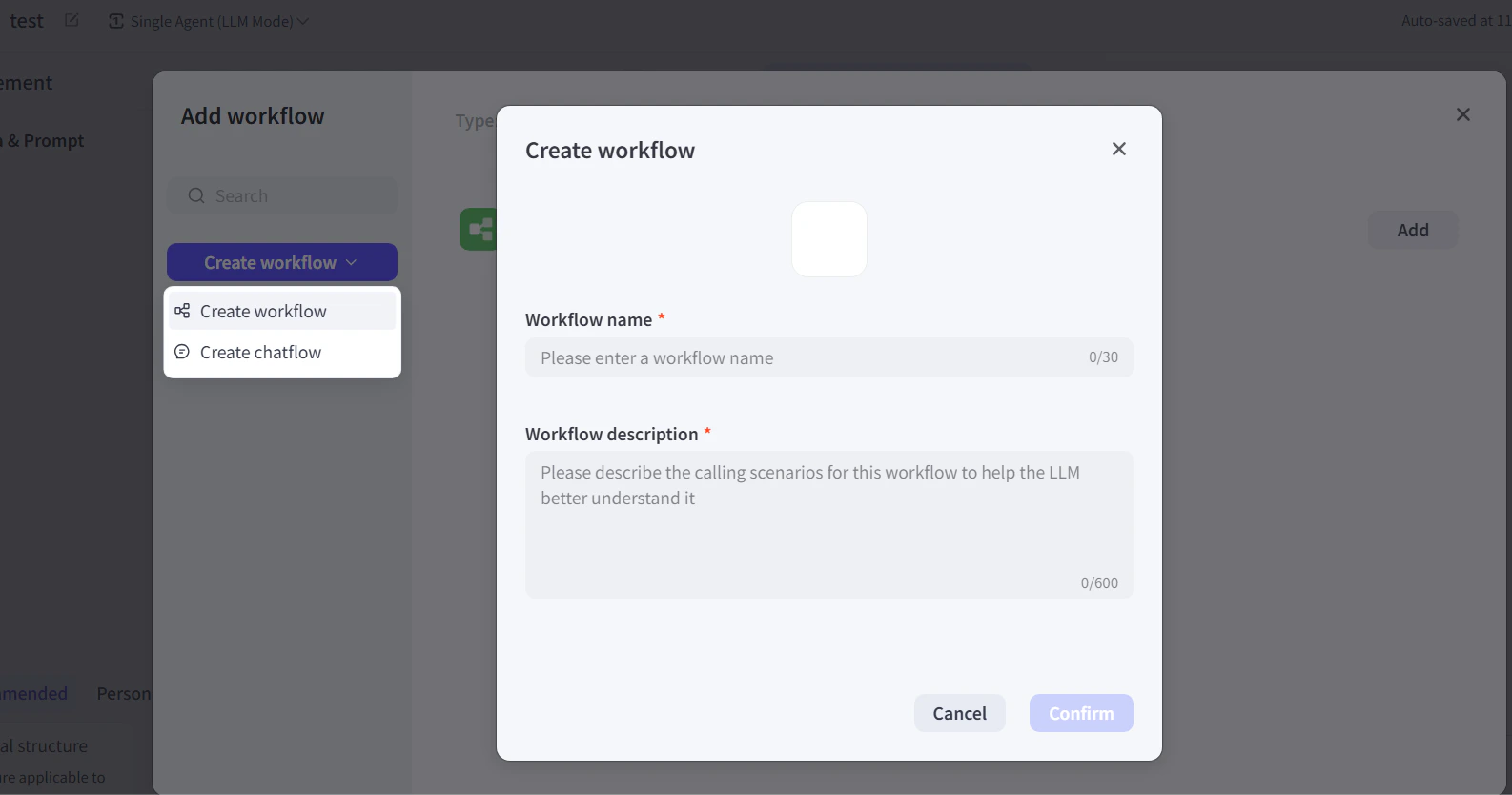
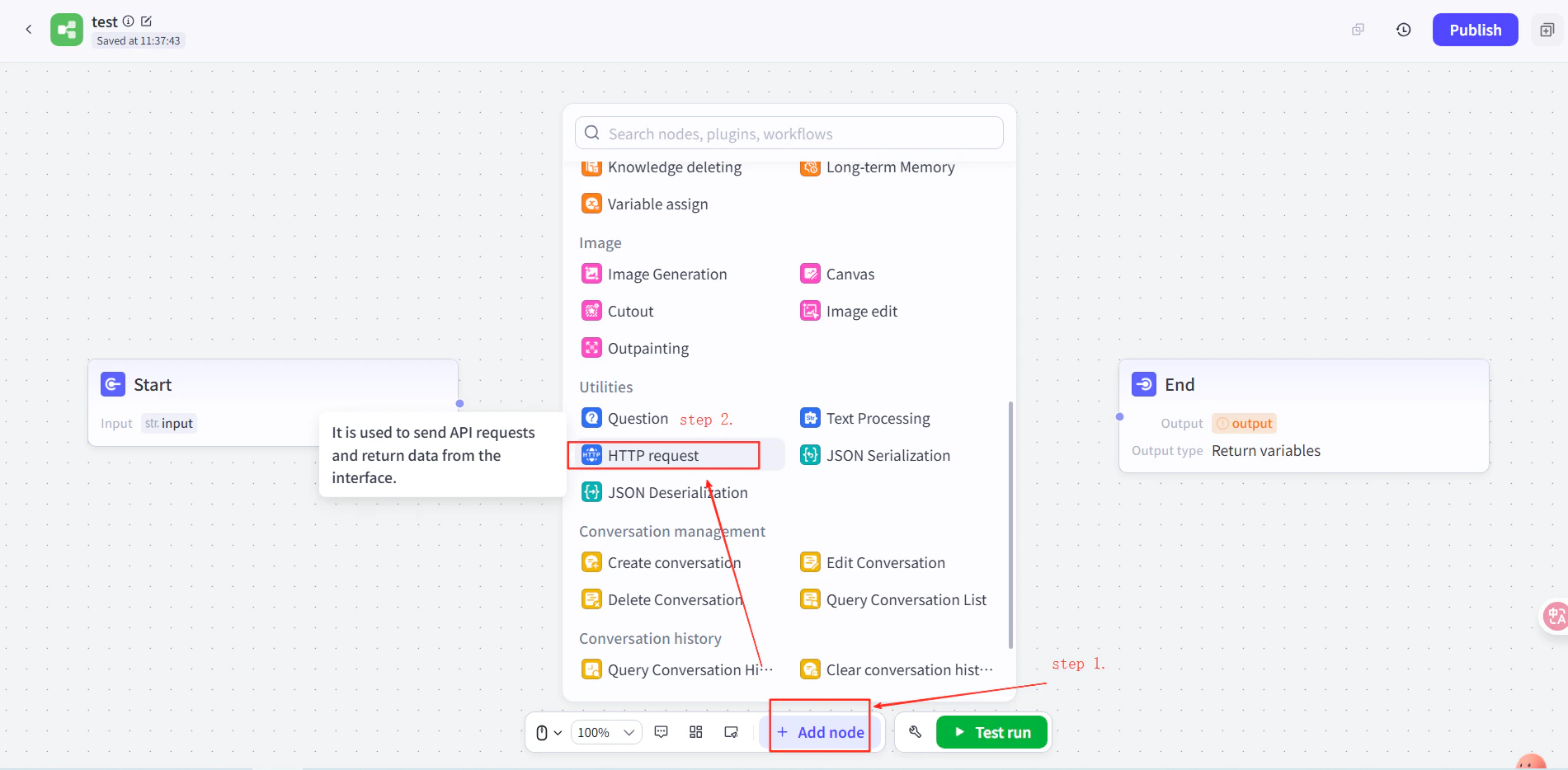
        1. Tạo một agent trong Coze, sau đó trong workflow của agent thêm một node **HTTP Request** giữa các node Start và End.
        2. Đặt các thông số sau:
           * **Method**: `POST`
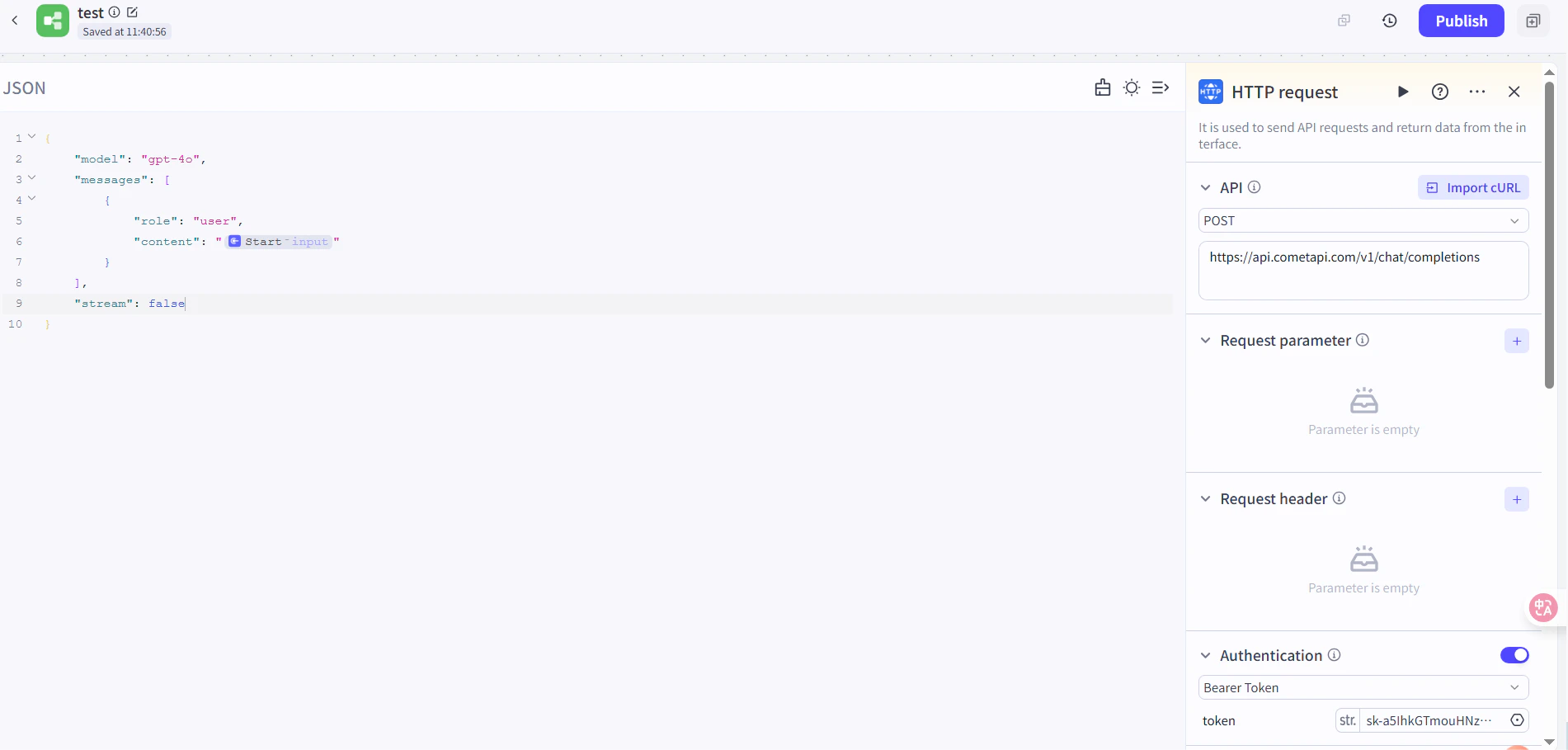
           * **URL**: `https://api.cometapi.com/v1/chat/completions`
           * **Authentication Token**: dán CometAPI API key của bạn, sau đó nhấp **Confirm**
        3. Đặt request body:

        ```json theme={null}
        {
          "model": "your-model-id",
          "messages": [
            {
              "role": "user",
              "content": "{{block_output_100001.input}}"
            }
          ],
          "stream": false
        }
        ```

        4. Trong node End, đặt đầu ra là response body của HTTP request. Thay `your-model-id` bằng model ID hiện tại từ [trang Models của CometAPI](/vi/overview/models).
        <Frame>
          <img src="https://mintcdn.com/cometapi/E4FFvyMYmaOZoldp/images/integrations/810968_355128.png?fit=max&auto=format&n=E4FFvyMYmaOZoldp&q=85&s=862c588b2f301bd66b89366c5344fbdc" alt="Node HTTP Request với URL và auth token đã được cấu hình" width="1586" height="834" data-path="images/integrations/810968_355128.png" />
        </Frame>

        <Frame>
          <img src="https://mintcdn.com/cometapi/E4FFvyMYmaOZoldp/images/integrations/810968_355129.png?fit=max&auto=format&n=E4FFvyMYmaOZoldp&q=85&s=a438417210684dddf988307c448edb57" alt="JSON request body đã được cấu hình trong node HTTP" width="1901" height="934" data-path="images/integrations/810968_355129.png" />
        </Frame>

        <Frame>
          <img src="https://mintcdn.com/cometapi/E4FFvyMYmaOZoldp/images/integrations/810968_355130.png?fit=max&auto=format&n=E4FFvyMYmaOZoldp&q=85&s=18254fe80669e295bd7b8ac2e48c3d45" alt="Node End với HTTP response body được chọn làm đầu ra" width="1926" height="936" data-path="images/integrations/810968_355130.png" />
        </Frame>

        <Frame>
          <img src="https://mintcdn.com/cometapi/E4FFvyMYmaOZoldp/images/integrations/810968_355131.png?fit=max&auto=format&n=E4FFvyMYmaOZoldp&q=85&s=5fde76e14e42d41311076f7eb1d0fd77" alt="Workflow Coze với tất cả các node đã được kết nối" width="1901" height="909" data-path="images/integrations/810968_355131.png" />
        </Frame>
      </Tab>
    </Tabs>
  </Step>

  <Step title="Kiểm tra và publish">
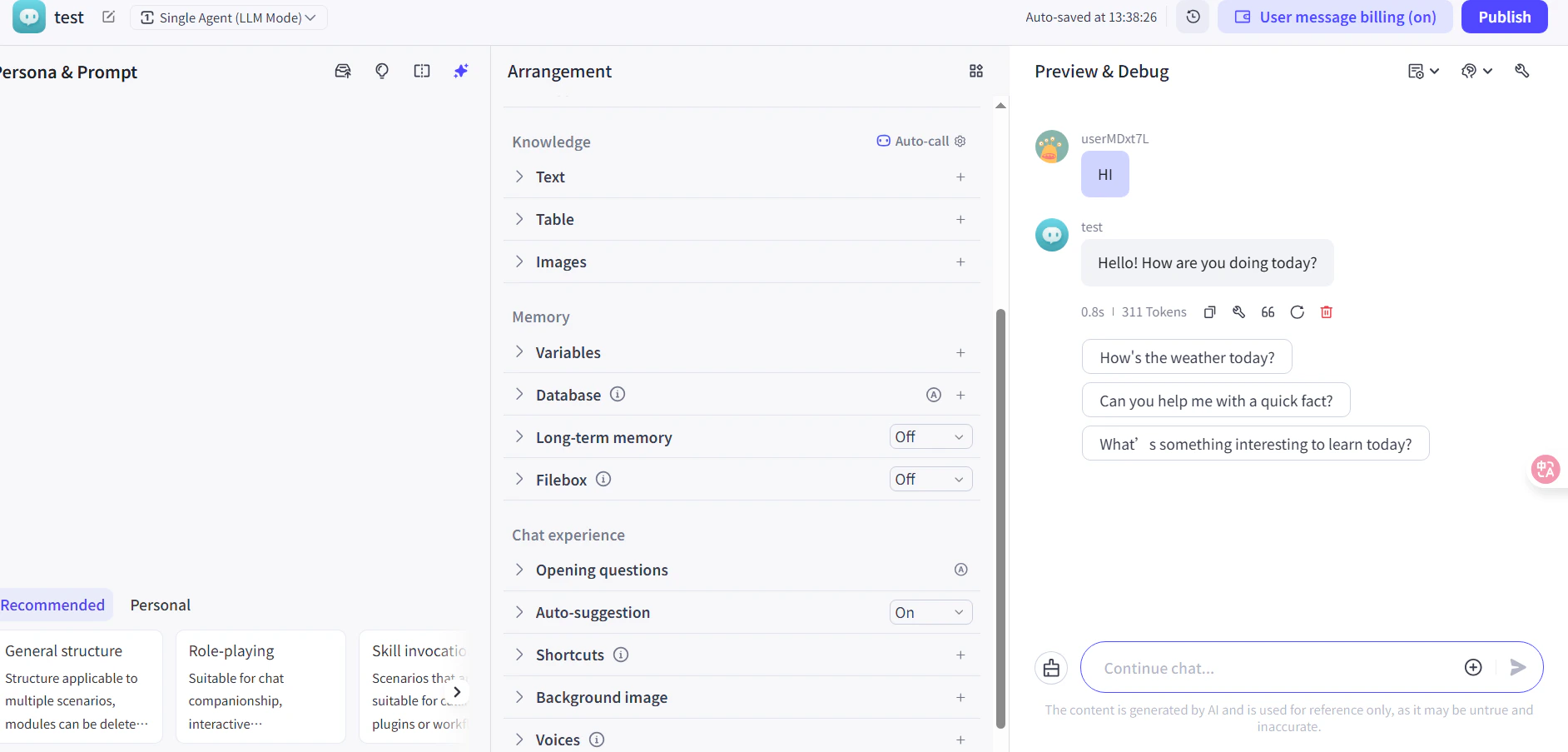
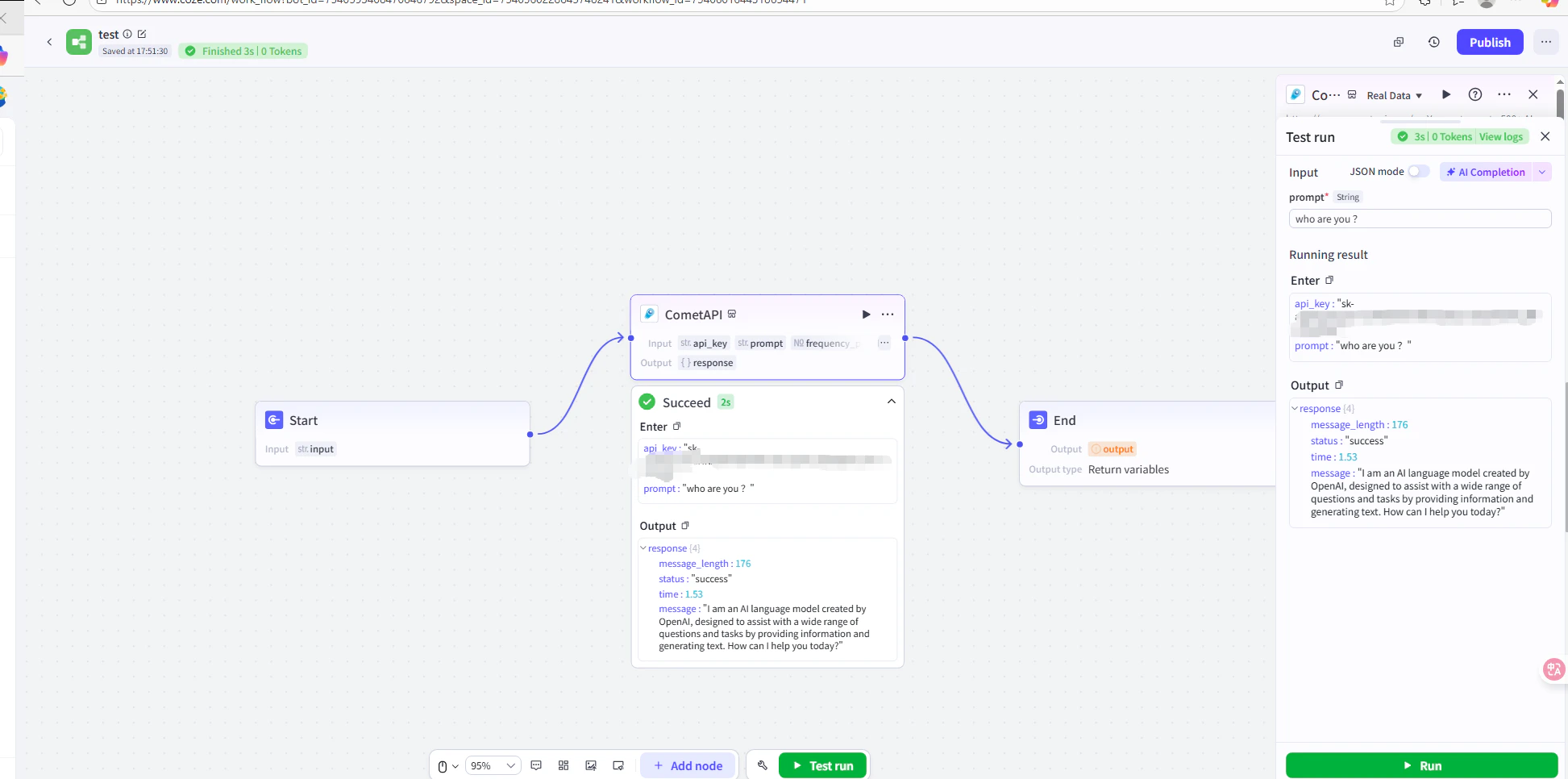
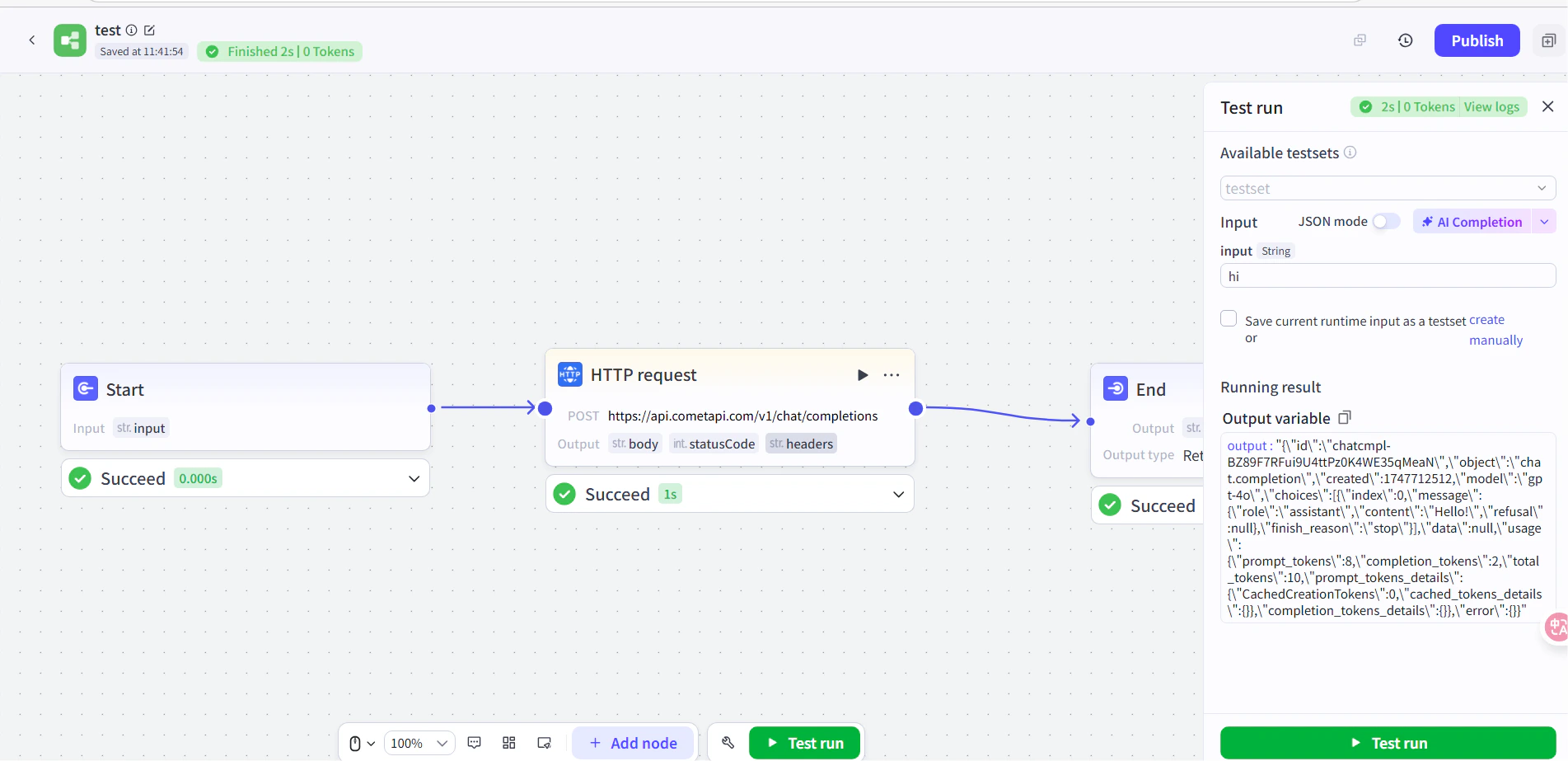
    Chạy một tin nhắn thử nghiệm trong workflow (ví dụ: hỏi thời gian hiện tại). Một phản hồi AI thành công xác nhận rằng tích hợp đang hoạt động. Publish workflow để đưa vào hoạt động.
    <Frame>
      <img src="https://mintcdn.com/cometapi/E4FFvyMYmaOZoldp/images/integrations/810968_360285.png?fit=max&auto=format&n=E4FFvyMYmaOZoldp&q=85&s=5f362ef3274c53c47a8f3793d4fa6966" alt="Workflow Coze hiển thị phản hồi thử nghiệm thành công" width="1945" height="966" data-path="images/integrations/810968_360285.png" />
    </Frame>

    <Frame>
      <img src="https://mintcdn.com/cometapi/E4FFvyMYmaOZoldp/images/integrations/810968_355132.png?fit=max&auto=format&n=E4FFvyMYmaOZoldp&q=85&s=8b7fe683331ec5cb31222062c6f3aa80" alt="Agent Coze đã publish phản hồi chính xác" width="1903" height="923" data-path="images/integrations/810968_355132.png" />
    </Frame>

    Nếu lệnh gọi thất bại, hãy kiểm tra lại API key và URL endpoint của bạn, hoặc liên hệ [bộ phận hỗ trợ CometAPI](https://www.cometapi.com).
  </Step>
</Steps>

<Tip>
  Phương pháp plugin được khuyến nghị cho hầu hết người dùng — phương pháp này tự động xử lý xác thực và phân tích phản hồi. Hãy dùng node HTTP Request khi bạn cần toàn quyền kiểm soát request header hoặc muốn gọi một endpoint không phải chat.
</Tip>

<script type="application/ld+json">
  {`
    {
    "@context": "https://schema.org",
    "@graph": [
      {
        "@type": "HowTo",
        "@id": "https://apidoc.cometapi.com/integrations/coze#howto",
        "name": "Sử dụng Coze với CometAPI",
        "description": "Sử dụng hướng dẫn này để cấu hình Coze với CometAPI bằng cách thiết lập base URL, API key và các tùy chọn model hoặc provider.",
        "step": [
          {
            "@type": "HowToStep",
            "@id": "https://apidoc.cometapi.com/integrations/coze#step-1",
            "position": 1,
            "name": "Lấy CometAPI API key của bạn",
            "text": "Tạo hoặc mở tài khoản CometAPI của bạn, sau đó sao chép một API key đang hoạt động từ bảng điều khiển."
          },
          {
            "@type": "HowToStep",
            "@id": "https://apidoc.cometapi.com/integrations/coze#step-2",
            "position": 2,
            "name": "Thêm CometAPI vào workflow Coze",
            "text": "Hoàn thành bước Thêm CometAPI vào workflow Coze trong hướng dẫn Sử dụng Coze với CometAPI."
          },
          {
            "@type": "HowToStep",
            "@id": "https://apidoc.cometapi.com/integrations/coze#step-3",
            "position": 3,
            "name": "Kiểm tra và publish",
            "text": "Hoàn thành bước Kiểm tra và publish trong hướng dẫn Sử dụng Coze với CometAPI."
          }
        ]
      },
      {
        "@type": "BreadcrumbList",
        "itemListElement": [
          {
            "@type": "ListItem",
            "position": 1,
            "name": "Tài liệu CometAPI",
            "item": "https://apidoc.cometapi.com/"
          },
          {
            "@type": "ListItem",
            "position": 2,
            "name": "Tích hợp",
            "item": "https://apidoc.cometapi.com/integrations"
          },
          {
            "@type": "ListItem",
            "position": 3,
            "name": "Sử dụng Coze với CometAPI",
            "item": "https://apidoc.cometapi.com/integrations/coze"
          }
        ]
      }
    ]
    }
    `}
</script>