> ## Documentation Index
> Fetch the complete documentation index at: https://apidoc.cometapi.com/llms.txt
> Use this file to discover all available pages before exploring further.
# Chạy n8n cục bộ với CometAPI
> Sử dụng hướng dẫn này để chạy n8n cục bộ với CometAPI bằng cách cấu hình thiết lập triển khai cục bộ, thông tin xác thực và quyền truy cập model.
Triển khai n8n trên chính máy của bạn và kết nối nó với CometAPI thông qua community node để chạy các quy trình AI tự động hóa cục bộ.
## Điều kiện tiên quyết
* Linux (Ubuntu/Debian/CentOS, v.v.) hoặc macOS
* RAM 2 GB+, dung lượng đĩa trống 10 GB+
* Quyền truy cập shell có thể kết nối tới npm registry công khai
* Node.js 18.x hoặc 20.x LTS (xem Bước 1)
* Tài khoản CometAPI với API key đang hoạt động — [lấy tại đây](https://www.cometapi.com/console/token)
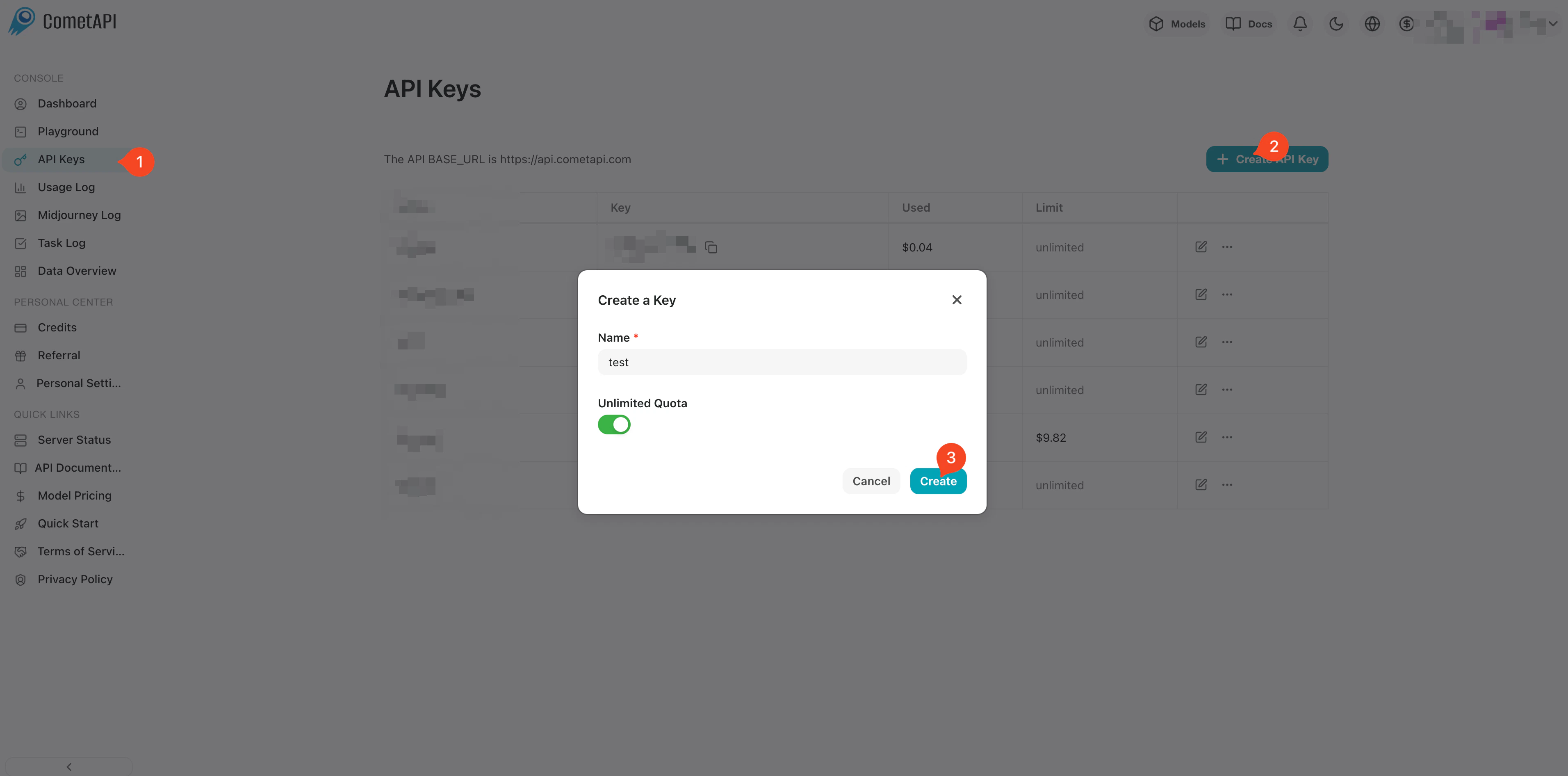
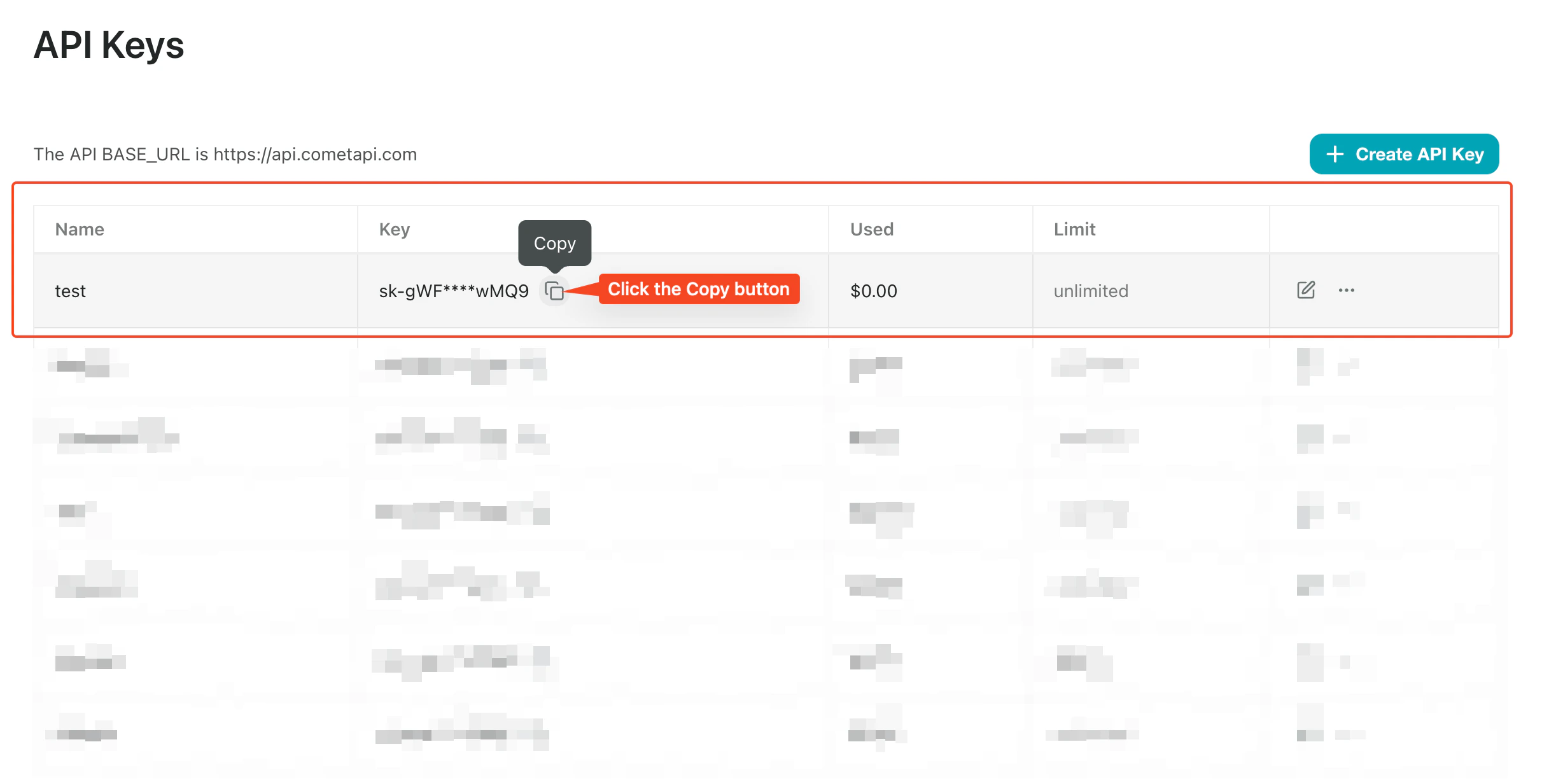
Đăng nhập vào [bảng điều khiển CometAPI](https://www.cometapi.com/console/token). Nhấp vào **Add API Key** và sao chép CometAPI API key của bạn.
 n8n 1.x yêu cầu Node.js 18.x hoặc 20.x. Cách tiếp cận được khuyến nghị là [nvm](https://github.com/nvm-sh/nvm):
```bash theme={null}
# Install nvm
curl -o- https://raw.githubusercontent.com/nvm-sh/nvm/v0.39.7/install.sh | bash
# Reload your shell profile
source ~/.bashrc # or ~/.zshrc on macOS
# Install and activate the LTS version
nvm install --lts
nvm use --lts
# Verify
node -v
npm -v
```
Nếu sau này bạn thấy `n8n: command not found`, hãy khởi động lại terminal hoặc đảm bảo thư mục npm global bin do nvm quản lý nằm trong `PATH` của bạn.
```bash theme={null}
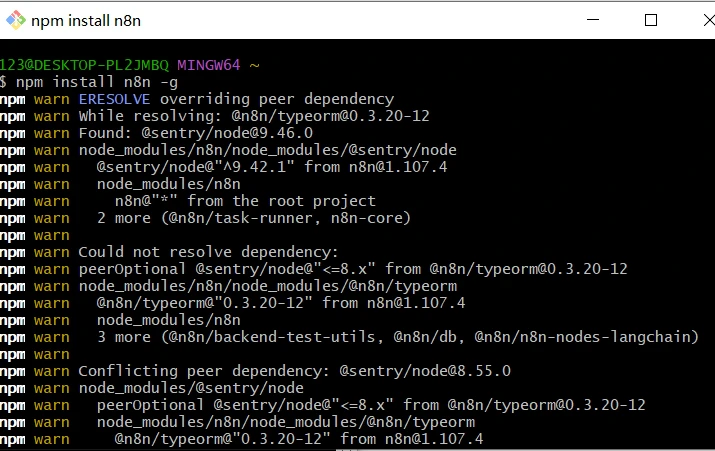
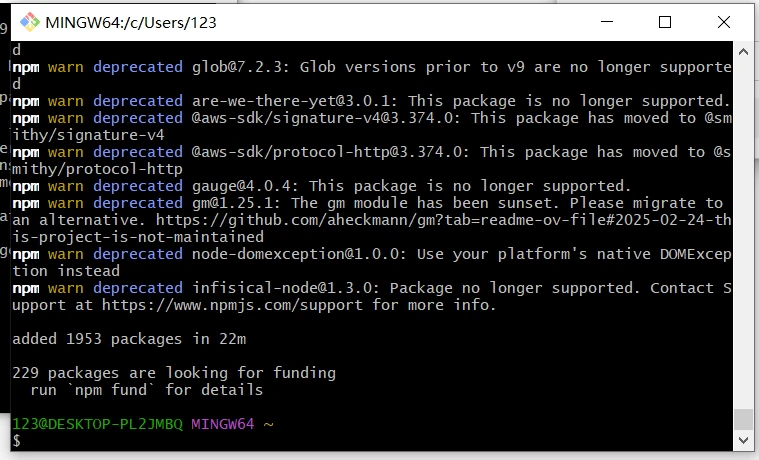
npm install -g n8n
n8n -v # verify the installed version
n8n start # runs on http://localhost:5678/
```
Nếu cổng 5678 đã được sử dụng:
```bash theme={null}
export N8N_PORT=5679
n8n start
```
Để giữ cho n8n tiếp tục chạy sau khi đóng terminal:
```bash theme={null}
npm install -g pm2
pm2 start "n8n" --name n8n
pm2 save
pm2 status
```
n8n 1.x yêu cầu Node.js 18.x hoặc 20.x. Cách tiếp cận được khuyến nghị là [nvm](https://github.com/nvm-sh/nvm):
```bash theme={null}
# Install nvm
curl -o- https://raw.githubusercontent.com/nvm-sh/nvm/v0.39.7/install.sh | bash
# Reload your shell profile
source ~/.bashrc # or ~/.zshrc on macOS
# Install and activate the LTS version
nvm install --lts
nvm use --lts
# Verify
node -v
npm -v
```
Nếu sau này bạn thấy `n8n: command not found`, hãy khởi động lại terminal hoặc đảm bảo thư mục npm global bin do nvm quản lý nằm trong `PATH` của bạn.
```bash theme={null}
npm install -g n8n
n8n -v # verify the installed version
n8n start # runs on http://localhost:5678/
```
Nếu cổng 5678 đã được sử dụng:
```bash theme={null}
export N8N_PORT=5679
n8n start
```
Để giữ cho n8n tiếp tục chạy sau khi đóng terminal:
```bash theme={null}
npm install -g pm2
pm2 start "n8n" --name n8n
pm2 save
pm2 status
```
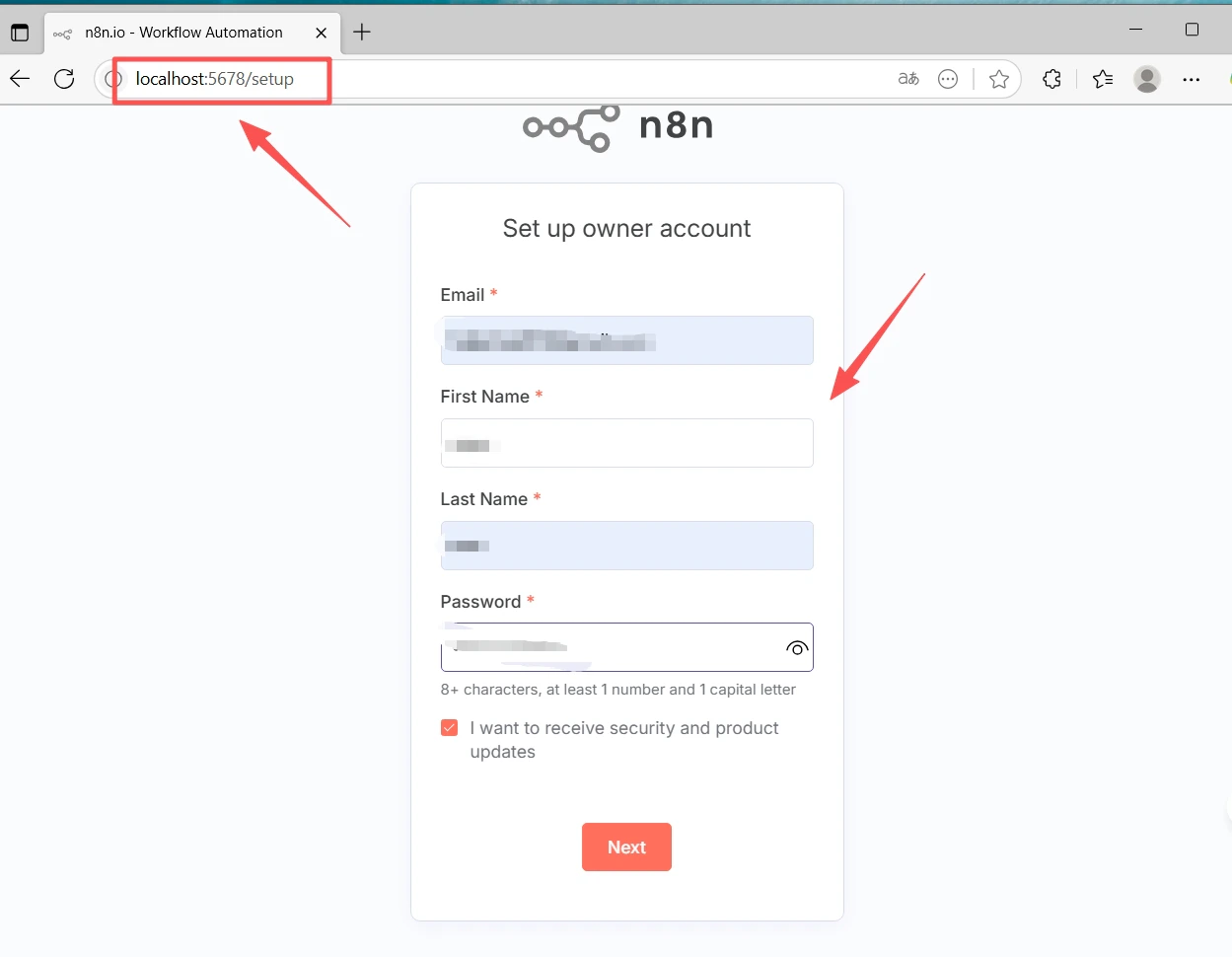
 Mở [http://localhost:5678/](http://localhost:5678/) trên trình duyệt. Trong lần chạy đầu tiên, trình hướng dẫn thiết lập sẽ yêu cầu bạn tạo tài khoản **Owner** (email + mật khẩu). Hoàn tất bước này và đăng nhập.
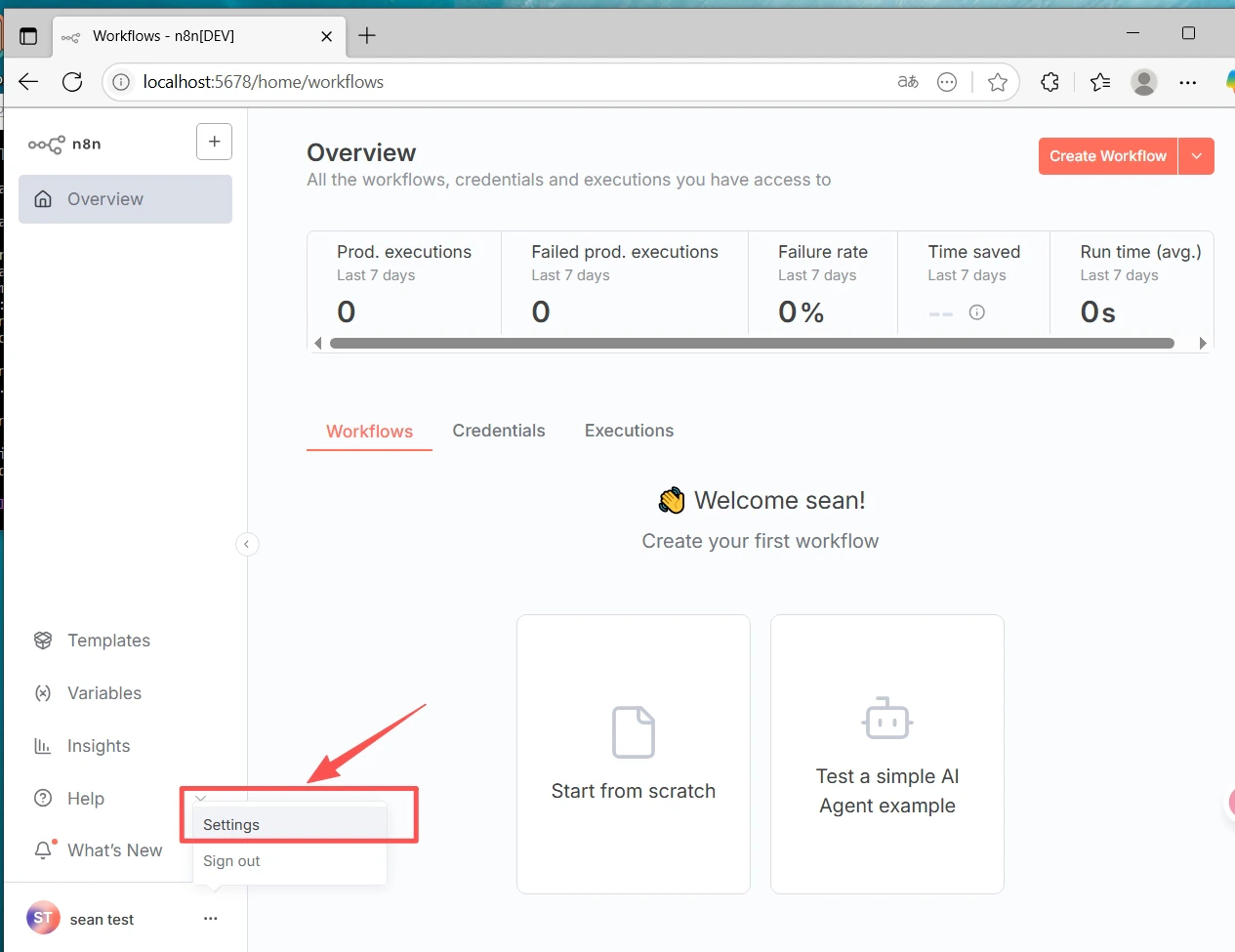
 1. Vào **Settings** (góc dưới bên trái) → **Community nodes**
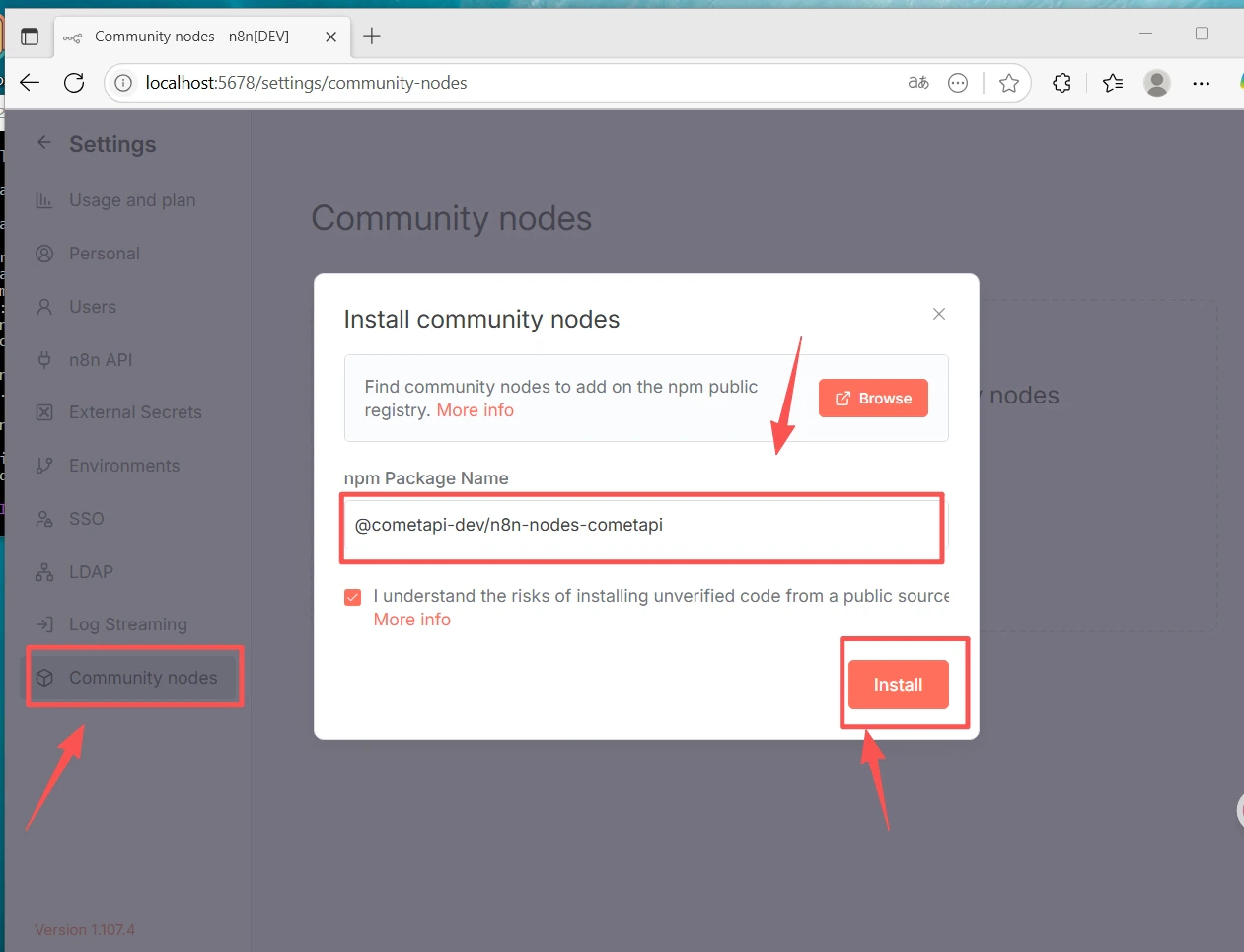
2. Nhấp **Install a community node**
3. Nhập tên package: `@cometapi-dev/n8n-nodes-cometapi`
4. Chọn ô xác nhận rủi ro và nhấp **Install**
Sau khi cài đặt, bạn có thể tìm kiếm **CometAPI** trong bảng node.
1. Vào **Settings** (góc dưới bên trái) → **Community nodes**
2. Nhấp **Install a community node**
3. Nhập tên package: `@cometapi-dev/n8n-nodes-cometapi`
4. Chọn ô xác nhận rủi ro và nhấp **Install**
Sau khi cài đặt, bạn có thể tìm kiếm **CometAPI** trong bảng node.
 Nếu phần Community Nodes không xuất hiện: hãy đảm bảo bạn đã đăng nhập bằng tài khoản **Owner**, và kiểm tra **Settings → Security** để xác nhận rằng việc cài đặt community node đã được bật.
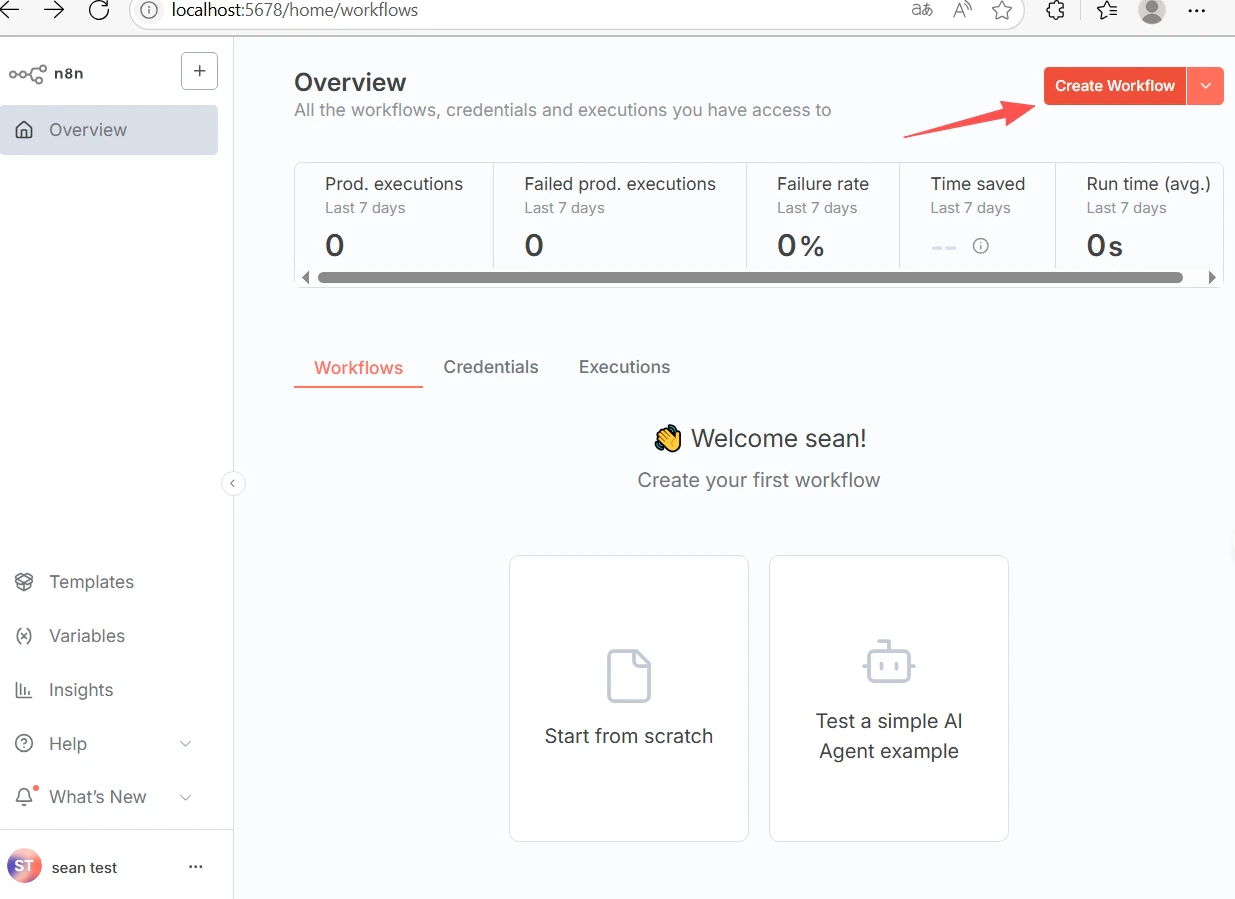
1. Nhấp **+ New** ở phía trên để tạo một workflow.
2. Nhấp **+** trên canvas và tìm kiếm **CometAPI** để thêm node.
Nếu phần Community Nodes không xuất hiện: hãy đảm bảo bạn đã đăng nhập bằng tài khoản **Owner**, và kiểm tra **Settings → Security** để xác nhận rằng việc cài đặt community node đã được bật.
1. Nhấp **+ New** ở phía trên để tạo một workflow.
2. Nhấp **+** trên canvas và tìm kiếm **CometAPI** để thêm node.
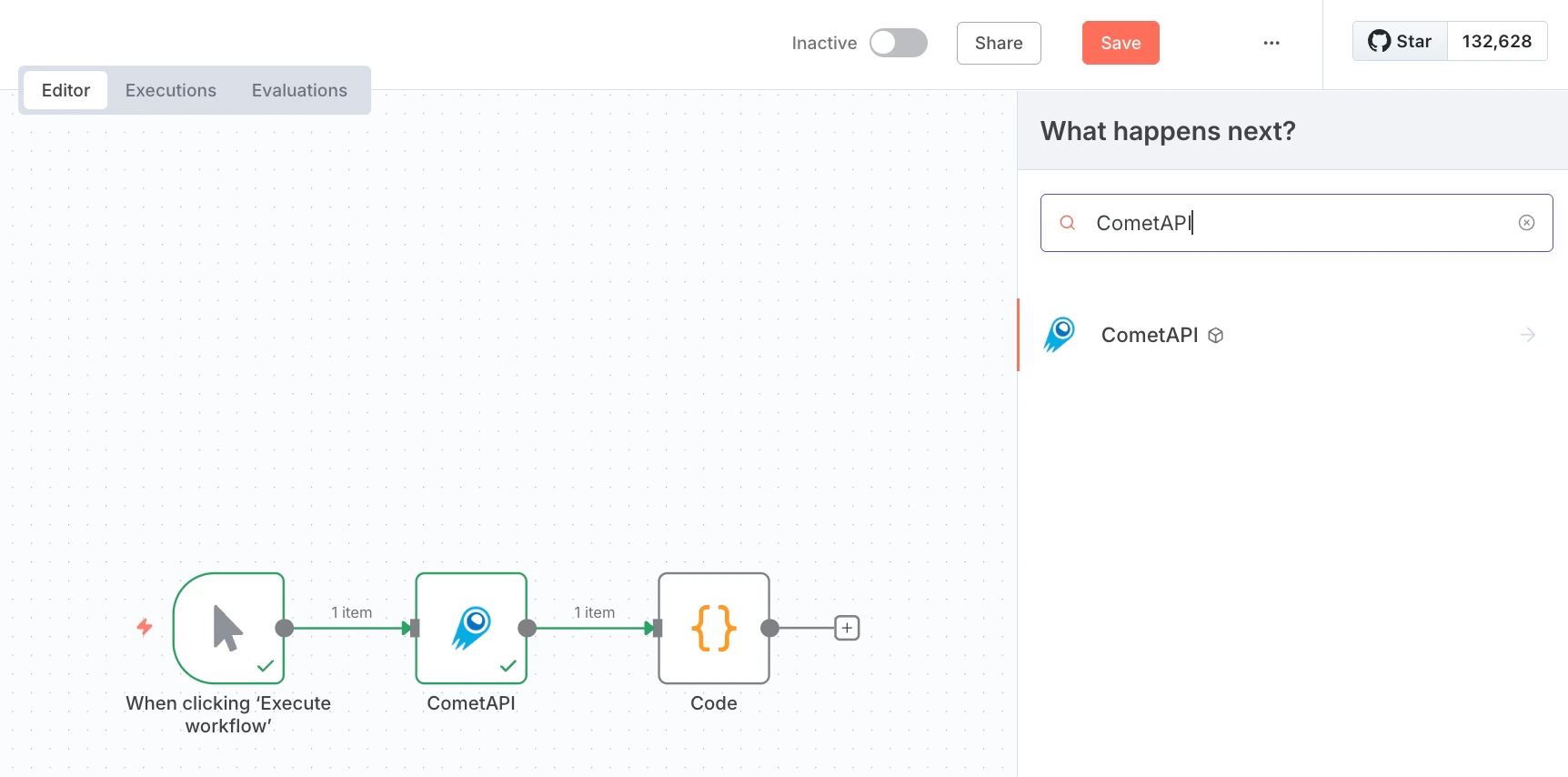 3. Thêm node **Manual Trigger** và kết nối nó với node CometAPI.
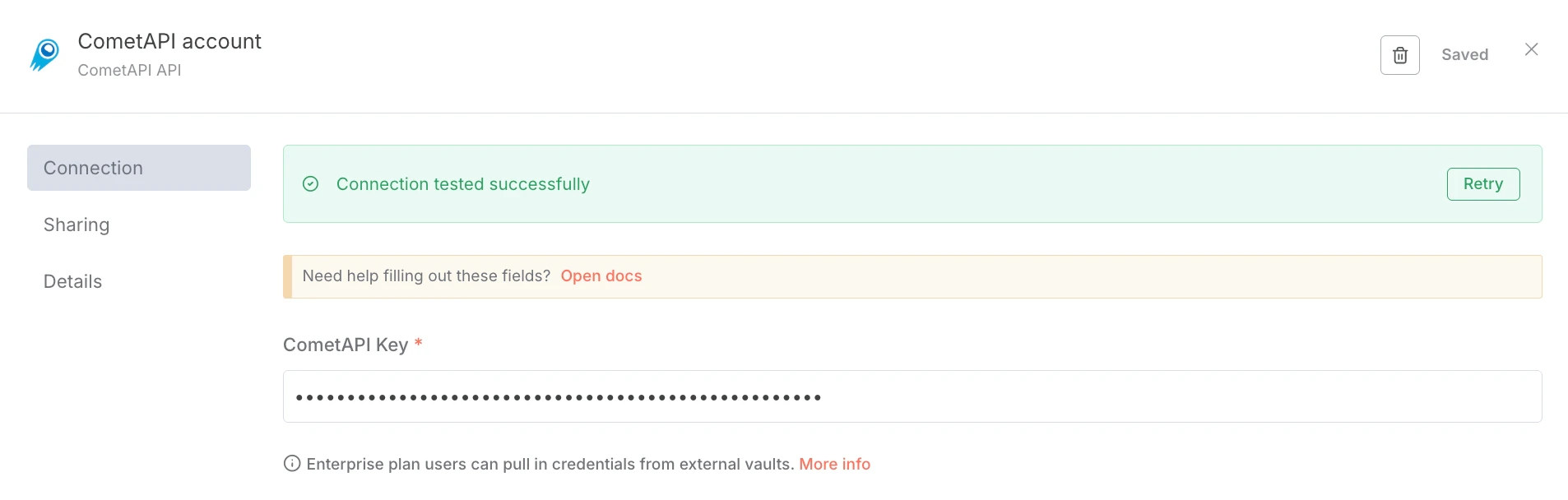
4. Trong node CometAPI, ở mục **Credential to connect with**, chọn **Create new**. Dán CometAPI API key của bạn vào **CometAPI Key** và nhấp **Save**. Base URL mặc định là `https://api.cometapi.com` và thường không cần thay đổi.
3. Thêm node **Manual Trigger** và kết nối nó với node CometAPI.
4. Trong node CometAPI, ở mục **Credential to connect with**, chọn **Create new**. Dán CometAPI API key của bạn vào **CometAPI Key** và nhấp **Save**. Base URL mặc định là `https://api.cometapi.com` và thường không cần thay đổi.
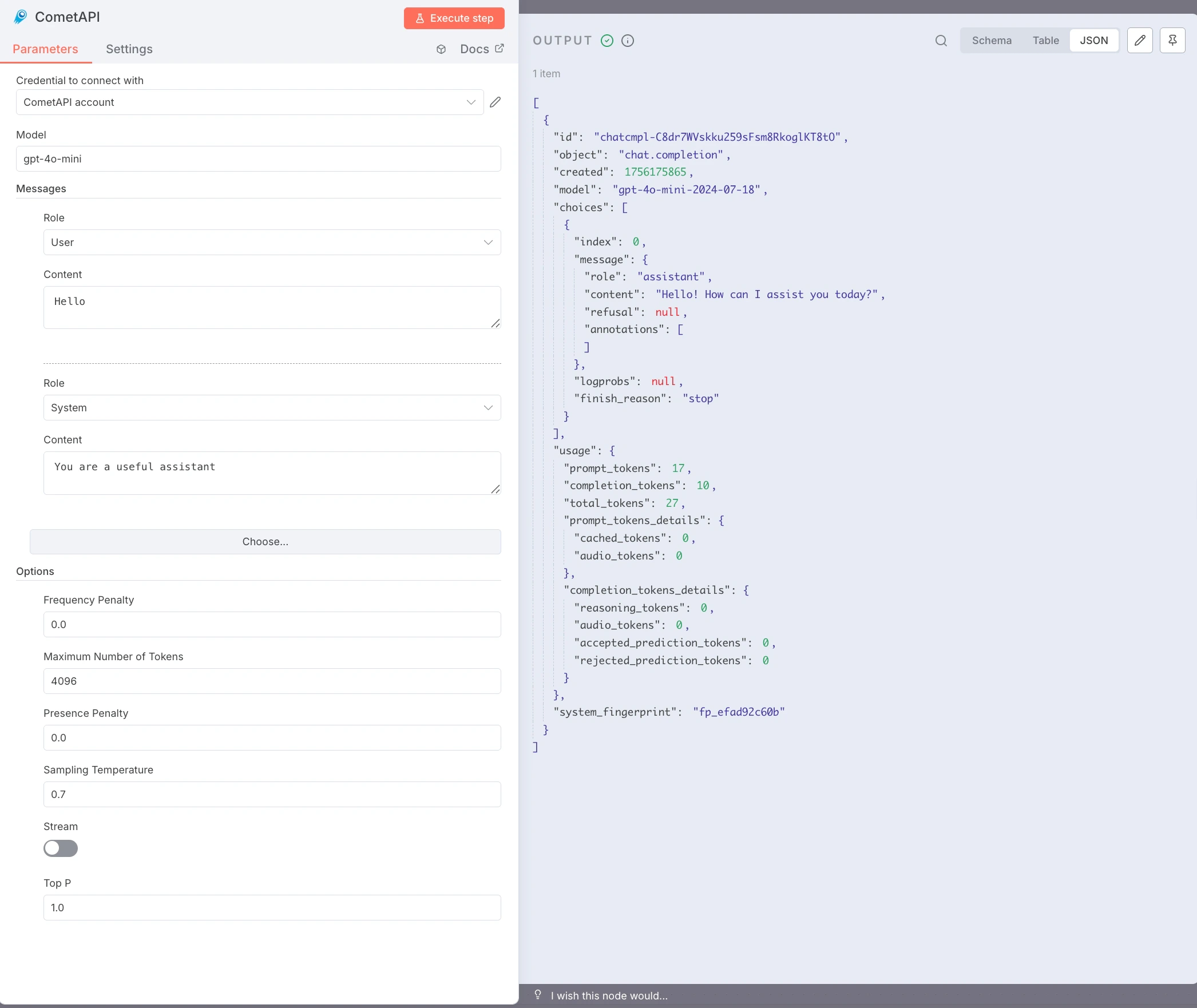
 5. Cấu hình node:
* **Model**: nhập model ID hiện tại mà bạn muốn sử dụng
* **Messages**: đặt Role là `user`, Content là prompt thử nghiệm của bạn (ví dụ: `Hello`)
* Tùy chọn: thêm message `system`, đặt **Max Tokens**, **Temperature**, v.v.
6. Nhấp **Execute step** để chạy node. Bảng **Output** sẽ hiển thị phản hồi JSON.
5. Cấu hình node:
* **Model**: nhập model ID hiện tại mà bạn muốn sử dụng
* **Messages**: đặt Role là `user`, Content là prompt thử nghiệm của bạn (ví dụ: `Hello`)
* Tùy chọn: thêm message `system`, đặt **Max Tokens**, **Temperature**, v.v.
6. Nhấp **Execute step** để chạy node. Bảng **Output** sẽ hiển thị phản hồi JSON.
 * **Lỗi `node-gyp` hoặc lỗi build native** — cài đặt build tools: `sudo apt install build-essential python3` (Debian/Ubuntu) hoặc Xcode Command Line Tools (macOS).
* **Lỗi quyền npm (EACCES)** — sử dụng nvm để cài đặt Node.js ở cấp người dùng; không cần `sudo`.
* **Xung đột cổng (`localhost:5678` không khả dụng)** — đặt `N8N_PORT=5679` (hoặc cổng trống khác) trước khi chạy `n8n start`.
* **Không có phần Community Nodes** — đăng nhập bằng tài khoản **Owner** và kiểm tra **Settings → Security**.
* **npm install thất bại trên mạng doanh nghiệp** — cấu hình proxy: `npm config set proxy http://user:pass@host:port`
* **Node CometAPI trả về 401/403** — xác minh API key của bạn và đảm bảo model có thể truy cập trong gói CometAPI của bạn.
* **Phản hồi rỗng hoặc lỗi giới hạn token** — tăng **Max Tokens**; điều chỉnh **Temperature** và **Top P** nếu cần.
* **n8n dừng khi đóng terminal** — dùng pm2: `pm2 start "n8n" --name n8n && pm2 save`.
* **Lỗi `node-gyp` hoặc lỗi build native** — cài đặt build tools: `sudo apt install build-essential python3` (Debian/Ubuntu) hoặc Xcode Command Line Tools (macOS).
* **Lỗi quyền npm (EACCES)** — sử dụng nvm để cài đặt Node.js ở cấp người dùng; không cần `sudo`.
* **Xung đột cổng (`localhost:5678` không khả dụng)** — đặt `N8N_PORT=5679` (hoặc cổng trống khác) trước khi chạy `n8n start`.
* **Không có phần Community Nodes** — đăng nhập bằng tài khoản **Owner** và kiểm tra **Settings → Security**.
* **npm install thất bại trên mạng doanh nghiệp** — cấu hình proxy: `npm config set proxy http://user:pass@host:port`
* **Node CometAPI trả về 401/403** — xác minh API key của bạn và đảm bảo model có thể truy cập trong gói CometAPI của bạn.
* **Phản hồi rỗng hoặc lỗi giới hạn token** — tăng **Max Tokens**; điều chỉnh **Temperature** và **Top P** nếu cần.
* **n8n dừng khi đóng terminal** — dùng pm2: `pm2 start "n8n" --name n8n && pm2 save`.