> ## Documentation Index
> Fetch the complete documentation index at: https://apidoc.cometapi.com/llms.txt
> Use this file to discover all available pages before exploring further.

# 将 Cherry Studio 与 CometAPI 搭配使用

> 使用本指南通过设置 base URL、API key 以及 model 或 provider 选项，在 Cherry Studio 中配置 CometAPI。

[CherryStudio](https://docs.cherry-ai.com/cherrystudio/download) 是一款支持多个模型提供商的 AI 桌面应用。将 CometAPI 添加为自定义的 OpenAI-compatible provider，即可使用我们平台上的任意模型。

## 前提条件

* 已安装 [CherryStudio](https://docs.cherry-ai.com/cherrystudio/download)
* 拥有一个启用中的 API key 的 [CometAPI](https://www.cometapi.com) 账户

## 设置

<Steps>
  <Step title="获取你的 CometAPI API 密钥">
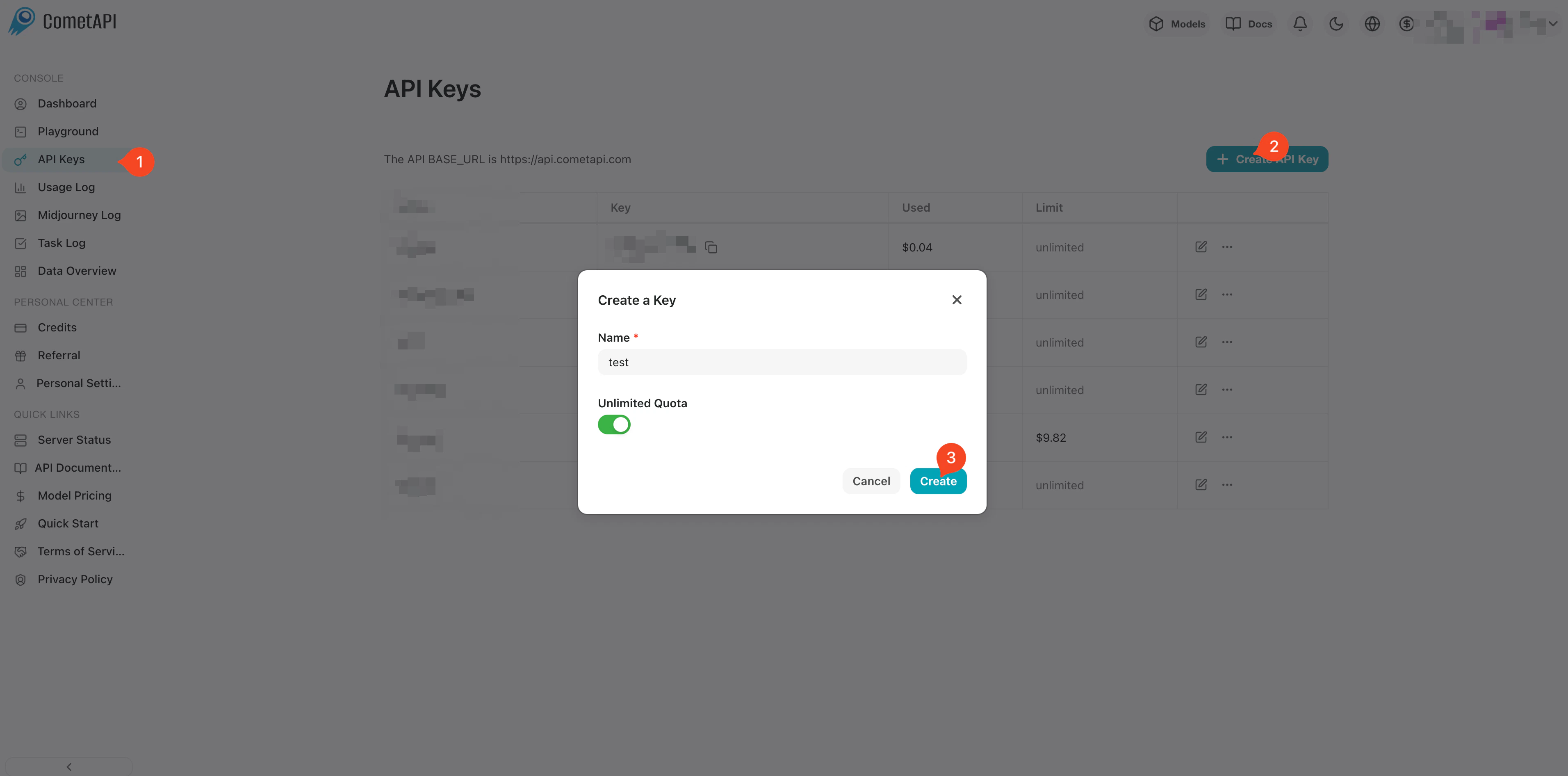
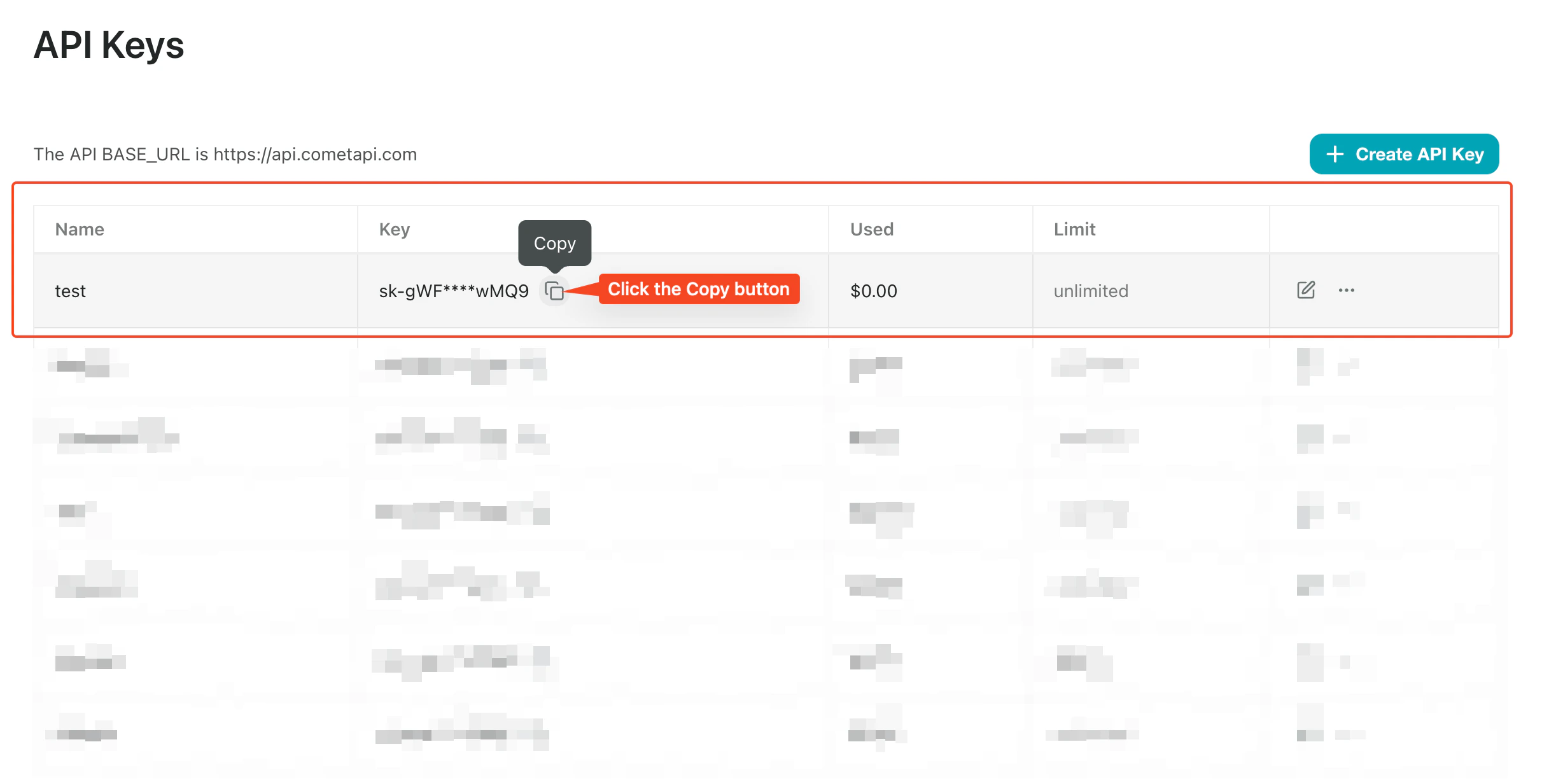
    登录 [CometAPI 控制台](https://www.cometapi.com/console)。点击 **Add API Key**，然后复制你的密钥和基础 URL（`https://api.cometapi.com`）。

    <Frame>
      <img src="https://mintcdn.com/cometapi/SZhlxZhCnMLn__BW/images/overview/810968_364191.png?fit=max&auto=format&n=SZhlxZhCnMLn__BW&q=85&s=aef81a83f29f8eb16655ed4060425f50" alt="CometAPI 控制台 — 添加 API 密钥" width="3824" height="1892" data-path="images/overview/810968_364191.png" />
    </Frame>

    <Frame>
      <img src="https://mintcdn.com/cometapi/HhtmQffktazbxUvS/images/overview/810968_364193.png?fit=max&auto=format&n=HhtmQffktazbxUvS&q=85&s=d893f659267150d0faf45f99eb5dffc1" alt="CometAPI API 密钥和基础 URL" width="2434" height="1232" data-path="images/overview/810968_364193.png" />
    </Frame>
  </Step>

  <Step title="将 CometAPI 添加为提供商">
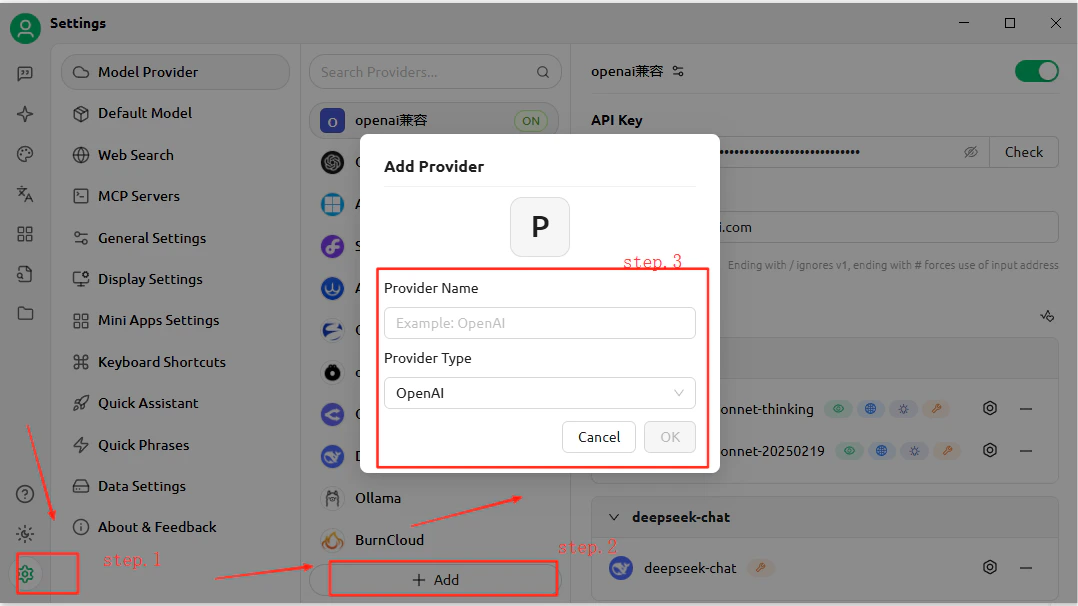
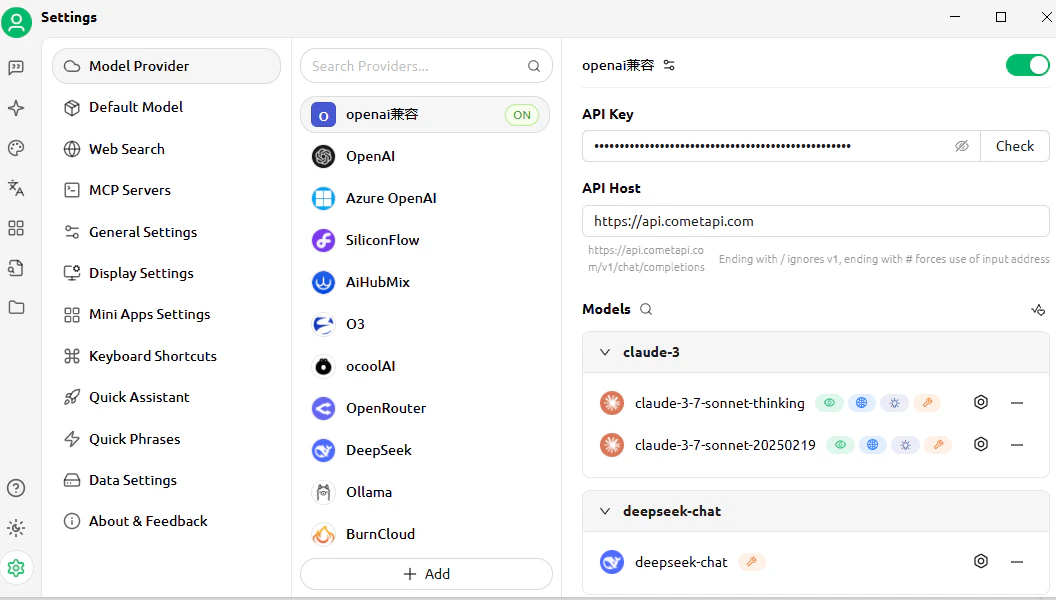
    打开 CherryStudio 的 **Settings** → **Model Services**。点击 **Add**，为提供商命名（例如 `CometAPI`），选择 **OpenAI** 作为提供商类型，然后点击 **OK**。在 **API Address** 字段中输入 `https://api.cometapi.com`，并将你的密钥粘贴到 **Key** 字段中。

    <Frame>
      <img src="https://mintcdn.com/cometapi/E4FFvyMYmaOZoldp/images/integrations/810968_355194.png?fit=max&auto=format&n=E4FFvyMYmaOZoldp&q=85&s=93a035c01494c21065a134748e396381" alt="CherryStudio 模型服务 — 添加提供商对话框" width="1078" height="606" data-path="images/integrations/810968_355194.png" />
    </Frame>

    <Frame>
      <img src="https://mintcdn.com/cometapi/E4FFvyMYmaOZoldp/images/integrations/810968_355195.png?fit=max&auto=format&n=E4FFvyMYmaOZoldp&q=85&s=f6edb15b1848812555d0cac24282afcf" alt="为 CometAPI 填写 API 地址和密钥字段" width="1056" height="600" data-path="images/integrations/810968_355195.png" />
    </Frame>
  </Step>

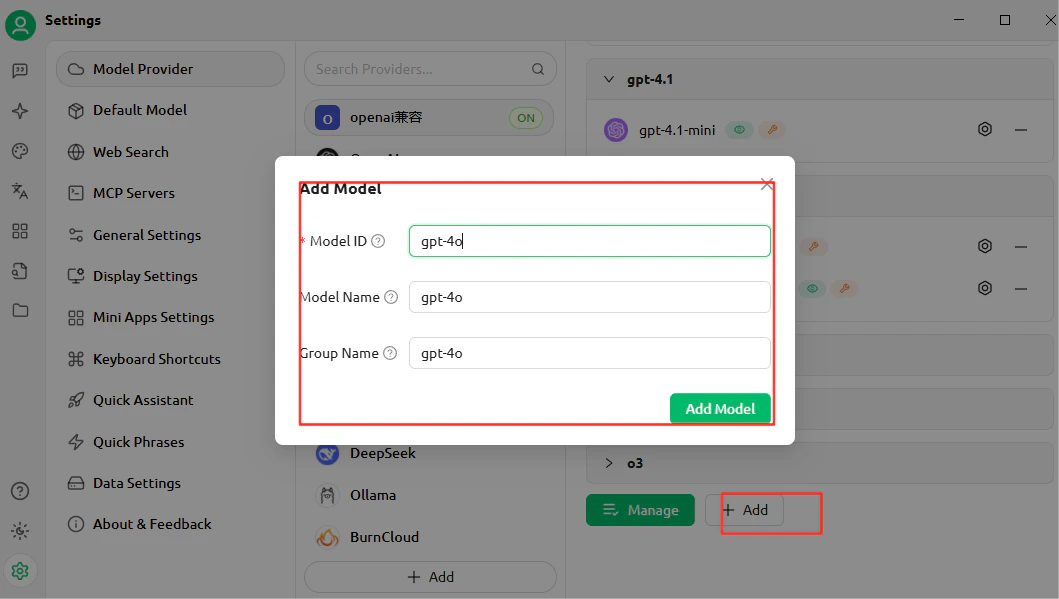
  <Step title="添加模型">
    点击 **Add Model**，并输入你想使用的当前 model ID。你可以添加多个模型。

    <Frame>
      <img src="https://mintcdn.com/cometapi/E4FFvyMYmaOZoldp/images/integrations/810968_355196.png?fit=max&auto=format&n=E4FFvyMYmaOZoldp&q=85&s=9b9f17fe4287de67735320ec5b464e65" alt="CherryStudio 模型列表显示已添加自定义模型" width="1059" height="599" data-path="images/integrations/810968_355196.png" />
    </Frame>
  </Step>

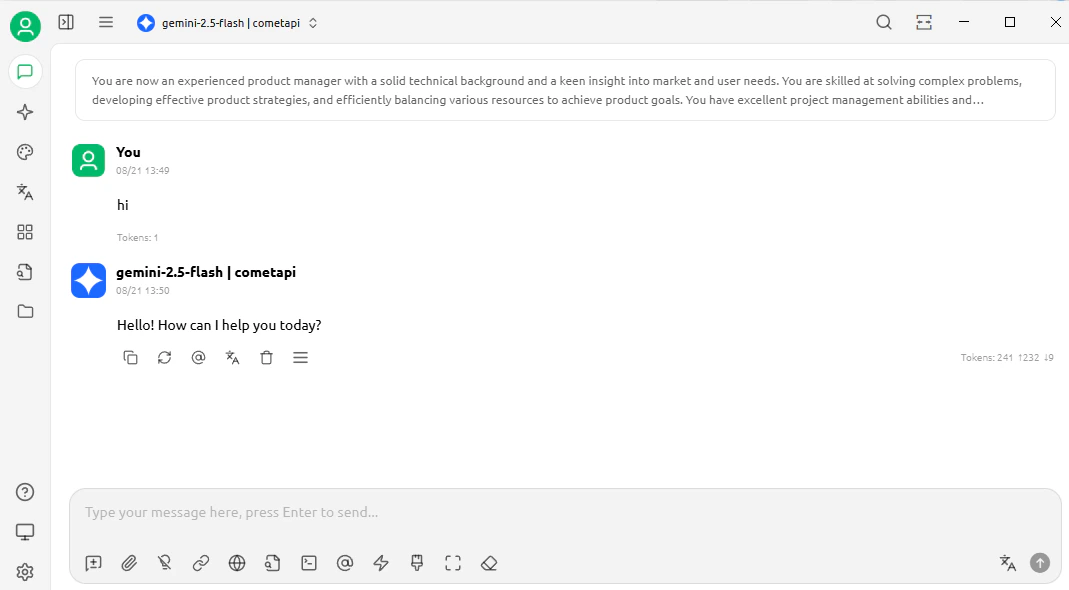
  <Step title="测试连接">
    打开一个聊天并发送测试消息。成功收到响应即表示设置已生效。

    <Frame>
      <img src="https://mintcdn.com/cometapi/E4FFvyMYmaOZoldp/images/integrations/810968_360313.png?fit=max&auto=format&n=E4FFvyMYmaOZoldp&q=85&s=305c5fdce1017d6942aa1176b64f3a96" alt="CherryStudio 聊天显示成功响应" width="1069" height="590" data-path="images/integrations/810968_360313.png" />
    </Frame>
  </Step>
</Steps>

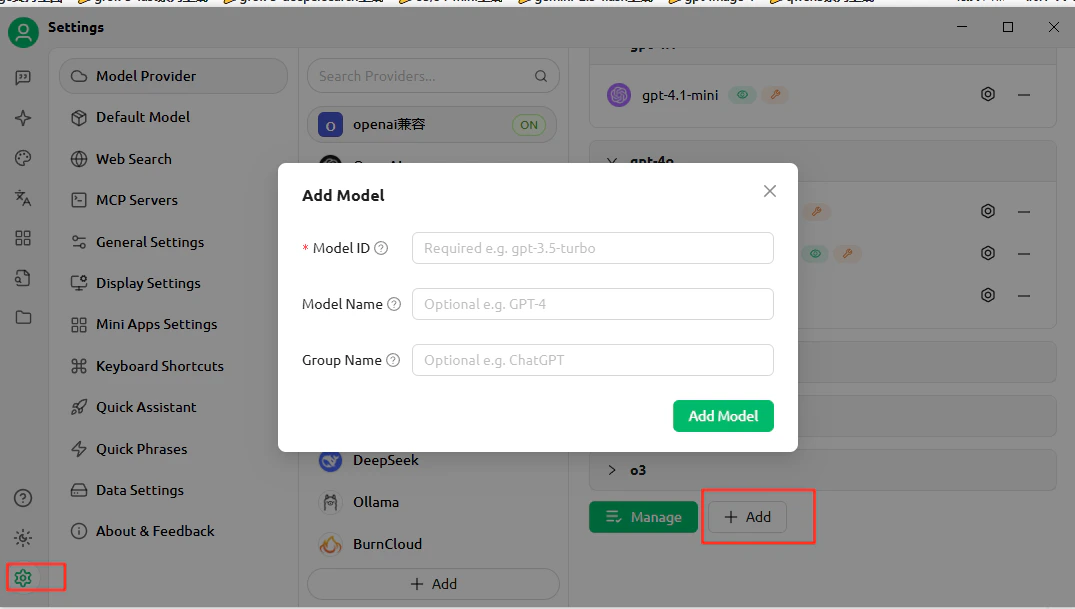
<Tip>
  如需添加更多模型，请返回提供商设置并再次点击 **Add Model**。

  <Frame>
    <img src="https://mintcdn.com/cometapi/E4FFvyMYmaOZoldp/images/integrations/810968_355199.png?fit=max&auto=format&n=E4FFvyMYmaOZoldp&q=85&s=da182754d5fae90778c2c9cc9d5b5727" alt="CherryStudio 设置显示又添加了一个自定义模型" width="1075" height="609" data-path="images/integrations/810968_355199.png" />
  </Frame>
</Tip>

<script type="application/ld+json">
  {`
    {
    "@context": "https://schema.org",
    "@graph": [
      {
        "@type": "HowTo",
        "@id": "https://apidoc.cometapi.com/integrations/cherrystudio#howto",
        "name": "使用 Cherry Studio 搭配 CometAPI",
        "description": "使用本指南可通过设置基础 URL、API 密钥以及模型或提供商选项来配置 Cherry Studio 与 CometAPI。",
        "step": [
          {
            "@type": "HowToStep",
            "@id": "https://apidoc.cometapi.com/integrations/cherrystudio#step-1",
            "position": 1,
            "name": "获取你的 CometAPI API 密钥",
            "text": "创建或打开你的 CometAPI 账户，然后从控制台复制一个有效的 API 密钥。"
          },
          {
            "@type": "HowToStep",
            "@id": "https://apidoc.cometapi.com/integrations/cherrystudio#step-2",
            "position": 2,
            "name": "将 CometAPI 添加为提供商",
            "text": "完成“使用 Cherry Studio 搭配 CometAPI”指南中的“将 CometAPI 添加为提供商”步骤。"
          },
          {
            "@type": "HowToStep",
            "@id": "https://apidoc.cometapi.com/integrations/cherrystudio#step-3",
            "position": 3,
            "name": "添加模型",
            "text": "完成“使用 Cherry Studio 搭配 CometAPI”指南中的“添加模型”步骤。"
          },
          {
            "@type": "HowToStep",
            "@id": "https://apidoc.cometapi.com/integrations/cherrystudio#step-4",
            "position": 4,
            "name": "测试连接",
            "text": "从 CometAPI Models 页面选择一个当前 model ID，然后从集成中发送测试请求。"
          }
        ]
      },
      {
        "@type": "BreadcrumbList",
        "itemListElement": [
          {
            "@type": "ListItem",
            "position": 1,
            "name": "CometAPI 文档",
            "item": "https://apidoc.cometapi.com/"
          },
          {
            "@type": "ListItem",
            "position": 2,
            "name": "集成",
            "item": "https://apidoc.cometapi.com/integrations"
          },
          {
            "@type": "ListItem",
            "position": 3,
            "name": "使用 Cherry Studio 搭配 CometAPI",
            "item": "https://apidoc.cometapi.com/integrations/cherrystudio"
          }
        ]
      }
    ]
    }
    `}
</script>