> ## Documentation Index
> Fetch the complete documentation index at: https://apidoc.cometapi.com/llms.txt
> Use this file to discover all available pages before exploring further.
# 将 Claude Desktop 与 CometAPI 搭配使用
> 使用本指南,通过设置 base URL、API key 以及 model 或 provider 选项,将 Claude Desktop 配置为使用 CometAPI。
使用本指南将 Claude Desktop 的第三方推理 Cowork 连接到 CometAPI。此配置允许 Claude Desktop 在 Cowork、Projects 和受支持的桌面工作流中,将 Claude Messages API 请求发送到 CometAPI。
官方参考:
* [Claude Desktop 安装与设置](https://claude.com/docs/cowork/3p/installation)
* [Claude Desktop 网关配置](https://claude.com/docs/cowork/3p/gateway)
* [Claude Desktop 配置参考](https://claude.com/docs/cowork/3p/configuration)
Claude Desktop 第三方推理需要一个兼容 Anthropic 的网关。CometAPI 通过 [Anthropic Messages API](/api/text/anthropic-messages) 支持 Claude 模型。
你从 Claude Desktop 发送的内容会由 CometAPI 和所选的模型提供商处理。除非你的组织允许该工作流,否则请勿发送机密数据。
## 前置条件
* 从 [claude.com/download](https://claude.com/download) 安装 Claude Desktop
* 包含 **Developer mode** 和 **Configure third-party inference** 的 Claude Desktop 版本
* 一个具有有效 API key 的 CometAPI 账户
* 在 CometAPI 中具有 Claude 模型的访问权限
* 可以访问 `https://api.cometapi.com` 的网络路径
从 Claude Desktop 登录界面开始。如果你已经使用 Anthropic 账户登录,请先退出登录,然后再配置第三方推理。
## 配置
打开 Claude Desktop 并停留在登录界面。在应用菜单中,打开 **Help** → **Troubleshooting**,然后选择 **Enable Developer Mode**。
在 Windows 上,登录前菜单可能不太容易打开。先聚焦到邮箱输入框,按 `Tab` 直到菜单获得焦点,然后按 `Enter`。
启用开发者模式后,打开 **Developer** → **Configure third-party inference**。
配置窗口打开后,左侧边栏会显示多个部分。请使用 **Connection** 部分填写 CometAPI 设置。
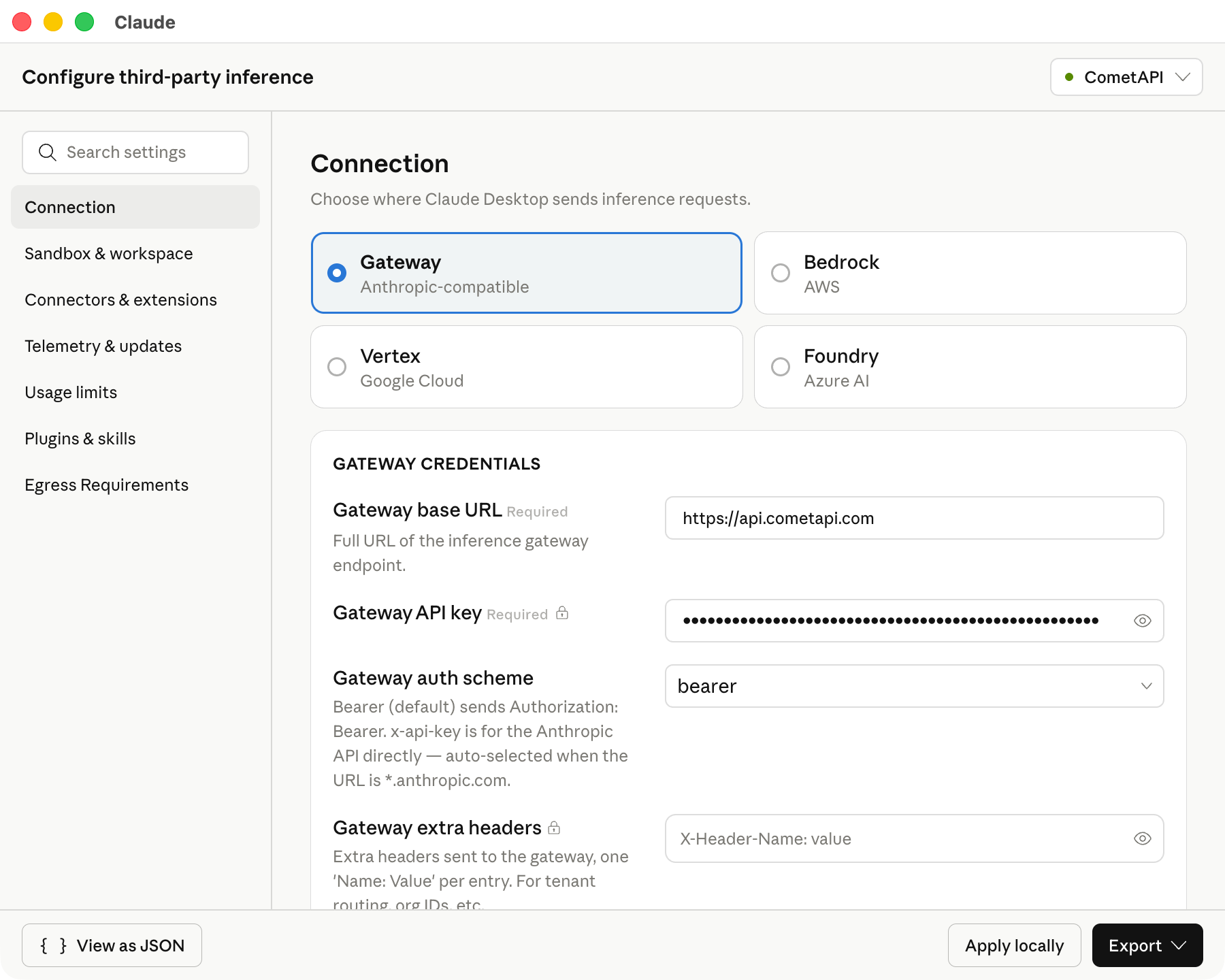
在 **Connection** 部分中,输入以下 CometAPI 值:
| 字段 | 值 |
| -------------- | ------------------------------------- |
| 推理提供方 | Gateway |
| Gateway | Anthropic-compatible |
| Gateway 基础 URL | `https://api.cometapi.com` |
| Gateway API 密钥 | 你的 CometAPI API 密钥,例如 `$COMETAPI_KEY` |
| Gateway 认证方案 | Bearer |
| Gateway 额外请求头 | 留空 |
请严格保持 base URL 与上面所示完全一致。Claude Desktop 要求使用 HTTPS base URL。
下方截图显示了已填写 CometAPI 值的 Connection 部分。
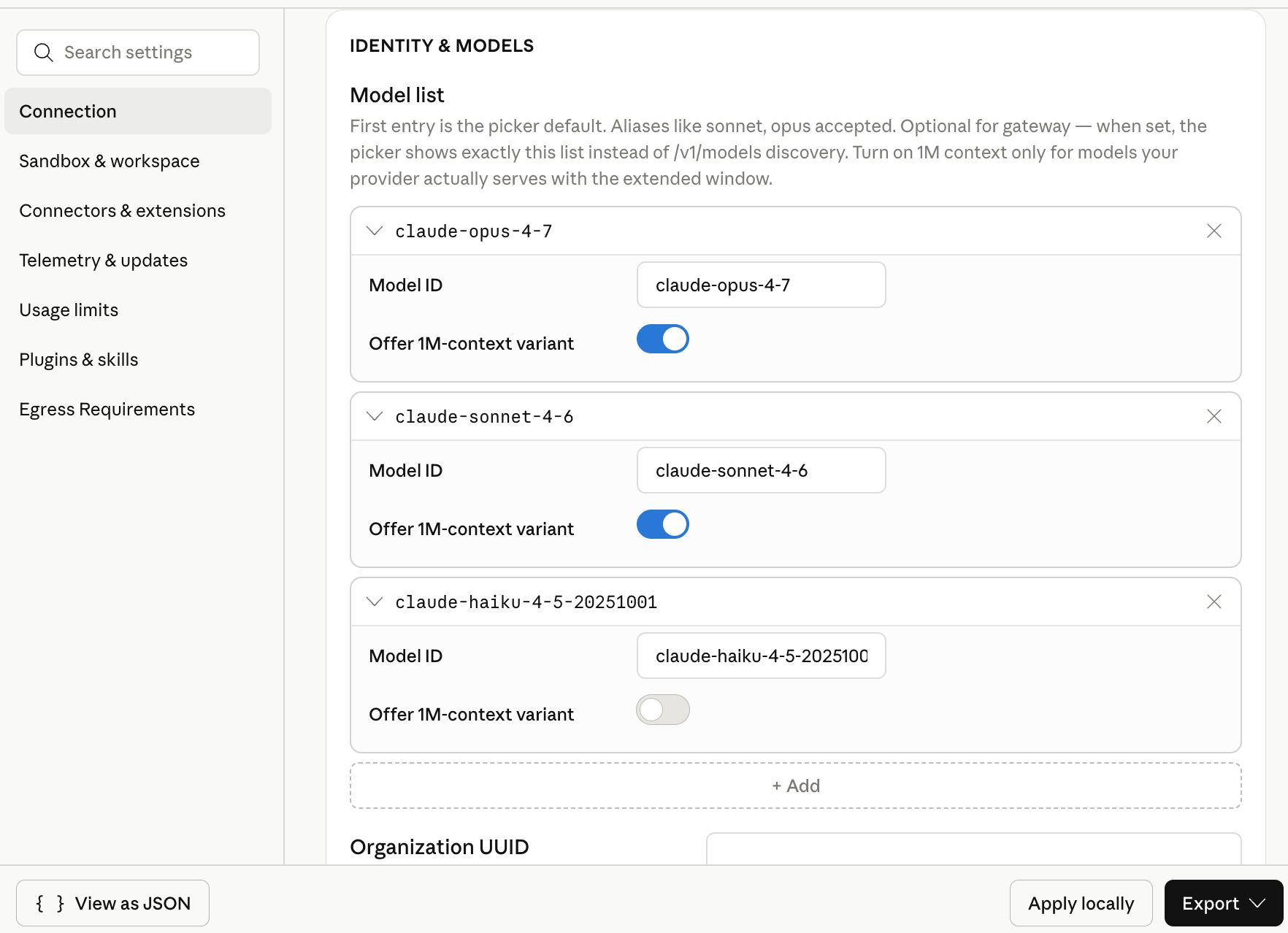
 在 **Model list** 中,手动添加以下 model ID:
| Model ID | 推荐用途 |
| --------------------------- | --------------- |
| `claude-opus-4-7` | 复杂规划和智能体任务 |
| `claude-sonnet-4-6` | 通用桌面使用 |
| `claude-haiku-4-5-20251001` | 轻量 Prompt 和快速草稿 |
列表中的第一个模型会成为默认模型。如果你希望默认模型更通用,请将 `claude-sonnet-4-6` 放在第一位。
模型可用性可能会变化。如果某个模型在配置后没有出现在 Claude Desktop 中,请在 [CometAPI 模型页面](/zh-Hans/overview/models) 验证访问权限。
下方截图显示了为 CometAPI 配置这三个 Claude model ID 的模型列表。
在 **Model list** 中,手动添加以下 model ID:
| Model ID | 推荐用途 |
| --------------------------- | --------------- |
| `claude-opus-4-7` | 复杂规划和智能体任务 |
| `claude-sonnet-4-6` | 通用桌面使用 |
| `claude-haiku-4-5-20251001` | 轻量 Prompt 和快速草稿 |
列表中的第一个模型会成为默认模型。如果你希望默认模型更通用,请将 `claude-sonnet-4-6` 放在第一位。
模型可用性可能会变化。如果某个模型在配置后没有出现在 Claude Desktop 中,请在 [CometAPI 模型页面](/zh-Hans/overview/models) 验证访问权限。
下方截图显示了为 CometAPI 配置这三个 Claude model ID 的模型列表。
 点击 **Apply locally**。Claude Desktop 会将所选配置写入本地用户配置文件,并重新启动应用。
如果应用没有重新启动,请彻底退出 Claude Desktop,然后再次打开。
在登录界面上,选择用于第三方推理的 Cowork 选项。打开 Cowork 或 Projects,选择一个已配置的 Claude 模型,并发送一条简短的测试 Prompt。
成功返回响应即表示 Claude Desktop 正在使用 CometAPI 进行模型调用。
## 验证配置
使用一个不需要外部工具的简短 Prompt:
```text theme={null}
Reply with one sentence: Claude Desktop is connected through CometAPI.
```
如果 Claude Desktop 返回了响应,则说明 base URL、API 密钥和模型列表都已正确配置。
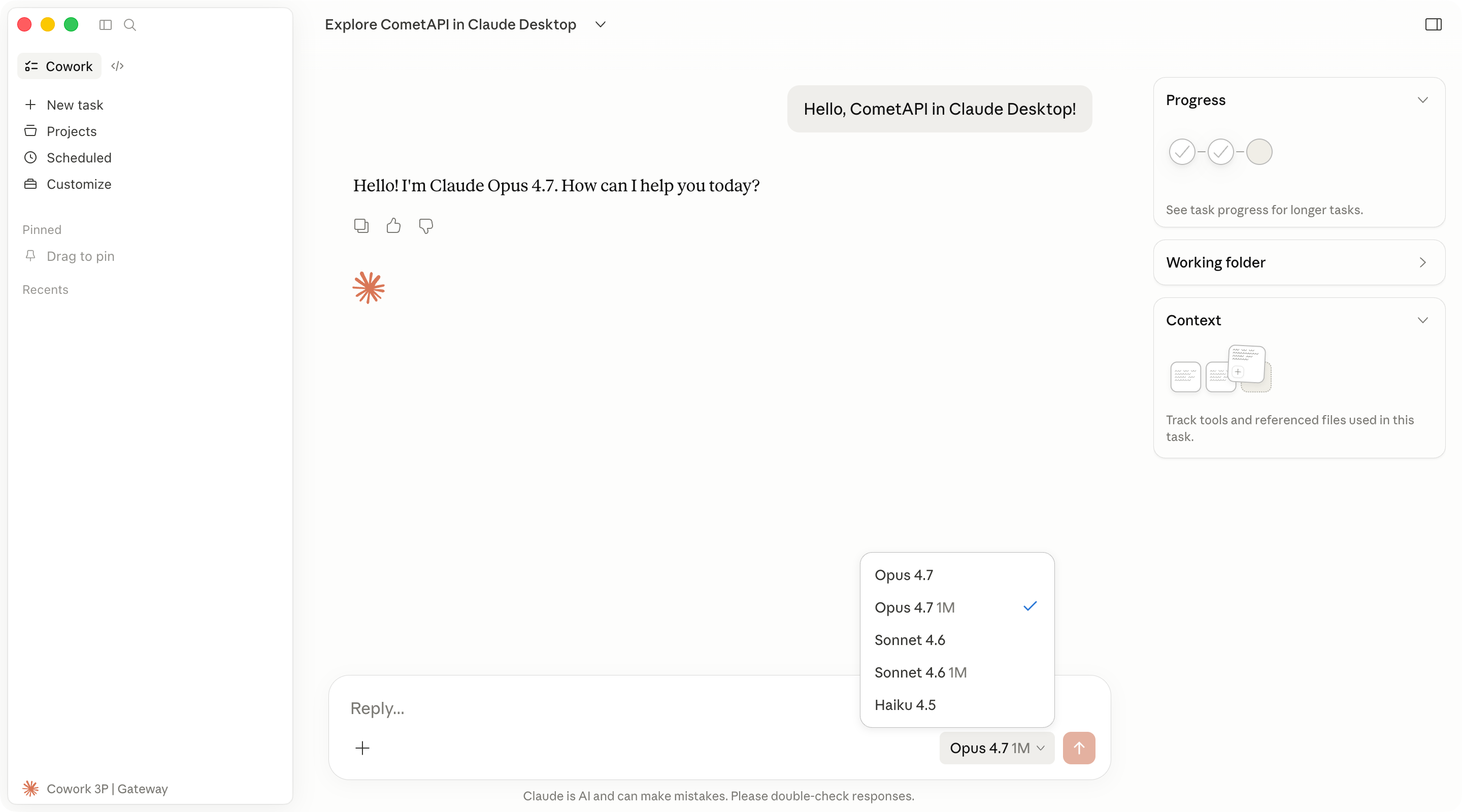
下方截图显示了通过 CometAPI 成功获得的 Cowork 回复。
点击 **Apply locally**。Claude Desktop 会将所选配置写入本地用户配置文件,并重新启动应用。
如果应用没有重新启动,请彻底退出 Claude Desktop,然后再次打开。
在登录界面上,选择用于第三方推理的 Cowork 选项。打开 Cowork 或 Projects,选择一个已配置的 Claude 模型,并发送一条简短的测试 Prompt。
成功返回响应即表示 Claude Desktop 正在使用 CometAPI 进行模型调用。
## 验证配置
使用一个不需要外部工具的简短 Prompt:
```text theme={null}
Reply with one sentence: Claude Desktop is connected through CometAPI.
```
如果 Claude Desktop 返回了响应,则说明 base URL、API 密钥和模型列表都已正确配置。
下方截图显示了通过 CometAPI 成功获得的 Cowork 回复。
 如需检查检测到的设置,请打开 **Help** → **Troubleshooting** → **Copy Managed Configuration Report**。复制出的报告中会对敏感值进行脱敏处理。
## 故障排查
请确认你已选择 **Help** → **Troubleshooting** → **Enable Developer Mode**。然后彻底退出 Claude Desktop 并重新打开。
如果该选项缺失,请安装包含第三方推理配置功能的 Claude Desktop 版本。
请检查以下项目:
* **Inference provider** 已设置为 **Gateway**。
* **Gateway base URL** 为 `https://api.cometapi.com`。
* **Gateway API key** 中填写的是你的 CometAPI API key,且没有多余空格。
* 你已点击 **Apply locally**,并且已将 Claude Desktop 完全重启。
请确认 base URL 以 `https://` 开头。Claude Desktop 不接受纯 HTTP 的 gateway URL。
还请确认你的 CometAPI 账户有权访问 Claude 模型,并且该 API key 未被删除或禁用。
重新打开 **Developer** → **Configure third-party inference**,并检查 **Model list** 条目。model ID 必须与 CometAPI 提供的 ID 完全匹配。
将每个 model ID 作为单独条目添加。不要在 UI 字段中包含引号、逗号或多余空格。
Claude Desktop 的第三方推理在此流程中要求使用与 Anthropic 兼容的 gateway。请使用 `https://api.cometapi.com` 以及上文列出的 Claude model ID。
Code 标签页在 Claude Desktop 中使用 Claude Code 引擎。某些桌面设置应用到 Code 会话时的方式,可能与它们应用到 Cowork 时不同。
如需独立终端使用,请参阅[Claude Code 集成指南](/zh-Hans/integrations/claude-code)。
如需检查检测到的设置,请打开 **Help** → **Troubleshooting** → **Copy Managed Configuration Report**。复制出的报告中会对敏感值进行脱敏处理。
## 故障排查
请确认你已选择 **Help** → **Troubleshooting** → **Enable Developer Mode**。然后彻底退出 Claude Desktop 并重新打开。
如果该选项缺失,请安装包含第三方推理配置功能的 Claude Desktop 版本。
请检查以下项目:
* **Inference provider** 已设置为 **Gateway**。
* **Gateway base URL** 为 `https://api.cometapi.com`。
* **Gateway API key** 中填写的是你的 CometAPI API key,且没有多余空格。
* 你已点击 **Apply locally**,并且已将 Claude Desktop 完全重启。
请确认 base URL 以 `https://` 开头。Claude Desktop 不接受纯 HTTP 的 gateway URL。
还请确认你的 CometAPI 账户有权访问 Claude 模型,并且该 API key 未被删除或禁用。
重新打开 **Developer** → **Configure third-party inference**,并检查 **Model list** 条目。model ID 必须与 CometAPI 提供的 ID 完全匹配。
将每个 model ID 作为单独条目添加。不要在 UI 字段中包含引号、逗号或多余空格。
Claude Desktop 的第三方推理在此流程中要求使用与 Anthropic 兼容的 gateway。请使用 `https://api.cometapi.com` 以及上文列出的 Claude model ID。
Code 标签页在 Claude Desktop 中使用 Claude Code 引擎。某些桌面设置应用到 Code 会话时的方式,可能与它们应用到 Cowork 时不同。
如需独立终端使用,请参阅[Claude Code 集成指南](/zh-Hans/integrations/claude-code)。