

- 텍스트-투-이미지 생성
- 이미지-투-이미지 편집
- 다중 이미지 합성
- 생성된 이미지 저장
- Base URL:
https://api.cometapi.com - SDK 설치:
pip install google-genai(Python) 또는npm install @google/genai(Node.js)
설정
CometAPI의 base URL로 클라이언트를 초기화합니다:from google import genai
from google.genai import types
import os
COMETAPI_KEY = os.environ["COMETAPI_KEY"]
client = genai.Client(
http_options={"api_version": "v1beta", "base_url": "https://api.cometapi.com"},
api_key=COMETAPI_KEY,
)
import { GoogleGenAI } from "@google/genai";

const COMETAPI_KEY = process.env.COMETAPI_KEY;

const ai = new GoogleGenAI({
  apiKey: COMETAPI_KEY,
  httpOptions: { apiVersion: "v1beta", baseUrl: "https://api.cometapi.com" },
});
package main

import (
	"context"
	"os"
	"google.golang.org/genai"
)

func main() {
	ctx := context.Background()
	apiKey := os.Getenv("COMETAPI_KEY")

	client, _ := genai.NewClient(ctx, &genai.ClientConfig{
		APIKey:  apiKey,
		Backend: genai.BackendGeminiAPI,
		HTTPOptions: genai.HTTPOptions{
			BaseURL: "https://api.cometapi.com",
		},
	})
	// use client below...
}
텍스트-이미지 생성
텍스트 프롬프트에서 이미지를 생성하고 파일로 저장합니다.from google import genai
from google.genai import types
from PIL import Image
import os
client = genai.Client(
http_options={"api_version": "v1beta", "base_url": "https://api.cometapi.com"},
api_key=os.environ.get("COMETAPI_KEY"),
)
response = client.models.generate_content(
model="gemini-3.1-flash-image-preview",
contents="Create a picture of a nano banana dish in a fancy restaurant with a Gemini theme",
config=types.GenerateContentConfig(
response_modalities=["TEXT", "IMAGE"],
),
)
final_image = None
for part in response.parts:
if getattr(part, "thought", False):
continue
if part.text is not None:
print(part.text)
elif part.inline_data is not None:
final_image = part.as_image()
if final_image:
final_image.save("generated_image.png")
print("Image saved to generated_image.png")
import { GoogleGenAI } from "@google/genai";
import * as fs from "fs";

const ai = new GoogleGenAI({
  apiKey: process.env.COMETAPI_KEY,
  httpOptions: { apiVersion: "v1beta", baseUrl: "https://api.cometapi.com" },
});

const response = await ai.models.generateContent({
  model: "gemini-3.1-flash-image-preview",
  contents: "Create a picture of a nano banana dish in a fancy restaurant with a Gemini theme",
  config: { responseModalities: ["TEXT", "IMAGE"] },
});

let finalImagePart;
for (const part of response.candidates[0].content.parts) {
  if (part.thought === true) {
    continue;
  }
  if (part.text) {
    console.log(part.text);
  }
  if (part.inlineData) {
    finalImagePart = part;
  }
}

if (finalImagePart) {
  const buffer = Buffer.from(finalImagePart.inlineData.data, "base64");
  fs.writeFileSync("generated_image.png", buffer);
  console.log("Image saved to generated_image.png");
}
curl -s -X POST \
  "https://api.cometapi.com/v1beta/models/gemini-3.1-flash-image-preview:generateContent" \
  -H "Authorization: Bearer $COMETAPI_KEY" \
  -H "Content-Type: application/json" \
  -d '{
    "contents": [{
      "parts": [{"text": "Create a picture of a nano banana dish in a fancy restaurant with a Gemini theme"}]
    }],
    "generationConfig": {
      "responseModalities": ["TEXT", "IMAGE"]
    }
  }'
candidates[0].content.parts에 있으며, 여기에는 텍스트 파트 및/또는 이미지 파트가 포함될 수 있습니다. Gemini 이미지 모델은 최종 이미지 전에 중간 thought 파트를 반환할 수도 있으며, 특히 텍스트와 이미지를 모두 요청하거나 thinking 출력을 명시적으로 활성화한 경우에 그렇습니다. 첫 번째 inlineData를 그대로 저장하지 말고, thought가 true인 파트는 건너뛴 다음 남은 마지막 이미지 파트를 저장하세요.
최종 이미지만 포함된 일반적인 응답:
{
  "candidates": [{
    "content": {
      "parts": [
        { "text": "Here is your image..." },
        {
          "inlineData": {
            "mimeType": "image/png",
            "data": "<base64-encoded-image>"
          }
        }
      ]
    }
  }]
}
{
  "candidates": [{
    "content": {
      "role": "model",
      "parts": [
        { "text": "Here is your image..." },
        {
          "inlineData": {
            "mimeType": "image/jpeg",
            "data": "<base64-encoded-intermediate-image>"
          },
          "thought": true
        },
        {
          "inlineData": {
            "mimeType": "image/jpeg",
            "data": "<base64-encoded-final-image>"
          },
          "thought": false,
          "thoughtSignature": "<signature>"
        }
      ]
    },
    "finishReason": "STOP"
  }]
}
const imageParts = response.candidates[0].content.parts.filter(
  (part) => part.inlineData && part.thought !== true,
);
const finalImagePart = imageParts.at(-1);
이미지-투-이미지 생성
입력 이미지를 업로드하고 텍스트 프롬프트로 변환하세요.from google import genai
from google.genai import types
from PIL import Image
import os
client = genai.Client(
http_options={"api_version": "v1beta", "base_url": "https://api.cometapi.com"},
api_key=os.environ.get("COMETAPI_KEY"),
)
# Load the source image
source_image = Image.open("source.jpg")
response = client.models.generate_content(
model="gemini-3.1-flash-image-preview",
contents=["Transform this into a watercolor painting", source_image],
config=types.GenerateContentConfig(
response_modalities=["TEXT", "IMAGE"],
),
)
final_image = None
for part in response.parts:
if getattr(part, "thought", False):
continue
if part.text is not None:
print(part.text)
elif part.inline_data is not None:
final_image = part.as_image()
if final_image:
final_image.save("watercolor_output.png")
import { GoogleGenAI } from "@google/genai";
import * as fs from "fs";

const ai = new GoogleGenAI({
  apiKey: process.env.COMETAPI_KEY,
  httpOptions: { apiVersion: "v1beta", baseUrl: "https://api.cometapi.com" },
});

const imageData = fs.readFileSync("source.jpg").toString("base64");

const response = await ai.models.generateContent({
  model: "gemini-3.1-flash-image-preview",
  contents: [
    { text: "Transform this into a watercolor painting" },
    { inlineData: { mimeType: "image/jpeg", data: imageData } },
  ],
  config: { responseModalities: ["TEXT", "IMAGE"] },
});

const imageParts = response.candidates[0].content.parts.filter(
  (part) => part.inlineData && part.thought !== true,
);
const finalImagePart = imageParts.at(-1);

if (finalImagePart) {
  fs.writeFileSync("watercolor_output.png", Buffer.from(finalImagePart.inlineData.data, "base64"));
}
curl -s -X POST \
  "https://api.cometapi.com/v1beta/models/gemini-3.1-flash-image-preview:generateContent" \
  -H "Authorization: Bearer $COMETAPI_KEY" \
  -H "Content-Type: application/json" \
  -d '{
    "contents": [{
      "role": "user",
      "parts": [
        { "text": "Transform this into a watercolor painting" },
        { "inline_data": { "mime_type": "image/jpeg", "data": "<base64-encoded-source-image>" } }
      ]
    }],
    "generationConfig": { "responseModalities": ["TEXT", "IMAGE"] }
  }'
- Python SDK는
PIL.Image객체를 직접 받을 수 있으므로 수동 Base64 인코딩이 필요하지 않습니다. - 원시 Base64 문자열을 전달할 때는
data:image/jpeg;base64,접두사를 포함하지 마세요.
다중 이미지 합성
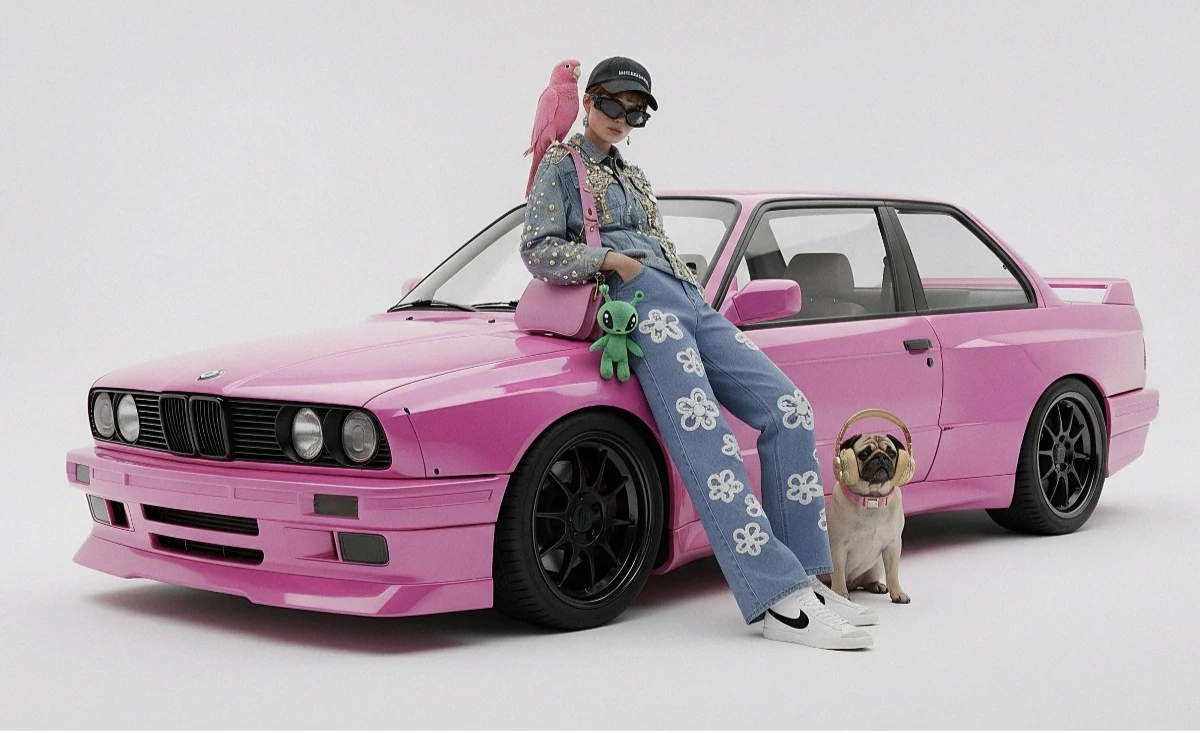
여러 입력 이미지로부터 새로운 이미지를 생성합니다. CometAPI는 두 가지 접근 방식을 지원합니다:방법 1: 단일 콜라주 이미지
여러 원본 이미지를 하나의 콜라주로 결합한 다음, 원하는 출력을 설명합니다.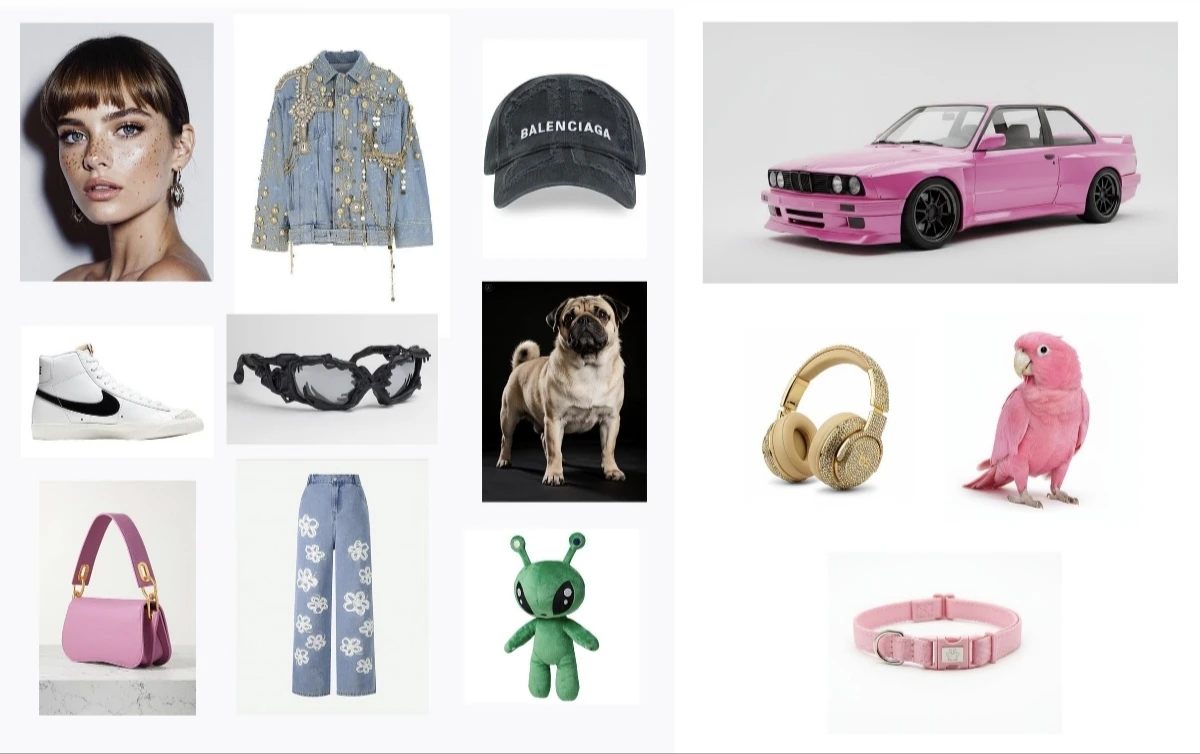
from google import genai
from google.genai import types
from PIL import Image
import os

client = genai.Client(
    http_options={"api_version": "v1beta", "base_url": "https://api.cometapi.com"},
    api_key=os.environ.get("COMETAPI_KEY"),
)

collage = Image.open("collage.jpg")

response = client.models.generate_content(
    model="gemini-3.1-flash-image-preview",
    contents=[
        "A model is posing and leaning against a pink BMW with a green alien keychain attached to a pink handbag, a pink parrot on her shoulder, and a pug wearing a pink collar and gold headphones",
        collage,
    ],
    config=types.GenerateContentConfig(
        response_modalities=["TEXT", "IMAGE"],
    ),
)

final_image = None
for part in response.parts:
    if getattr(part, "thought", False):
        continue
    if part.inline_data is not None:
        final_image = part.as_image()

if final_image:
    final_image.save("composition_output.png")
curl -s -X POST \
  "https://api.cometapi.com/v1beta/models/gemini-3.1-flash-image-preview:generateContent" \
  -H "Authorization: Bearer $COMETAPI_KEY" \
  -H "Content-Type: application/json" \
  -d '{
    "contents": [{
      "role": "user",
      "parts": [
        { "text": "A model is posing and leaning against a pink BMW with a green alien keychain attached to a pink handbag, a pink parrot on her shoulder, and a pug wearing a pink collar and gold headphones" },
        { "inline_data": { "mime_type": "image/jpeg", "data": "<base64-encoded-collage-image>" } }
      ]
    }],
    "generationConfig": { "responseModalities": ["TEXT", "IMAGE"] }
  }'
방법 2: 여러 개의 개별 이미지(최대 14개)
여러 이미지를 직접 전달합니다. Gemini 3 모델은 최대 14개의 참조 이미지(객체 + 캐릭터)를 지원합니다:from google import genai
from google.genai import types
from PIL import Image
import os
client = genai.Client(
http_options={"api_version": "v1beta", "base_url": "https://api.cometapi.com"},
api_key=os.environ.get("COMETAPI_KEY"),
)
image1 = Image.open("image1.jpg")
image2 = Image.open("image2.jpg")
image3 = Image.open("image3.jpg")
response = client.models.generate_content(
model="gemini-3.1-flash-image-preview",
contents=["Merge the three images", image1, image2, image3],
config=types.GenerateContentConfig(
response_modalities=["TEXT", "IMAGE"],
),
)
final_image = None
for part in response.parts:
if getattr(part, "thought", False):
continue
if part.inline_data is not None:
final_image = part.as_image()
if final_image:
final_image.save("merged_output.png")
curl -s -X POST \
  "https://api.cometapi.com/v1beta/models/gemini-3.1-flash-image-preview:generateContent" \
  -H "Authorization: Bearer $COMETAPI_KEY" \
  -H "Content-Type: application/json" \
  -d '{
    "contents": [{
      "role": "user",
      "parts": [
        { "text": "Merge the three images" },
        { "inline_data": { "mime_type": "image/jpeg", "data": "<base64-image-1>" } },
        { "inline_data": { "mime_type": "image/jpeg", "data": "<base64-image-2>" } },
        { "inline_data": { "mime_type": "image/jpeg", "data": "<base64-image-3>" } }
      ]
    }],
    "generationConfig": { "responseModalities": ["TEXT", "IMAGE"] }
  }'

4K 이미지 생성
고해상도 출력을 위해aspect_ratio와 image_size를 포함한 image_config를 지정하세요:
from google import genai
from google.genai import types
import os

client = genai.Client(
    http_options={"api_version": "v1beta", "base_url": "https://api.cometapi.com"},
    api_key=os.environ.get("COMETAPI_KEY"),
)

response = client.models.generate_content(
    model="gemini-3.1-flash-image-preview",
    contents="Da Vinci style anatomical sketch of a Monarch butterfly on textured parchment",
    config=types.GenerateContentConfig(
        response_modalities=["TEXT", "IMAGE"],
        image_config=types.ImageConfig(
            aspect_ratio="1:1",
            image_size="4K",
        ),
    ),
)

final_image = None
for part in response.parts:
    if getattr(part, "thought", False):
        continue
    if part.text is not None:
        print(part.text)
    elif image := part.as_image():
        final_image = image

if final_image:
    final_image.save("butterfly_4k.png")
import { GoogleGenAI } from "@google/genai";
import * as fs from "fs";

const ai = new GoogleGenAI({
  apiKey: process.env.COMETAPI_KEY,
  httpOptions: { apiVersion: "v1beta", baseUrl: "https://api.cometapi.com" },
});

const response = await ai.models.generateContent({
  model: "gemini-3.1-flash-image-preview",
  contents: "Da Vinci style anatomical sketch of a Monarch butterfly on textured parchment",
  config: {
    responseModalities: ["TEXT", "IMAGE"],
    imageConfig: { aspectRatio: "1:1", imageSize: "4K" },
  },
});

const imageParts = response.candidates[0].content.parts.filter(
  (part) => part.inlineData && part.thought !== true,
);
const finalImagePart = imageParts.at(-1);

if (finalImagePart) {
  fs.writeFileSync("butterfly_4k.png", Buffer.from(finalImagePart.inlineData.data, "base64"));
}
curl -s -X POST \
  "https://api.cometapi.com/v1beta/models/gemini-3.1-flash-image-preview:generateContent" \
  -H "Authorization: Bearer $COMETAPI_KEY" \
  -H "Content-Type: application/json" \
  -d '{
    "contents": [{"parts": [{"text": "Da Vinci style anatomical sketch of a Monarch butterfly on textured parchment"}]}],
    "generationConfig": {
      "responseModalities": ["TEXT", "IMAGE"],
      "imageConfig": {"aspectRatio": "1:1", "imageSize": "4K"}
    }
  }'
고해상도 요청의 경우 마지막 비생각(non-thought) 이미지 part를 기준으로 출력을 판단하세요. 통합에서 첫 번째
inlineData part를 저장하면 요청한 imageSize보다 해상도가 낮은 중간 thought 이미지를 저장할 수 있습니다.멀티턴 이미지 편집 (채팅)
이미지를 반복적으로 다듬으려면 SDK의 채팅 기능을 사용하세요:from google import genai
from google.genai import types
import os
client = genai.Client(
http_options={"api_version": "v1beta", "base_url": "https://api.cometapi.com"},
api_key=os.environ.get("COMETAPI_KEY"),
)
chat = client.chats.create(
model="gemini-3.1-flash-image-preview",
config=types.GenerateContentConfig(
response_modalities=["TEXT", "IMAGE"],
),
)
## First turn: Generate
response = chat.send_message(
"Create a vibrant infographic explaining photosynthesis as a recipe, styled like a colorful kids cookbook"
)
final_image = None
for part in response.parts:
if getattr(part, "thought", False):
continue
if part.text is not None:
print(part.text)
elif image := part.as_image():
final_image = image
if final_image:
final_image.save("photosynthesis.png")
두 번째 턴: 다듬기
response = chat.send_message(“이 인포그래픽을 스페인어로 업데이트하세요. 다른 요소는 변경하지 마세요.”)
final_image = None
for part in response.parts:
if getattr(part, “thought”, False):
continue
if part.text is not None:
print(part.text)
elif image := part.as_image():
final_image = image
if final_image:
final_image.save(“photosynthesis_spanish.png”)
```javascript Node.js
import { GoogleGenAI } from "@google/genai";
import * as fs from "fs";

const ai = new GoogleGenAI({
  apiKey: process.env.COMETAPI_KEY,
  httpOptions: { apiVersion: "v1beta", baseUrl: "https://api.cometapi.com" },
});

const chat = ai.chats.create({
  model: "gemini-3.1-flash-image-preview",
  config: { responseModalities: ["TEXT", "IMAGE"] },
});

// First turn: generate
const response1 = await chat.sendMessage(
  "Create a vibrant infographic explaining photosynthesis as a recipe, styled like a colorful kids cookbook"
);
const imageParts1 = response1.candidates[0].content.parts.filter(
  (part) => part.inlineData && part.thought !== true,
);
const finalImagePart1 = imageParts1.at(-1);
if (finalImagePart1) {
  fs.writeFileSync("photosynthesis.png", Buffer.from(finalImagePart1.inlineData.data, "base64"));
}

// Second turn: refine
const response2 = await chat.sendMessage(
  "Update this infographic to be in Spanish. Do not change any other elements."
);
const imageParts2 = response2.candidates[0].content.parts.filter(
  (part) => part.inlineData && part.thought !== true,
);
const finalImagePart2 = imageParts2.at(-1);
if (finalImagePart2) {
  fs.writeFileSync("photosynthesis_spanish.png", Buffer.from(finalImagePart2.inlineData.data, "base64"));
}
팁
프롬프트 최적화
프롬프트 최적화
스타일 키워드(예: “cyberpunk, film grain, low contrast”), 종횡비, 피사체, 배경, 조명, 디테일 수준을 구체적으로 지정하세요.
Base64 형식
Base64 형식
raw HTTP를 사용할 때는
data:image/png;base64, 접두사를 포함하지 말고, raw Base64 문자열만 사용하세요. Python SDK는 PIL.Image 객체를 사용해 이를 자동으로 처리합니다.이미지 출력 강제
이미지 출력 강제
텍스트 없이 이미지 출력만 보장하려면
"responseModalities"를 ["IMAGE"]로만 설정하세요.내 이미지가 흐리거나 해상도가 낮은 이유는 무엇인가요?
내 이미지가 흐리거나 해상도가 낮은 이유는 무엇인가요?
코드가 중간 thought 이미지를 저장했는지 확인하세요. Gemini 이미지 응답에는
thought가 true인 image part가 포함될 수 있으며, 이것은 최종 출력이 아닙니다. thought: true part는 건너뛰고, inlineData가 존재하며 thought가 true가 아닌 마지막 image part를 저장하세요. 텍스트 출력이 필요 없다면 "responseModalities": ["IMAGE"]를 요청해 텍스트/이미지 혼합 응답 처리를 줄일 수 있습니다.