메인 콘텐츠로 건너뛰기
이 가이드는 Google Gen AI SDK를 사용해 CometAPI를 통해 Gemini 이미지 모델을 사용하는 방법을 보여줍니다. 다음 내용을 다룹니다:
  • 텍스트-이미지 생성
  • 이미지-이미지 편집
  • 다중 이미지 합성
  • 생성된 이미지 저장
  • Base URL: https://api.cometapi.com
  • SDK 설치: pip install google-genai (Python) 또는 npm install @google/genai (Node.js)

설정

CometAPI의 base URL로 클라이언트를 초기화합니다:
from google import genai
from google.genai import types
import os

COMETAPI_KEY = os.environ.get("COMETAPI_KEY") or "<YOUR_COMETAPI_KEY>"

client = genai.Client(
    http_options={"api_version": "v1beta", "base_url": "https://api.cometapi.com"},
    api_key=COMETAPI_KEY,
)

텍스트-이미지 생성

텍스트 프롬프트에서 이미지를 생성하고 파일로 저장합니다.
from google import genai
from google.genai import types
from PIL import Image
import os

client = genai.Client(
    http_options={"api_version": "v1beta", "base_url": "https://api.cometapi.com"},
    api_key=os.environ.get("COMETAPI_KEY"),
)

response = client.models.generate_content(
    model="gemini-3.1-flash-image-preview",
    contents="Create a picture of a nano banana dish in a fancy restaurant with a Gemini theme",
    config=types.GenerateContentConfig(
        response_modalities=["TEXT", "IMAGE"],
    ),
)

for part in response.parts:
    if part.text is not None:
        print(part.text)
    elif part.inline_data is not None:
        image = part.as_image()
        image.save("generated_image.png")
        print("Image saved to generated_image.png")
응답 구조: 이미지 데이터는 candidates[0].content.parts에 있으며, 여기에는 텍스트 및/또는 이미지 파트가 포함될 수 있습니다:
{
  "candidates": [{
    "content": {
      "parts": [
        { "text": "Here is your image..." },
        {
          "inlineData": {
            "mimeType": "image/png",
            "data": "<base64-encoded-image>"
          }
        }
      ]
    }
  }]
}

이미지-투-이미지 생성

입력 이미지를 업로드하고 텍스트 프롬프트로 변환합니다.
from google import genai
from google.genai import types
from PIL import Image
import os

client = genai.Client(
    http_options={"api_version": "v1beta", "base_url": "https://api.cometapi.com"},
    api_key=os.environ.get("COMETAPI_KEY"),
)

# Load the source image
source_image = Image.open("source.jpg")

response = client.models.generate_content(
    model="gemini-3.1-flash-image-preview",
    contents=["Transform this into a watercolor painting", source_image],
    config=types.GenerateContentConfig(
        response_modalities=["TEXT", "IMAGE"],
    ),
)

for part in response.parts:
    if part.text is not None:
        print(part.text)
    elif part.inline_data is not None:
        image = part.as_image()
        image.save("watercolor_output.png")
  • Python SDK는 PIL.Image 객체를 직접 받을 수 있으므로 수동으로 Base64 인코딩할 필요가 없습니다.
  • 원시 Base64 문자열을 전달할 때는 data:image/jpeg;base64, 접두사를 포함하지 마세요.

다중 이미지 합성

여러 입력 이미지로부터 새 이미지를 생성합니다. CometAPI는 두 가지 방식을 지원합니다:

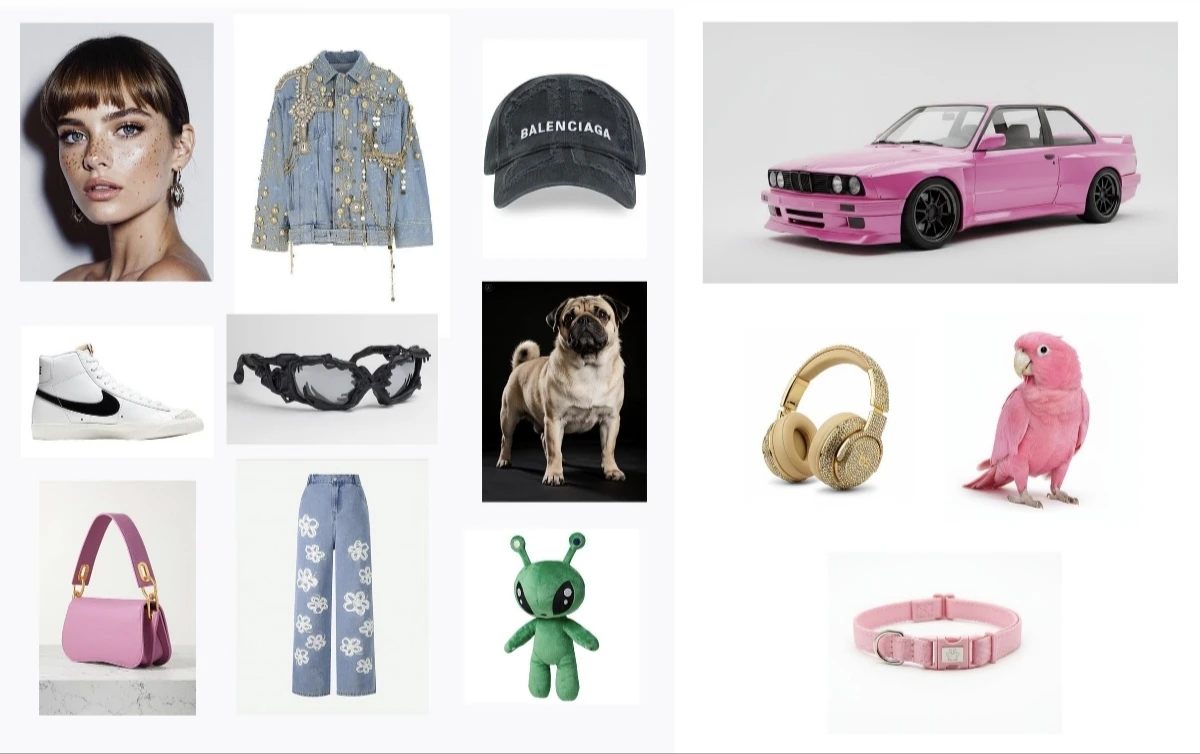
방법 1: 단일 콜라주 이미지

여러 소스 이미지를 하나의 콜라주로 결합한 다음, 원하는 출력 결과를 설명합니다.
입력 콜라주 예시
생성된 출력
from google import genai
from google.genai import types
from PIL import Image
import os

client = genai.Client(
    http_options={"api_version": "v1beta", "base_url": "https://api.cometapi.com"},
    api_key=os.environ.get("COMETAPI_KEY"),
)

collage = Image.open("collage.jpg")

response = client.models.generate_content(
    model="gemini-3.1-flash-image-preview",
    contents=[
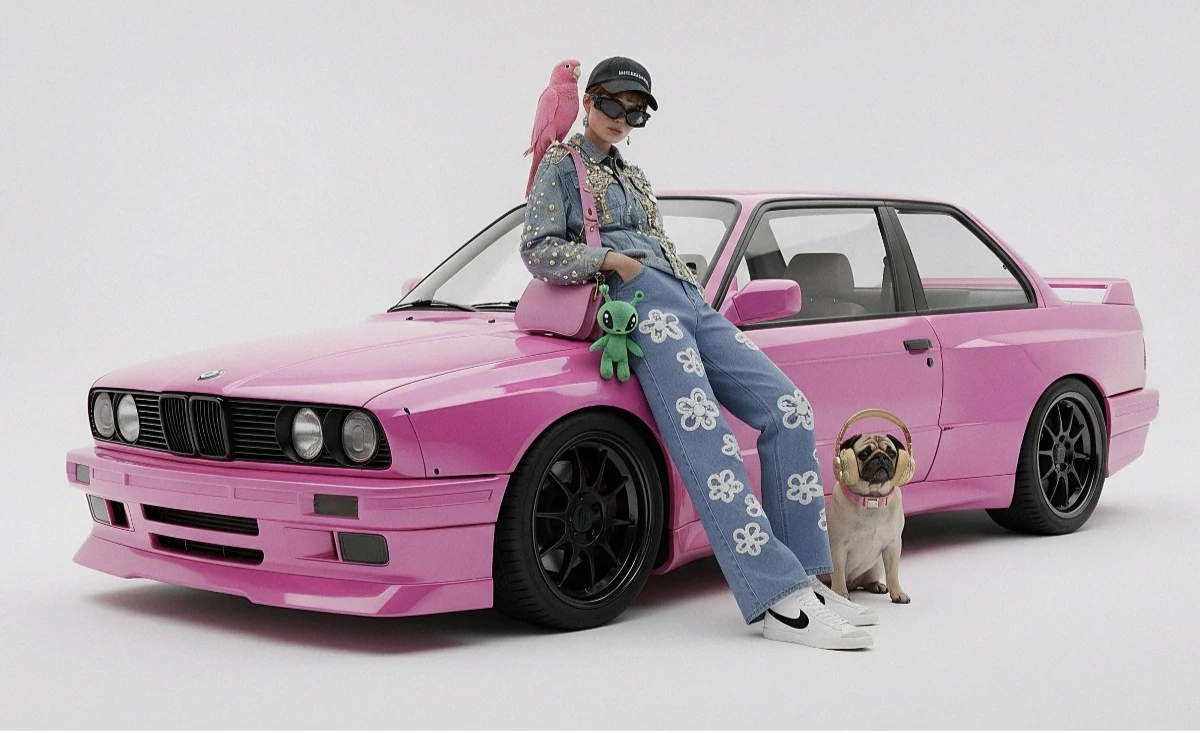
        "A model is posing and leaning against a pink BMW with a green alien keychain attached to a pink handbag, a pink parrot on her shoulder, and a pug wearing a pink collar and gold headphones",
        collage,
    ],
    config=types.GenerateContentConfig(
        response_modalities=["TEXT", "IMAGE"],
    ),
)

for part in response.parts:
    if part.inline_data is not None:
        part.as_image().save("composition_output.png")

방법 2: 여러 개의 개별 이미지(최대 14개)

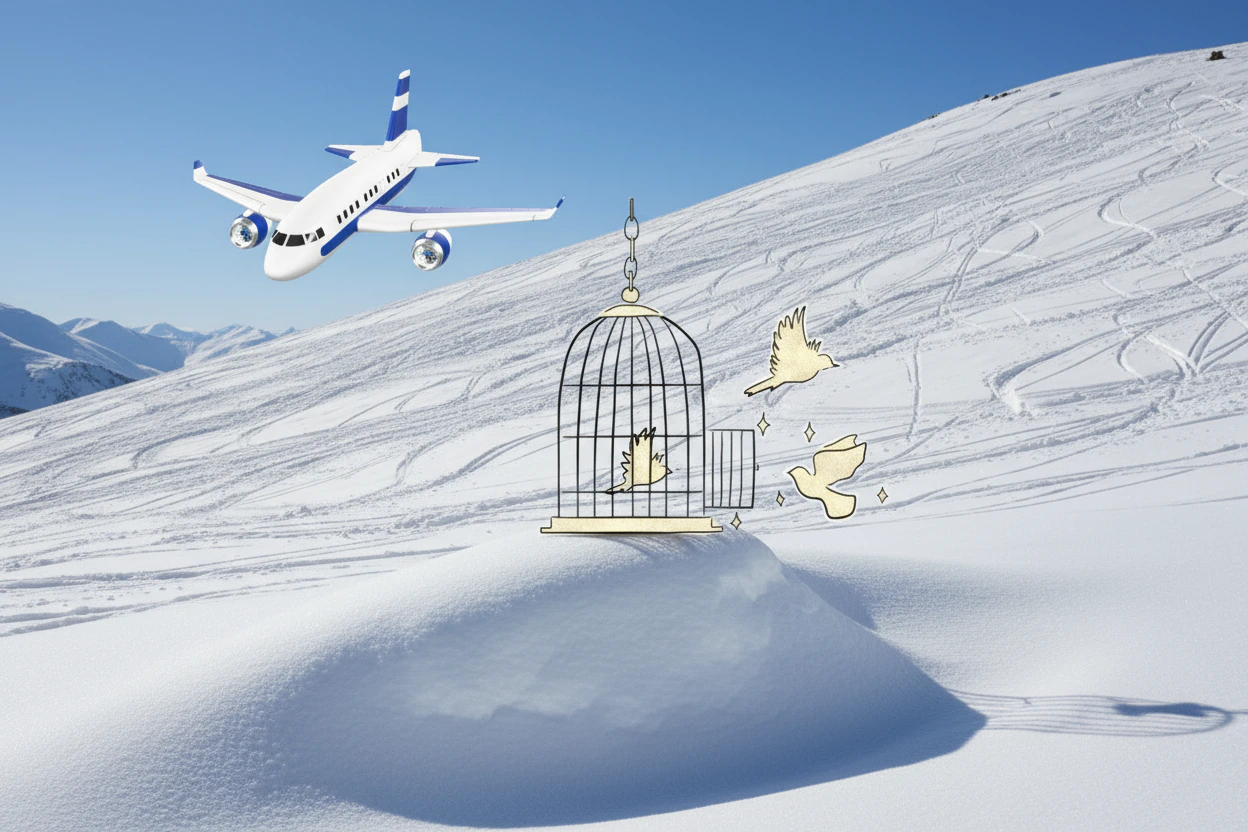
여러 이미지를 직접 전달합니다. Gemini 3 모델은 최대 14개의 참조 이미지(객체 + 캐릭터)를 지원합니다:
from google import genai
from google.genai import types
from PIL import Image
import os

client = genai.Client(
    http_options={"api_version": "v1beta", "base_url": "https://api.cometapi.com"},
    api_key=os.environ.get("COMETAPI_KEY"),
)

image1 = Image.open("image1.jpg")
image2 = Image.open("image2.jpg")
image3 = Image.open("image3.jpg")

response = client.models.generate_content(
    model="gemini-3.1-flash-image-preview",
    contents=["Merge the three images", image1, image2, image3],
    config=types.GenerateContentConfig(
        response_modalities=["TEXT", "IMAGE"],
    ),
)

for part in response.parts:
    if part.inline_data is not None:
        part.as_image().save("merged_output.png")
다중 이미지 생성 결과

4K 이미지 생성

고해상도 출력을 위해 aspect_ratioimage_size를 포함한 image_config를 지정하세요:
from google import genai
from google.genai import types
import os

client = genai.Client(
    http_options={"api_version": "v1beta", "base_url": "https://api.cometapi.com"},
    api_key=os.environ.get("COMETAPI_KEY"),
)

response = client.models.generate_content(
    model="gemini-3.1-flash-image-preview",
    contents="Da Vinci style anatomical sketch of a Monarch butterfly on textured parchment",
    config=types.GenerateContentConfig(
        response_modalities=["TEXT", "IMAGE"],
        image_config=types.ImageConfig(
            aspect_ratio="1:1",
            image_size="4K",
        ),
    ),
)

for part in response.parts:
    if part.text is not None:
        print(part.text)
    elif image := part.as_image():
        image.save("butterfly_4k.png")

다중 턴 이미지 편집(채팅)

SDK의 채팅 기능을 사용해 이미지를 반복적으로 다듬을 수 있습니다:
from google import genai
from google.genai import types
import os

client = genai.Client(
    http_options={"api_version": "v1beta", "base_url": "https://api.cometapi.com"},
    api_key=os.environ.get("COMETAPI_KEY"),
)

chat = client.chats.create(
    model="gemini-3.1-flash-image-preview",
    config=types.GenerateContentConfig(
        response_modalities=["TEXT", "IMAGE"],
    ),
)

# First turn: generate
response = chat.send_message(
    "Create a vibrant infographic explaining photosynthesis as a recipe, styled like a colorful kids cookbook"
)

for part in response.parts:
    if part.text is not None:
        print(part.text)
    elif image := part.as_image():
        image.save("photosynthesis.png")

# Second turn: refine
response = chat.send_message("Update this infographic to be in Spanish. Do not change any other elements.")

for part in response.parts:
    if part.text is not None:
        print(part.text)
    elif image := part.as_image():
        image.save("photosynthesis_spanish.png")

스타일 키워드(예: “cyberpunk, film grain, low contrast”), 종횡비, 피사체, 배경, 조명, 디테일 수준을 구체적으로 지정하세요.
raw HTTP를 사용할 때는 data:image/png;base64, 접두사를 포함하지 말고 raw Base64 문자열만 사용하세요. Python SDK는 PIL.Image 객체를 통해 이를 자동으로 처리합니다.
텍스트 없이 이미지 출력만 보장하려면 "responseModalities"["IMAGE"]로만 설정하세요.
자세한 내용은 API Reference를 참고하세요. 공식 문서: Gemini Image Generation