

config.toml.
Wymagania wstępne
Konfiguracja
1
Pobierz swój klucz API CometAPI
Zaloguj się do panelu CometAPI. Kliknij Add API Key i skopiuj swój klucz oraz bazowy URL (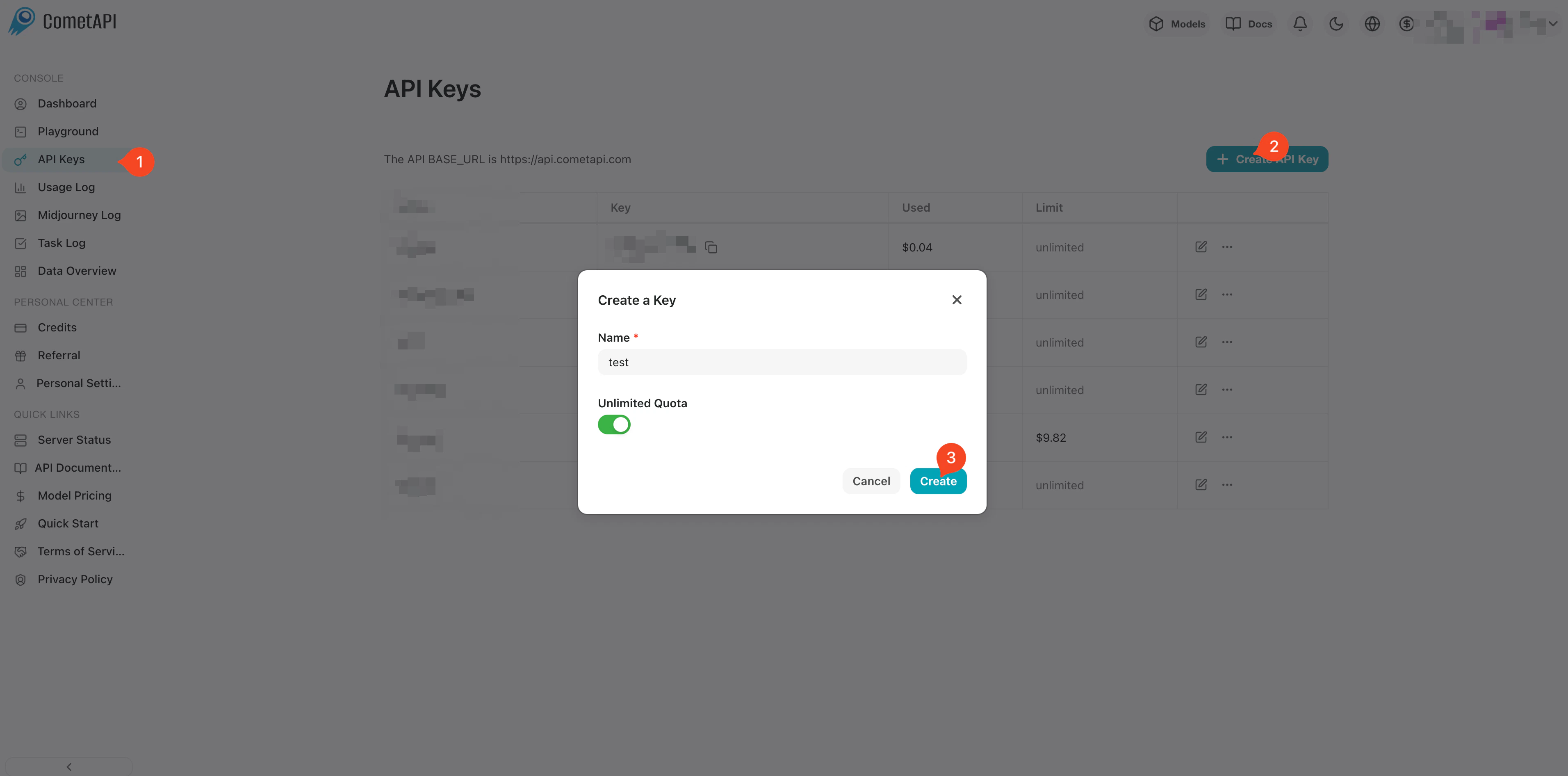
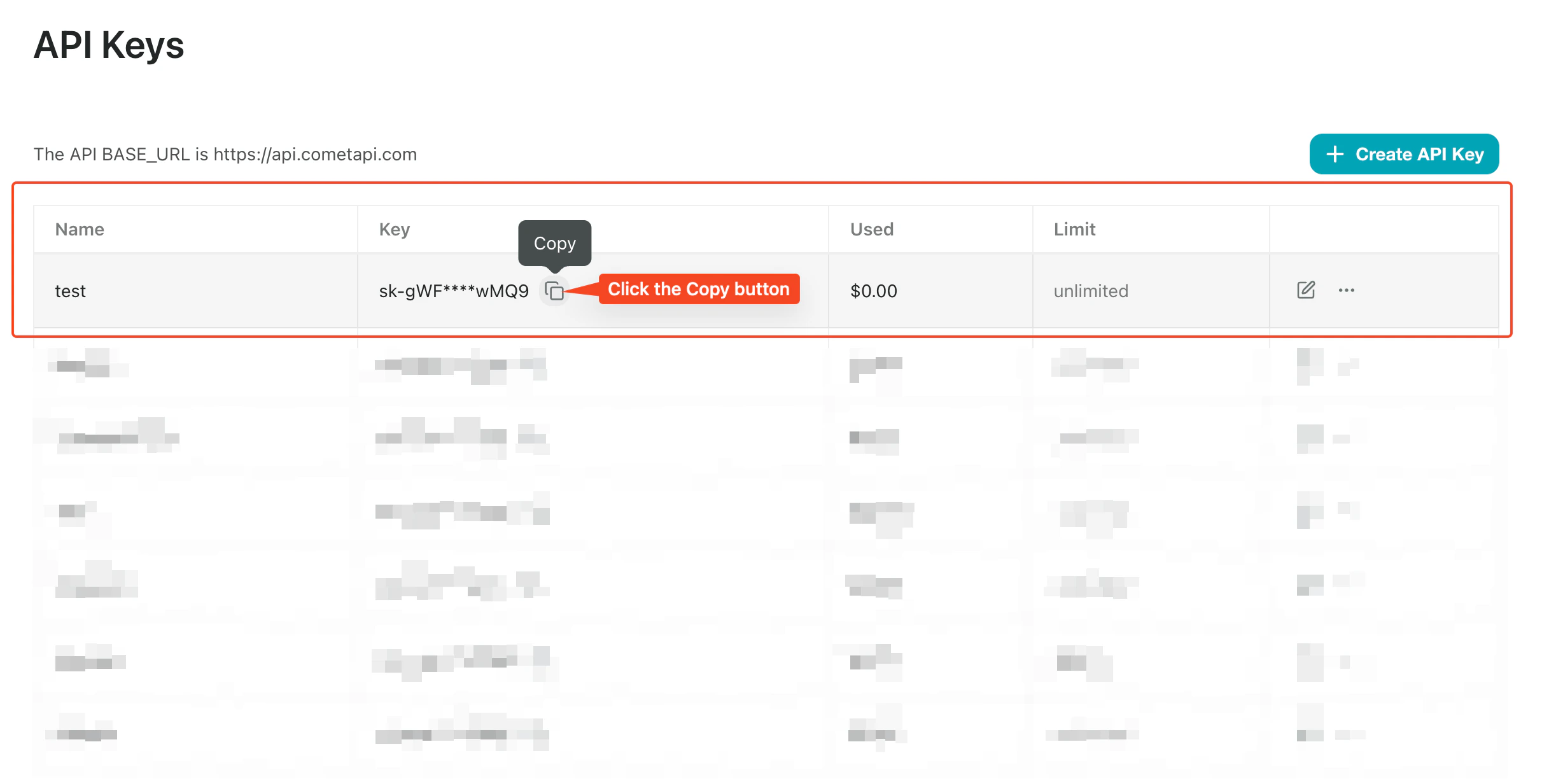
https://api.cometapi.com).2
Edytuj config.toml
Otwórz 
~/.config/gptme/config.toml (utwórz go, jeśli nie istnieje). Ustaw url na https://api.cometapi.com/v1 i wklej swój klucz CometAPI jako klucz API.3
Przetestuj połączenie
Uruchom
gptme w terminalu i wyślij testowy Prompt. Pomyślna odpowiedź potwierdza, że integracja działa.