

- Claude Desktop installation and setup
- Claude Desktop gateway configuration
- Claude Desktop configuration reference
Claude Desktop third-party inference requires an Anthropic-compatible gateway. CometAPI supports Claude models through the Anthropic Messages API.
Prerequisites
- Claude Desktop installed from claude.com/download
- A Claude Desktop build that includes Developer mode and Configure third-party inference
- A CometAPI account with an active API key
- Access to Claude models in CometAPI
- A network path that can reach
https://api.cometapi.com
Configuration
1
Enable developer mode
Open Claude Desktop and stay on the sign-in screen. In the application menu, open Help → Troubleshooting, then select Enable Developer Mode.On Windows, the menu can be hard to reach before sign-in. Focus the email field, press
Tab until the menu is focused, then press Enter.2
Open third-party inference settings
After developer mode is enabled, open Developer → Configure third-party inference.The configuration window opens with several sections in the left sidebar. Use the Connection section for the CometAPI settings.
3
Configure the gateway
In the Connection section, enter the CometAPI values below: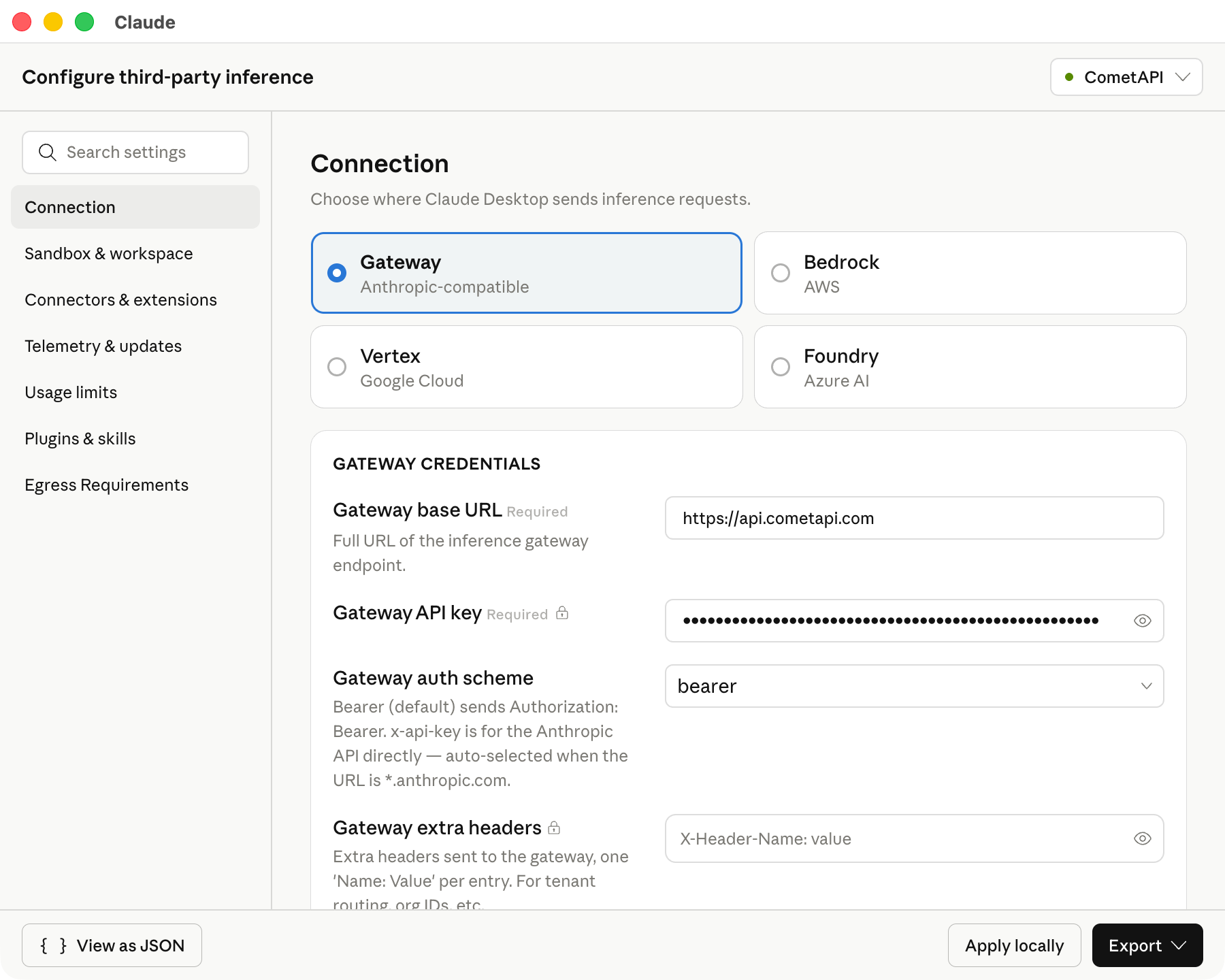
Keep the base URL exactly as shown. Claude Desktop requires an HTTPS base URL.The following screenshot shows the Connection section filled with CometAPI values.
4
Add model IDs
In Model list, add these model IDs manually: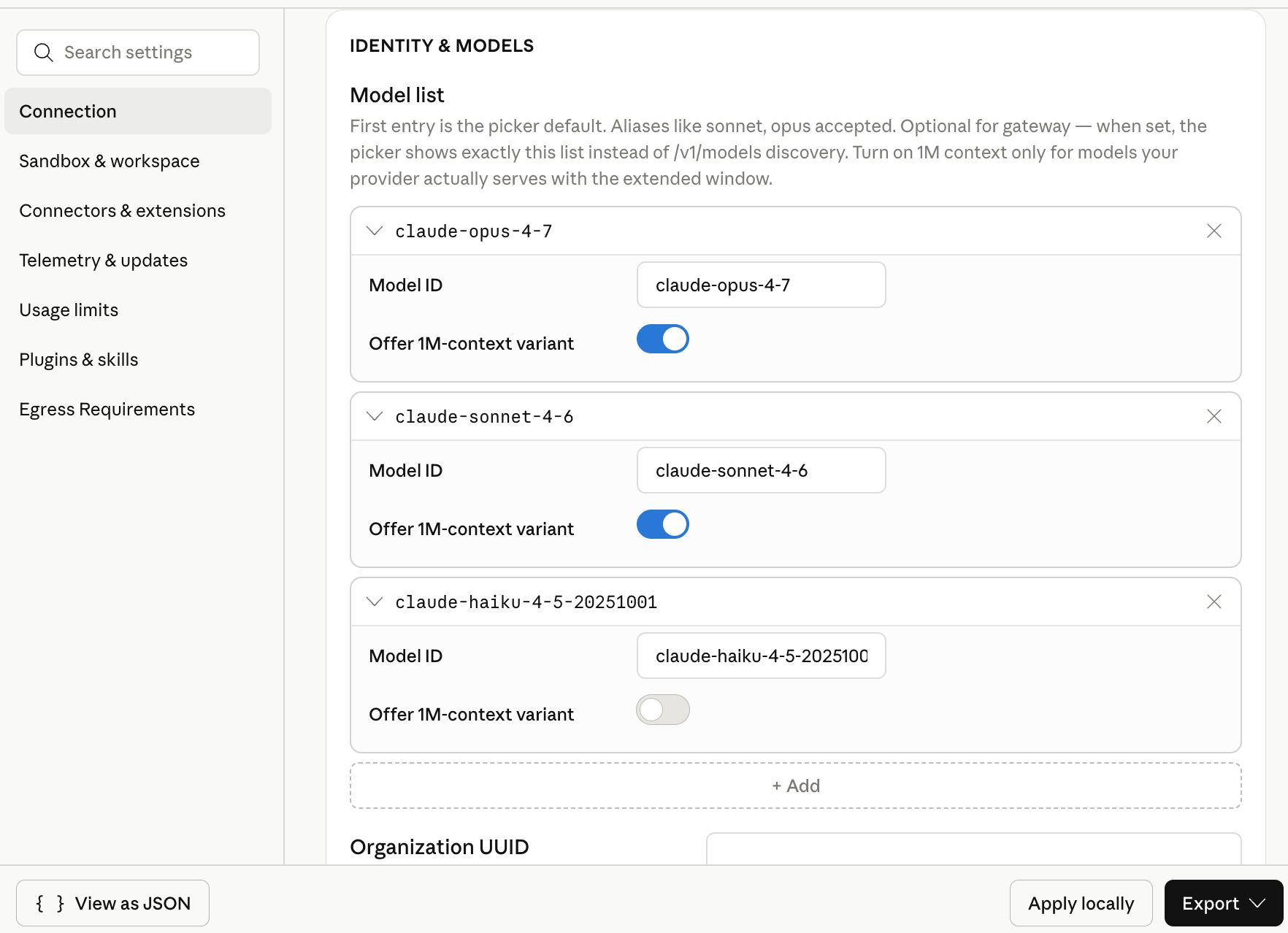
The first model in the list becomes the default model. Put
claude-sonnet-4-6 first if you want a general-purpose default.The following screenshot shows the model list with the three Claude model IDs configured for CometAPI.5
Apply the configuration locally
Click Apply locally. Claude Desktop writes the selected configuration to the local user profile and relaunches the app.If the app does not relaunch, quit Claude Desktop completely and open it again.
6
Start a Cowork session
On the sign-in screen, choose the option for Cowork on third-party inference. Open Cowork or Projects, select one of the configured Claude models, and send a short test prompt.A successful response confirms that Claude Desktop is using CometAPI for model calls.
Verify the configuration
Use a short prompt that does not require external tools: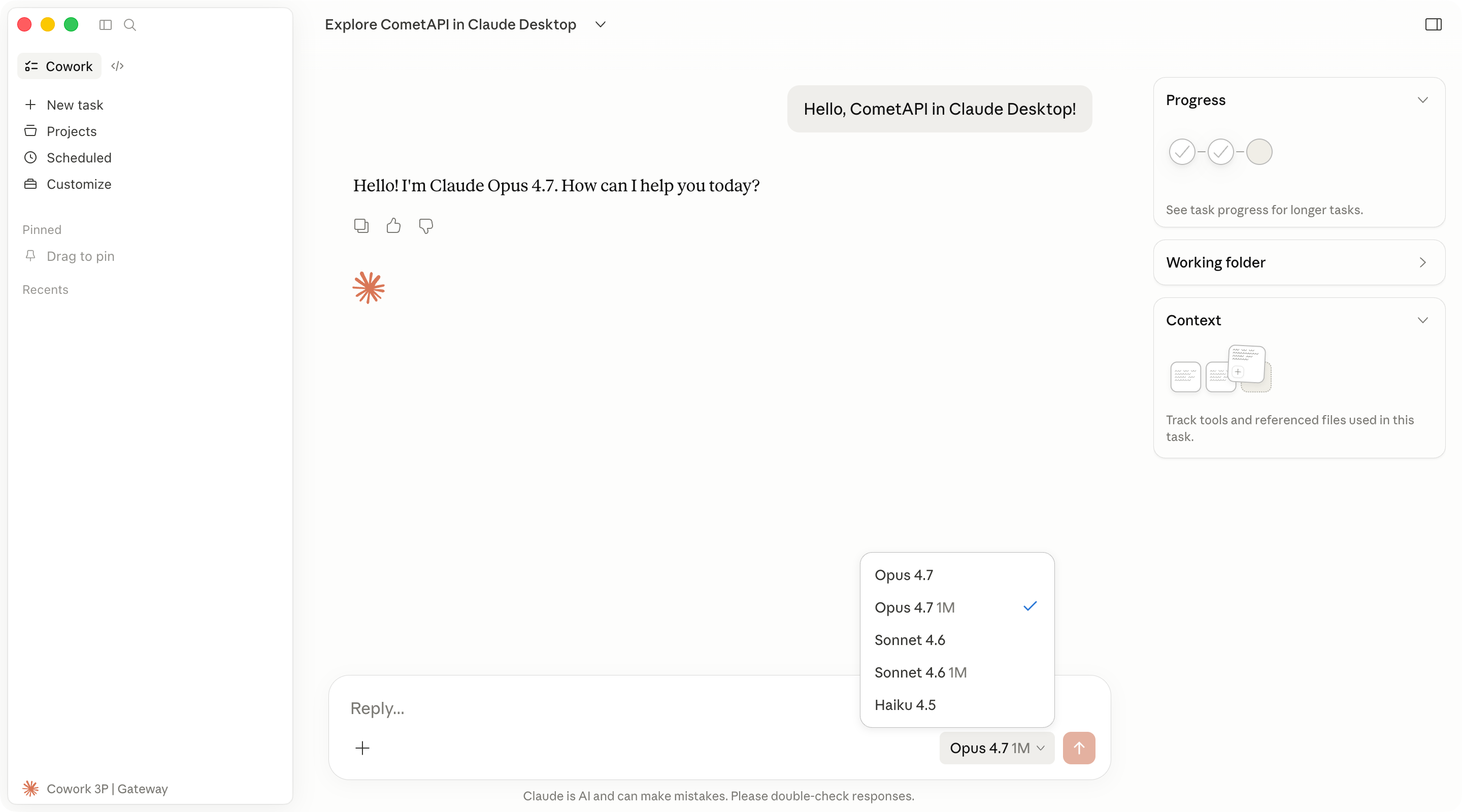
Troubleshooting
Claude Desktop opens the standard sign-in flow
Claude Desktop opens the standard sign-in flow
Check these items:
- Inference provider is set to Gateway.
- Gateway base URL is
https://api.cometapi.com. - Gateway API key contains your CometAPI API key with no extra spaces.
- You clicked Apply locally and fully restarted Claude Desktop.
Connection validation fails
Connection validation fails
Confirm that the base URL starts with
https://. Claude Desktop does not accept plain HTTP gateway URLs.Also confirm that your CometAPI account has access to Claude models and that the API key has not been deleted or disabled.Configured models do not appear
Configured models do not appear
Reopen Developer → Configure third-party inference and check the Model list entries. Model IDs must match the IDs that CometAPI exposes.Add each model ID as a separate entry. Do not include quotes, commas, or extra spaces in the UI fields.
An OpenAI-compatible base URL does not work
An OpenAI-compatible base URL does not work
Claude Desktop third-party inference expects an Anthropic-compatible gateway for this flow. Use
https://api.cometapi.com and the Claude model IDs listed above.The Code tab behaves differently
The Code tab behaves differently
The Code tab uses the Claude Code engine inside Claude Desktop. Some desktop settings may not apply to Code sessions in the same way that they apply to Cowork.For standalone terminal usage, see the Claude Code integration guide.