

- Claude Desktop installation and setup
- Claude Desktop gateway configuration
- Claude Desktop configuration reference
Claude Desktop 第三方推論需要 Anthropic 相容的 gateway。CometAPI 透過 Anthropic Messages API 支援 Claude 模型。
先決條件
- 從 claude.com/download 安裝 Claude Desktop
- 包含 Developer mode 與 Configure third-party inference 的 Claude Desktop 版本
- 擁有啟用中 API key 的 CometAPI 帳戶
- 可在 CometAPI 中存取 Claude 模型
- 可連線至
https://api.cometapi.com的網路路徑
設定
1
啟用開發者模式
開啟 Claude Desktop 並停留在登入畫面。在應用程式選單中,開啟 Help → Troubleshooting,然後選擇 Enable Developer Mode。在 Windows 上,登入前可能不容易操作到選單。先將焦點移到電子郵件欄位,按
Tab 直到選單取得焦點,然後按 Enter。2
開啟第三方推論設定
啟用開發者模式後,開啟 Developer → Configure third-party inference。設定視窗開啟後,左側邊欄會顯示多個區段。請使用 Connection 區段來設定 CometAPI。
3
設定 gateway
在 Connection 區段中,輸入以下 CometAPI 值: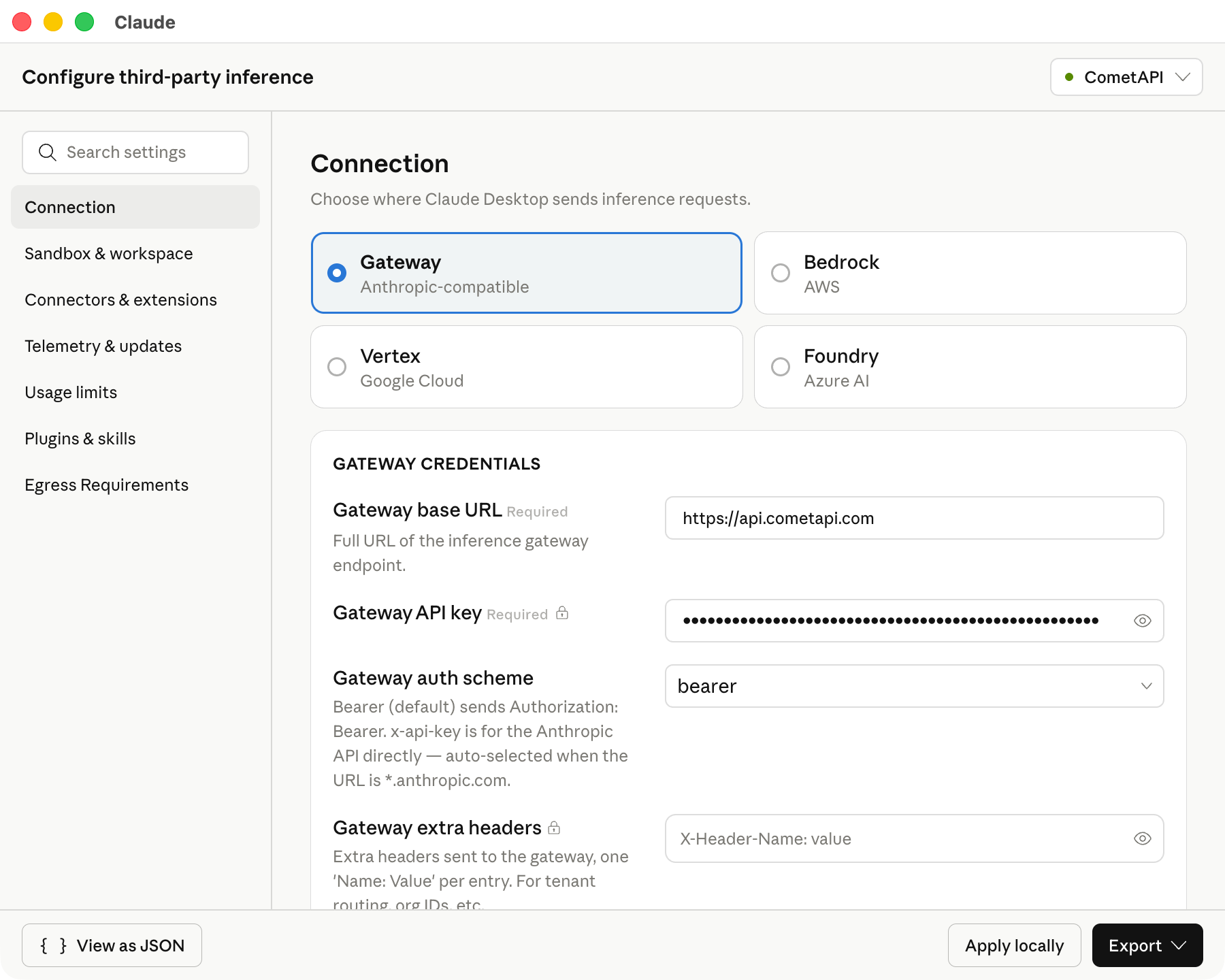
請保持基底 URL 與上方完全一致。Claude Desktop 要求使用 HTTPS 基底 URL。下方截圖顯示已填入 CometAPI 值的 Connection 區段。
4
新增 model ID
在 Model list 中,手動新增這些 model ID: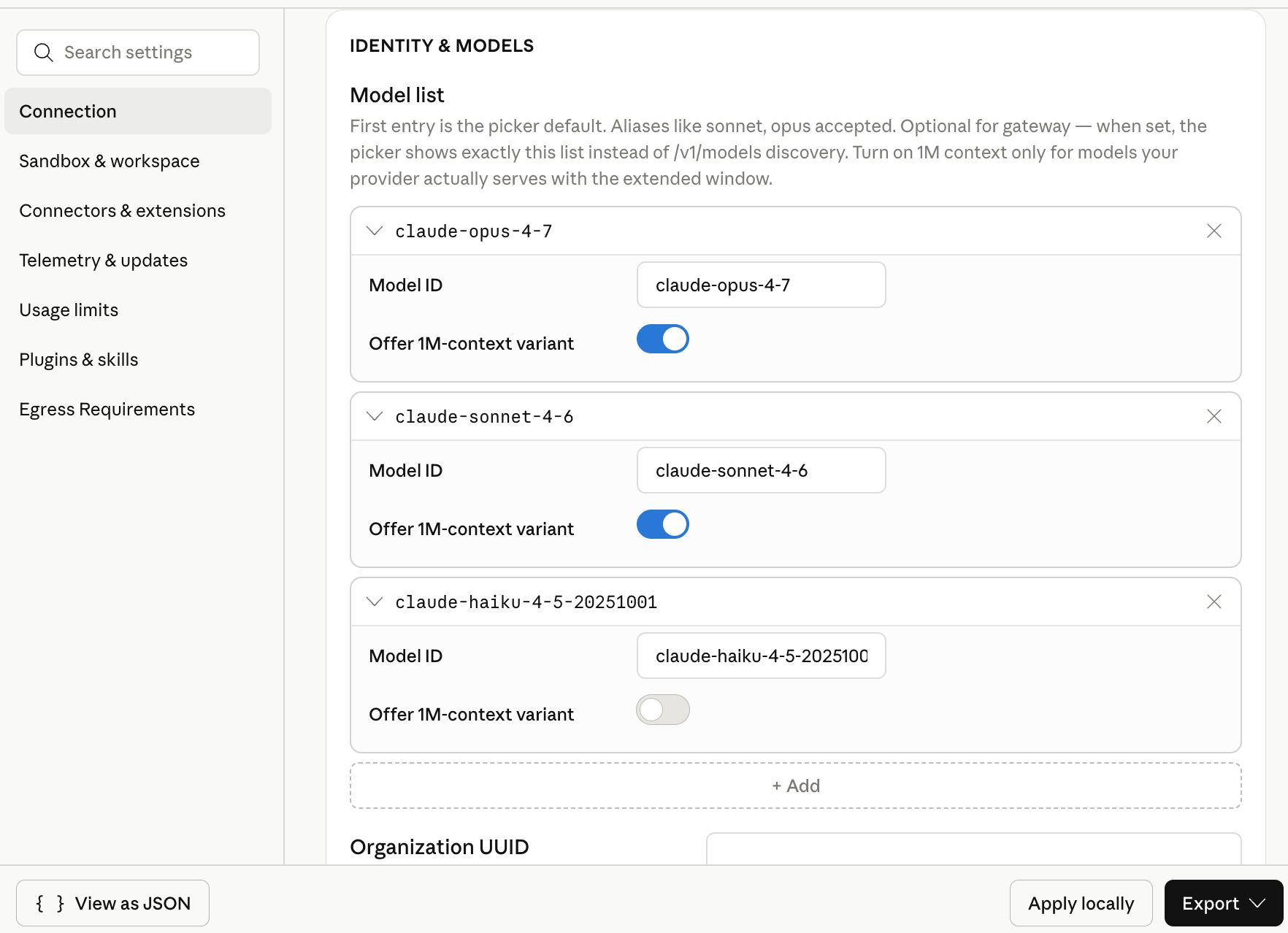
清單中的第一個模型會成為預設模型。如果你想要通用型預設模型,請將
claude-sonnet-4-6 放在第一個。下方截圖顯示已為 CometAPI 設定這三個 Claude model ID 的模型清單。5
在本機套用設定
點擊 Apply locally。Claude Desktop 會將所選設定寫入本機使用者設定檔,並重新啟動應用程式。如果應用程式沒有重新啟動,請完整結束 Claude Desktop 後再重新開啟。
6
開始 Cowork 工作階段
在登入畫面上,選擇使用第三方推論的 Cowork 選項。開啟 Cowork 或 Projects,選取其中一個已設定的 Claude 模型,並送出一個簡短的測試 Prompt。成功收到回應就表示 Claude Desktop 正在使用 CometAPI 進行模型呼叫。
驗證設定
使用一個不需要外部工具的簡短 Prompt: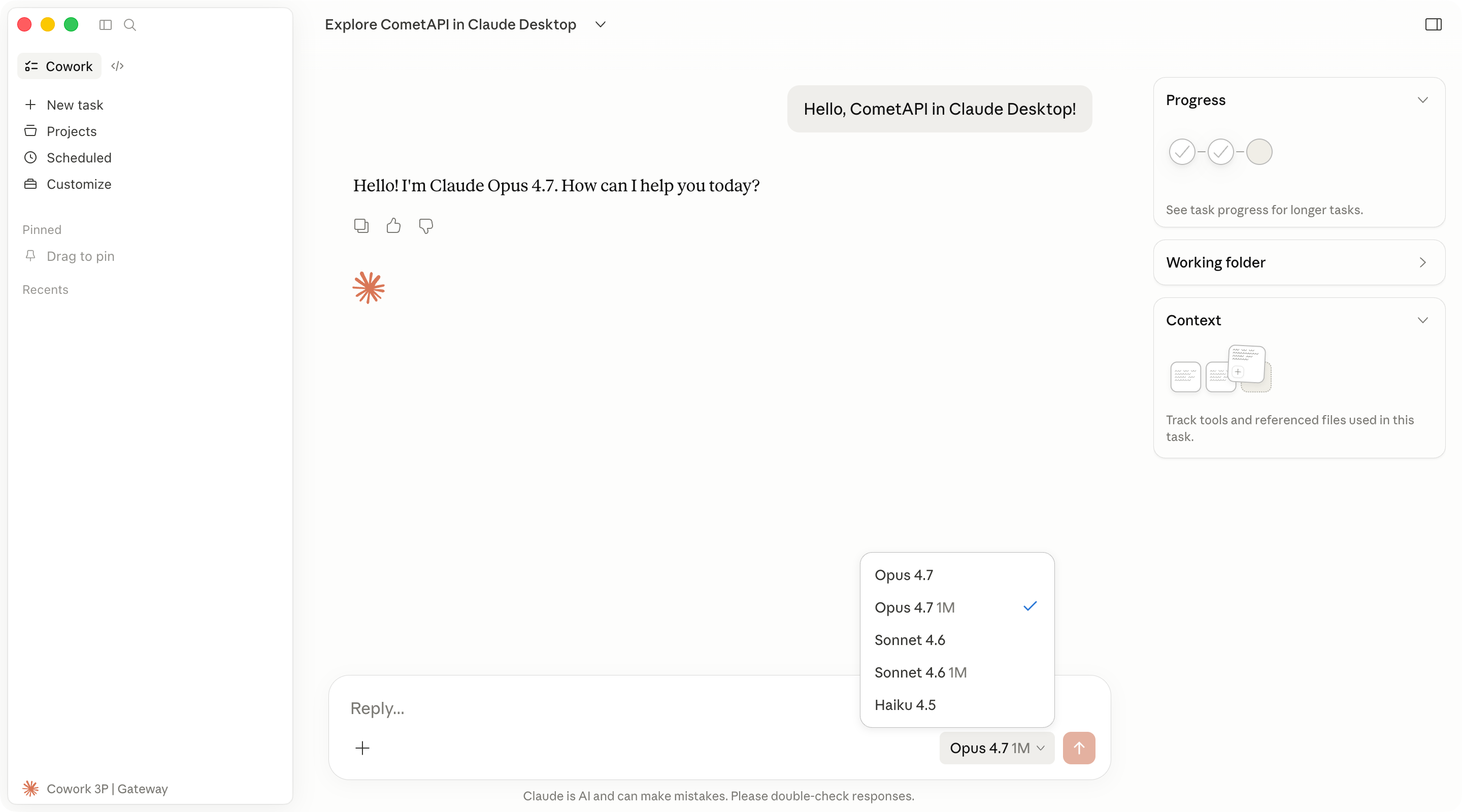
疑難排解
開發者選單沒有出現
開發者選單沒有出現
請確認你已選取 Help → Troubleshooting → Enable Developer Mode。接著完全關閉 Claude Desktop,然後重新開啟。如果找不到這個選項,請安裝包含第三方推論設定的 Claude Desktop 版本。
Claude Desktop 會開啟標準登入流程
Claude Desktop 會開啟標準登入流程
請檢查以下項目:
- Inference provider 已設為 Gateway。
- Gateway base URL 為
https://api.cometapi.com。 - Gateway API key 包含你的 CometAPI API key,且沒有多餘空格。
- 你已點擊 Apply locally,並且已完整重新啟動 Claude Desktop。
連線驗證失敗
連線驗證失敗
請確認 base URL 是以
https:// 開頭。Claude Desktop 不接受純 HTTP 的 gateway URL。也請確認你的 CometAPI 帳戶可存取 Claude 模型,且該 API key 未被刪除或停用。已設定的模型沒有出現
已設定的模型沒有出現
重新開啟 Developer → Configure third-party inference,並檢查 Model list 項目。model ID 必須與 CometAPI 提供的 ID 完全一致。請將每個 model ID 分別新增為獨立項目。不要在 UI 欄位中包含引號、逗號或多餘空格。
OpenAI 相容的 base URL 無法運作
OpenAI 相容的 base URL 無法運作
Claude Desktop 的第三方推論在此流程中需要 Anthropic 相容的 gateway。請使用
https://api.cometapi.com 以及上方列出的 Claude 模型 ID。Code 分頁的行為不同
Code 分頁的行為不同
Code 分頁在 Claude Desktop 中使用 Claude Code 引擎。某些桌面設定套用到 Code 工作階段的方式,可能與套用到 Cowork 的方式不同。若要用於獨立終端機,請參閱 Claude Code 整合指南。